A proxy in Selenium acts as a middleman between your browser and the internet, allowing you to control and monitor web traffic. Proxies are primarily used to ensure privacy and encapsulation between numerous interactive systems.
It can be used for a variety of purposes, such as simulating different geographical locations, hiding your IP address, or even intercepting and modifying requests and responses.
Overview
Setting up a proxy in Selenium allows testers to control network traffic, bypass restrictions, and enhance security during automation testing.
Setting Unauthenticated Proxy in Selenium
- Load Selenium WebDriver
- Define Proxy (IP:PORT)
- Set ChromeOptions()
- Add proxy to options
- Add the options to the Chrome()
Setting Authenticated Proxy in Selenium
- Create a Chrome extension
- Add Extension to Selenium using add_extension to Selenium
- Run the script to configure the proxy in Chrome using Selenium WebDriver
- Test on real devices using BrowserStack’s cloud Selenium grid for accuracy
In the following sections, I’ll explain how to set up both unauthenticated and authenticated proxies in Selenium, ensuring you can easily integrate them into your test environment.
What is Selenium Proxy?
A Selenium proxy works as a middle layer between automated browser sessions and the web.
It enables traffic routing, IP masking, access to region-restricted content, and inspection of network activity. It plays an important role in scenarios such as web scraping, performance testing, and localization testing.
Proxies in Selenium are commonly used for:
- Bypassing geo-restrictions: Perform geolocation testing by simulating access from different regions.
- Capturing and analyzing network traffic: Debugging requests, responses, and performance issues.
- Enhancing security and privacy: Hiding the real IP address to avoid detection or blocking.
- Testing under different network conditions: Simulating slow or unstable connections to check website resilience.
Selenium provides built-in support for proxies through the Proxy class, which can be configured for browsers like Chrome, Firefox, and Edge. By integrating proxies into test scripts, QA teams can ensure more robust and realistic testing scenarios.
Authenticating Proxy in Selenium
Proxy servers are most helpful in executing localization tests. Let’s say a tester wants to open an E-commerce website and check that the proper language settings and currency appear for users from a specific country.
- An easy way to verify this is to access the website as a user would from a target location.
- Like most tests, it would be easier to automate this activity, especially when a website has to be checked from multiple locations.
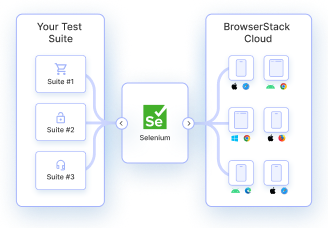
Selenium is the most widely used tool for running browser automation tests. Essentially, developers can use Selenium to monitor browser and website behavior without opening and executing an entire browser instance. This article will detail how to set up a proxy server and use it to access the website via Selenium.
1. Setting Up Unauthenticated Proxy
An unauthenticated proxy server in Selenium can be set up with the following steps:
- Import Selenium WebDriver from the package
- Define the proxy server (IP:PORT)
- Set ChromeOptions()
- Add the proxy server argument to the options
- Add the options to the Chrome() instance
from selenium import webdriver
PROXY = "11.456.448.110:8080"
chrome_options = WebDriver.ChromeOptions()
chrome_options.add_argument('--proxy-server=%s' % PROXY)
chrome = webdriver.Chrome(chrome_options=chrome_options)
chrome.get("https://www.google.com")
Use this Chrome WebDriver instance to execute tests that incorporate the proxy server. For example, the following code snippet tests to ensure that a search field shows the user’s current city as the default location.
def testUserLocationZurich(self):
self.chrome.get(self.url)
search = self.chrome.find_element_by_id('user-city')
self.assertIn('Zurich', search.text)
To test a website from multiple locations by making this code reusable across separate tests, define a method that takes the proxy IP address as an argument.
selenium.webdriver.common.proxy – Proxy contains information about the proxy type and necessary proxy settings.
Testers can run tests using an unauthenticated server. However, if they wish to use an authenticated server, they can follow the procedure below.
2. Setting Up an Authenticated Proxy in Selenium (JavaScript)
Authenticated proxy servers can be tedious to use in automated tests as there’s no built-in way to pass along proxy server credentials in Selenium. As of now, there are two options to handle authenticated proxies. The right choice depends on the testers’ requirements. It depends on factors like the version of Selenium and the headless browser used in tests.
Let’s learn how to use it.
- The best way to integrate authenticated proxies with Selenium is by using PhantomJS as a headless browser instead of the Chrome WebDriver.
- However, adding a browser extension to authenticate Selenium is possible.
- While this approach is more complex, it can be used with the latest version of Selenium, which may be a requirement for some development teams.
Note: The following steps use JavaScript. For a Python-based approach, refer to this guide on Using Selenium Wire Proxy in Python
The first step is creating a Chrome extension by including two files in an archive named proxy.zip:
Background.js
var config = {
mode: "fixed_servers",
rules: {
singleProxy: {
scheme: "http",
host: "YOUR_PROXY_ADDRESS",
port: parseInt(PROXY_PORT)
},
bypassList: ["foobar.com"]
}
};
chrome.proxy.settings.set({value: config, scope: "regular"}, function() {});
function callbackFn(details) {
return {
authCredentials: {
username: "PROXY_USERNAME",
password: "PROXY_PASSWORD"
}
};
}

chrome.webRequest.onAuthRequired.addListener(
callbackFn,
{urls: ["<all_urls>"]},
['blocking']
);
manifest.js
{
"version": "1.0.0",
"manifest_version": 3,
"name": "Chrome Proxy",
"permissions": [
"Proxy",
"Tabs",
"unlimitedStorage",
"Storage",
"<all_urls>",
"webRequest",
"webRequestBlocking"
],
"background": {
"scripts": ["background.js"]
},
"Minimum_chrome_version":"76.0.0"
}
The Chrome extension can be added to Selenium using the add_extension method:
from selenium import webdriver
from selenium.webdriver.chrome.options import Options
chrome_options = Options()
chrome_options.add_extension("proxy.zip")
driver = webdriver.Chrome(executable_path='chromedriver.exe', chrome_options=chrome_options)
driver.get("http://google.com")
driver.close()
This example uses a single proxy server in the extension. To add more proxy servers, the tester must make further modifications to the chrome.proxy API. If the tester uses a CI/CD server, they would have to be sure that the build machine has Chrome installed and the relevant browser extension added.
Run Selenium Tests on Real Device Cloud
Try running the code detailed above to set the proxy for Chrome using Selenium WebDriver. Remember that Selenium tests must be run on a real device cloud to get accurate results.
BrowserStack’s cloud Selenium grid of 3500+ real browsers and devices allows testers to automate visual UI tests in real user conditions. Sign up, select a device-browser-OS combination, and run free tests.
3. Setting Up an Authenticated Proxy in Selenium (Using Python)
Authenticated proxy servers introduce extra complexity in Selenium automation because Selenium does not provide a native way to pass proxy credentials. In Python-based Selenium tests, handling authenticated proxies typically requires external tooling or browser-level workarounds. The suitable approach depends on factors such as the Selenium version, browser choice, and whether tests run in headless mode or CI environments.
Below are the commonly used and practical approaches for Python users.
Option 1: Using Selenium Wire (Recommended for Python)
Selenium Wire is a Python library that extends Selenium WebDriver and provides built-in support for authenticated proxies without requiring browser extensions. It intercepts HTTP/HTTPS traffic and allows credentials to be configured directly in code.
This approach is easier to maintain and works well with modern versions of Selenium and Chrome.
Example:
from seleniumwire import webdriver  # pip install selenium-wire


proxy_options = {

    'proxy': {

        'http': 'http://USERNAME:PASSWORD@PROXY_HOST:PROXY_PORT',

        'https': 'https://USERNAME:PASSWORD@PROXY_HOST:PROXY_PORT',

        'no_proxy': 'localhost,127.0.0.1'

    }

}


driver = webdriver.Chrome(seleniumwire_options=proxy_options)

driver.get("https://www.google.com")

driver.quit()
Why this approach works well:
- No browser extensions required
- Supports request inspection and modification
- Compatible with headless execution and CI/CD pipelines
- Cleaner setup compared to Chrome extensions
Option 2: Using a Chrome Extension with Python Selenium
If Selenium Wire cannot be used due to project constraints, authenticated proxies can still be configured using a Chrome extension. This method mirrors the JavaScript-based approach but integrates it into Python Selenium tests.
The process involves:
- Creating a Chrome extension that sets proxy configuration and injects authentication credentials
- Packaging the extension as a ZIP file
- Loading the extension using ChromeOptions in Python
Python code to load the extension:
from selenium import webdriver

from selenium.webdriver.chrome.options import Options


chrome_options = Options()

chrome_options.add_extension("proxy.zip")


driver = webdriver.Chrome(options=chrome_options)

driver.get("https://www.google.com")

driver.quit()
Important considerations for this approach:
- Chrome must be installed on the execution machine
- The extension must be compatible with the Chrome version used
- Managing multiple proxy servers requires additional logic in the extension
- CI environments must support Chrome extensions, which can add setup overhead
Choosing the Right Approach
For Python-based Selenium tests, Selenium Wire is generally the preferred solution due to its simplicity, flexibility, and native support for authenticated proxies. The Chrome extension method is useful only when extension-based authentication is mandatory or when deeper browser-level proxy control is required.
For a detailed Python-focused guide using Selenium Wire, refer to: Using Selenium Wire Proxy in Python
Common Issues with Proxy in Selenium
When working with proxies in Selenium, there are several common issues that you might encounter. Here’s a quick overview of some of these challenges and tips on how to handle them:
1. Proxy Connection Errors
- Issue: Sometimes, Selenium might fail to connect to the proxy server, resulting in connection errors.
- Solution: Double-check the proxy settings, including the IP, port, and authentication credentials. Ensure that your proxy server is up and running.
2. Authentication Problems
- Issue: When using an authenticated proxy, Selenium may struggle with handling the authentication prompts, leading to failed connections.
- Solution: You can automate the authentication process using the DesiredCapabilities in Selenium to handle authentication seamlessly.
3. Proxy Configuration Not Applied
- Issue: Sometimes, the proxy settings aren’t properly applied, and Selenium continues to use the default network settings.
- Solution: Make sure that the proxy settings are correctly configured in your WebDriver options and that the correct capabilities are set before initiating the test.
4. Slow or Inconsistent Test Execution
- Issue: Using a proxy can sometimes slow down your tests, especially if it’s routing traffic through distant servers or applying complex rules.
- Solution: Test with proxies located closer to your server or network, and consider using a fast proxy service like BrowserStack for seamless cloud-based testing.
5. HTTPS/SSL Issues
- Issue: If you’re using an HTTPS proxy, you may run into SSL certificate issues where Selenium doesn’t trust the proxy’s certificate.
- Solution: You can bypass SSL verification in your Selenium configuration, but be cautious, as this might open your tests up to security vulnerabilities.
6. Inconsistent Results Between Local and Cloud Testing
- Issue: When switching between local environments and cloud platforms like BrowserStack, proxy configurations may behave differently, leading to inconsistent test results.
- Solution: Use cloud testing platforms like BrowserStack, which provide consistent proxy configurations across different devices and browsers, ensuring reliable test outcomes.
Best Practices for Proxy Setup in Selenium
Setting up proxies in Selenium can greatly enhance your testing, but to get the best results, it’s important to follow some key best practices. Here are some tips to ensure smooth proxy setup and testing:
1. Use a Reliable Proxy Server
- Why: A slow or unreliable proxy can lead to inaccurate test results and long delays.
- Best Practice: Always choose a high-quality, reliable proxy provider. If possible, opt for a local proxy to reduce latency or use a service like BrowserStack for cloud-based proxy testing, which ensures a stable connection.
2. Automate Proxy Authentication
- Why: Manually handling proxy authentication during tests can be time-consuming and prone to errors.
- Best Practice: Automate proxy authentication using Selenium WebDriver’s DesiredCapabilities or tools like BrowserMob Proxy. This allows seamless authentication during tests without manual intervention.
3. Configure Proxy Settings Before Starting the Test
- Why: Changing proxy settings mid-test can lead to inconsistent results or failed tests.
- Best Practice: Always configure your proxy settings before launching the browser. This ensures that all web requests during the test go through the proxy, providing consistent and reliable results.
4. Use Different Proxies for Different Tests
- Why: Testing with the same proxy for all scenarios can limit the diversity of your test cases.
- Best Practice: For more robust testing, use different proxies to simulate different user locations, networks, and conditions. This can be especially helpful for geolocation testing, network restrictions, or simulating throttled connections.
5. Monitor and Log Proxy Traffic
- Why: Proxy traffic can help you identify potential issues, such as network failures or slow response times.
- Best Practice: Set up logging and monitoring for proxy traffic to capture HTTP requests and responses. This helps analyze network behavior, identify performance bottlenecks, and understand how applications interact with backend services during test execution.
6. Handle SSL/HTTPS Proxies Carefully
- Why: SSL verification issues can disrupt tests when using an HTTPS proxy.
- Best Practice: If testing on an HTTPS proxy, make sure to either disable SSL verification in your WebDriver or import the proxy’s SSL certificate into your browser’s trust store. This ensures secure communication during the test.
Read More: How to test HTTPS Websites from Local Host
7. Consider Using Cloud-Based Testing Platforms
- Why: Configuring proxies locally can be complex and time-consuming, especially across different browsers and devices.
- Best Practice: Use cloud-based testing platforms like BrowserStack, which simplify proxy setup and allow you to test across real devices and browsers without worrying about local configurations.
8. Keep Proxy Settings Secure
- Why: Hardcoding sensitive proxy credentials in your code can expose them to unauthorized access.
- Best Practice: Store proxy credentials securely, using environment variables or secure vaults to prevent leakage of sensitive information. Avoid hardcoding them directly into test scripts.
9. Test Proxy Performance
- Why: A slow proxy can significantly affect test execution time and skew your results.
- Best Practice: Periodically test the performance of the proxies you use. If you notice a significant drop in speed or reliability, consider switching to a better-performing proxy provider.
BrowserStack provides a cloud-based solution that offers fast and reliable proxy configurations across a wide range of real devices and browsers. By testing on BrowserStack’s platform, you can ensure your proxies are performing optimally without the need to manage local proxy servers, allowing for consistent, high-quality testing in diverse environments.
By following these best practices, you’ll be able to set up proxies in Selenium more efficiently, ensuring your tests are more accurate, reliable, and realistic. Whether testing on local machines or using cloud platforms like BrowserStack, proper proxy setup will significantly enhance your testing process.
Conclusion
Configuring a proxy in Selenium helps testers simulate different network conditions, improve security, and bypass restrictions. Whether using standard or authenticated proxies, proper setup ensures seamless automation.