- Lesson 1 - Introduction
- Lesson 2 - JavaScript Where To
- Lesson 3 - JavaScript Output
- Lesson 4 - JavaScript Syntax
- Lesson 5 - JavaScript Statement
- Lesson 6 - JavaScript Comments
- Lesson 7 - JavaScript Variables
- Lesson 8 - JavaScript Operators
- ...
- Lesson 17 - JS String Methods
- Lesson 18 - JS Numbers
- Lesson 19 - JS Number Methods
- Lesson 20 - JS Math Object
- Lesson 21 - JavaScript Dates
- Lesson 22 - JS Arrays
- Lesson 23 - JS Booleans
- Lesson 24 - JS Comparison and Logical Operators
- Lesson 25 - JS Condition If Else Statements
- Lesson 26 - JS JavaScript Switch Statement
- Lesson 27 - JS For Loop
- Lesson 28 - JS While
- Lesson 29 - JS Break and Continue
- Lesson 30 - JS Type Conversion
- Lesson 31 - JS Regular Expression
- Lesson 32 - JS Throw and Try to Catch
- Lesson 33 - JS Debugging
- Lesson 34 - JS Hoisting
- Lesson 35 - JS Use Strict
- Lesson 36 - JS Style Guide and Coding Conventions
- Lesson 37 - JS Best Practices
- Lesson 38 - JS Common Mistakes
- Lesson 39 - JS Performance
- Lesson 40 - JS JSON
This page contains some examples of what JavaScript can do.
One of many JavaScript HTML methods is getElementById().
This example uses the method to "find" an HTML element (with id="demo") and changes the element content (innerHTML) to "Hello JavaScript":
Example
document.getElementById("demo").innerHTML = "Hello JavaScript";
<button type="button" onclick="document.getElementById('tanggal').innerHTML = Date()">
  Click me to find out the date is
</button>
<p id="tanggal"></p>
This example changes an HTML image by changing the src (source) attribute of an tag:
Prinsipnya adalah
onclick="getElementById('myImage').src='myNewImage';"
Sample
<img id="myImage" src="http://res.cloudinary.com/medio/image/upload/v1467519618/pic_bulboff_diye3u.gif" alt=""><br>
<button type="button" onclick="document.getElementById('myImage').src='http://res.cloudinary.com/medio/image/upload/v1467519606/pic_bulbon_hnaava.gif' ">
  Click to ON Lamp
</button>

<button type="button" onclick="document.getElementById('myImage').src='http://res.cloudinary.com/medio/image/upload/v1467519618/pic_bulboff_diye3u.gif' ">Turn OFF again</button>
Changing the style of an HTML element, is a variant of changing an HTML attribute:
Prinsip:
document.getElementById("demo").style.fontSize = "25px";
Sample:
<h2>We going to change Font Size text & Color</h2>

<p id="textme">This is the text we going to change the font style</p>

<button type="button" onclick="document.getElementById('textme').style.fontSize='25px'">Change Size</button>
<button type="button" onclick="document.getElementById('textme').style.color='red'">Change Color</button>
Hiding HTML elements can be done by changing the display style:
Prinsip:
document.getElementById("demo").style.display="none";
Sample:
<h1 id="judul">Saya ingin menyembunyikan ini sesaat saya menekan tombol</h1>

<button type="button" onclick="document.getElementById('judul').style.display='none'">
	Tombol
</button>
Showing hidden HTML elements can also be done by changing the display style:
Prinsip:
document.getElementById("demo").style.display="block";
Sample:
<h3>Menampilkan text yang tersembunyi</h3>

<p id="sembunyi" style="display:none;">Hello World Dyo!!!</p>

Klik button untuk menampilkan sesuatu
<button type="button" onclick="document.getElementById('sembunyi').style.display='block'">
  Click me
</button>
It is difficult to answer the question "What can JavaScript do?"
The examples on this page is only a few examples of the possibilities JavaScript provides.
JavaScript can be placed in the <body> and the <head> sections of an HTML page.
In HTML, JavaScript code must be inserted between <script> and </script> tags.
Example
<script>
	document.getElementById("demo").innerHTML = "My First JavaScript";
</script>
Note:
Older examples may use a type attribute: <script type="text/javascript">.
This type attribute is not required. JavaScript is the default scripting language in HTML.
A JavaScript function is a block of JavaScript code, that can be executed when "asked" for. For example, a function can be executed when an event occurs, like when the user clicks a button.
sample:
<h3 id="rubah">Merubah text ini menjadi text lain</h3>

<script>
    function myFunction() {
      document.getElementById('rubah').innerHTML="Text telah berubah menjadi yang ini."
    }
</script>

<p>
	<button type="button" onclick="myFunction()">Click deh</button>
</p>
myScript.js
function myFunction() {
   document.getElementById("demo").innerHTML = "Paragraph changed.";
}
put the extention link:
<!DOCTYPE html>
<html>
<body>
	<script src="myScript.js"></script>
</body>
</html>
Sample:
<!DOCTYPE html>
<html>
<body>

<h1>External JavaScript</h1>

<p id="demo">A Paragraph.</p>

<button type="button" onclick="myFunction()">Try it</button>

<p><strong>Note:</strong> myFunction is stored in an external file called "myScript.js".</p>

<script src="myScript.js"></script>

</body>
</html>
JavaScript can "display" data in different ways:
Writing into an alert box, using window.alert(). Writing into the HTML output using document.write(). Writing into an HTML element, using innerHTML. Writing into the browser console, using console.log().
You can use an alert box to display data:
<script>
	window.alert(5 + 6)
</script>
For testing purposes, it is convenient to use document.write():
<script>
	document.write(8 + 6);
</script>
Other sample:
<button type="button" onclick="document.write(5 + 7)">
  Try it!
</button>
To access an HTML element, JavaScript can use the document.getElementById(id) method. Untuk mengakses sebuah elemen HTML, JavaScript dapat menggunakan metode document.getElementById (id).
The id attribute defines the HTML element. The innerHTML property defines the HTML content: Atribut id mendefinisikan elemen HTML. Properti innerHTML mendefinisikan konten HTML:
<p id="demo"></p>

<script>
	document.getElementById("demo").innerHTML = 5 + 8;
</script>
In your browser, you can use the console.log() method to display data.
Activate the browser console with F12, and select "Console" in the menu.
<script>
    console.log(5 +7)
</script>
JavaScript syntax is the set of rules, how JavaScript programs are constructed. sintaks JavaScript adalah seperangkat aturan, bagaimana JavaScript program dibangun.
A computer program is a list of "instructions" to be "executed" by the computer.
In a programming language, these program instructions are called statements.
JavaScript is a programming language.
JavaScript statements are separated by semicolons.
var x = 5;
var y = 8;
var z = x + y;
document.getElementById("contoh1").innerHTML = z;
JavaScript statements are composed of:
Values, Operators, Expressions, Keywords, and Comments.
The JavaScript syntax defines two types of values: Fixed values and variable values.
Fixed values are called literals. Variable values are called variables.
The most important rules for writing fixed values are:
Numbers are written with or without decimals:
10.5
1001
Strings are text, written within double or single quotes:
"John Doe"
'John Doe'
In a programming language, variables are used to store data values.
JavaScript uses the var keyword to declare variables.
An equal sign is used to assign values to variables.
In this example, x is defined as a variable. Then, x is assigned (given) the value 6:
var x;
x = 6;

document.getElementById("demo").innerHTML = x;
JavaScript uses an assignment operator ( = ) to assign values to variables:
var x = 7;
var y = 8;

document.getElementById("demo").innerHTML = x + y;
Other sample:
(5 + 6) * 10
An expression is a combination of values, variables, and operators, which computes to a value.
The computation is called an evaluation.
For example, 5 * 10 evaluates to 50:
5 * 10
Expressions can also contain variable values:
x * 10
The values can be of various types, such as numbers and strings.
For example, "John" + " " + "Doe", evaluates to "John Doe":
"John" + " " + "Doe"

document.getElementById("demo").innerHTML = "John" + " "  + "Doe";
JavaScript keywords are used to identify actions to be performed.
The var keyword tells the browser to create a new variable:
var x = 5 + 6;
var y = x * 10;
Not all JavaScript statements are "executed".
Code after double slashes // or between /* and */ is treated as a comment.
Comments are ignored, and will not be executed:
var x = 5;   // I will be executed

// var x = 6;   I will NOT be executed
Identifiers are names.
In JavaScript, identifiers are used to name variables (and keywords, and functions, and labels).
The rules for legal names are much the same in most programming languages.
In JavaScript, the first character must be a letter, an underscore (_), or a dollar sign ($).
Subsequent characters may be letters, digits, underscores, or dollar signs.
Numbers are not allowed as the first character. This way JavaScript can easily distinguish identifiers from numbers.
The variables lastName and lastname, are two different variables.
lastName = "Doe";
lastname = "Peterson";
JavaScript does not interpret VAR or Var as the keyword var.
Historically, programmers have used three ways of joining multiple words into one variable name:
Hyphens:
first-name, last-name, master-card, inter-city.
Underscore:
first_name, last_name, master_card, inter_city.
Camel Case:
FirstName, LastName, MasterCard, InterCity.
In programming languages, especially in JavaScript, camel case often starts with a lowercase letter:
firstName, lastName, masterCard, interCity.
Hyphens are not allowed in JavaScript. It is reserved for subtractions.
JavaScript uses the Unicode character set.
Unicode covers (almost) all the characters, punctuations, and symbols in the world.
For a closer look, please study our Complete Unicode Reference.
In HTML, JavaScript statements are "instructions" to be "executed" by the web browser.
This statement tells the browser to write "Hello Dolly." inside an HTML element with id="demo":
document.getElementById("demo").innerHTML = "Hello Dolly.";
Most JavaScript programs contain many JavaScript statements.
The statements are executed, one by one, in the same order as they are written.
In this example x, y, and z are given values, and finally z is displayed:
Example
var x = 5;
var y = 6;
var z = x + y;
document.getElementById("demo").innerHTML = z;
JavaScript programs (and JavaScript statements) are often called JavaScript code.
Semicolons separate JavaScript statements.
Add a semicolon at the end of each executable statement:
a = 5;
b = 6;
c = a + b;

document.write(c);
When separated by semicolons, multiple statements on one line are allowed:
x = 7; y = 6; z = x + y;

document.write(z);
On the web, you might see examples without semicolons. Ending statements with semicolon is not required, but highly recommended.
JavaScript ignores multiple spaces. You can add white space to your script to make it more readable.
The following lines are equivalent:
var person = "Hege";
var person="Hege";
A good practice is to put spaces around operators ( = + - * / ):
var x = y + z;
For best readability, programmers often like to avoid code lines longer than 80 characters.
If a JavaScript statement does not fit on one line, the best place to break it, is after an operator:
Example
document.getElementById("demo").innerHTML =
"Hello Dolly.";
JavaScript statements can be grouped together in code blocks, inside curly brackets {...}.
The purpose of code blocks is to define statements to be executed together.
One place you will find statements grouped together in blocks, are in JavaScript functions:
Example
function myFunction() {
    document.getElementById("demo").innerHTML = "Hello Dolly.";
    document.getElementById("myDIV").innerHTML = "How are you?";
}
JavaScript statements often start with a keyword to identify the JavaScript action to be performed.
Here is a list of some of the keywords you will learn about in this tutorial:
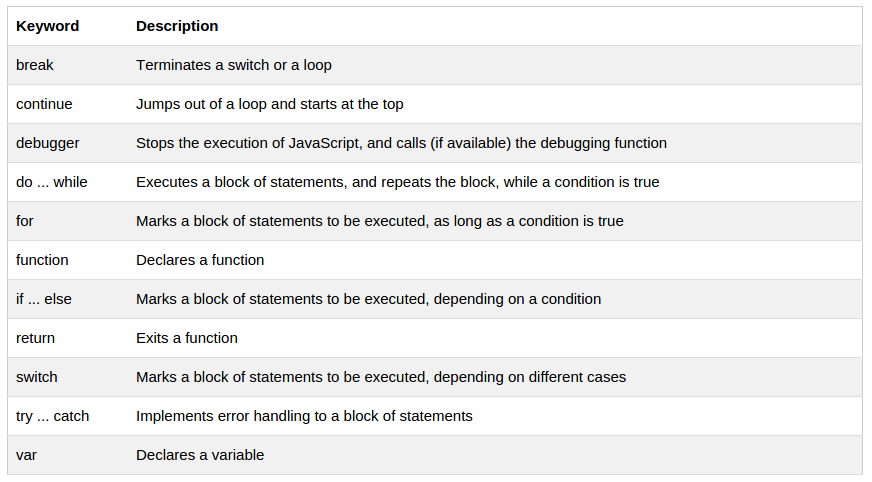
JavaScript comments can be used to explain JavaScript code, and to make it more readable.
JavaScript comments can also be used to prevent execution, when testing alternative code.
Single line comments start with //.
Any text between // and the end of the line will be ignored by JavaScript (will not be executed).
This example uses a single-line comment before each code line:
Example
// Change heading:
document.getElementById("myH").innerHTML = "My First Page";
// Change paragraph:
document.getElementById("myP").innerHTML = "My first paragraph.";
This example uses a single line comment at the end of each line to explain the code:
Example
var x = 5;      // Declare x, give it the value of 5
var y = x + 2;  // Declare y, give it the value of x + 2
Multi-line comments start with /* and end with */.
Any text between /* and */ will be ignored by JavaScript.
This example uses a multi-line comment (a comment block) to explain the code:
Example
/*
The code below will change
the heading with id = "myH"
and the paragraph with id = "myP"
in my web page:
*/
document.getElementById("myH").innerHTML = "My First Page";
document.getElementById("myP").innerHTML = "My first paragraph.";
It is most common to use single line comments. Block comments are often used for formal documentation.
Using comments to prevent execution of code is suitable for code testing.
Adding // in front of a code line changes the code lines from an executable line to a comment.
This example uses // to prevent execution of one of the code lines:
Example
//document.getElementById("myH").innerHTML = "My First Page";
document.getElementById("myP").innerHTML = "My first paragraph.";
This example uses a comment block to prevent execution of multiple lines:
Example
/*
document.getElementById("myH").innerHTML = "My First Page";
document.getElementById("myP").innerHTML = "My first paragraph.";
*/
JavaScript variables are containers for storing data values.
In this example, x, y, and z, are variables:
Example
var x = 5;
var y = 6;
var z = x + y;
From the example above, you can expect:
x stores the value 5
y stores the value 6
z stores the value 11
In this example, price1, price2, and total, are variables:
Example var price1 = 5; var price2 = 6; var total = price1 + price2;
Example
var price1 = 5;
var price2 = 6;
var total = price1 + price2;
Example:
<p id="demo"></p>

<script>
	var price1 = 5;
	var price2 = 6;
	var total = price1 + price2;

	document.getElementById("demo").innerHTML =
	"The total is: " + total;
</script>
In programming, just like in algebra, we use variables (like price1) to hold values.
In programming, just like in algebra, we use variables in expressions (total = price1 + price2).
From the example above, you can calculate the total to be 11.
JavaScript variables are containers for storing data values.
All JavaScript variables must be identified with unique names.
These unique names are called identifiers.
Identifiers can be short names (like x and y), or more descriptive names (age, sum, totalVolume).
The general rules for constructing names for variables (unique identifiers) are:
- Names can contain letters, digits, underscores, and dollar signs.
- Names must begin with a letter
- Names can also begin with $ and _ (but we will not use it in this tutorial)
- Names are case sensitive (y and Y are different variables)
- Reserved words (like JavaScript keywords) cannot be used as names.
JavaScript identifiers are case-sensitive.
In JavaScript, the equal sign (=) is an "assignment" operator, not an "equal to" operator.
This is different from algebra. The following does not make sense in algebra:
x = x + 5
In JavaScript, however, it makes perfect sense: it assigns the value of x + 5 to x.
(It calculates the value of x + 5 and puts the result into x. The value of x is incremented by 5.)
The "equal to" operator is written like == in JavaScript.
JavaScript variables can hold numbers like 100, and text values like "John Doe".
In programming, text values are called text strings.
JavaScript can handle many types of data, but for now, just think of numbers and strings.
Strings are written inside double or single quotes. Numbers are written without quotes.
If you put quotes around a number, it will be treated as a text string.
Example
var pi = 3.14;
var person = "John Doe";
var answer = 'Yes I am!';
Creating a variable in JavaScript is called "declaring" a variable.
You declare a JavaScript variable with the var keyword:
var carName;
After the declaration, the variable has no value. (Technically it has the value of undefined)
To assign a value to the variable, use the equal sign:
carName = "Volvo";
You can also assign a value to the variable when you declare it:
var carName = "Volvo";
It's a good programming practice to declare all variables at the beginning of a script.
Example:
<p id="sample"></p>

<script>
	var schoolName = "Universitas Indonesia";

  document.getElementById("sample").innerHTML = schoolName;
</script>
You can declare many variables in one statement.
Start the statement with var and separate the variables by comma:
var person = "John Doe",
carName = "Volvo",
price = 200;
A declaration can span multiple lines:
var person = "John Doe",
carName = "Volvo",
price = 200;
In computer programs, variables are often declared without a value. The value can be something that has to be calculated, or something that will be provided later, like user input.
A variable declared without a value will have the value undefined.
The variable carName will have the value undefined after the execution of this statement:
Example
var carName;
If you re-declare a JavaScript variable, it will not lose its value.
The variable carName will still have the value "Volvo" after the execution of these statements:
Example
var carName = "Volvo";
var carName;
As with algebra, you can do arithmetic with JavaScript variables, using operators like = and +:
Example
var x = 5 + 2 + 3;

document.write(x);
document.write(x)
or
var y = "John" + " " + "Doe";
document.write(y)
or
var z = "5" + 2 + 3;
document.write(z)
If you add a number to a string, the number will be treated as string, and concatenated.
Example
Assign values to variables and add them together:
var x = 5;         // assign the value 5 to x
var y = 2;         // assign the value 2 to y
var z = x + y;     // assign the value 7 to z (x + y)
Example
Assign values to variables and add them together:
var x = 5;         // assign the value 5 to x
var y = 2;         // assign the value 2 to y
var z = x + y;     // assign the value 7 to z (x + y)
Arithmetic operators are used to perform arithmetic on numbers (literals or variables).
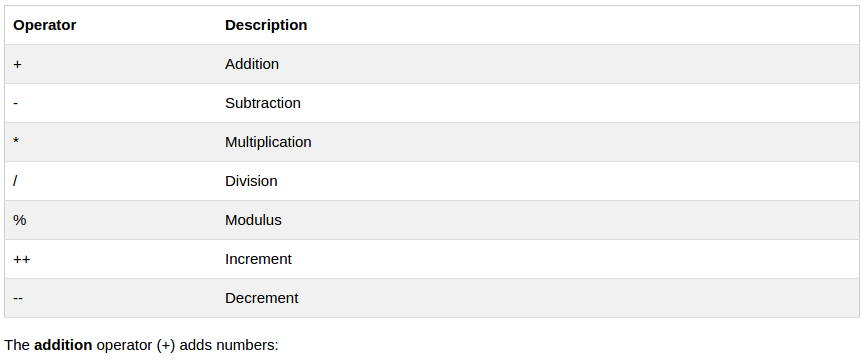
The addition operator (+) adds numbers:
var x = 5;
var y = 2;
var z = x + y;
The multiplication operator (*) multiplies numbers.
var x = 5;
var y = 2;
var z = x * y;
Assignment operators assign values to JavaScript variables.

The assignment operator (=) assigns a value to a variable.
var x = 10;
The addition assignment operator (+=) adds a value to a variable.
Assignment
var x = 10;
x += 5;
The + operator can also be used to add (concatenate) strings.
When used on strings, the + operator is called the concatenation operator.
Example
txt1 = "John";
txt2 = "Doe";
txt3 = txt1 + " " + txt2;
The result of txt3 will be:
John Doe
The += assignment operator can also be used to add (concatenate) strings:
Example
txt1 = "What a very ";
txt1 += "nice day";
The result of txt1 will be:
What a very nice day
Adding two numbers, will return the sum, but adding a number and a string will return a string:
Example
x = 5 + 5;
y = "5" + 5;
z = "Hello" + 5;
The result of x, y, and z will be:

10
55
Hello5
The rule is: If you add a number and a string, the result will be a string!
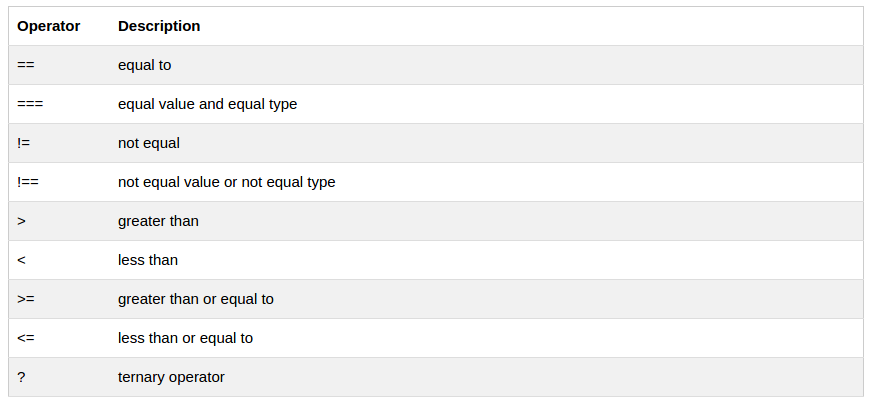
Comparison and logical operators are described in the JS Comparisons chapter.
Operator	Description
typeof		Returns the type of a variable
instanceof	Returns true if an object is an instance of an object type
Type operators are described in the JS Type Conversion chapter.
String, Number, Boolean, Array, Object.
JavaScript variables can hold many data types: numbers, strings, arrays, objects and more:
var length = 16;                               // Number
var lastName = "Johnson";                      // String
var cars = ["Saab", "Volvo", "BMW"];           // Array
var x = {firstName:"John", lastName:"Doe"};    // Object
In programming, data types is an important concept.
To be able to operate on variables, it is important to know something about the type.
Without data types, a computer cannot safely solve this:
var x = 16 + "Volvo";
Does it make any sense to add "Volvo" to sixteen? Will it produce an error or will it produce a result?
JavaScript will treat the example above as:
var x = "16" + "Volvo";
When adding a number and a string, JavaScript will treat the number as a string.
var x = 16 + "Volvo";

var x = "Volvo" + 16;
JavaScript evaluates expressions from left to right. Different sequences can produce different results:
Example:
var x = 16 + 4 + "Volvo";
Result:
20Volvo
Example:
var x = "Volvo" + 16 + 4;
Result:
Volvo164
In the first example, JavaScript treats 16 and 4 as numbers, until it reaches "Volvo".
In the second example, since the first operand is a string, all operands are treated as strings.
Booleans can only have two values: true or false.
Example
var x = true;
var y = false;
Booleans are often used in conditional testing.
JavaScript arrays are written with square brackets.
Array items are separated by commas.
The following code declares (creates) an array called cars, containing three items (car names):
Example
var cars = ["Saab", "Volvo", "BMW"];
Array indexes are zero-based, which means the first item is [0], second is [1], and so on.
You will learn more about arrays later in this tutorial.
JavaScript objects are written with curly braces.
Object properties are written as name:value pairs, separated by commas.
Example
var person = {firstName:"John", lastName:"Doe", age:50, eyeColor:"blue"};
The object (person) in the example above has 4 properties: firstName, lastName, age, and eyeColor.
You will learn more about objects later in this tutorial.
You can use the JavaScript typeof operator to find the type of a JavaScript variable:
Example
typeof "John"                // Returns string
typeof 3.14                  // Returns number
typeof false                 // Returns boolean
typeof [1,2,3,4]             // Returns object
typeof {name:'John', age:34} // Returns object
In JavaScript, an array is a special type of object. Therefore typeof [1,2,3,4] returns object.
In JavaScript, a variable without a value, has the value undefined. The typeof is also undefined.
Example
var person; // Value is undefined, type is undefined
Any variable can be emptied, by setting the value to undefined. The type will also be undefined.
Example
person = undefined; // Value is undefined, type is undefined
An empty value has nothing to do with undefined.
An empty string variable has both a value and a type.
Example
var car = ""; // The value is "", the typeof is string
In JavaScript null is "nothing". It is supposed to be something that doesn't exist.
Unfortunately, in JavaScript, the data type of null is an object.
Note You can consider it a bug in JavaScript that typeof null is an object. It should be null. You can empty an object by setting it to null:
Example
var person = null; // Value is null, but type is still an object
You can also empty an object by setting it to undefined:
Example
var person = undefined; // Value is undefined, type is undefined
Difference Between Undefined and Null
typeof undefined             // undefined
typeof null                  // object
null === undefined           // false
null == undefined            // true
A JavaScript function is a block of code designed to perform a particular task.
A JavaScript function is executed when "something" invokes it (calls it).
function myFunction(p1, p2) {
    return p1 * p2;         // The function returns the product of p1 and p2
}
Example
<p id="demo"></p>

<script>
	function myFunction(a, b) {
  	return a * b;
  }

  // memanggil function dengan getElement dari luar block function iu sendiri.
   document.getElementById("demo").innerHTML = myFunction(5, 3);
</script>
A JavaScript function is defined with the function keyword, followed by a name, followed by parentheses ().
Function names can contain letters, digits, underscores, and dollar signs (same rules as variables).
The parentheses may include parameter names separated by commas: (parameter1, parameter2, ...)
The code to be executed, by the function, is placed inside curly brackets: {}
function name(parameter1, parameter2, parameter3) {
    code to be executed
}
-
Function parameters are the names listed in the function definition.
-
Function arguments are the real values received by the function when it is invoked.
-
Inside the function, the arguments behave as local variables.
The code inside the function will execute when "something" invokes (calls) the function:
- When an event occurs (when a user clicks a button)
- When it is invoked (called) from JavaScript code
- Automatically (self invoked)
- You will learn a lot more about function invocation later in this tutorial.
When JavaScript reaches a return statement, the function will stop executing. Saat JS mendapat return statement, function akan berhenti eksekusi
If the function was invoked from a statement, JavaScript will "return" to execute the code after the invoking statement. Jika function sudah dipanggil dari statement, JS akan 'mengembalikan' nya untuk mengeksekusi kode tersebut setelah di statement panggil.
Functions often compute a return value. The return value is "returned" back to the "caller": Function sering menjalankan nilai pengembalian. Nilai pengembalian di kembalikan kepada sipemanggil
Example
Calculate the product of two numbers, and return the result:
var x = myFunction(4, 3);        // Function is called, return value will end up in x

function myFunction(a, b) {
    return a * b;                // Function returns the product of a and b
}
The result in x will be:
12
You can reuse code: Define the code once, and use it many times.
You can use the same code many times with different arguments, to produce different results.
Example
Convert Fahrenheit to Celsius:

function toCelsius(fahrenheit) {
    return (5/9) * (fahrenheit-32);
}
document.getElementById("demo").innerHTML = toCelsius(77);
Using the example above, toCelsius refers to the function object, and toCelsius() refers to the function result.
Example
Accessing a function without () will return the function definition:
function toCelsius(fahrenheit) {
    return (5/9) * (fahrenheit-32);
}
document.getElementById("demo").innerHTML = toCelsius;
Functions can be used as variable values in formulas, assignments, and calculations.
Example
You can use:
var text = "The temperature is " + toCelsius(77) + " Celsius";
toCelsius(77) is a function with the value already.
Instead of:
var x = toCelsius(32);

var text = "The temperature is " + x + " Celsius";
Example
<p id="demo">Display the result here.</p>

<script>
function myFunction(name) {
    return "Hello " + name;
}
document.getElementById("demo").innerHTML = myFunction("John")
</script>
Example
<h4>Define a function named "myFunction", and make it display "Hello World!" in the element.</h4>

<p id="demo"></p>

<script>
  function myFunction() {
  document.getElementById("demo").innerHTML = "Hello World!";
  }
  myFunction()
</script>
In real life, a car is an object.
A car has properties like weight and color, and methods like start and stop:
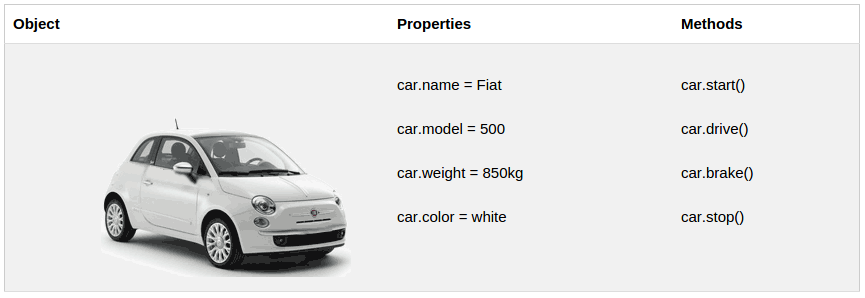
All cars have the same properties, but the property values differ from car to car.
All cars have the same methods, but the methods are performed at different times.
You have already learned that JavaScript variables are containers for data values.
This code assigns a simple value (Fiat) to a variable named car:
var car = "Fiat";
Objects are variables too. But objects can contain many values.
This code assigns many values (Fiat, 500, white) to a variable named car:
var car = {type:"Fiat", model:"500", color:"white"};

<p id="demo"></p>

<script>
  var car = {type:"Fiat", model:"500", color:"white"};
  document.getElementById("demo").innerHTML = "Type of Car: " + car.type;
</script>
The values are written as name:value pairs (name and value separated by a colon).
JavaScript objects are containers for named values.
The name:values pairs (in JavaScript objects) are called properties.
var person = {firstName:"John", lastName:"Doe", age:50, eyeColor:"blue"};
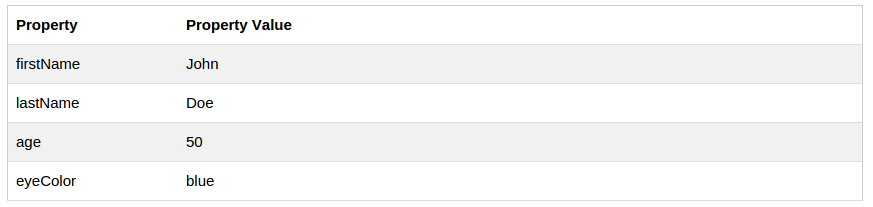
Methods are actions that can be performed on objects.
Methods are stored in properties as function definitions.
Property Property Value
firstName John lastName Doe age 50 eyeColor blue fullName function() {return this.firstName + " " + this.lastName;}
JavaScript objects are containers for named values (called properties) and methods.
You define (and create) a JavaScript object with an object literal:
Example
var person = {firstName:"John", lastName:"Doe", age:50, eyeColor:"blue"};
Example
<p id="demo"></p>

<script>
  var person = {firstName:"John", lastName: "Doe", age:	50,
  eyeColor: "blue"};

	document.getElementById("demo").innerHTML = person.firstName + " is " + person.age + " years old";

</script>
Spaces and line breaks are not important. An object definition can span multiple lines:
Example
var person = {
    firstName:"John",
    lastName:"Doe",
    age:50,
    eyeColor:"blue"
};
You can access object properties in two ways:
objectName.propertyName
or
objectName["propertyName"]
Example1
person.lastName;
Example2
person["lastName"];
You access an object method with the following syntax:
objectName.methodName()
Example
name = person.fullName();
With the following code
var karyawan = {
  namaDepan: "Dyo",
  namaBelakang: "Bumi",
  umur: 37,
  id: 222,
  // create method
  namaLengkap: function() {
  	return this.namaDepan + " " + this.namaBelakang;
  }
};
document.getElementById("coba").innerHTML = karyawan.namaLengkap();
If you access the fullName property, without (), it will return the function definition:
name = person.fullName;
Exercise:
Create an object called person with name = John, age = 50. Then, access the object to display "John is 50 years old".
Answwer
var person = {
  name: "John",
  age: 50
}
document.getElementById("demo").innerHTML = person.name + " is " + person.age + " years old";
When a JavaScript variable is declared with the keyword "new", the variable is created as an object:
var x = new String();        // Declares x as a String object
var y = new Number();        // Declares y as a Number object
var z = new Boolean();       //	Declares z as a Boolean object
Avoid String, Number, and Boolean objects. They complicate your code and slow down execution speed.
Note You will learn more about objects later in this tutorial.
In JavaScript, objects and functions are also variables.
In JavaScript, scope is the set of variables, objects, and functions you have access to.
JavaScript has function scope: The scope changes inside functions.
Variables declared within a JavaScript function, become LOCAL to the function.
Local variables have local scope: They can only be accessed within the function.
Example
// code here can not use carName

function myFunction() {
    var carName = "Volvo";

    // code here can use carName

}
Other example
<p>The local variable carName cannot be accessed from code outside the function:</p>

<p id="demo"></p>

<script>
myFunction(); // this is callback
document.getElementById("demo").innerHTML =  /* this is
"The type of carName is " + typeof carName;     how to print in js */

function myFunction() {                      /* this is
    var carName = "Volvo";						the function */
}
</script>
Since local variables are only recognized inside their functions, variables with the same name can be used in different functions.
Local variables are created when a function starts, and deleted when the function is completed.
Example
var carName = " Volvo";

// code here can use carName

function myFunction() {

    // code here can use	carName

}
Example
<h1>It is call Global Variable</h1>
<p id="demo"></p>

<script>
	var namaPegawai = "Brandon";

  function myFunction() {
  	document.getElementById("demo").innerHTML = namaPegawai
  }
  myFunction();
</script>
If you assign a value to a variable that has not been declared, it will automatically become a GLOBAL variable.
This code example will declare a global variable carName, even if the value is assigned inside a function.
Not give var ... yet
Example
myFunction();

// code here can use carName

function myFunction() {
    carName = "Volvo";             // not use var carName yet
}
Note Do NOT create global variables unless you intend to.
With JavaScript, the global scope is the complete JavaScript environment.
In HTML, the global scope is the window object. All global variables belong to the window object.
Example
var carName = "Volvo";

// code here can use window.carName
The lifetime of a JavaScript variable starts when it is declared.
Local variables are deleted when the function is completed.
Global variables are deleted when you close the page.
Function arguments (parameters) work as local variables inside functions.
HTML events are "things" that happen to HTML elements.
When JavaScript is used in HTML pages, JavaScript can "react" on these events.
An HTML event can be something the browser does, or something a user does.
Here are some examples of HTML events:
- An HTML web page has finished loading
- An HTML input field was changed
- An HTML button was clicked
Often, when events happen, you may want to do something.
JavaScript lets you execute code when events are detected.
HTML allows event handler attributes, with JavaScript code, to be added to HTML elements.
With single quotes:
<some-HTML-element some-event='some JavaScript'>
With double quotes:
<some-HTML-element some-event="some JavaScript">
In the following example, an onclick attribute (with code), is added to a button element:
Example
<button onclick='getElementById("demo").innerHTML=Date()'>The time is?</button>

<p id="demo"></p>
Example
In the example above, the JavaScript code changes the content of the element with id="demo".

In the next example, the code changes the content of its own element (using this.innerHTML):
Example
<button onclick="this.innerHTML=Date()">The time is?</button>
JavaScript code is often several lines long. It is more common to see event attributes calling functions:
Example
<button onclick="displayDate()">The time is?</button>

<script>
  function displayDate() {
  	document.getElementById("demo").innerHTML = Date();
  }
</script>
Here is a list of some common HTML events:
Event			Description

onchange		An HTML element has been changed
onclick	The 	user clicks an HTML element
onmouseover		The user moves the mouse over an HTML element
onmouseout		The user moves the mouse away from an HTML element
onkeydown		The user pushes a keyboard key
onload			The browser has finished loading the page
The list is much longer: W3Schools JavaScript Reference HTML DOM Events.
Event handlers can be used to handle, and verify, user input, user actions, and browser actions:
Things that should be done every time a page loads Things that should be done when the page is closed Action that should be performed when a user clicks a button Content that should be verified when a user inputs data And more ...
Many different methods can be used to let JavaScript work with events:
HTML event attributes can execute JavaScript code directly HTML event attributes can call JavaScript functions You can assign your own event handler functions to HTML elements You can prevent events from being sent or being handled And more ...
You will learn a lot more about events and event handlers in the HTML DOM chapters.
JavaScript strings are used for storing and manipulating text.
A JavaScript string simply stores a series of characters like "John Doe".
A string can be any text inside quotes. You can use single or double quotes:
Example
var carname = "Volvo XC60";
var carname = 'Volvo XC60';
You can use quotes inside a string, as long as they don't match the quotes surrounding the string:
Example
var answer = "It's alright";
var answer = "He is called 'Johnny'";
var answer = 'He is called "Johnny"';
The length of a string is found in the built in property length:
Example
var txt = "ABCDEFGHIJKLMNOPQRSTUVWXYZ";
var sln = txt.length;
Detail
<p id="demo"></p>

<script>
 var text = "ABCDEFGHIJKLMNOPQRSTUVWXYZ";
 document.getElementById("demo").innerHTML =  "Jumlah huruf " + text.length;
</script>
Because strings must be written within quotes, JavaScript will misunderstand this string:
var y = "We are the so-called "Vikings" from the north."
The string will be chopped to "We are the so-called ".
The solution to avoid this problem, is to use the \ escape character.
The backslash escape character turns special characters into string characters:
Example
var x = 'It\'s alright';
var y = "We are the so-called \"Vikings\" from the north."

document.getElementById("demo").innerHTML = x + "<br>" + y;
The escape character () can also be used to insert other special characters in a string.
This is the list of special characters that can be added to a text string with the backslash sign:
Code	Outputs
\'		single quote
\"		double quote
\\		backslash
\n		new line
\r		carriage return
\t		tab
\b		backspace
\f		form feed
For best readability, programmers often like to avoid code lines longer than 80 characters.
If a JavaScript statement does not fit on one line, the best place to break it is after an operator:
Example
document.getElementById("demo").innerHTML =
"Hello Dolly.";
You can also break up a code line within a text string with a single backslash:
Example
document.getElementById("demo").innerHTML = "Hello \
Dolly!";
The \ method is not a ECMAScript (JavaScript) standard. Some browsers do not allow spaces behind the \ character.
The safest (but a little slower) way to break a long string is to use string addition:
Example
document.getElementById("demo").innerHTML = "Hello" +
"Dolly!";
You cannot break up a code line with a backslash:
Example
document.getElementById("demo").innerHTML = \
"Hello Dolly!";
Normally, JavaScript strings are primitive values, created from literals: var firstName = "John"
But strings can also be defined as objects with the keyword new: var firstName = new String("John")
Example
var x = "John";
var y = new String("John");

// typeof x will return string
// typeof y will return object
Example
<p id="demo"></p>

<script>
	var x = "Brandon";
	var y = new String("Bumi");

	document.getElementById('demo').innerHTML =
	"Type Data x = " + typeof x + "<br>" +
	"Type Data y = " + typeof y;

</script>
Note: Don't create strings as objects. It slows down execution speed. The new keyword complicates the code. This can produce some unexpected results:
When using the == equality operator, equal strings looks equal:
Example
var x = "John";
var y = new String("John");

document.getElementById("demo").innerHTML = (x==y);

// (x == y) is true because x and y have equal values
When using the === equality operator, equal strings are not equal, because the === operator expects equality in both type and value.
Example
var x = "John";
var y = new String("John");

document.getElementById("demo").innerHTML = (x===y);

// (x === y) is false because x and y have different types (string and object)
Or even worse. Objects cannot be compared:
Example
var x = new String("John");
var y = new String("John");

document.getElementById("demo").innerHTML = (x==y);

// (x == y) is false because x and y are different objects
// (x == x) is true because both are the same object
Note: JavaScript objects cannot be compared.
String methods help you to work with strings.
Primitive values, like "John Doe", cannot have properties or methods (because they are not objects).
But with JavaScript, methods and properties are also available to primitive values, because JavaScript treats primitive values as objects when executing methods and properties.
The length property returns the length of a string:
Example
var txt = "ABCDEFGHIJKLMNOPQRSTUVWXYZ";
var sln = txt.length;

document.getElementById("demo").innerHTML = txt.length;
The indexOf() method returns the index of (the position of) the first occurrence of a specified text in a string:
Example
var str = "Please locate where 'locate' occurs!";
var pos = str.indexOf("locate");
The lastIndexOf() method returns the index of the last occurrence of a specified text in a string:
Example
var str = "Please locate where 'locate' occurs!";
var pos = str.lastIndexOf("locate");
Detail Code
<p id="p1">Please locate where 'locate' occurs!.</p>

<button onclick="myFunction()">Try it</button>

<p id="demo"></p>

<script>
function myFunction() {
    var str = document.getElementById("p1").innerHTML;
    var pos = str.lastIndexOf("locate");
    document.getElementById("demo").innerHTML = pos;
}
</script>
Both the indexOf(), and the lastIndexOf() methods return -1 if the text is not found.
Note JavaScript counts positions from zero. 0 is the first position in a string, 1 is the second, 2 is the third ...
Both methods accept a second parameter as the starting position for the search.
The search() method searches a string for a specified value and returns the position of the match:
Example
var str = "Please locate where 'locate' occurs!";
var pos = str.search("locate");
The two methods, indexOf() and search(), are equal.
They accept the same arguments (parameters), and they return the same value.
The two methods are equal, but the search() method can take much more powerful search values.
You will learn more about powerful search values in the chapter about regular expressions.
There are 3 methods for extracting a part of a string:
- slice(start, end)
- substring(start, end) The difference is that the second parameter specifies the length of the extracted part.
- substr(start, length)
slice() extracts a part of a string and returns the extracted part in a new string.
The method takes 2 parameters: the starting index (position), and the ending index (position).
This example slices out a portion of a string from position 7 to position 13:
Example
var str = "Apple, Banana, Kiwi";
var res = str.slice(7,13);
The result of res will be:
Banana
If a parameter is negative, the position is counted from the end of the string.
This example slices out a portion of a string from position -12 to position -6:
Example
var str = "Apple, Banana, Kiwi";
var res = str.slice(-12,-6);
The result of res will be:
Banana
If you omit (menghilangkan) the second parameter, the method will slice out the rest of the string:
Example
var res = str.slice(7);
var str = "Apple, Banana, Kiwi";
document.getElementById("demo").innerHTML = str.slice(7);
The result of res will be:
Banana, Kiwi
or, counting from the end:
Example
var res = str.slice(-12);
var str = "Apple, Banana, Kiwi";

document.getElementById("demo").innerHTML = str.slice(-12);
The result of res will be:
Banana, Kiwi
Note Negative positions do not work in Internet Explorer 8 and earlier.
substring() is similar to slice().
The difference is that substring() cannot accept negative indexes.
Example
var str = "Apple, Banana, Kiwi";
var res = str.substring(7,13);
The result of res will be:
Banana
If you omit the second parameter, substring() will slice out the rest of the string.
substr() is similar to slice().
The difference is that the second parameter specifies the length of the extracted part.
Example
var str = "Apple, Banana, Kiwi";
var res = str.substr(7,6);
The result of res will be:
Banana
If the first parameter is negative, the position counts from the end of the string.
The second parameter can not be negative, because it defines the length.
If you omit the second parameter, substr() will slice out the rest of the string.
The replace() method replaces a specified value with another value in a string:
Example
str = "Please visit Microsoft!";
var n = str.replace("Microsoft","W3Schools");
The replace() method can also take a regular expression as the search value.
By default, the replace() function replaces only the first match. To replace all matches, use a regular expression with a g flag (for global match):
Example
str = "Please visit Microsoft!";
var n = str.replace(/Microsoft/g,"W3Schools");
Note The replace() method does not change the string it is called on. It returns a new string.
A string is converted to upper case with toUpperCase():
Example
var text1 = "Hello World!";       // String
var text2 = text1.toUpperCase();  // text2 is text1 converted to upper
A string is converted to lower case with toLowerCase():
Example
var text1 = "Hello World!";       // String
var text2 = text1.toLowerCase();  // text2 is text1 converted to lower
concat() joins two or more strings:
Example
var text1 = "Hello";
var text2 = "World";
text3 = text1.concat("	",text2);
The concat() method can be used instead of the plus operator. These two lines do the same:
Example
var text = "Hello" + " " + "World!";
var text = "Hello".concat(" ","World!");
All string methods return a new string. They don't modify the original string. Formally said: Strings are immutable: Strings cannot be changed, only replaced.
There are 2 safe methods for extracting string characters:
- charAt(position)
- charCodeAt(position)
The charAt() method returns the character at a specified index (position) in a string:
Example
var str = "HELLO WORLD";
str.charAt(0);            // returns H

document.getElementById("demo").innerHTML = str.charAt(0);
The charCodeAt() method returns the unicode of the character at a specified index in a string:
Example
var str = "HELLO WORLD";

str.charCodeAt(0);         //	returns 72
You might have seen code like this, accessing a string as an array:
var str = "HELLO WORLD";

str[0];           // returns H
This is unsafe and unpredictable:
- It does not work in all browsers (not in IE5, IE6, IE7)
- It makes strings look like arrays (but they are not)
- str[0] = "H" does not give an error (but does not work)
If you want to read a string as an array, convert it to an array first.
A string can be converted to an array with the split() method:
Example
var txt = "a,b,c,d,e";   // String
txt.split(",");          // Split on commas
txt.split(" ");          // Split on spaces
txt.split("|");          // Split on pipe
If the separator is omitted, the returned array will contain the whole string in index [0].
If the separator is "", the returned array will be an array of single characters:
Example
var txt = "Hello";       // String
txt.split("");           // Split in characters
Detail code
<p id="demo"></p>

<script>
  var str = "widyobumi";
  var arr = str.split("");
  var txt = "";
  var i;
  for (i = 0; i < arr.length; i++) {
  	txt += arr[i] + "<br>"
  }
  document.getElementById("demo").innerHTML = txt;
</script>
Catatan: Dalam for loop harus ada var txt = "", var i, i++, txt +=
For a complete reference, go to our Complete JavaScript String Reference.
The reference contains descriptions and examples of all string properties and methods.
JavaScript has only one type of number.
Numbers can be written with, or without, decimals.
Extra large or extra small numbers can be written with scientific (exponent) notation:
Example
var x = 123e5;    // 12300000
var y = 123e-5;   // 0.00123
Unlike many other programming languages, JavaScript does not define different types of numbers, like integers, short, long, floating-point etc.
JavaScript numbers are always stored as double precision floating point numbers, following the international IEEE 754 standard.
This format stores numbers in 64 bits, where the number (the fraction) is stored in bits 0 to 51, the exponent in bits 52 to 62, and the sign in bit 63:
Value (aka Fraction/Mantissa)	Exponent			Sign
52 bits (0 - 51)			 	11 bits (52 - 62)	1 bit (63)
Integers (numbers without a period or exponent notation) are considered accurate up to 15 digits.
Example
var x = 999999999999999;   // x will be 999999999999999
var y = 9999999999999999;  // y will be 10000000000000000
The maximum number of decimals is 17, but floating point arithmetic is not always 100% accurate:
Example
var x = 0.2 + 0.1; // x will be 0.30000000000000004
To solve the problem above, it helps to multiply and divide:
Example
var x = (0.2 * 10 + 0.1 * 10) / 10; // x will be 0.3
JavaScript interprets numeric constants as hexadecimal if they are preceded by 0x.
Example
var x = 0xFF; // x will be 255
Never write a number with a leading zero (like 07). Some JavaScript versions interpret numbers as octal if they are written with a leading zero.
By default, Javascript displays numbers as base 10 decimals.
But you can use the toString() method to output numbers as base 16 (hex), base 8 (octal), or base 2 (binary).
Example
var myNumber = 128;
myNumber.toString(16);     // returns 80
myNumber.toString(8);      // returns 200
myNumber.toString(2);      // returns 10000000
Infinity (or -Infinity) is the value JavaScript will return if you calculate a number outside the largest possible number.
Example
var myNumber = 2;
while (myNumber != Infinity) {          // Execute until Infinity
    myNumber = myNumber * myNumber;
}
Division by 0 (zero) also generates Infinity:
Example
var x =  2 / 0;          // x will be Infinity
var y = -2 / 0;          // y will be -Infinity
Infinity is a number: typeOf Infinity returns number.
Example
typeof Infinity; // returns "number"
NaN is a JavaScript reserved word indicating that a value is not a number.
Trying to do arithmetic with a non-numeric string will result in NaN (Not a Number):
Example
var x = 100 / "Apple"; // x will be NaN (Not a Number)
However, if the string contains a numeric value , the result will be a number:
Example
var x = 100 / "10"; // x will be 10
You can use the global JavaScript function isNaN() to find out if a value is a number.
Example
var x = 100 / "Apple";
isNaN(x);               // returns true because x is Not a Number
Watch out for NaN. If you use NaN in a mathematical operation, the result will also be NaN:
Example
var x = NaN;
var y = 5;
var z = x + y;         // z will be NaN
Or the result might be a concatenation:
Example
var x = NaN;
var y = "5";
var z = x + y;         // z will be NaN5
NaN is a number, and typeof NaN returns number:
Example
typeof NaN;             // returns "number"
document.getElementById("demo").innerHTML = typeof NaN;
Result
number
Normally JavaScript numbers are primitive values created from literals: var x = 123
But numbers can also be defined as objects with the keyword new: var y = new Number(123)
Example
var x = 123;
var y = new Number(123);

// typeof x returns number
// typeof y returns object
Don not create Number objects. It slows down execution speed. The new keyword complicates the code. This can produce some unexpected results:
When using the == equality operator, equal numbers looks equal:
Example
var x = 500;
var y = new Number(500);

// (x == y) is true because x and y have equal values
When using the === equality operator, equal numbers are not equal, because the === operator expects equality in both type and value.
Example
var x = 500;
var y = new Number(500);

// (x === y) is false because x and y have different types
Or even worse. Objects cannot be compared:
Example
var x = new Number(500);
var y = new Number(500);

// (x == y) is false because objects cannot be compared
JavaScript objects cannot be compared.
Number methods help you work with numbers.
Primitive values (like 3.14 or 2014), cannot have properties and methods (because they are not objects).
But with JavaScript, methods and properties are also available to primitive values, because JavaScript treats primitive values as objects when executing methods and properties.
toString() returns a number as a string.
All number methods can be used on any type of numbers (literals, variables, or expressions):
Example
var x = 123;
x.toString();   	         // returns 123 from variable x
(123).toString();        	 // returns 123 from literal 123
(100 + 23).toString();   	 // returns 123 from expression 100 + 23
toExponential() returns a string, with a number rounded and written using exponential notation.
A parameter defines the number of characters behind the decimal point:
Example
var x = 9.656;
x.toExponential(2);     // returns 9.66e+0
x.toExponential(4);     // returns 9.6560e+0
x.toExponential(6);     // returns 9.656000e+0
The parameter is optional. If you don't specify it, JavaScript will not round the number.
toFixed() returns a string, with the number written with a specified number of decimals:
Example
var x = 9.656;
x.toFixed(0);           // returns 10
x.toFixed(2);           // returns 9.66
x.toFixed(4);           // returns 9.6560
x.toFixed(6);           // returns 9.656000
toFixed(2) is perfect for working with money.
toPrecision() returns a string, with a number written with a specified length:
Example
var x = 9.656;
x.toPrecision();        // returns 9.656
x.toPrecision(2);       // returns 9.7
x.toPrecision(4);       // returns 9.656
x.toPrecision(6);       // returns 9.65600
valueOf() returns a number as a number.
Example
var x = 123;
x.valueOf();            // returns 123 from variable x
(123).valueOf();        // returns 123 from literal 123
(100 + 23).valueOf();   // returns 123 from expression 100 + 23
In JavaScript, a number can be a primitive value (typeof = number) or an object (typeof = object).
The valueOf() method is used internally in JavaScript to convert Number objects to primitive values.
There is no reason to use it in your code.
A JavaScript data types have a valueOf() and a toString() method.
There are 3 JavaScript methods that can be used to convert variables to numbers:
- The Number() method
- The parseInt() method
- The parseFloat() method
These methods are not number methods, but global JavaScript methods.
JavaScript global methods can be used on all JavaScript data types.
These are the most relevant methods, when working with numbers:
Method			Description

Number()		Returns a number, converted from its argument.
parseFloat()	Parses its argument and returns a floating point number
parseInt()		Parses its argument and returns an integer
Number() can be used to convert JavaScript variables to numbers:
Example
x = true;
Number(x);        // returns 1

x = false;
Number(x);        // returns 0

x = new Date();
Number(x);        // returns 1404568027739

x = "10"
Number(x);        // returns 10

x = "10 20"
Number(x);        // returns NaN
parseInt() parses a string and returns a whole number. Spaces are allowed. Only the first number is returned:
Example
parseInt("10");         // returns 10
parseInt("10.33");      // returns 10
parseInt("10 20 30");   // returns 10
parseInt("10 years");   // returns 10
parseInt("years 10");   // returns NaN
If the number cannot be converted, NaN (Not a Number) is returned.
parseFloat() parses a string and returns a number. Spaces are allowed. Only the first number is returned:
Example
parseFloat("10");        // returns 10
parseFloat("10.33");     // returns 10.33
parseFloat("10 20 30");  // returns 10
parseFloat("10 years");  // returns 10
parseFloat("years 10");  // returns NaN
If the number cannot be converted, NaN (Not a Number) is returned.
Property			Description

MAX_VALUE			Returns the largest number possible in JavaScript
MIN_VALUE			Returns the smallest number possible in JavaScript
NEGATIVE_INFINITY	Represents negative infinity (returned on overflow)
NaN					Represents a "Not-a-Number" value
POSITIVE_INFINITY	Represents infinity (returned on overflow)
Example
var x = Number.MAX_VALUE;
Number properties belongs to the JavaScript's number object wrapper called Number.
These properties can only be accessed as Number.MAX_VALUE.
Using myNumber.MAX_VALUE, where myNumber is a variable, expression, or value, will return undefined:
Example
var x = 6;
var y = x.MAX_VALUE;    // y becomes undefined
Complete JavaScript Number Reference
For a complete reference, go to our Complete JavaScript Number Reference.
The reference contains descriptions and examples of all Number properties and methods.
The Math object allows you to perform mathematical tasks on numbers.
The Math object allows you to perform mathematical tasks.
The Math object includes several mathematical methods.
One common use of the Math object is to create a random number:
Example
Math.random(); // returns a random number
Math.random() always returns a number lower than 1.
Math has no constructor. No methods have to create a Math object first.
Math.min() and Math.max() can be used to find the lowest or highest value in a list of arguments:
Example
Math.min(0, 150, 30, 20, -8, -200); // returns -200
Example
Math.max(0, 150, 30, 20, -8, -200); // returns 150
Math.round() rounds a number to the nearest integer:
Example
Math.round(4.7);            // returns 5
Math.round(4.4);            // returns 4
Math.ceil() rounds a number up to the nearest integer:
Example
Math.ceil(4.4); // returns 5
Math.floor() rounds a number down to the nearest integer:
Example
Math.floor(4.7); // returns 4
Math.floor() and Math.random() can be used together to return a random number between 0 and 10:
Example
Math.floor(Math.random() * 11); // returns a random number between 0 and 10
JavaScript provides 8 mathematical constants that can be accessed with the Math object:
Example
Math.E          // returns Euler's number
Math.PI         // returns PI
Math.SQRT2      // returns the square root of 2
Math.SQRT1_2    // returns the square root of 1/2
Math.LN2        // returns the natural logarithm of 2
Math.LN10       // returns the natural logarithm of 10
Math.LOG2E      // returns base 2 logarithm of E
Math.LOG10E     // returns base 10 logarithm of E
Method				Description

abs(x)				Returns the absolute value of x
acos(x)				Returns the arccosine of x, in radians
asin(x)				Returns the arcsine of x, in radians
atan(x)				Returns the arctangent of x as a numeric value between -PI/2 and PI/2 radians
atan2(y,x)			Returns the arctangent of the quotient of its arguments
ceil(x)				Returns x, rounded upwards to the nearest integer
cos(x)				Returns the cosine of x (x is in radians)
exp(x)				Returns the value of Ex
floor(x)			Returns x, rounded downwards to the nearest integer
log(x)				Returns the natural logarithm (base E) of x
max(x,y,z,...,n)	Returns the number with the highest value
min(x,y,z,...,n)	Returns the number with the lowest value
pow(x,y)			Returns the value of x to the power of y
random()			Returns a random number between 0 and 1
round(x)			Rounds x to the nearest integer
sin(x)				Returns the sine of x (x is in radians)
sqrt(x)				Returns the square root of x
tan(x)				Returns the tangent of an angle
For a complete reference, go to our complete Math object reference.
The reference contains descriptions and examples of all Math properties and methods.
The Date object lets you work with dates (years, months, days, hours, minutes, seconds, and milliseconds)
A JavaScript date can be written as a string:
Sun Jul 10 2016 07:50:46 GMT+0700 (WIB)
or as a number:
1468111846839
Dates written as numbers, specifies the number of milliseconds since January 1, 1970, 00:00:00.
In this tutorial we use a script to display dates inside a
element with id="demo":
Example
<p id="demo"></p>

<script>
	document.getElementById("demo").innerHTML = Date();
</script>
<p id="demo"></p>

<script>
	var d = Date();
    document.getElementById("demo").innerHTML = d;
</script>
The script above says: assign the value of Date() to the content (innerHTML) of the element with id="demo".
You will learn how to display a date, in a more readable format, at the bottom of this page.
The Date object lets us work with dates.
A date consists of a year, a month, a day, an hour, a minute, a second, and milliseconds.
Date objects are created with the new Date() constructor.
There are 4 ways of initiating a date:
new Date()
new Date(milliseconds)
new Date(dateString)
new Date(year, month, day, hours, minutes, seconds, milliseconds)
Using new Date(), creates a new date object with the current date and time:
Example
<script>
	var d = new Date();
	document.getElementById("demo").innerHTML = d;
</script>
Using new Date(date string), creates a new date object from the specified date and time:
Example
<script>
	var d = new Date("October 13, 2014 11:13:00");
	document.getElementById("demo").innerHTML = d;
</script>
Valid date strings (date formats) are described in the next chapter.
Using new Date(number), creates a new date object as zero time plus the number.
Zero time is 01 January 1970 00:00:00 UTC. The number is specified in milliseconds:
Example
<script>
	var d = new Date(86400000);
	document.getElementById("demo").innerHTML = d;
</script>
JavaScript dates are calculated in milliseconds from 01 January, 1970 00:00:00 Universal Time (UTC). One day contains 86,400,000 millisecond.
Using new Date(7 numbers), creates a new date object with the specified date and time:
The 7 numbers specify the year, month, day, hour, minute, second, and millisecond, in that order:
Example
<script>
	var d = new Date(99,5,24,11,33,30,0);
	document.getElementById("demo").innerHTML = d;
</script>
Variants of the example above let us omit any of the last 4 parameters:
Example
<script>
	var d = new Date(99,5,24);
	document.getElementById("demo").innerHTML = d;
</script>
JavaScript counts months from 0 to 11. January is 0. December is 11.
When a Date object is created, a number of methods allow you to operate on it.
Date methods allow you to get and set the year, month, day, hour, minute, second, and millisecond of objects, using either local time or UTC (universal, or GMT) time.
Date methods are covered in a later chapter.
When you display a date object in HTML, it is automatically converted to a string, with the toString() method.
Example
<p id="demo"></p>

<script>
	d = new Date();
	document.getElementById("demo").innerHTML = d;
</script>
Is the same as:
<p id="demo"></p>

<script>
	d = new Date();
	document.getElementById("demo").innerHTML = d.toString();
</script>
The toUTCString() method converts a date to a UTC string (a date display standard).
Example
<script>
	var d = new Date();
	document.getElementById("demo").innerHTML = d.toUTCString();
</script>
The toDateString() method converts a date to a more readable format:
Example
<script>
	var d = new Date();
	document.getElementById("demo").innerHTML = d.toDateString();
</script>
Date objects are static. The computer time is ticking, but date objects, once created, are not.
When setting a date, without specifying the time zone, JavaScript will use the browser's time zone.
When getting a date, without specifying the time zone, the result is converted to the browser's time zone.
In other words: If a date/time is created in GMT (Greenwich Mean Time), the date/time will be converted to CDT (Central US Daylight Time) if a user browses from central US.
Read more about time zones in the next chapters.
JavaScript Date Input
There are generally 4 types of JavaScript date input formats:
Type		Example

ISO Date	"2015-03-25" (The International Standard)
Short Date	"03/25/2015" or "2015/03/25"
Long Date	"Mar 25 2015" or "25 Mar 2015"
Full Date	"Wednesday March 25 2015"
Independent of input format, JavaScript will (by default) output dates in full text string format:
Wed Mar 25 2015 07:00:00 GMT+0700 (WIB)
ISO 8601 is the international standard for the representation of dates and times.
The ISO 8601 syntax (YYYY-MM-DD) is also the preferred JavaScript date format:
var d = new Date("2015-03-25");
The computed date will be relative to your time zone. Depending on your time zone, the result above will vary between March 24 and March 25.
It can be written without specifying the day (YYYY-MM):
Example (Year and month)
var d = new Date("2015-03");
Time zones will vary the result above between February 28 and March 01.
It can be written without month and day (YYYY):
Example (Only year)
var d = new Date("2015");
Time zones will vary the result above between December 31 2014 and January 01 2015.
It can be written with added hours, minutes, and seconds (YYYY-MM-DDTHH:MM:SS):
Example (Complete date plus hours, minutes, and seconds)
var d = new Date("2015-03-25T12:00:00");
The T in the date string, between the date and time, indicates UTC time.
UTC (Universal Time Coordinated) is the same as GMT (Greenwich Mean Time).
JavaScript Short Dates. Short dates are most often written with an "MM/DD/YYYY" syntax like this:
Example
var d = new Date("03/25/2015");
Read more here: http://www.w3schools.com/js/js_date_formats.asp
Date methods let you get and set date values (years, months, days, hours, minutes, seconds, milliseconds)
Get methods are used for getting a part of a date. Here are the most common (alphabetically):
Method				Description

getDate()			Get the day as a number (1-31)
getDay()			Get the weekday as a number (0-6)
getFullYear()		Get the four digit year (yyyy)
getHours()			Get the hour (0-23)
getMilliseconds()	Get the milliseconds (0-999)
getMinutes()		Get the minutes (0-59)
getMonth()			Get the month (0-11)
getSeconds()		Get the seconds (0-59)
getTime()			Get the time (milliseconds since January 1, 1970)
getTime() returns the number of milliseconds since January 1, 1970:
Example
<script>
	var d = new Date();
	document.getElementById("demo").innerHTML = d.getTime();
</script>
getFullYear() returns the year of a date as a four digit number:
Example
<script>
	var d = new Date();
	document.getElementById("demo").innerHTML = d.getFullYear();
</script>
getDay() returns the weekday as a number (0-6):
Example
<script>
	var d = new Date();
	document.getElementById("demo").innerHTML = d.getDay();
</script>
In JavaScript, the first day of the week (0) means "Sunday", even if some countries in the world consider the first day of the week to be "Monday"
You can use an array of names, and getDay() to return the weekday as a name:
Example
<script>
	var d = new Date();
	var days = ["Sunday","Monday","Tuesday","Wednesday","Thursday","Friday","Saturday"];
	document.getElementById("demo").innerHTML = days[d.getDay()];
</script>
Set methods are used for setting a part of a date. Here are the most common (alphabetically):
Method				Description

setDate()			Set the day as a number (1-31)
setFullYear()		Set the year (optionally month and day)
setHours()			Set the hour (0-23)
setMilliseconds()	Set the milliseconds (0-999)
setMinutes()		Set the minutes (0-59)
setMonth()			Set the month (0-11)
setSeconds()		Set the seconds (0-59)
setTime()			Set the time (milliseconds since January 1, 1970)
setFullYear() sets a date object to a specific date. In this example, to January 14, 2020:
Example
<script>
	var d = new Date();
	d.setFullYear(2020, 0, 14);
	document.getElementById("demo").innerHTML = d;
</script>
setDate() sets the day of the month (1-31):
Example
<script>
	var d = new Date();
	d.setDate(20);
	document.getElementById("demo").innerHTML = d;
</script>
The setDate() method can also be used to add days to a date:
Example
<script>
	var d = new Date();
	d.setDate(d.getDate() + 50);
	document.getElementById("demo").innerHTML = d;
</script>
If adding days, shifts the month or year, the changes are handled automatically by the Date object.
If you have a valid date string, you can use the Date.parse() method to convert it to milliseconds.
Date.parse() returns the number of milliseconds between the date and January 1, 1970:
Example
<script>
	var msec = Date.parse("March 21, 2012");
	document.getElementById("demo").innerHTML = msec;
</script>
You can then use the number of milliseconds to convert it to a date object:
Example
<script>
	var msec = Date.parse("March 21, 2012");
	var d = new Date(msec);
	document.getElementById("demo").innerHTML = d;
</script>
Dates can easily be compared.
The following example compares today's date with January 14, 2100:
Example
var today, someday, text;
today = new Date();
someday = new Date();
someday.setFullYear(2100, 0, 14);

if (someday > today) {
    text = "Today is before January 14, 2100.";
} else {
    text = "Today is after January 14, 2100.";
}
document.getElementById("demo").innerHTML = text;
JavaScript counts months from 0 to 11. January is 0. December is 11.
UTC date methods are used for working UTC dates (Univeral Time Zone dates):
Method					Description

getUTCDate()			Same as getDate(), but returns the UTC date
getUTCDay()				Same as getDay(), but returns the UTC day
getUTCFullYear()		Same as getFullYear(), but returns the UTC year
getUTCHours()			Same as getHours(), but returns the UTC hour
getUTCMilliseconds() 	Same as getMilliseconds(), but returns the UTC milliseconds
getUTCMinutes()			Same as getMinutes(), but returns the UTC minutes
getUTCMonth()			Same as getMonth(), but returns the UTC month
getUTCSeconds()			Same as getSeconds(), but returns the UTC seconds
Complete JavaScript Date Reference
For a complete reference, go to our Complete JavaScript Date Reference.
The reference contains descriptions and examples of all Date properties and methods.
JavaScript arrays are used to store multiple values in a single variable.
Example
var cars = ["Saab", "Volvo", "BMW"];
An array is a special variable, which can hold more than one value at a time.
If you have a list of items (a list of car names, for example), storing the cars in single variables could look like this:
var car1 = "Saab";
var car2 = "Volvo";
var car3 = "BMW";
However, what if you want to loop through the cars and find a specific one? And what if you had not 3 cars, but 300?
The solution is an array!
An array can hold many values under a single name, and you can access the values by referring to an index number.
Using an array literal is the easiest way to create a JavaScript Array.
Syntax:
var array-name = [item1, item2, ...];
Example
var cars = ["Saab", "Volvo", "BMW"];
Spaces and line breaks are not important. A declaration can span multiple lines:
Example
var cars = [
    "Saab",
    "Volvo",
    "BMW"
];
Never put a comma after the last element (like "BMW",). The effect is inconsistent across browsers.
The following example also creates an Array, and assigns values to it:
Example
var cars = new Array("Saab", "Volvo", "BMW");
Example
<p id="demo"></p>

<script>
	var pets = new Array("Cat","Dog","Bird");
  	document.getElementById("demo").innerHTML = pets;
</script>
The three examples above do exactly the same. There is no need to use new Array(). For simplicity, readability and execution speed, use the first one (the array literal method).
You refer to an array element by referring to the index number.
This statement accesses the value of the first element in cars:
var name = cars[0];
This statement modifies the first element in cars:
cars[0] = "Opel";
Example
var cars = ["Saab", "Volvo", "BMW"];
document.getElementById("demo").innerHTML = cars[0];
The answer is:
Saab
[0] is the first element in an array. [1] is the second. Array indexes start with 0.
With JavaScript, the full array can be accessed by referring to the array name:
Example
var cars = ["Saab", "Volvo", "BMW"];
document.getElementById("demo").innerHTML = cars;
Arrays are a special type of objects. The typeof operator in JavaScript returns "object" for arrays.
But, JavaScript arrays are best described as arrays.
Arrays use numbers to access its "elements". In this example, person[0] returns John:
Array:
var person = ["John", "Doe", 46];
document.getElementById("demo").innerHTML = person[0];
Objects use names to access its "members". In this example, person.firstName returns John:
Object:
var person = {firstName:"John", lastName:"Doe", age:46};
document.getElementById("demo").innerHTML = person["firstName"];
JavaScript variables can be objects. Arrays are special kinds of objects.
Because of this, you can have variables of different types in the same Array.
You can have objects in an Array. You can have functions in an Array. You can have arrays in an Array:
myArray[0] = Date.now;
myArray[1] = myFunction;
myArray[2] = myCars;
The real strength of JavaScript arrays are the built-in array properties and methods:
Examples
var x = cars.length;   // The length property returns the number of elements
var y = cars.sort();   // The sort() method sorts arrays
Array methods are covered in the next chapters.
The length property of an array returns the length of an array (the number of array elements).
Example
var fruits = ["Banana", "Orange", "Apple", "Mango"];
fruits.length;                       // the length of fruits is 4
The length property is always one more than the highest array index.
The easiest way to add a new element to an array is using the push method:
Example
var fruits = ["Banana", "Orange", "Apple", "Mango"];
fruits.push("Lemon");                // adds a new element (Lemon) to fruits
New element can also be added to an array using the length property:
Example
var fruits = ["Banana", "Orange", "Apple", "Mango"];
fruits[fruits.length] = "Lemon";     // adds a new element (Lemon) to fruits
Adding elements with high indexes can create undefined "holes" in an array:
Example
var fruits = ["Banana", "Orange", "Apple", "Mango"];
fruits[10] = "Lemon";                // adds a new element (Lemon) to fruits
The best way to loop through an array, is using a "for" loop:
Example
var fruits, text, fLen, i;

fruits = ["Banana", "Orange", "Apple", "Mango"];
fLen = fruits.length;
text = "<ul>";
for (i = 0; i < fLen; i++) {
    text += "<li>" + fruits[i] + "</li>";
}
Many programming languages support arrays with named indexes.
Arrays with named indexes are called associative arrays (or hashes).
JavaScript does not support arrays with named indexes.
In JavaScript, arrays always use numbered indexes.
Example
var person = [];
person[0] = "John";
person[1] = "Doe";
person[2] = 46;
var x = person.length;         // person.length will return 3
var y = person[0];             // person[0] will return "John"
WARNING !! If you use a named index, JavaScript will redefine the array to a standard object. After that, all array methods and properties will produce incorrect results.
Example:
var person = [];
person["firstName"] = "John";
person["lastName"] = "Doe";
person["age"] = 46;

var x = person.length;         // person.length will return 0
var y = person[0];             // person[0] will return undefined
In JavaScript, arrays use numbered indexes.
In JavaScript, objects use named indexes.
Arrays are a special kind of objects, with numbered indexes.
- JavaScript does not support associative arrays.
- You should use objects when you want the element names to be strings (text).
- You should use arrays when you want the element names to be numbers.
There is no need to use the JavaScript's built-in array constructor new Array().
These two different statements both create a new empty array named points:
var points = new Array();         // Bad
var points = [];                  // Good
These two different statements both create a new array containing 6 numbers:
var points = new Array(40, 100, 1, 5, 25, 10)  // Bad
var points = [40, 100, 1, 5, 25, 10];          // Good
The new keyword only complicates the code. It can also produce some unexpected results:
var points = new Array(40, 100);  // Creates an array with two elements (40 and 100)
What if I remove one of the elements?

var points = new Array(40);       // Creates an array with 40 undefined elements !!!!!
A common question is: How do I know if a variable is an array?
The problem is that the JavaScript operator typeof returns "object":
var fruits = ["Banana", "Orange", "Apple", "Mango"];

typeof fruits;             // returns object
To solve this problem ECMAScript 5 defines a new method Array.isArray():
Array.isArray(fruits); // returns true
The problem with this solution is that ECMAScript 5 is not supported in older browsers.
To solve this problem you can create your own isArray() function:
function isArray(x) {
    return x.constructor.toString().indexOf("Array") > -1;
}
The function above always returns true if the argument is an array.
Or more precisely: it returns true if the object prototype contains the word "Array".
The instanceof operator returns true if an object is created by a given constructor:
var fruits = ["Banana", "Orange", "Apple", "Mango"];

fruits instanceof Array     // returns true
The strength of JavaScript arrays lies in the array methods.
The JavaScript method toString() converts an array to a string of (comma separated) array values.
Example
var fruits = ["Banana", "Orange", "Apple", "Mango"];
document.getElementById("demo").innerHTML = fruits.toString();
Result
Banana,Orange,Apple,Mango
It behaves just like toString(), but in addition you can specify the separator:
Example
var fruits = ["Banana", "Orange","Apple", "Mango"];
document.getElementById("demo").innerHTML = fruits.join(" * ");
Result
Banana * Orange * Apple * Mango
When you work with arrays, it is easy to remove elements and add new elements.
This is what popping and pushing is:
Popping items out of an array, or pushing items into an array.
The pop() method removes the last element from an array:
Example
var fruits = ["Banana", "Orange", "Apple", "Mango"];
fruits.pop(); // Removes the last element ("Mango") from fruits
The pop() method returns the value that was "popped out":
Example
var fruits = ["Banana", "Orange", "Apple", "Mango"];
var x = fruits.pop(); // the value of x is "Mango"
The push() method adds a new element to an array (at the end):
Example
var fruits = ["Banana", "Orange", "Apple", "Mango"];
fruits.push("Kiwi"); // Adds a new element ("Kiwi") to fruits
The push() method returns the new array length:
Example
var fruits = ["Banana", "Orange", "Apple", "Mango"];
var x = fruits.push("Kiwi"); // the value of x is 5
Shifting is equivalent to popping, working on the first element instead of the last.
The shift() method removes the first array element and "shifts" all other elements to a lower index.
Example
var fruits = ["Banana", "Orange", "Apple", "Mango"];
fruits.shift(); // Removes the first element "Banana" from fruits
The unshift() method adds a new element to an array (at the beginning), and "unshifts" older elements:
Example
var fruits = ["Banana", "Orange", "Apple", "Mango"];
fruits.unshift("Lemon"); // Adds a new element "Lemon" to fruits
The shift() method returns the string that was "shifted out".
The unshift() method returns the new array length.
Array elements are accessed using their index number:
Array indexes start with 0. [0] is the first array element, [1] is the second, [2] is the third ...
Example
var fruits = ["Banana", "Orange", "Apple", "Mango"];
fruits[0] = "Kiwi"; // Changes the first element of fruits to "Kiwi"
The length property provides an easy way to append a new element to an array:
Example
var fruits = ["Banana", "Orange", "Apple", "Mango"];
fruits[fruits.length] = "Kiwi"; // Appends "Kiwi" to fruit
Since JavaScript arrays are objects, elements can be deleted by using the JavaScript operator delete:
Example
var fruits = ["Banana", "Orange", "Apple", "Mango"];
delete fruits[0]; // Changes the first element in fruits to undefined
!! Using delete may leave undefined holes in the array. Use pop() or shift() instead.
The splice() method can be used to add new items to an array:
Example
var fruits = ["Banana", "Orange", "Apple", "Mango"];
fruits.splice(2, 0, "Lemon", "Kiwi");
The first parameter (2) defines the position where new elements should be added (spliced in).
The second parameter (0) defines how many elements should be removed.
The rest of the parameters ("Lemon" , "Kiwi") define the new elements to be added.
With clever parameter setting, you can use splice() to remove elements without leaving "holes" in the array:
Example
var fruits = ["Banana", "Orange", "Apple", "Mango"];
fruits.splice(0, 1); // Removes the first element of fruits
The first parameter (0) defines the position where new elements should be added (spliced in).
The second parameter (1) defines how many elements should be removed.
The rest of the parameters are omitted. No new elements will be added.
The concat() method creates a new array by concatenating two arrays:
Example
var myGirls = ["Cecilie", "Lone"];
var myBoys = ["Emil", "Tobias","Linus"];
var myChildren = myGirls.concat(myBoys); // Concatenates (joins) myGirls and myBoys
The concat() method can take any number of array arguments:
Example
var arr1 = ["Cecilie", "Lone"];
var arr2 = ["Emil", "Tobias","Linus"];
var arr3 = ["Robin", "Morgan"];
var myChildren = arr1.concat(arr2, arr3); // Concatenates arr1 with arr2 and arr3
The slice() method slices out a piece of an array into a new array.
This example slices out a part of an array starting from array element 1 ("Orange"):
Example
var fruits = ["Banana", "Orange", "Lemon", "Apple", "Mango"];
var citrus = fruits.slice(1);
Array indexes start with 0. [0] is the first array element, [1] is the second, [2] is the third ...
This example slices out a part of an array starting from array element 3 ("Apple"):
Example
var fruits = ["Banana", "Orange", "Lemon", "Apple", "Mango"];
var citrus = fruits.slice(3);
The slice() method can take two arguments like slice(1,3).
The method then selects elements from the start argument, and up to (but not including) the end argument.
Example
var fruits = ["Banana", "Orange", "Lemon", "Apple", "Mango"];
var citrus = fruits.slice(1, 3);
If the end argument is omitted, like in the first examples, the slice() method slices out the rest of the array.
Example
var fruits = ["Banana", "Orange", "Lemon", "Apple", "Mango"];
var citrus = fruits.slice(2);
The valueOf() method is the default behavior for an array. It converts an array to a primitive value.
JavaScript will automatically convert an array to a string when a primitive value is expected.
Because of this, all these examples will produce the same result:
Example
var fruits = ["Banana", "Orange", "Apple", "Mango"];
document.getElementById("demo").innerHTML = fruits;
Example
var fruits = ["Banana", "Orange", "Apple", "Mango"];
document.getElementById("demo").innerHTML = fruits.valueOf();
Example
var fruits = ["Banana", "Orange", "Apple", "Mango"];
document.getElementById("demo").innerHTML = fruits.toString();
All JavaScript objects have a valueOf() and a toString() method.
Sorting arrays are covered in the next chapter of this tutorial.
For a complete reference, go to our Complete JavaScript Array Reference.
The reference contains descriptions and examples of all Array properties and methods.
Use the pop() method to remove the last item from the fruits array.
<p id="demo"></p>
<script>
var fruits = ["Banana", "Orange", "Apple"];
fruits.pop();
document.getElementById("demo").innerHTML = fruits;
</script>
Result:
Banana,Orange
Use the push() method to add a new item to fruits: Kiwi.
<p id="demo"></p>
<script>
var fruits = ["Banana", "Orange", "Apple"];
fruits.push("Kiwi");
document.getElementById("demo").innerHTML = fruits;
</script>
Result:
Banana,Orange,Apple,Kiwi
Use the splice() method to remove "Orange" and "Apple" from fruits.
<p id="demo"></p>
<script>
var fruits = ["Banana", "Orange", "Apple", "Kiwi"];
fruits.splice(1, 2);
document.getElementById("demo").innerHTML = fruits;
</script>
Result:
Banana,KiwiBanana,Kiwi
Use the sort() method to sort the array alphabetically.
<p id="demo"></p>
<script>
var fruits = ["Banana", "Orange", "Apple", "Kiwi"];
fruits.sort();
document.getElementById("demo").innerHTML = fruits;
</script>
Result:
Apple,Banana,Kiwi,Orange
Use the concat() method to concatenate girls and boys.
<script>
var girls = ["Cecilie", "Lone"];
var boys = ["Emil", "Tobias", "Linus"];
var children = girls.concat(boys);
document.getElementById("demo").innerHTML = children;
</script>
Result:
Cecilie,Lone,Emil,Tobias,Linus
The sort() method is one of the strongest array methods.
The sort() method sorts an array alphabetically:
Example
var fruits = ["Banana", "Orange", "Apple", "Mango"];
fruits.sort(); // Sorts the elements of fruits
The reverse() method reverses the elements in an array.
You can use it to sort an array in descending order:
Example
var fruits = ["Banana", "Orange", "Apple", "Mango"];
fruits.sort(); // Sorts the elements of fruits
fruits.reverse(); // Reverses the order of the elements
By default, the sort() function sorts values as strings.
This works well for strings ("Apple" comes before "Banana").
However, if numbers are sorted as strings, "25" is bigger than "100", because "2" is bigger than "1".
Because of this, the sort() method will produce incorrect result when sorting numbers.
You can fix this by providing a compare function:
Example
var points = [40, 100, 1, 5, 25, 10];
points.sort(function(a, b){return a - b});
Use the same trick to sort an array descending:
Example
var points = [40, 100, 1, 5, 25, 10];
points.sort(function(a, b){return b - a});
The purpose of the compare function is to define an alternative sort order.
The compare function should return a negative, zero, or positive value, depending on the arguments:
function(a, b){return a-b}
When the sort() function compares two values, it sends the values to the compare function, and sorts the values according to the returned (negative, zero, positive) value.
Example:
-
When comparing 40 and 100, the sort() method calls the compare function(40,100).
-
The function calculates 40-100, and returns -60 (a negative value).
-
The sort function will sort 40 as a value lower than 100.
You can use this code snippet to experiment with numerically and alphabetically sorting:
<button onclick="myFunction1()">Sort Alphabetically</button>
<button onclick="myFunction2()">Sort Numerically</button>
<p id="demo"></p>
<script>
var points = [40, 100, 1, 5, 25, 10];
document.getElementById("demo").innerHTML = points;
function myFunction1() {
points.sort();
document.getElementById("demo").innerHTML = points;
}
function myFunction2() {
points.sort(function(a, b){return a - b});
document.getElementById("demo").innerHTML = points;
}
</script>
Example
var points = [40, 100, 1, 5, 25, 10];
points.sort(function(a, b){return 0.5 - Math.random()});
How to find the highest value in an array?
Example
var points = [40, 100, 1, 5, 25, 10];
points.sort(function(a, b){return b - a});
// now points[0] contains the highest value
And the lowest:
Example
var points = [40, 100, 1, 5, 25, 10];
points.sort(function(a, b){return a - b});
// now points[0] contains the lowest value
JavaScript arrays often contain objects:
Example
var cars = [
{type:"Volvo", year:2016},
{type:"Saab", year:2001},
{type:"BMW", year:2010}];
Even if objects have properties of different data types, the sort() method can be used to sort the array.
The solution is to write a compare function to compare the property values:
Example
cars.sort(function(a, b){return a.year - b.year});
Code example above:
<p>Click the buttons to sort car objects on age.</p>
<button onclick="myFunction()">Sort</button>
<p id="demo"></p>
<script>
var cars = [
{type:"Volvo", year:2016},
{type:"Saab", year:2001},
{type:"BMW", year:2010}]
displayCars(); // this is callback function
function myFunction() {
cars.sort(function(a, b){return a.year - b.year});
displayCars(); // write this to how it display
}
function displayCars() { // create it function
document.getElementById("demo").innerHTML =
cars[0].type + " " + cars[0].year + "<br>" +
cars[1].type + " " + cars[1].year + "<br>" +
cars[2].type + " " + cars[2].year;
}
</script>
Comparing string properties is a little more complex::
Example
cars.sort(function(a, b){
var x = a.type.toLowerCase();
var y = b.type.toLowerCase();
if (x < y) {return -1;}
if (x > y) {return 1;}
return 0;
});
A JavaScript Boolean represents one of two values: true or false.
Very often, in programming, you will need a data type that can only have one of two values, like
- YES / NO
- ON / OFF
- TRUE / FALSE
For this, JavaScript has a Boolean data type. It can only take the values true or false.
You can use the Boolean() function to find out if an expression (or a variable) is true:
Example
Boolean(10 > 9) // returns true
Or even easier:
Example
(10 > 9) // also returns true
10 > 9 // also returns true
The chapter JS Comparisons gives a full overview of comparison operators.
The chapter JS Conditions gives a full overview of conditional statements.
Here are some examples:
Operator Description Example
== equal to if (day == "Monday")
> greater than if (salary > 9000)
< less than if (age < 18)
The Boolean value of an expression is the fundament for JavaScript comparisons and conditions.
Examples
100
3.14
-15
"Hello"
"false"
7 + 1 + 3.14
5 < 6
The Boolean value of 0 (zero) is false:
var x = 0;
Boolean(x); // returns false
The Boolean value of -0 (minus zero) is false:
var x = -0;
Boolean(x); // returns false
The Boolean value of "" (empty string) is false:
var x = "";
Boolean(x); // returns false
The Boolean value of undefined is false:
var x;
Boolean(x); // returns false
The Boolean value of null is false:
var x = null;
Boolean(x); // returns false
The Boolean value of false is (you guessed it) false:
var x = false;
Boolean(x); // returns false
The Boolean value of NaN is false:
var x = 10 / "H";
Boolean(x); // returns false
Primitive values, like true and false, cannot have properties or methods (because they are not objects).
But with JavaScript, methods and properties are also available to primitive values, because JavaScript treats primitive values as objects when executing methods and properties.
For a complete reference, go to our Complete JavaScript Boolean Reference.
The reference contains descriptions and examples of all Boolean properties and methods.
Comparison operators are used in logical statements to determine equality or difference between variables or values.
Given that x = 5, the table below explains the comparison operators:
Operator Description Comparing Returns Try it
== equal to x == 8 false Try it »
x == 5 true Try it »
x == "5" true Try it »
=== equal value and equal type x === 5 true Try it »
x === "5" false Try it »
!= not equal x != 8 true Try it »
!== not equal value or not equal type x !== 5 false Try it »
x !== "5" true Try it »
x !== 8 true Try it »
> greater than x > 8 false Try it »
< less than x < 8 true Try it »
>= greater than or equal to x >= 8 false Try it »
<= less than or equal to x <= 8 true Try it »
Comparison operators can be used in conditional statements to compare values and take action depending on the result:
if (age < 18) text = "Too young";
You will learn more about the use of conditional statements in the next chapter of this tutorial.
Logical operators are used to determine the logic between variables or values.
Given that x = 6 and y = 3, the table below explains the logical operators:
Operator Description Example Try it
&& and (x < 10 && y > 1) is true Try it »
|| or (x == 5 || y == 5) is false Try it »
! not !(x == y) is true Try it »
JavaScript also contains a conditional operator that assigns a value to a variable based on some condition.
variablename = (condition) ? value1:value2
Example
var voteable = (age < 18) ? "Too young":"Old enough";
If the variable age is a value below 18, the value of the variable voteable will be "Too young", otherwise the value of voteable will be "Old enough".
Comparing data of different types may give unexpected results.
When comparing a string with a number, JavaScript will convert the string to a number when doing the comparison. An empty string converts to 0. A non-numeric string converts to NaN which is always false.
Case Value Try
2 < 12 true Try it »
2 < "12" true Try it »
2 < "John" false Try it »
2 > "John" false Try it »
2 == "John" false Try it »
"2" < "12" false Try it »
"2" > "12" true Try it »
"2" == "12" false Try it »
When comparing two strings, "2" will be greater than "12", because (alphabetically) 1 is less than 2.
To secure a proper result, variables should be converted to the proper type before comparison:
age = Number(age);
if (isNaN(age)) {
voteable = "Error in input";
} else {
voteable = (age < 18) ? "Too young" : "Old enough";
}
Bit operators work on 32-bit numbers.
Any numeric operand in the operation is converted into a 32-bit number.
The result is converted back to a JavaScript number.
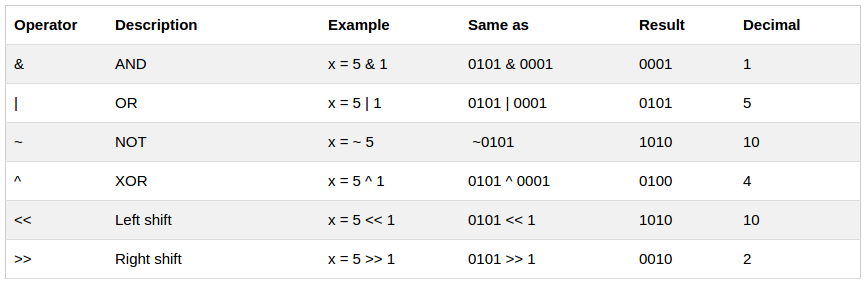
The table above use 4 bits unsigned examples. But JavaScript uses 32-bit signed numbers. Because of this, in JavaScript, ~ 5 will not return 10. It will return -6: ~00000000000000000000000000000101 will return 11111111111111111111111111111010
Example
x = 5 & 1;
The result in x:
1
Example
x = 5 | 1;
The result in x:
5
Example
x = 5 >> 1;
The result in x:
2
Example
x = 5 << 1;
The result in x:
10
Example
x = ~ 5;
The result in x:
-6
Conditional statements are used to perform different actions based on different conditions.
Very often when you write code, you want to perform different actions for different decisions.
You can use conditional statements in your code to do this.
In JavaScript we have the following conditional statements:
- Use if to specify a block of code to be executed, if a specified condition is true
- Use else to specify a block of code to be executed, if the same condition is false
- Use else if to specify a new condition to test, if the first condition is false
- Use switch to specify many alternative blocks of code to be executed
Use the if statement to specify a block of JavaScript code to be executed if a condition is true.
Syntax
if (condition) {
block of code to be executed if the condition is true
}
Note that if is in lowercase letters. Uppercase letters (If or IF) will generate a JavaScript error.
Example
Make a "Good day" greeting if the hour is less than 18:00:
if (hour < 18) {
greeting = "Good day";
}
The result of greeting will be:
Good day
Use the else statement to specify a block of code to be executed if the condition is false.
if (condition) {
block of code to be executed if the condition is true
} else {
block of code to be executed if the condition is false
}
Example
If the hour is less than 18, create a "Good day" greeting, otherwise "Good evening":
if (hour < 18) {
greeting = "Good day";
} else {
greeting = "Good evening";
}
The result of greeting will be:
Good day
Use the else if statement to specify a new condition if the first condition is false.
Syntax
if (condition1) {
block of code to be executed if condition1 is true
} else if (condition2) {
block of code to be executed if the condition1 is false and condition2 is true
} else {
block of code to be executed if the condition1 is false and condition2 is false
}
Example
If time is less than 10:00, create a "Good morning" greeting, if not, but time is less than 20:00, create a "Good day" greeting, otherwise a "Good evening":
if (time < 10) {
greeting = "Good morning";
} else if (time < 20) {
greeting = "Good day";
} else {
greeting = "Good evening";
}
The result of greeting will be:
Good morning
Example
<p id="demo">Display the result here.</p>
<script>
var greeting;
var hour = new Date().getHours();
if (hour < 18) {
greeting = "Good day";
}
else
{greeting = "Good evening";
}
document.getElementById("demo").innerHTML = greeting + " time now is " + hour;
</script>
Use the switch statement to select one of many blocks of code to be executed.
Syntax
switch(expression) {
case n:
code block
break;
case n:
code block
break;
default:
default code block
}
This is how it works:
- The switch expression is evaluated once.
- The value of the expression is compared with the values of each case.
- If there is a match, the associated block of code is executed.
Example
The getDay() method returns the weekday as a number between 0 and 6. (Sunday=0, Monday=1, Tuesday=2 ..)
Use the weekday number to calculate weekday name:
switch (new Date().getDay()) {
case 0:
day = "Sunday";
break;
case 1:
day = "Monday";
break;
case 2:
day = "Tuesday";
break;
case 3:
day = "Wednesday";
break;
case 4:
day = "Thursday";
break;
case 5:
day = "Friday";
break;
case 6:
day = "Saturday";
}
The result of day will be:
Sunday
When JavaScript reaches a break keyword, it breaks out of the switch block.
This will stop the execution of more code and case testing inside the block.
When a match is found, and the job is done, it's time for a break. There is no need for more testing.
It is not necessary to break the last case in a switch block. It breaks (ends) there anyway.
The default keyword specifies the code to run if there is no case match:
Example
The getDay() method returns the weekday as a number between 0 and 6.
If today is neither Saturday (6) nor Sunday (0), write a default message:
switch (new Date().getDay()) {
case 6:
text = "Today is Saturday";
break;
case 0:
text = "Today is Sunday";
break;
default:
text = "Looking forward to the Weekend";
}
The result of text will be:
Looking forward to the Weekend
Sometimes, in a switch block, you will want different cases to use the same code, or fall-through to a common default.
Note from the next example, that cases can share the same code block, and that the default case does not have to be the last case in a switch block:
Example
switch (new Date().getDay()) { case 1: case 2: case 3: default: text = "Looking forward to the Weekend"; break; case 4: case 5: text = "Soon it is Weekend"; break; case 0: case 6: text = "It is Weekend"; }
If default is not the last case in the switch block, remember to end it with a break.
Bahan latihan :
<input id="myInput" type="text" value="Tutti Frutti">
<button onclick="checkFruit()">Check Fruit</button>
<p id="demo"></p>
<script>
function checkFruit() {
var text;
var fruits = document.getElementById("myInput").value;
switch(fruits) {
case "Banana":
text = "Banana is good!";
break;
case "Orange":
text = "I am not a fan of orange.";
break;
case "Apple":
text = "How you like them apples?";
break;
default:
text = "I have never heard of that fruit.";
}
document.getElementById("demo").innerHTML = text;
}
</script>
Loops can execute a block of code a number of times.
Loops are handy, if you want to run the same code over and over again, each time with a different value.
Often this is the case when working with arrays:
Instead of writing:
text += cars[0] + "<br>";
text += cars[1] + "<br>";
text += cars[2] + "<br>";
text += cars[3] + "<br>";
text += cars[4] + "<br>";
text += cars[5] + "<br>";
You can write:
for (i = 0; i < cars.length; i++) {
text += cars[i] + "<br>";
}
Detail Code
<p id="demo"></p>
var cars = ["BMW", "Volvo", "Saab", "Ford"];
var text = "";
var i;
for(i = 0; i < cars.lenth; i++) {
text += cars[i] + "<br>";
}
document.getElementById("demo").innerHTML = text;
JavaScript supports different kinds of loops:
- for - loops through a block of code a number of times
- for/in - loops through the properties of an object
- while - loops through a block of code while a specified condition is true
- do/while - also loops through a block of code while a specified condition is true
The for loop is often the tool you will use when you want to create a loop.
The for loop has the following syntax:
for (statement 1; statement 2; statement 3) {
code block to be executed
}
Statement 1 is executed before the loop (the code block) starts.
Statement 2 defines the condition for running the loop (the code block).
Statement 3 is executed each time after the loop (the code block) has been executed.
Example
for (i = 0; i < 5; i++) {
text += "The number is " + i + "<br>";
}
From the example above, you can read:
Statement 1 sets a variable before the loop starts (var i = 0).
Statement 2 defines the condition for the loop to run (i must be less than 5).
Statement 3 increases a value (i++) each time the code block in the loop has been executed.
Normally you will use statement 1 to initiate the variable used in the loop (i = 0).
This is not always the case, JavaScript doesn't care. Statement 1 is optional.
You can initiate many values in statement 1 (separated by comma):
Example
for (i = 0, len = cars.length, text = ""; i < len; i++) {
text += cars[i] + "<br>";
}
And you can omit statement 1 (like when your values are set before the loop starts):
Example
var i = 2;
var len = cars.length;
var text = "";
for (; i < len; i++) {
text += cars[i] + "<br>";
}
Often statement 2 is used to evaluate the condition of the initial variable.
This is not always the case, JavaScript doesn't care. Statement 2 is also optional.
If statement 2 returns true, the loop will start over again, if it returns false, the loop will end.
If you omit statement 2, you must provide a break inside the loop. Otherwise the loop will never end. This will crash your browser. Read about breaks in a later chapter of this tutorial.
Often statement 3 increases the initial variable.
This is not always the case, JavaScript doesn't care, and statement 3 is optional.
Statement 3 can do anything like negative increment (i--), positive increment (i = i + 15), or anything else.
Statement 3 can also be omitted (like when you increment your values inside the loop):
Example
var i = 0;
var len = cars.length;
for (; i < len; ) {
text += cars[i] + "<br>";
i++;
}
The JavaScript for/in statement loops through the properties of an object:
Example
var person = {fname:"John", lname:"Doe", age:25};
var text = "";
var x;
for (x in person) {
text += person[x];
}
The while loop and the do/while loop will be explained in the next chapter.
Exercise:
Make the loop start counting from 5. Count up to (including) 50, and count only every fifth number.
<p id="demo"></p>
<script>
var i;
for (i = 0; i < 10; i++) {
document.getElementById("demo").innerHTML += i + "<br>";
}
</script>
Make the loop start counting downwards from 10 and stop at 1.
The output should be 10 9 8 7 6 5 4 3 2 1 with line breaks.
Exercise:
Inside the for loop: Set the counter variable (i) to 0. Run the loop as long as i is less than the length of the food array. Increment i by 1.
Exercise: In this exercise, you are going to create a for loop from scratch. We have already created the counter variable i for you, and a text variable for output. Your task is to create a FOR LOOP that output the numbers 1 3 5 7 9 with line breaks between each number. WARNING: Remember to increase the variable used in the condition to avoid infinite loops (will crash your browser).
Loops can execute a block of code as long as a specified condition is true.
The while loop loops through a block of code as long as a specified condition is true.
while (condition) {
code block to be executed
}
Example
In the following example, the code in the loop will run, over and over again, as long as a variable (i) is less than 10:
Example
while (i < 10) {
text += "The number is " + i;
i++;
}
Example
<button type="button" onclick="myFunction()">Try this</button>
function myFunction() {
var text = "";
var i = 0;
while (i < 10) {
text += "<br>The number is " + i;
i++;
}
document.getElementById("demo").innerHTML = text;
}
Other Example
<p id="demo"></p>
<script>
var x = 0;
text = "";
while( x < 10) {
text += "<br> number is " + x ;
x++;
document.getElementById("demo").innerHTML = text;
}
</script>
If you forget to increase the variable used in the condition, the loop will never end. This will crash your browser.
The do/while loop is a variant of the while loop. This loop will execute the code block once, before checking if the condition is true, then it will repeat the loop as long as the condition is true.
Syntax
do {
code block to be executed
}
while (condition);
Example
The example below uses a do/while loop. The loop will always be executed at least once, even if the condition is false, because the code block is executed before the condition is tested:
Example
do {
text += "The number is " + i;
i++;
}
while (i < 10);
Do not forget to increase the variable used in the condition, otherwise the loop will never end!
If you have read the previous chapter, about the for loop, you will discover that a while loop is much the same as a for loop, with statement 1 and statement 3 omitted.
The loop in this example uses a for loop to collect the car names from the cars array:
Example
var cars = ["BMW", "Volvo", "Saab", "Ford"];
var i = 0;
var text = "";
for (;cars[i];) {
text += cars[i] + "<br>";
i++;
}
The loop in this example uses a while loop to collect the car names from the cars array:
Example
var cars = ["BMW", "Volvo", "Saab", "Ford"];
var i = 0;
var text = "";
while (cars[i]) {
text += cars[i] + "<br>";
i++;
}
The break statement "jumps out" of a loop.
The continue statement "jumps over" one iteration in the loop.
You have already seen the break statement used in an earlier chapter of this tutorial. It was used to "jump out" of a switch() statement.
The break statement can also be used to jump out of a loop.
The break statement breaks the loop and continues executing the code after the loop (if any):
Example
for (i = 0; i < 10; i++) {
if (i === 3) { break; }
text += "The number is " + i + "<br>";
}
The continue statement breaks one iteration (in the loop), if a specified condition occurs, and continues with the next iteration in the loop.
This example skips the value of 3:
Example
for (i = 0; i < 10; i++) {
if (i === 3) { continue; }
text += "The number is " + i + "<br>";
}
To label JavaScript statements you precede the statements with a label name and a colon:
label:
statements
The break and the continue statements are the only JavaScript statements that can "jump out of" a code block.
Syntax:
break labelname;
continue labelname;
The continue statement (with or without a label reference) can only be used to skip one loop iteration.
The break statement, without a label reference, can only be used to jump out of a loop or a switch.
With a label reference, the break statement can be used to jump out of any code block:
Example
var cars = ["BMW", "Volvo", "Saab", "Ford"];
list: {
text += cars[0] + "<br>";
text += cars[1] + "<br>";
text += cars[2] + "<br>";
break list;
text += cars[3] + "<br>";
text += cars[4] + "<br>";
text += cars[5] + "<br>";
}
A code block is a block of code between { and }.
Exercise:
Use the break statement to stop the loop at 5.
<p id="demo"></p>
<script>
var text = "";
var i;
for (i = 1; i < 10; i++) {
if (i === 5) {break}
document.getElementById("demo").innerHTML += i + "<br>";
}
</script>
Use the continue statement to skip the number 5 in the loop.
<p id="demo"></p>
<script>
var text = "";
var i;
for (i = 1; i < 10; i++) {
document.getElementById("demo").innerHTML += i + "<br>";
}
</script>
Use the continue statement to skip the numbers 5 AND 7 in the loop.
<p id="demo"></p>
<script>
var text = "";
var i;
for (i = 1; i < 10; i++) {
document.getElementById("demo").innerHTML += i + "<br>";
}
</script>
<input id="myInput" type="text" value="BMW">
<button onclick="checkCar()">Check Car</button>
<p id="demo"></p>
<script>
function checkCar() {
var text;
var favCar = document.getElementById("myInput").value;
switch(favCar) {
case "BMW":
text = "German car";
break;
case "Ford":
text = "American car";
break;
case "Peugeot":
text = "French car";
break;
default:
text = "Unknown car name";
}
document.getElementById("demo").innerHTML = text;
}
</script>
Number() converts to a Number, String() converts to a String, Boolean() converts to a Boolean.
In JavaScript there are 5 different data types that can contain values:
- string
- number
- boolean
- object
- function
There are 3 types of objects:
- Object
- Date
- Array
And 2 data types that cannot contain values:
- null
- undefined
You can use the typeof operator to find the data type of a JavaScript variable.
Example
typeof "John" // Returns string
typeof 3.14 // Returns number
typeof NaN // Returns number
typeof false // Returns boolean
typeof [1,2,3,4] // Returns object
typeof {name:'John', age:34} // Returns object
typeof new Date() // Returns object
typeof function () {} // Returns function
typeof myCar // Returns undefined (if myCar is not declared)
typeof null // Returns object
Please observe:
The data type of NaN is number The data type of an array is object The data type of a date is object The data type of null is object The data type of an undefined variable is undefined
You cannot use typeof to determine if a JavaScript object is an array (or a date).
The typeof operator is not a variable. It is an operator. Operators ( + - * / ) do not have any data type.
But, the typeof operator always returns a string containing the type of the operand.
The constructor property returns the constructor function for all JavaScript variables.
Example
"John".constructor // Returns function Strin g() { [native code] }
(3.14).constructor // Returns function Number() { [native code] }
false.constructor // Returns function Boolean() { [native code] }
[1,2,3,4].constructor // Returns function Array() { [native code] }
{name:'John', age:34}.constructor // Returns function Object() { [native code] }
new Date().constructor // Returns function Date() { [native code] }
function () {}.constructor // Returns function Function(){ [native code] }
You can check the constructor property to find out if an object is an Array (contains the word "Array"):
Example
function isArray(myArray) {
return myArray.constructor.toString().indexOf("Array") > -1;
}
You can check the constructor property to find out if an object is a Date (contains the word "Date"):
Example
function isDate(myDate) {
return myDate.constructor.toString().indexOf("Date") > -1;
}
JavaScript variables can be converted to a new variable and another data type:
- By the use of a JavaScript function
- Automatically by JavaScript itself
The global method String() can convert numbers to strings.
It can be used on any type of numbers, literals, variables, or expressions:
Example
String(x) // returns a string from a number variable x
String(123) // returns a string from a number literal 123
String(100 + 23) // returns a string from a number from an expression
The Number method toString() does the same.
Example
x.toString()
(123).toString()
(100 + 23).toString()
In the chapter Number Methods, you will find more methods that can be used to convert numbers to strings:
Method Description
toExponential() Returns a string, with a number rounded and written using exponential notation.
toFixed() Returns a string, with a number rounded and written with a specified number of decimals.
toPrecision() Returns a string, with a number written with a specified length
The global method String() can convert booleans to strings.
String(false) // returns "false"
String(true) // returns "true"
The Boolean method toString() does the same.
false.toString() // returns "false"
true.toString() // returns "true"
The global method String() can convert dates to strings.
String(Date()) // returns Thu Jul 17 2014 15:38:19 GMT+0200 (W. Europe Daylight Time)
The Date method toString() does the same.
Example
Date().toString() // returns Thu Jul 17 2014 15:38:19 GMT+0200 (W. Europe Daylight Time)
In the chapter Date Methods, you will find more methods that can be used to convert dates to strings:
Method Description
getDate() Get the day as a number (1-31)
getDay() Get the weekday a number (0-6)
getFullYear() Get the four digit year (yyyy)
getHours() Get the hour (0-23)
getMilliseconds() Get the milliseconds (0-999)
getMinutes() Get the minutes (0-59)
getMonth() Get the month (0-11)
getSeconds() Get the seconds (0-59)
getTime() Get the time (milliseconds since January 1, 1970)
The global method Number() can convert strings to numbers.
Strings containing numbers (like "3.14") convert to numbers (like 3.14).
Empty strings convert to 0.
Anything else converts to NaN (Not a number).
Number("3.14") // returns 3.14
Number(" ") // returns 0
Number("") // returns 0
Number("99 88") // returns NaN
In the chapter Number Methods, you will find more methods that can be used to convert strings to numbers:
Method Description
parseFloat() Parses a string and returns a floating point number
parseInt() Parses a string and returns an integer
The unary + operator can be used to convert a variable to a number:
Example
var y = "5"; // y is a string
var x = + y; // x is a number
If the variable cannot be converted, it will still become a number, but with the value NaN (Not a number):
Example
var y = "John"; // y is a string
var x = + y; // x is a number (NaN)
The global method Number() can also convert booleans to numbers.
Number(false) // returns 0
Number(true) // returns 1
The global method Number() can be used to convert dates to numbers.
d = new Date();
Number(d) // returns 1404568027739
The date method getTime() does the same.
d = new Date();
d.getTime() // returns 1404568027739
When JavaScript tries to operate on a "wrong" data type, it will try to convert the value to a "right" type.
The result is not always what you expect:
5 + null // returns 5 because null is converted to 0
"5" + null // returns "5null" because null is converted to "null"
"5" + 2 // returns 52 because 2 is converted to "2"
"5" - 2 // returns 3 because "5" is converted to 5
"5" * "2" // returns 10 because "5" and "2" are converted to 5 and 2
JavaScript automatically calls the variable's toString() function when you try to "output" an object or a variable:
document.getElementById("demo").innerHTML = myVar;
// if myVar = {name:"Fjohn"} // toString converts to "[object Object]"
// if myVar = [1,2,3,4] // toString converts to "1,2,3,4"
// if myVar = new Date() // toString converts to "Fri Jul 18 2014 09:08:55 GMT+0200"
Numbers and booleans are also converted, but this is not very visible:
// if myVar = 123 // toString converts to "123"
// if myVar = true // toString converts to "true"
// if myVar = false // toString converts to "false"
This table shows the result of converting different JavaScript values to Number, String, and Boolean:
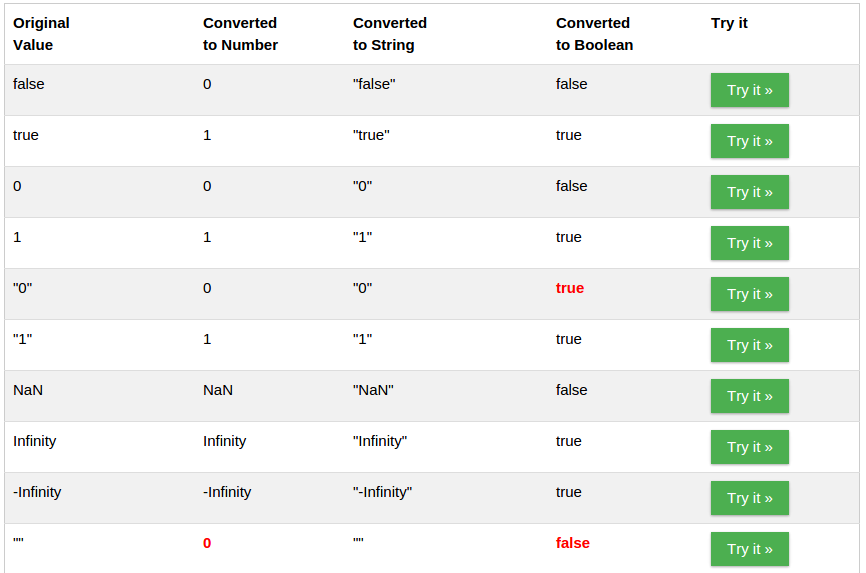
A regular expression is a sequence of characters that forms a search pattern.
The search pattern can be used for text search and text replace operations.
A regular expression is a sequence of characters that forms a search pattern.
When you search for data in a text, you can use this search pattern to describe what you are searching for.
A regular expression can be a single character, or a more complicated pattern.
Regular expressions can be used to perform all types of text search and text replace operations.
Syntax
/pattern/modifiers;
Example
var patt = /w3schools/i;
Example explained:
/w3schools/i is a regular expression.
w3schools is a pattern (to be used in a search).
i is a modifier (modifies the search to be case-insensitive).
In JavaScript, regular expressions are often used with the two string methods: search() and replace().
The search() method uses an expression to search for a match, and returns the position of the match.
The replace() method returns a modified string where the pattern is replaced.
Using String search() With a Regular Expression
Example
Use a regular expression to do a case-insensitive search for "w3schools" in a string:
var str = "Visit W3Schools";
var n = str.search(/w3schools/i);
The result in n will be:
6
The search method will also accept a string as search argument. The string argument will be converted to a regular expression:
Example
Use a string to do a search for "W3schools" in a string:
var str = "Visit W3Schools!";
var n = str.search("W3Schools");
Example
Use a case insensitive regular expression to replace Microsoft with W3Schools in a string:
var str = "Visit Microsoft!";
var res = str.replace(/microsoft/i, "W3Schools");
The result in res will be:
Visit W3Schools!
The replace() method will also accept a string as search argument:
var str = "Visit Microsoft!";
var res = str.replace("Microsoft", "W3Schools");
Regular expression arguments (instead of string arguments) can be used in the methods above. Regular expressions can make your search much more powerful (case insensitive for example).
Modifiers can be used to perform case-insensitive more global searches:
Modifier Description
i Perform case-insensitive matching
g Perform a global match (find all matches rather than stopping after the first match)
m Perform multiline matching
Brackets are used to find a range of characters:
Expression Description
[abc] Find any of the characters between the brackets
[0-9] Find any of the digits between the brackets
(x|y) Find any of the alternatives separated with |
Metacharacter Description
\d Find a digit
\s Find a whitespace character
\b Find a match at the beginning or at the end of a word
\uxxxx Find the Unicode character specified by the hexadecimal number xxxx
Quantifiers define quantities:
Quantifier Description
n+ Matches any string that contains at least one n
n* Matches any string that contains zero or more occurrences of n
n? Matches any string that contains zero or one occurrences of n
In JavaScript, the RegExp object is a regular expression object with predefined properties and methods.
The test() method is a RegExp expression method.
It searches a string for a pattern, and returns true or false, depending on the result.
The following example searches a string for the character "e":
Example
var patt = /e/;
patt.test("The best things in life are free!");
Since there is an "e" in the string, the output of the code above will be:
true
You don't have to put the regular expression in a variable first. The two lines above can be shortened to one:
/e/.test("The best things in life are free!");
The exec() method is a RegExp expression method.
It searches a string for a specified pattern, and returns the found text.
If no match is found, it returns null.
The following example searches a string for the character "e":
Example 1
/e/.exec("The best things in life are free!");
Since there is an "e" in the string, the output of the code above will be:
e
For a complete reference, go to our Complete JavaScript RegExp Reference.
The reference contains descriptions and examples of all RegExp properties and methods.
The try statement lets you test a block of code for errors.
The catch statement lets you handle the error.
The throw statement lets you create custom errors.
The finally statement lets you execute code, after try and catch, regardless of the result.
When executing JavaScript code, different errors can occur.
Errors can be coding errors made by the programmer, errors due to wrong input, and other unforeseeable things:
Example
<!DOCTYPE html>
<html>
<body>
<p id="demo"></p>
<script>
try {
adddlert("Welcome guest!");
}
catch(err) {
document.getElementById("demo").innerHTML = err.message;
}
</script>
</body>
</html>
In the example above we have made a typo in the code (in the try block).
The catch block catches the error, and executes code to handle it.
The try statement allows you to define a block of code to be tested for errors while it is being executed.
The catch statement allows you to define a block of code to be executed, if an error occurs in the try block.
The JavaScript statements try and catch come in pairs:
try {
Block of code to try
}
catch(err) {
Block of code to handle errors
}
When an error occurs, JavaScript will normally stop, and generate an error message.
The technical term for this is: JavaScript will raise (or throw) an exception.
The throw statement allows you to create a custom error.
Technically you can raise (throw) an exception.
The exception can be a JavaScript String, a Number, a Boolean or an Object:
throw "Too big"; // throw a text
throw 500; // throw a number
If you use throw together with try and catch, you can control program flow and generate custom error messages.
This example examines input. If the value is wrong, an exception (err) is thrown.
The exception (err) is caught by the catch statement and a custom error message is displayed:
<!DOCTYPE html>
<html>
<body>
<p>Please input a number between 5 and 10:</p>
<input id="demo" type="text">
<button type="button" onclick="myFunction()">Test Input</button>
<p id="message"></p>
<script>
function myFunction() {
var message, x;
message = document.getElementById("message");
message.innerHTML = "";
x = document.getElementById("demo").value;
try {
if(x == "") throw "empty";
if(isNaN(x)) throw "not a number";
x = Number(x);
if(x < 5) throw "too low";
if(x > 10) throw "too high";
}
catch(err) {
message.innerHTML = "Input is " + err;
}
}
</script>
</body>
</html>
The code above is just an example.
Modern browsers will often use a combination of JavaScript and built-in HTML validation, using predefined validation rules defined in HTML attributes:
<input id="demo" type="number" min="5" max="10" step="1"
You can read more about forms validation in a later chapter of this tutorial.
The finally statement lets you execute code, after try and catch, regardless of the result:
try {
Block of code to try
}
catch(err) {
Block of code to handle errors
}
finally {
Block of code to be executed regardless of the try / catch result
}
Example
function myFunction() {
var message, x;
message = document.getElementById("message");
message.innerHTML = "";
x = document.getElementById("demo").value;
try {
if(x == "") throw "is empty";
if(isNaN(x)) throw "is not a number";
x = Number(x);
if(x > 10) throw "is too high";
if(x < 5) throw "is too low";
}
catch(err) {
message.innerHTML = "Error: " + err + ".";
}
finally {
document.getElementById("demo").value = "";
}
}
It is easy to get lost writing JavaScript code without a debugger.
It is difficult to write JavaScript code without a debugger.
Your code might contain syntax errors, or logical errors, that are difficult to diagnose.
Often, when JavaScript code contains errors, nothing will happen. There are no error messages, and you will get no indications where to search for errors.
Normally, errors will happen, every time you try to write some new JavaScript code.
Searching for errors in programming code is called code debugging.
Debugging is not easy. But fortunately, all modern browsers have a built-in debugger.
Built-in debuggers can be turned on and off, forcing errors to be reported to the user.
With a debugger, you can also set breakpoints (places where code execution can be stopped), and examine variables while the code is executing.
Normally, otherwise follow the steps at the bottom of this page, you activate debugging in your browser with the F12 key, and select "Console" in the debugger menu.
The console.log() Method If your browser supports debugging, you can use console.log() to display JavaScript values in the debugger window:
Example
<!DOCTYPE html>
<html>
<body>
<h1>My First Web Page</h1>
<script>
a = 5;
b = 6;
c = a + b;
console.log(c);
</script>
</body>
</html>
In the debugger window, you can set breakpoints in the JavaScript code.
At each breakpoint, JavaScript will stop executing, and let you examine JavaScript values.
After examining values, you can resume the execution of code (typically with a play button).
The debugger keyword stops the execution of JavaScript, and calls (if available) the debugging function.
This has the same function as setting a breakpoint in the debugger.
If no debugging is available, the debugger statement has no effect.
With the debugger turned on, this code will stop executing before it executes the third line.
Example
var x = 15 * 5;
debugger;
document.getElementbyId("demo").innerHTML = x;
Normally, you activate debugging in your browser with F12, and select "Console" in the debugger menu.
Otherwise follow these steps:
Chrome
- Open the browser.
- From the menu, select tools.
- From tools, choose developer tools.
- Finally, select Console.
Firefox Firebug
- Open the browser.
- Go to the web page:
- http://www.getfirebug.com
- Follow the instructions how to: install Firebug
Internet Explorer
- Open the browser.
- From the menu, select tools.
- From tools, choose developer tools.
- Finally, select Console.
Opera
- Open the browser.
- Go to the webpage: http://dev.opera.com
- Follow the instructions how to: add a Developer Console button to your toolbar.
Safari Firebug
- Open the browser.
- Go to the webpage: http://extensions.apple.com *Follow the instructions how to: install Firebug Lite.
Safari Develop Menu
- Go to Safari, Preferences, Advanced in the main menu.
- Check "Enable Show Develop menu in menu bar".
- When the new option "Develop" appears in the menu: Choose "Show Error Console".
Debugging is the process of testing, finding, and reducing bugs (errors) in computer programs. The first known computer bug was a real bug (an insect) stuck in the electronics.
Hoisting is JavaScript's default behavior of moving declarations to the top.
In JavaScript, a variable can be declared after it has been used.
In other words; a variable can be used before it has been declared.
Example 1 gives the same result as Example 2:
Example 1
x = 5; // Assign 5 to x
elem = document.getElementById("demo"); // Find an element
elem.innerHTML = x; // Display x in the element
var x; // Declare x
Example 2
var x; // Declare x
x = 5; // Assign 5 to x
elem = document.getElementById("demo"); // Find an element
elem.innerHTML = x; // Display x in the element
To understand this, you have to understand the term "hoisting".
Hoisting is JavaScript's default behavior of moving all declarations to the top of the current scope (to the top of the current script or the current function).
JavaScript only hoists declarations, not initializations.
Example 1 does not give the same result as Example 2:
Example 1
var x = 5; // Initialize x
var y = 7; // Initialize y
elem = document.getElementById("demo"); // Find an element
elem.innerHTML = x + " " + y; // Display x and y
Example 2
var x = 5; // Initialize x
elem = document.getElementById("demo"); // Find an element
elem.innerHTML = x + " " + y; // Display x and y
var y = 7; // Initialize y
Does it make sense that y is undefined in the last example?
This is because only the declaration (var y), not the initialization (=7) is hoisted to the top.
Because of hoisting, y has been declared before it is used, but because initializations are not hoisted, the value of y is undefined.
Example 2 is the same as writing:
Example
var x = 5; // Initialize x
var y; // Declare y
elem = document.getElementById("demo"); // Find an element
elem.innerHTML = x + " " + y; // Display x and y
y = 7; // Assign 7 to y
Hoisting is (to many developers) an unknown or overlooked behavior of JavaScript.
If a developer doesn't understand hoisting, programs may contain bugs (errors).
To avoid bugs, always declare all variables at the beginning of every scope.
Since this is how JavaScript interprets the code, it is always a good rule.
JavaScript in strict mode does not allow variables to be used if they are not declared. Study "use strict" in the next chapter.
"use strict"; Defines that JavaScript code should be executed in "strict mode".
The "use strict" directive is new in JavaScript 1.8.5 (ECMAScript version 5).
It is not a statement, but a literal expression, ignored by earlier versions of JavaScript.
The purpose of "use strict" is to indicate that the code should be executed in "strict mode".
With strict mode, you can not, for example, use undeclared variables.
Strict mode is supported in: IE from version 10. Firefox from version 4. Chrome from version 13. Safari from version 5.1. Opera from version 12.
Strict mode is declared by adding "use strict"; to the beginning of a script or a function.
Declared at the beginning of a script, it has global scope (all code in the script will execute in strict mode):
Example
"use strict";
x = 3.14; // This will cause an error (x is not defined)
Example
"use strict";
myFunction();
function myFunction() {
y = 3.14; // This will also cause an error (y is not defined)
}
Declared inside a function, it has local scope (only the code inside the function is in strict mode):
x = 3.14; // This will not cause an error.
myFunction();
function myFunction() {
"use strict";
y = 3.14; // This will cause an error (y is not defined)
}
The syntax, for declaring strict mode, was designed to be compatible with older versions of JavaScript.
Compiling a numeric literal (4 + 5;) or a string literal ("John Doe";) in a JavaScript program has no side effects. It simply compiles to a non existing variable and dies.
So "use strict"; only matters to new compilers that "understand" the meaning of it.
Strict mode makes it easier to write "secure" JavaScript.
Strict mode changes previously accepted "bad syntax" into real errors.
As an example, in normal JavaScript, mistyping a variable name creates a new global variable. In strict mode, this will throw an error, making it impossible to accidentally create a global variable.
In normal JavaScript, a developer will not receive any error feedback assigning values to non-writable properties.
In strict mode, any assignment to a non-writable property, a getter-only property, a non-existing property, a non-existing variable, or a non-existing object, will throw an error.
Not Allowed in Strict Mode Using a variable, without declaring it, is not allowed:
"use strict";
x = 3.14; // This will cause an error (x is not defined)
Objects are variables too.
Using an object, without declaring it, is not allowed:
"use strict";
x = {p1:10, p2:20}; // This will cause an error (x is not defined)
Deleting a variable (or object) is not allowed.
"use strict";
var x = 3.14;
delete x; // This will cause an error
Deleting a function is not allowed.
"use strict";
function x(p1, p2) {};
delete x; // This will cause an error
Duplicating a parameter name is not allowed:
"use strict";
function x(p1, p1) {}; // This will cause an error
Octal numeric literals are not allowed:
"use strict";
var x = 010; // This will cause an error
Detail Code
<h1>With "use strict":</h1>
<h3>Octal numeric literals are not allowed.</h3>
<p>Activate debugging in your browser (F12) to see the error report.</p>
<script>
"use strict";
var x = 010; // This will cause an error
</script>
Escape characters are not allowed:
"use strict";
var x = \010; // This will cause an error
Detail Code
<h1>With "use strict":</h1>
<h3>Escape characters are not allowed.</h3>
<p>Activate debugging in your browser (F12) to see the error report.</p>
<script>
"use strict";
var x = \010; // This will cause an error
</script>
Writing to a read-only property is not allowed:
"use strict";
var obj = {};
Object.defineProperty(obj, "x", {value:0, writable:false});
obj.x = 3.14; // This will cause an error
Detail Code
<h1>With "use strict":</h1>
<h3>Writing to a read-only property is not allowed.</h3>
<p>Activate debugging in your browser (F12) to see the error report.</p>
<script>
"use strict";
var obj = {};
Object.defineProperty(obj, "x", {value:0, writable:false});
obj.x = 3.14; // This will cause an error
</script>
Writing to a get-only property is not allowed:
"use strict";
var obj = {get x() {return 0} };
obj.x = 3.14; // This will cause an error
Detail Code
<h1>With "use strict":</h1>
<h3>Writing to a get-only property is not allowed.</h3>
<p>Activate debugging in your browser (F12) to see the error report.</p>
<script>
"use strict";
var obj = {get x() {return 0} };
obj.x = 3.14; // This will cause an error
</script>
Deleting an undeletable property is not allowed:
"use strict";
delete Object.prototype; // This will cause an error
Detail Code
<h1>With "use strict":</h1>
<h3>Deleting an udeletable property is not allowed.</h3>
<p>Activate debugging in your browser (F12) to see the error report.</p>
<script>
"use strict";
delete Object.prototype; // This will cause an error
</script>
The string "eval" cannot be used as a variable:
"use strict";
var eval = 3.14; // This will cause an error
Detail Code
<h1>With "use strict":</h1>
<h3>The string "eval" cannot be used as a variable.</h3>
<p>Activate debugging in your browser (F12) to see the error report.</p>
<script>
"use strict";
var eval = 3.14; // This will cause an error
</script>
The string "arguments" cannot be used as a variable:
"use strict";
var arguments = 3.14; // This will cause an error
Detail Code
<h1>With "use strict":</h1>
<h3>The string "arguments" cannot be used as a variable.</h3>
<p>Activate debugging in your browser (F12) to see the error report.</p>
<script>
"use strict";
var arguments = 3.14; // This will cause an error
</script>
The with statement is not allowed:
"use strict";
with (Math){x = cos(2)}; // This will cause an error
Detail Code
<h1>With "use strict":</h1>
<h3>The with statement is not allowed.</h3>
<p>Activate debugging in your browser (F12) to see the error report.</p>
<script>
"use strict";
with (Math){x = cos(2)}; // This will cause an error
</script>
For security reasons, eval() is not allowed to create variables in the scope from which it was called:
"use strict";
eval ("var x = 2");
alert (x); // This will cause an error
Detail Code
<h1>With "use strict":</h1>
<h3>For security reasons, eval() is not allowed to create variables in the scope from which it was called.</h3>
<p>Activate debugging in your browser (F12) to see the error report.</p>
<script>
"use strict";
eval ("var x = 2");
alert (x); // This will cause an error
</script>
In function calls like f(), the this value was the global object. In strict mode, it is now undefined.
Future Proof! Future reserved keywords are not allowed in strict mode. These are:
- implements
- interface
- let
- package
- private
- protected
- public
- static
- yield
("use strict"; var public = 1500; // This will cause an error
The "use strict" directive is only recognized at the beginning of a script or a function.
Coding conventions are style guidelines for programming. They typically cover:
- Naming and declaration rules for variables and functions.
- Rules for the use of white space, indentation, and comments.
- Programming practices and principles
Coding conventions secure quality:
- Improves code readability
- Make code maintenance easier
Coding conventions can be documented rules for teams to follow, or just be your individual coding practice.
This page describes the general JavaScript code conventions used by W3Schools. You should also read the next chapter "Best Practices", and learn how to avoid coding pitfalls.
At W3schools we use camelCase for identifier names (variables and functions).
All names start with a letter.
At the bottom of this page, you will find a wider discussion about naming rules.
firstName = "John";
lastName = "Doe";
price = 19.90;
tax = 0.20;
fullPrice = price + (price * tax);
Always put spaces around operators ( = + - * / ), and after commas:
Examples:
var x = y + z;
var values = ["Volvo", "Saab", "Fiat"];
Always use 4 spaces for indentation of code blocks:
function toCelsius(fahrenheit) {
return (5 / 9) * (fahrenheit - 32);
}
Do not use tabs (tabulators) for indentation. Different editors interpret tabs differently.
General rules for simple statements:
- Always end a simple statement with a semicolon.
Examples:
var values = ["Volvo", "Saab", "Fiat"];
var person = {
firstName: "John",
lastName: "Doe",
age: 50,
eyeColor: "blue"
};
General rules for complex (compound) statements:
- Put the opening bracket at the end of the first line.
- Use one space before the opening bracket.
- Put the closing bracket on a new line, without leading spaces.
- Do not end a complex statement with a semicolon.
Functions:
function toCelsius(fahrenheit) {
return (5 / 9) * (fahrenheit - 32);
}
for (i = 0; i < 5; i++) {
x += i;
}
if (time < 20) {
greeting = "Good day";
} else {
greeting = "Good evening";
}
General rules for object definitions:
- Place the opening bracket on the same line as the object name.
- Use colon plus one space between each property and its value.
- Use quotes around string values, not around numeric values.
- Do not add a comma after the last property-value pair.
- Place the closing bracket on a new line, without leading spaces.
- Always end an object definition with a semicolon
Example
var person = {
firstName: "John",
lastName: "Doe",
age: 50,
eyeColor: "blue"
};
Short objects can be written compressed, on one line, using spaces only between properties, like this:
var person = {firstName:"John", lastName:"Doe", age:50, eyeColor:"blue"};
For readability, avoid lines longer than 80 characters.
If a JavaScript statement does not fit on one line, the best place to break it, is after an operator or a comma.
document.getElementById("demo").innerHTML =
"Hello Dolly.";
Detail Code
<h1>My Web Page</h1>
<p>
The best place to break a code line is after an operator or a comma.
</p>
<p id="demo"></p>
<script>
document.getElementById("demo").innerHTML =
"Hello Dolly.";
</script>
Always use the same naming convention for all your code. For example:
- Variable and function names written as camelCase
- Global variables written in UPPERCASE (We don't, but it's quite common)
- Constants (like PI) written in UPPERCASE
This is a question programmers often discuss. The answer depends on who you ask:
HTML5 attributes can start with data- (data-quantity, data-price).
CSS uses hyphens in property-names (font-size).
Hyphens can be mistaken as subtraction attempts. Hyphens are not allowed in JavaScript names.
Many programmers prefer to use underscores (date_of_birth), especially in SQL databases.
Underscores are often used in PHP documentation.
PascalCase is often preferred by C programmers.
camelCase is used by JavaScript itself, by jQuery, and other JavaScript libraries.
Do not start names with a $ sign. It will put you in conflict with many JavaScript library names.
Use simple syntax for loading external scripts (the type attribute is not necessary):
<script src="myscript.js"></script>
A consequence of using "untidy" HTML styles, might result in JavaScript errors.
These two JavaScript statements will produce different results:
var obj = getElementById("Demo")
var obj = getElementById("demo")
If possible, use the same naming convention (as JavaScript) in HTML.
HTML files should have a .html extension (not .htm).
CSS files should have a .css extension.
JavaScript files should have a .js extension.
Most web servers (Apache, Unix) are case sensitive about file names:
london.jpg cannot be accessed as London.jpg.
Other web servers (Microsoft, IIS) are not case sensitive:
london.jpg can be accessed as London.jpg or london.jpg.
If you use a mix of upper and lower case, you have to be extremely consistent.
If you move from a case insensitive, to a case sensitive server, even small errors can break your web site.
To avoid these problems, always use lower case file names (if possible).
Coding conventions are not used by computers. Most rules have little impact on the execution of programs.
Indentation and extra spaces are not significant in small scripts.
For code in development, readability should be preferred. Larger production scripts should be minified.
Avoid global variables, avoid new, avoid ==, avoid eval()
Minimize the use of global variables.
This includes all data types, objects, and functions.
Global variables and functions can be overwritten by other scripts.
Use local variables instead, and learn how to use closures.
All variables used in a function should be declared as local variables.
Local variables must be declared with the var keyword, otherwise they will become global variables.
Strict mode does not allow undeclared variables.
It is a good coding practice to put all declarations at the top of each script or function.
This will:
Give cleaner code Provide a single place to look for local variables Make it easier to avoid unwanted (implied) global variables Reduce the possibility of unwanted re-declarations
// Declare at the beginning
var firstName, lastName, price, discount, fullPrice;
// Use later
firstName = "John";
lastName = "Doe";
price = 19.90;
discount = 0.10;
fullPrice = price * 100 / discount;
// Declare at the beginning
var i;
// Use later
for (i = 0; i < 5; i++) {
By default, JavaScript moves all declarations to the top (JavaScript hoisting)
It is a good coding practice to initialize variables when you declare them.
This will:
-
Give cleaner code
-
Provide a single place to initialize variables
-
Avoid undefined values
Example
// Declare and initiate at the beginning
var firstName = "",
lastName = "",
price = 0,
discount = 0,
fullPrice = 0,
myArray = [],
myObject = {};
Initializing variables provides an idea of the intended use (and intended data type).
Always treat numbers, strings, or booleans as primitive values. Not as objects.
Declaring these types as objects, slows down execution speed, and produces nasty side effects:
Example
var x = "John"; // string
var y = new String("John"); // object
(x === y) // is false because x is a string and y is an object.
Or even worse:
Example
var x = new String("John");
var y = new String("John");
(x == y) // is false because you cannot compare objects.
- Use {} instead of new Object()
- Use "" instead of new String()
- Use 0 instead of new Number()
- Use false instead of new Boolean()
- Use [] instead of new Array()
- Use /()/ instead of new RegExp()
- Use function (){} instead of new Function()
Example
var x1 = {}; // new object
var x2 = ""; // new primitive string
var x3 = 0; // new primitive number
var x4 = false; // new primitive boolean
var x5 = []; // new array object
var x6 = /()/; // new regexp object
var x7 = function(){}; // new function object
Beware that numbers can accidentally be converted to strings or NaN (Not a Number).
JavaScript is loosely typed. A variable can contain different data types, and a variable can change its data type:
Example
var x = "Hello"; // typeof x is a string
x = 5; // changes typeof x to a number
When doing mathematical operations, JavaScript can convert numbers to strings:
Example
var x = 5 + 7; // x.valueOf() is 12, typeof x is a number
var x = 5 + "7"; // x.valueOf() is 57, typeof x is a string
var x = "5" + 7; // x.valueOf() is 57, typeof x is a string
var x = 5 - 7; // x.valueOf() is -2, typeof x is a number
var x = 5 - "7"; // x.valueOf() is -2, typeof x is a number
var x = "5" - 7; // x.valueOf() is -2, typeof x is a number
var x = 5 - "x"; // x.valueOf() is NaN, typeof x is a number
Subtracting a string from a string, does not generate an error but returns NaN (Not a Number):
Example
"Hello" - "Dolly" // returns NaN
The == comparison operator always converts (to matching types) before comparison.
The === operator forces comparison of values and type:
Example
0 == ""; // true
1 == "1"; // true
1 == true; // true
0 === ""; // false
1 === "1"; // false
1 === true; // false
If a function is called with a missing argument, the value of the missing argument is set to undefined.
Undefined values can break your code. It is a good habit to assign default values to arguments.
Example
function myFunction(x, y) {
if (y === undefined) {
y = 0;
}
}
Read more about function parameters and arguments at Function Parameters
Always end your switch statements with a default. Even if you think there is no need for it.
Example
switch (new Date().getDay()) {
case 0:
day = "Sunday";
break;
case 1:
day = "Monday";
break;
case 2:
day = "Tuesday";
break;
case 3:
day = "Wednesday";
break;
case 4:
day = "Thursday";
break;
case 5:
day = "Friday";
break;
case 6:
day = "Saturday";
break;
default:
day = "Unknown";
}
The eval() function is used to run text as code. In almost all cases, it should not be necessary to use it.
Because it allows arbitrary code to be run, it also represents a security problem.
This chapter points out some common JavaScript mistakes.
JavaScript programs may generate unexpected results if a programmer accidentally uses an assignment operator (=), instead of a comparison operator (==) in an if statement.
This if statement returns false (as expected) because x is not equal to 10:
var x = 0;
if (x == 10)
This if statement returns true (maybe not as expected), because 10 is true:
var x = 0;
if (x = 10)
This if statement returns false (maybe not as expected), because 0 is false:
var x = 0;
if (x = 0)
An assignment always returns the value of the assignment.
In regular comparison, data type does not matter. This if statement returns true:
var x = 10;
var y = "10";
if (x == y)
In strict comparison, data type does matter. This if statement returns false:
var x = 10;
var y = "10";
if (x === y)
It is a common mistake to forget that switch statements use strict comparison:
This case switch will display an alert:
var x = 10;
switch(x) {
case 10: alert("Hello");
}
This case switch will not display an alert:
var x = 10;
switch(x) {
case "10": alert("Hello");
}
Addition is about adding numbers.
Concatenation is about adding strings.
In JavaScript both operations use the same + operator.
Because of this, adding a number as a number will produce a different result from adding a number as a string:
var x = 10 + 5; // the result in x is 15
var x = 10 + "5"; // the result in x is "105"
When adding two variables, it can be difficult to anticipate the result:
var x = 10;
var y = 5;
var z = x + y; // the result in z is 15
var x = 10;
var y = "5";
var z = x + y; // the result in z is "105"
All numbers in JavaScript are stored as 64-bits Floating point numbers (Floats).
All programming languages, including JavaScript, have difficulties with precise floating point values:
var x = 0.1;
var y = 0.2;
var z = x + y // the result in z will not be 0.3
if (z == 0.3) // this if test will fail
To solve the problem above, it helps to multiply and divide:
Example
var z = (x * 10 + y * 10) / 10; // z will be 0.3
JavaScript will allow you to break a statement into two lines:
Example 1
var x =
"Hello World!";
But, breaking a statement in the middle of a string will not work:
Example 2
var x = "Hello
World!";
You must use a "backslash" if you must break a statement in a string:
Example 3
var x = "Hello \
World!";
Because of a misplaced semicolon, this code block will execute regardless of the value of x:
if (x == 19);
{
// code block
}
It is a default JavaScript behavior to close a statement automatically at the end of a line.
Because of this, these two examples will return the same result:
Example 1
function myFunction(a) {
var power = 10
return a * power
}
Example 2
function myFunction(a) {
var power = 10;
return a * power;
}
JavaScript will also allow you to break a statement into two lines.
Because of this, example 3 will also return the same result:
Example 3
function myFunction(a) {
var
power = 10;
return a * power;
}
But, what will happen if you break the return statement in two lines like this:
Example 4
function myFunction(a) {
var
power = 10;
return
a * power;
}
The function will return undefined!
Why? Because JavaScript thinks you meant:
Example 5
function myFunction(a) {
var
power = 10;
return;
a * power;
}
If a statement is incomplete like:
var
JavaScript will try to complete the statement by reading the next line:
power = 10;
But since this statement is complete:
return
JavaScript will automatically close it like this:
return;
This happens because closing (ending) statements with semicolon is optional in JavaScript.
JavaScript will close the return statement at the end of the line, because it is a complete statement.
Never break a return statement.
Many programming languages support arrays with named indexes.
Arrays with named indexes are called associative arrays (or hashes).
JavaScript does not support arrays with named indexes.
In JavaScript, arrays use numbered indexes:
Example
var person = [];
person[0] = "John";
person[1] = "Doe";
person[2] = 46;
var x = person.length; // person.length will return 3
var y = person[0]; // person[0] will return "John"
In JavaScript, objects use named indexes.
If you use a named index, when accessing an array, JavaScript will redefine the array to a standard object.
After the automatic redefinition, array methods and properties will produce undefined or incorrect results:
Example:
var person = [];
person["firstName"] = "John";
person["lastName"] = "Doe";
person["age"] = 46;
var x = person.length; // person.length will return 0
var y = person[0]; // person[0] will return undefined
Incorrect:
points = [40, 100, 1, 5, 25, 10,];
Some JSON and JavaScript engines will fail, or behave unexpectedly.
Correct:
points = [40, 100, 1, 5, 25, 10];
Incorrect:
person = {firstName:"John", lastName:"Doe", age:46,}
Some JSON and JavaScript engines will fail, or behave unexpectedly.
Correct:
person = {firstName:"John", lastName:"Doe", age:46}
With JavaScript, null is for objects, undefined is for variables, properties, and methods.
To be null, an object has to be defined, otherwise it will be undefined.
If you want to test if an object exists, this will throw an error if the object is undefined:
Incorrect:
if (myObj !== null && typeof myObj !== "undefined")
Because of this, you must test typeof() first:
Correct:
if (typeof myObj !== "undefined" && myObj !== null)
JavaScript does not create a new scope for each code block.
It is true in many programming languages, but not true in JavaScript.
It is a common mistake, among new JavaScript developers, to believe that this code returns undefined:
Example
for (var i = 0; i < 10; i++) {
// some code
}
return i;
How to speed up your JavaScript code.
Loops are often used in programming.
Each statement in a loop, including the for statement, is executed for each iteration (perulangan) of the loop.
Search for statements or assignments that can be placed outside the loop.
Bad Code:
for (i = 0; i < arr.length; i++) {
Better Code:
l = arr.length;
for (i = 0; i < l; i++) {
The bad code accesses the length property of an array each time the loop is iterated.
The better code accesses the length property outside the loop, and makes the loop run faster.
Accessing the HTML DOM is very slow, compared to other JavaScript statements.
If you expect to access a DOM element several times, access it once, and use it as a local variable:
Example
obj = document.getElementById("demo");
obj.innerHTML = "Hello";
Keep the number of elements in the HTML DOM small.
This will always improve page loading, and speed up rendering (page display), especially on smaller devices.
Every attempt to search the DOM (like getElementsByTagName) will benefit from a smaller DOM.
Don't create new variables if you don't plan to save values.
Often you can replace code like this:
var fullName = firstName + " " + lastName;
document.getElementById("demo").innerHTML = fullName;
With this:
document.getElementById("demo").innerHTML = firstName + " " + lastName
Putting your scripts at the bottom of the page body, lets the browser load the page first.
While a script is downloading, the browser will not start any other downloads. In addition all parsing and rendering activity might be blocked.
The HTTP specification defines that browsers should not download more than two components in parallel.
An alternative is to use defer="true" in the script tag. The defer attribute specifies that the script should be executed after the page has finished parsing, but it only works for external scripts.
If possible, you can add your script to the page by code, after the page has loaded:
Example
<script>
window.onload = downScripts;
function downScripts() {
var element = document.createElement("script");
element.src = "myScript.js";
document.body.appendChild(element);
}
</script>
Avoid using the with keyword. It has a negative effect on speed. It also clutters up JavaScript scopes.
The with keyword is not allowed in strict mode.
JSON is a format for storing and transporting data.
JSON is often used when data is sent from a server to a web page.
- JSON stands for JavaScript Object Notation
- JSON is lightweight data interchange format
- JSON is language independent *
- JSON is "self-describing" and easy to understand
*The JSON syntax is derived (berasal) from JavaScript object notation syntax, but the JSON format is text only. Code for reading and generating JSON data can be written in any programming language.
This JSON syntax defines an employees object: an array of 3 employee records (objects):
JSON Example
{
"employees":[
{"firstName":"John", "lastName":"Doe"},
{"firstName":"Anna", "lastName":"Smith"},
{"firstName":"Peter", "lastName":"Jones"}
]
}
The JSON format is syntactically identical to the code for creating JavaScript objects.
Because of this similarity, a JavaScript program can easily convert JSON data into native JavaScript objects.
- Data is in name/value pairs
- Data is separated by commas
- Curly braces hold objects
- Square brackets hold arrays
JSON data is written as name/value pairs, just like JavaScript object properties.
A name/value pair consists of a field name (in double quotes), followed by a colon, followed by a value:
"firstName":"John"
JSON names require double quotes. JavaScript names do not.
JSON objects are written inside curly braces.
Just like in JavaScript, objects can contain multiple name/value pairs:
{"firstName":"John", "lastName":"Doe"}
JSON arrays are written inside square brackets.
Just like in JavaScript, an array can contain objects:
"employees":[
{"firstName":"John", "lastName":"Doe"},
{"firstName":"Anna", "lastName":"Smith"},
{"firstName":"Peter", "lastName":"Jones"}
]
In the example above, the object "employees" is an array. It contains three objects.
Each object is a record of a person (with a first name and a last name).
A common use of JSON is to read data from a web server, and display the data in a web page.
For simplicity, this can be demonstrated using a string as input (or read more in our JSON tutorial):
First, create a JavaScript string containing JSON syntax:
var text = '{ "employees" : [' +
'{ "firstName":"John" , "lastName":"Doe" },' +
'{ "firstName":"Anna" , "lastName":"Smith" },' +
'{ "firstName":"Peter" , "lastName":"Jones" } ]}';
Then, use the JavaScript built-in function JSON.parse() to convert the string into a JavaScript object:
var obj = JSON.parse(text);
Finally, use the new JavaScript object in your page:
Example
<p id="demo"></p>
<script>
document.getElementById("demo").innerHTML =
obj.employees[1].firstName + " " + obj.employees[1].lastName;
</script>
You can read more about JSON in our JSON tutorial.