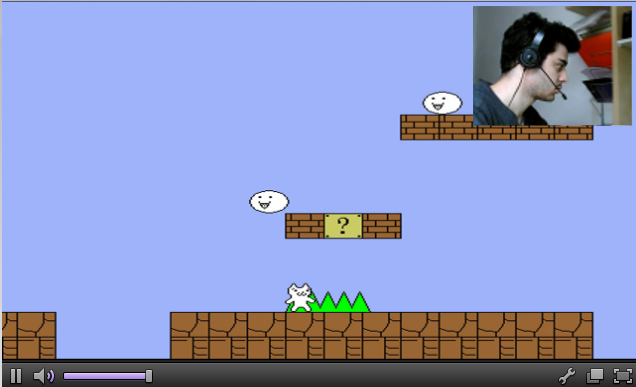
This is a script dedicated to stream to Twitch.tv. it also has Webcam support! AVCONV script is DEPRECATED, due libav drama, etc...
Tested on:
- Linux: Ubuntu 13.04
- CPU: AMD Athlon(tm) 64 X2 Dual Core Processor 4200+ × 2
- Ram: 2 GB
- Arch: 64bit
- GPU: Radeon X1300 PCI (ATI RV515)
- Bandwith: ~70 byte/s
- Mem Used: ~192 MB (2 Threads)
- Giovanni Dante Grazioli
###Contributors
- İlteriş Eroğlu (linuxgemini)
- yofreke
- Vilsol
-
Go to http://www.twitch.tv/broadcast/ , click on the Show Key button and copy and paste the key inside the twitch_key file or inside the ~/.twitch_key
-
To save the Streaming, go to http://twitch.tv/settings/videos and check Archive Broadcasts - Automatically archive my broadcasts
-
Open now the twitch.sh and edit the settings
Value Example Description ------------------ ------------------------ --------------------------------------------------------------------------------------------------------- OUTRES "1280x720" Twitch Output Resolution ("1920x1080" should be the maximum resolution) FPS "24" Frame per Seconds (Suggested 24, 25, 30 or 60) THREADS "4" Change this if you have a good CPU (Suggested 4 threads, Max 6 threads) QUALITY "medium" or "veryfast" Streaming Quality (ultrafast, superfast, veryfast, faster, fast, medium, slow, slower, veryslow, placebo) WEBCAM "/dev/video1" WebCam chardevice under /dev WEBCAM_WH "320:240" WebCam Width end Height in the Output WEBCAM_XY "10:10" WebCam Position if empty then it will set the standard position SERVER "live" or "live-fra" Twitch Server list at http://bashtech.net/twitch/ingest.php CBR "1000k" to "3000k" Constant bitrate. Increase this to get a better pixel quality (Twitch suggest between 1000k to 3000k) ALWAYS_FULLSCREEN "false" or "true" Change this to 'true' if you want to go always on FULLSCREEN, this will disable the output. SUPPRESS_OUTPUT "false" or "true" Change this to 'true' if you want to hide your STREAM_KEY, for security purpose. This will not affect the ALWAYS_FULLSCREEN option. ALWAYS_FULLSCREEN will always disable the output. FILE_VIDEO "My_stream.flv" File name to redirect the stream if there's the -save arg (go to the How To to see how it works) SET_XY "10,100" Position of the Window on the screen (X,Y) and will be used only if the -coords option is called. SET_INRES "1024x600" Window size (WxH) and will be used only if the -coords option is called. AUDIO_RATE "44100" Twitch Audio Rate. Twitch itself, says must be 2 channels with 44100 as rate; so DO NOT CHANGE IT! KEY_FRAME "2" Twitch Video Key Frame. Twitch itself, says must be 2, so DO NOT CHANGE IT! -
Open the game that you want to stream and set window mode.
-
Open a terminal, browse to the twitch script directory and run the script
$ ./twitch_ffmpeg.sh -
Avconv script is deprecated. It can give you errors
-
Click with your Mouse on the game window
-
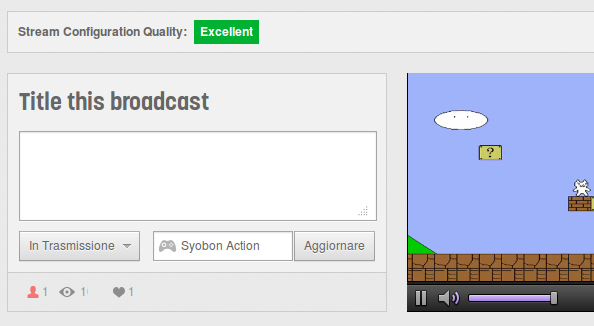
Now you should be live (check on your channel).
-
You can set the Audio settings (select the Null Output on pavucontrol)
-
To stop the stream, click on the terminal and press CTRL+C
-
BE CAREFUL ON SHOWING THE TERMINAL SINCE FFMPEG PRINTS ON THE TERMINAL THE KEY
-
For suggestion or bugfix, please write to me on github. (I love suggestions! <3 )
-
Please do NOT write for support on my BLOG. post bug reports on http://github.com/wargio/Twitch-Streamer-Linux !
-
You can run the scripts with some arguments (you can use a combination of these):
  Value              Description
  ------------------ -------------------------------------------------------------------------------
   -h                Display the usage screen
   -fullscreen       Run the script in FULLSCREEN mode
   -window           Run the script in WINDOW mode
-coords Set the screen resolution, by using SET_XY SET_INRES defined inside the script -save Save the video to the file FILE_VIDEO instead of streaming it -quiet Disables most of the outputs (The Twitch KEY will be hided)
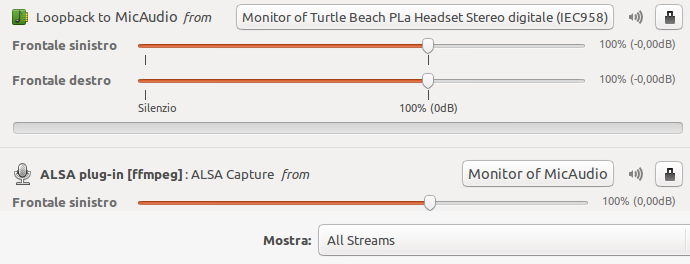
- My microphone is
Turtle Beach PLa Headsetand my game isSyobon Action (Cat Mario) - Open the game you want to stream and exec the script
- Now open
pavucontrol - Under
Playback: - Under
Recording: - Done (For
ffmpeg/avconvsetting,Monitor of MicAudioorMonitor of GameAudio. it's the same). - If you don't see any
Monitor of MicAudioorMonitor of GameAudio, but onlyMonitor of null output, use it, don't worry.

These dependencies are the name of the packages that you need. The libs names can change from distro to distro!.
x11-utils pulseaudio-utils libfaac-dev libmp3lame-dev libv4l-dev libx264-dev libpulse-dev librtmp-dev libasound2-dev X11proto-xext-dev libxext-dev
Grab the latest ffmpeg from:
git clone git://source.ffmpeg.org/ffmpeg.git ffmpeg
Build it with the following build options:
./configure --disable-ffplay --disable-ffprobe --disable-ffserver --enable-libfaac --enable-libmp3lame --enable-libv4l2 --enable-libx264 --enable-x11grab --enable-libpulse --enable-librtmp --enable-gpl --enable-nonfree --disable-yasm --extra-libs="-lasound"
###Suggested:
pavucontrol
-
How do i choose the bitrate?
The optimal bitrate can be calculated in this way:
bitrate = Width*Height/144, an example720*480/144 = 2400 (k)but if you get a bitrate above 5000(k) like1920*1080/144=2073456(k = ~2073 M)choose 5000k, because 6000k is DVD quality. -
I see some errors after
Stopping Audio (Don't worry if you see errors here), should i worry about this?No, you don't. They are supposed to show up.
-
Which is the Webcam standard position on the screen?
The standard position is: (ScreenWidth - WebcamWidth - 10):10 (Upper Right corner) Keep in mind that the coordinates start from 0:0 (Upper Left corner) to Width:Height (Bottom Right corner)
-
How i can test the output before going to livestream?
Use the
-savearg for the script:./twitch_ffmpeg -saveor./twitch_avconv -savein this way you can see how it looks like and change things if they are not ok. -
How i can save the output instead of livestreaming? Use the
-savearg for the script:./twitch_ffmpeg -saveor./twitch_avconv -save -
Why the avconv script is deprecated? It's deprecated due libav drama. Please use ffmpeg.