Use the applications attached here to complete installations
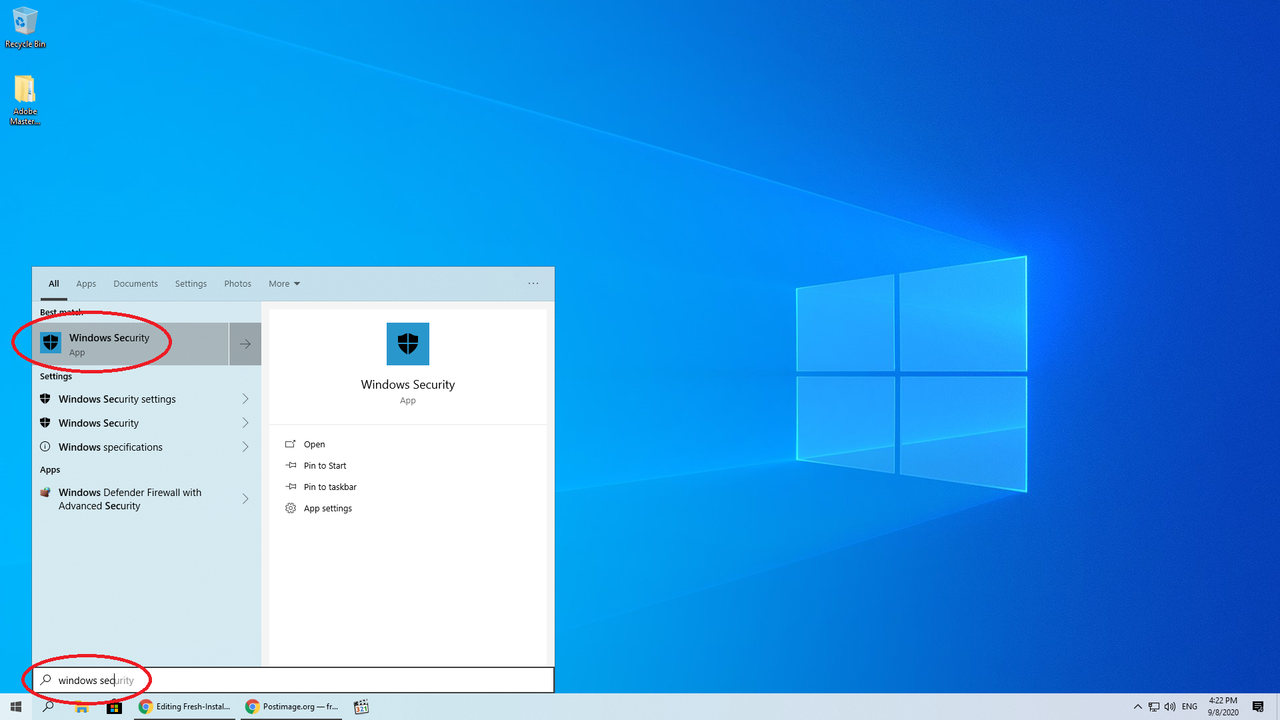
- Go to Start, search Windows Security
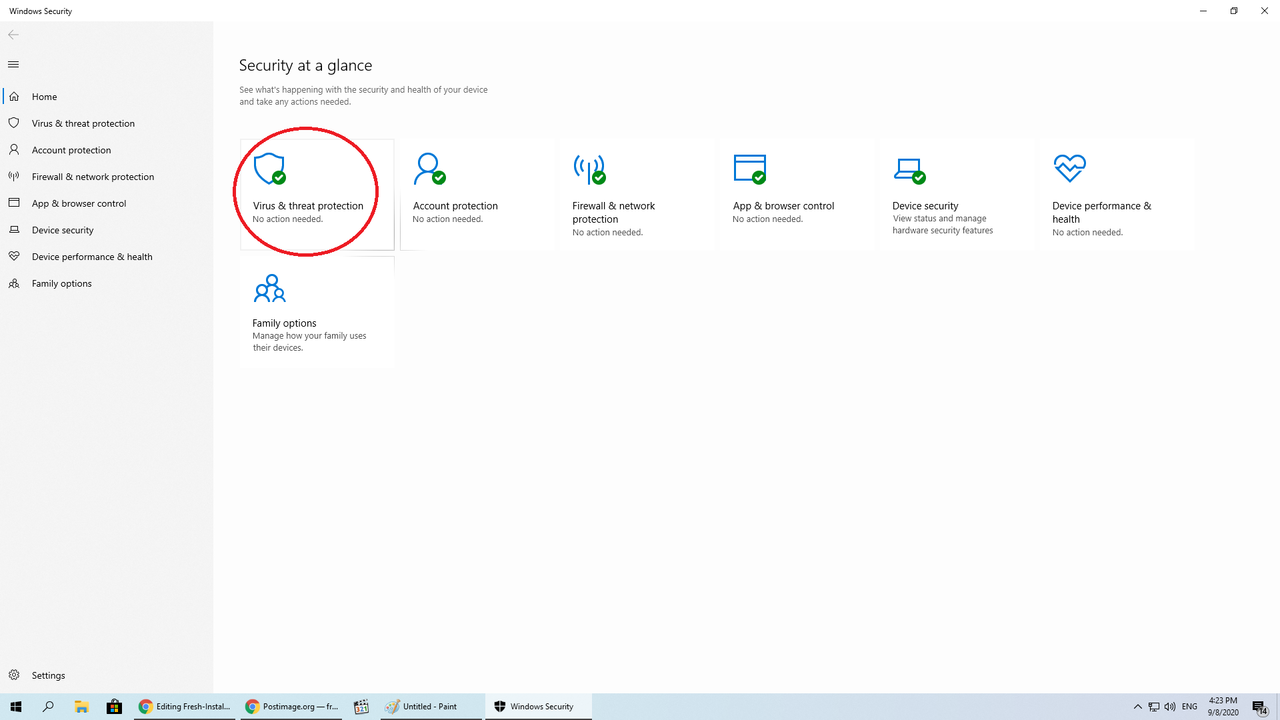
- Click on Virus and Threat Protection.
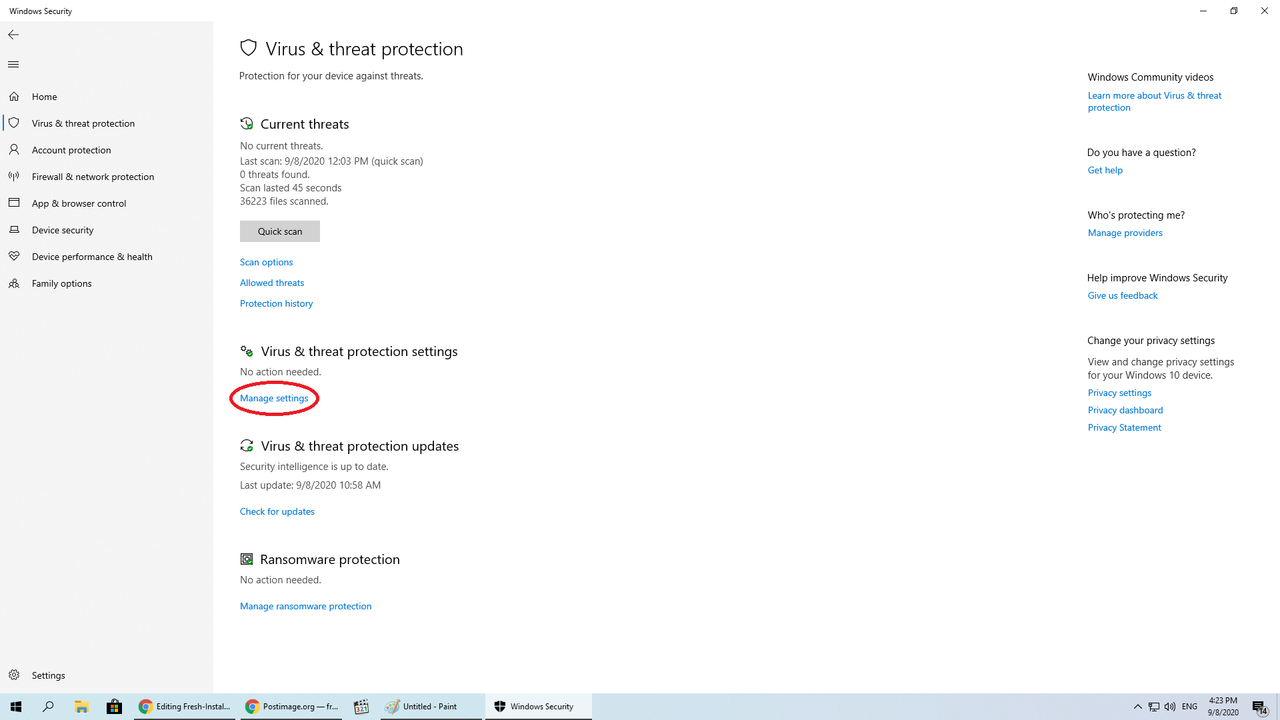
- Under Virus & threat protection setting, click Manage settings.
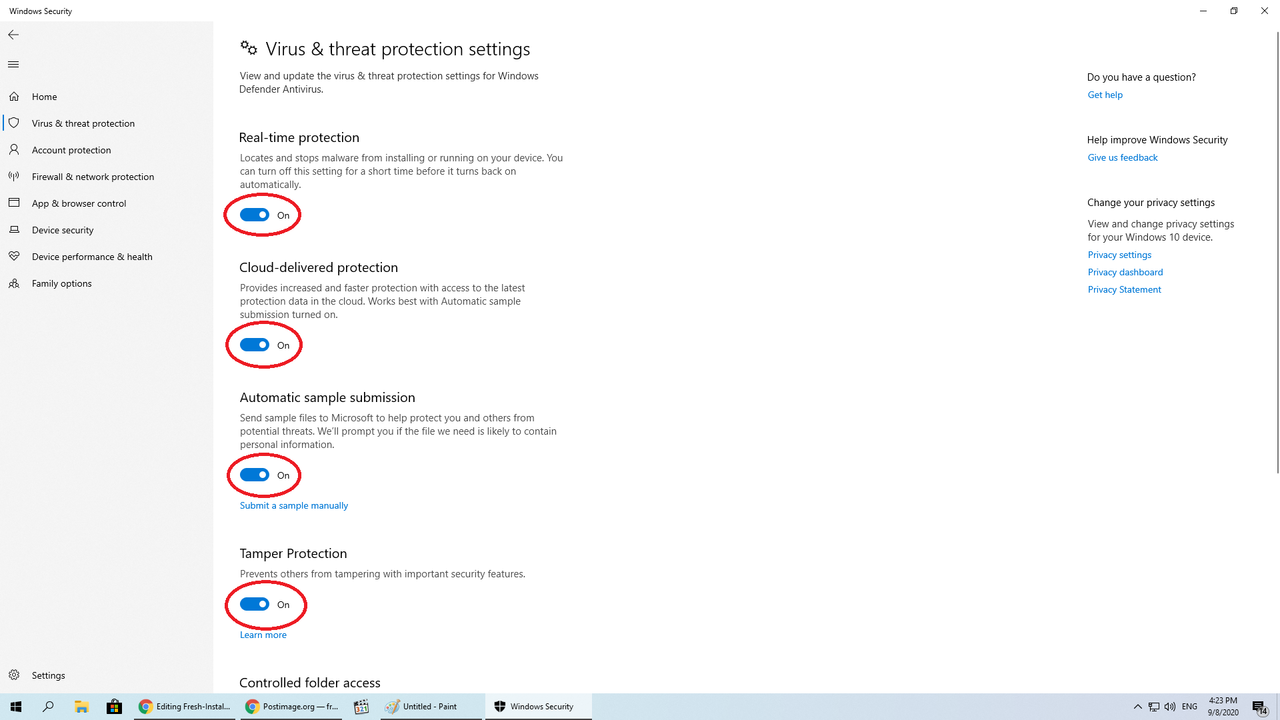
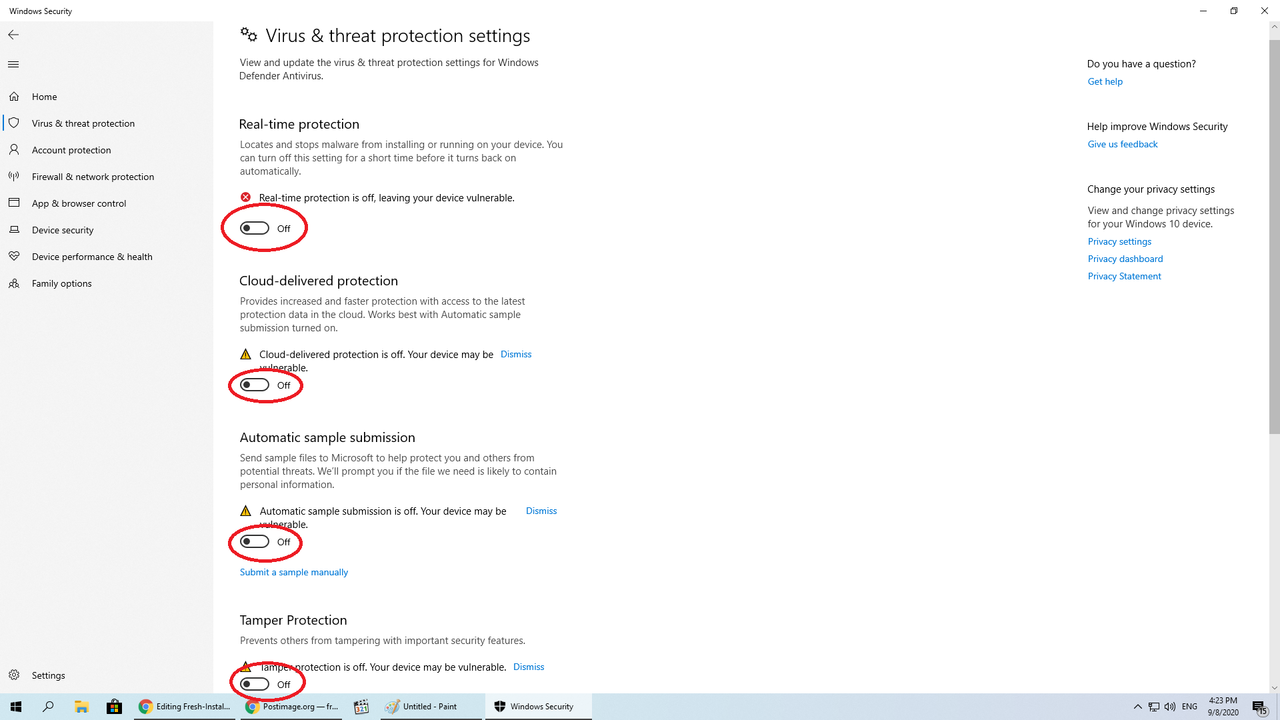
- Turn off the following:
- Real-time protection
- Cloud-delivered protection
- Automatic Sample Submission
- Tamper Protection
- Should look like this.
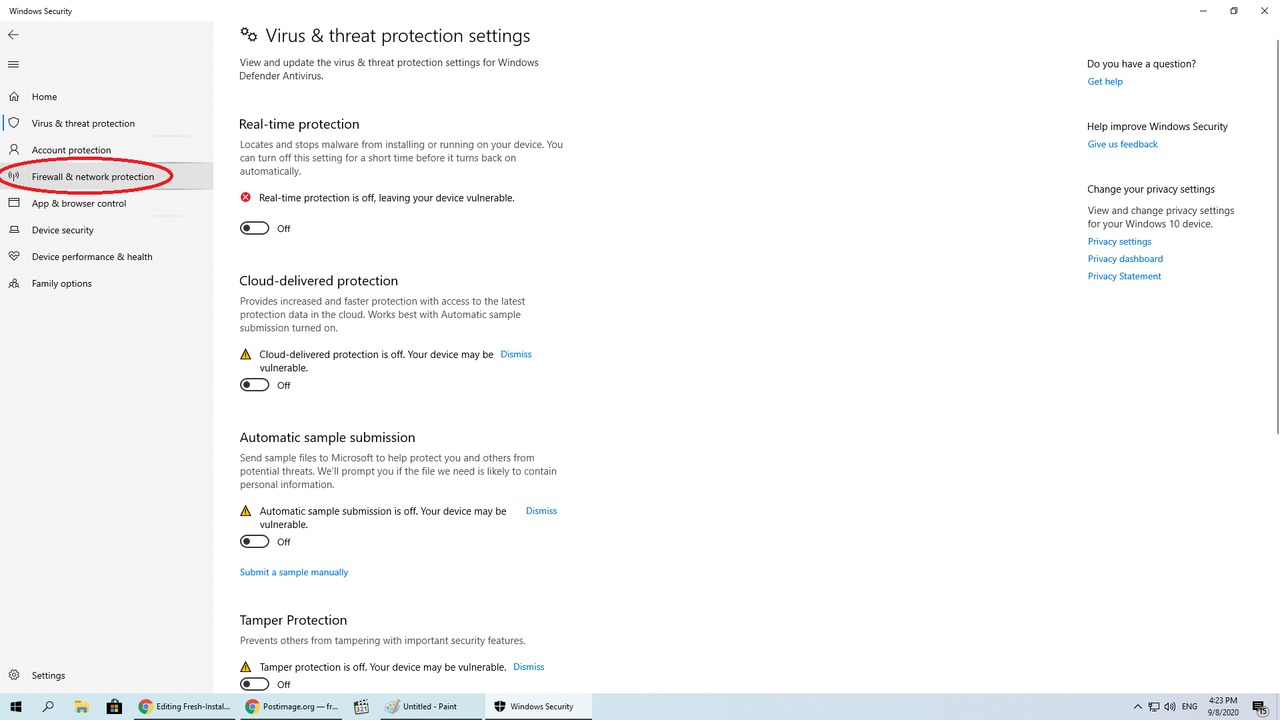
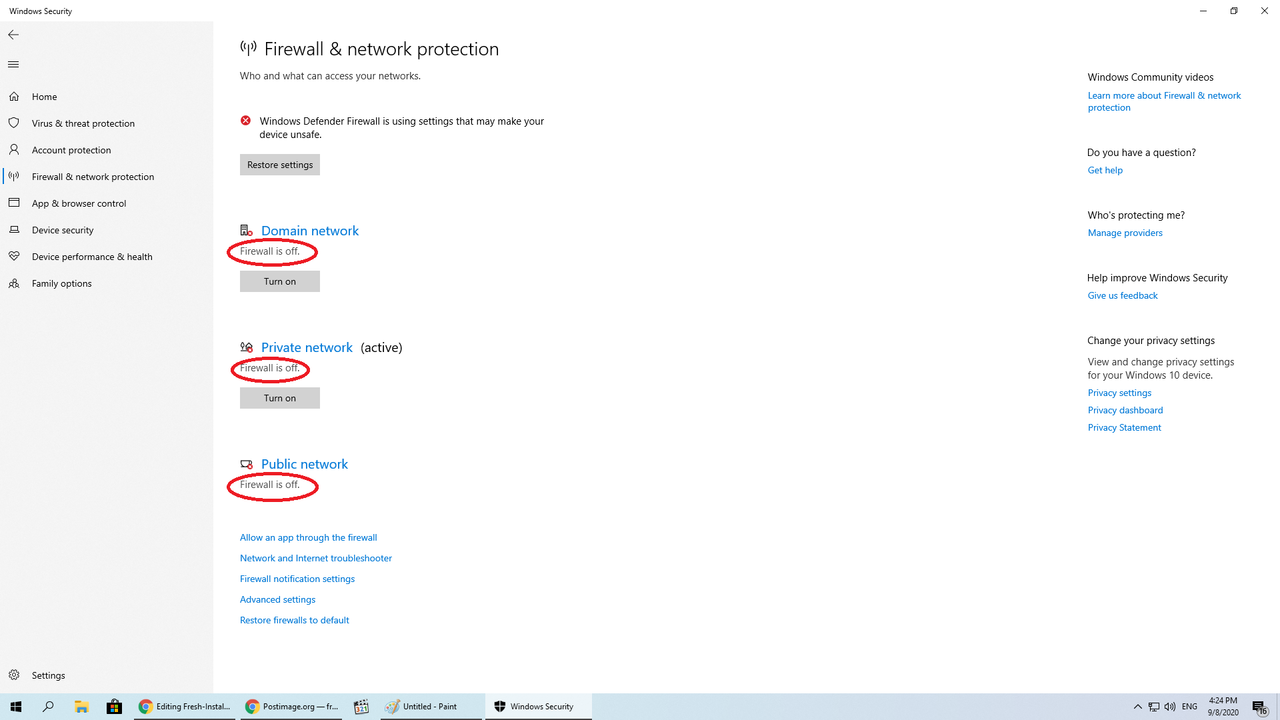
- On left hand side, click Firewall & Network Protection
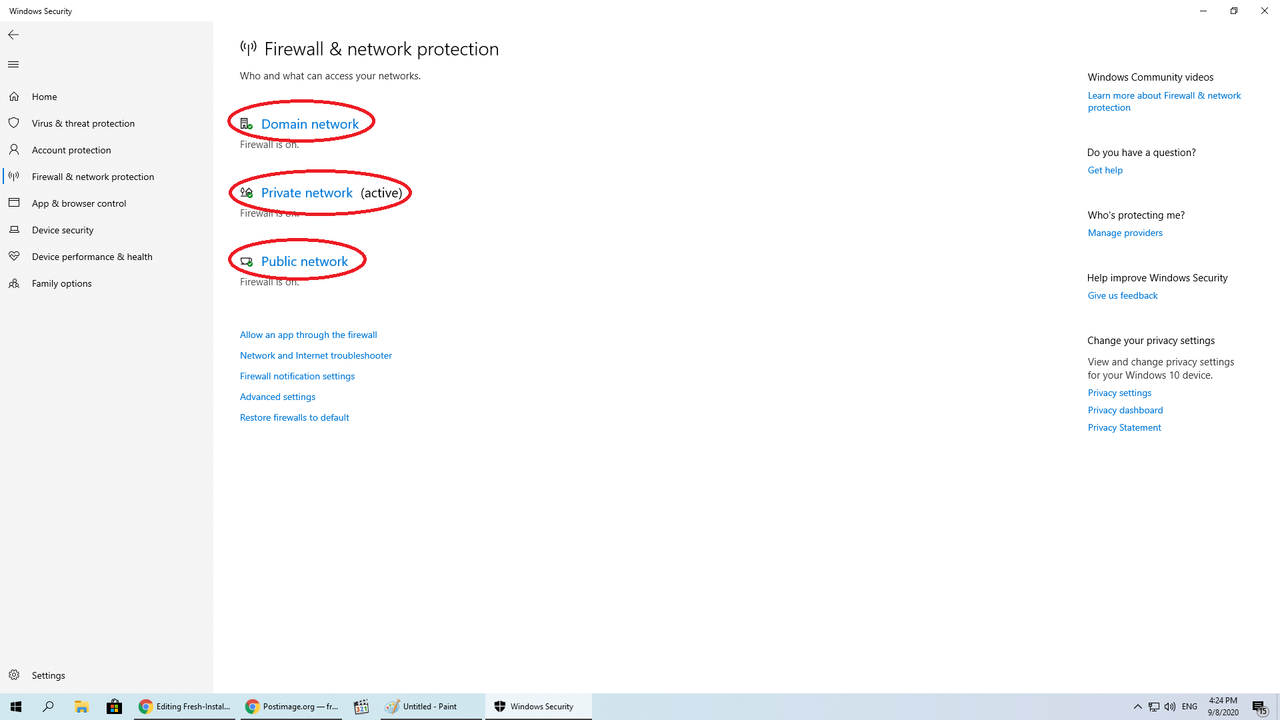
- Turn off the following:
- Domain Network
- Public Network
- Private Network
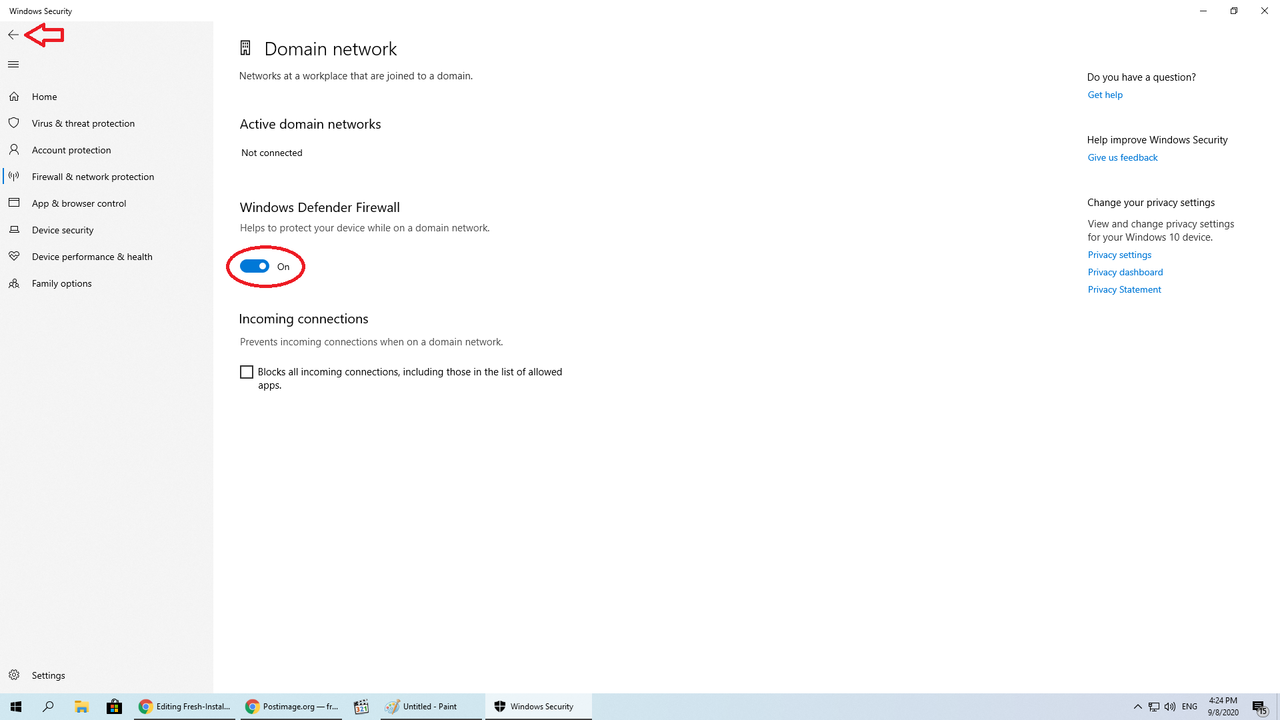
- Click on one and disable them, go back and redo for all as shown here.
- The end should look like this.
Follow these phases:
Obtained from https://saidit.net/s/sjain_guides/comments/9p3/hwidkms38genmk6_download_and_usage_guide/
Steps
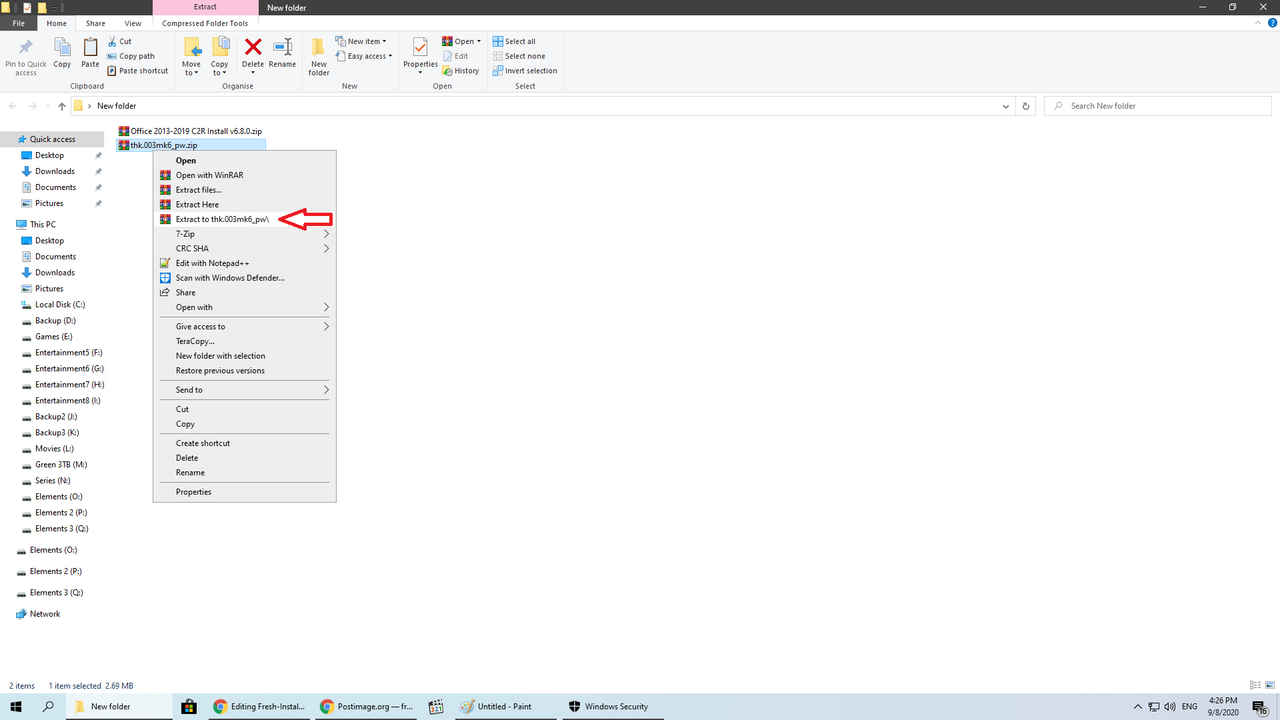
- Download included RAR file (click it) = thk.003mk6_pw.zip
- Extract the content. Use password = 123.
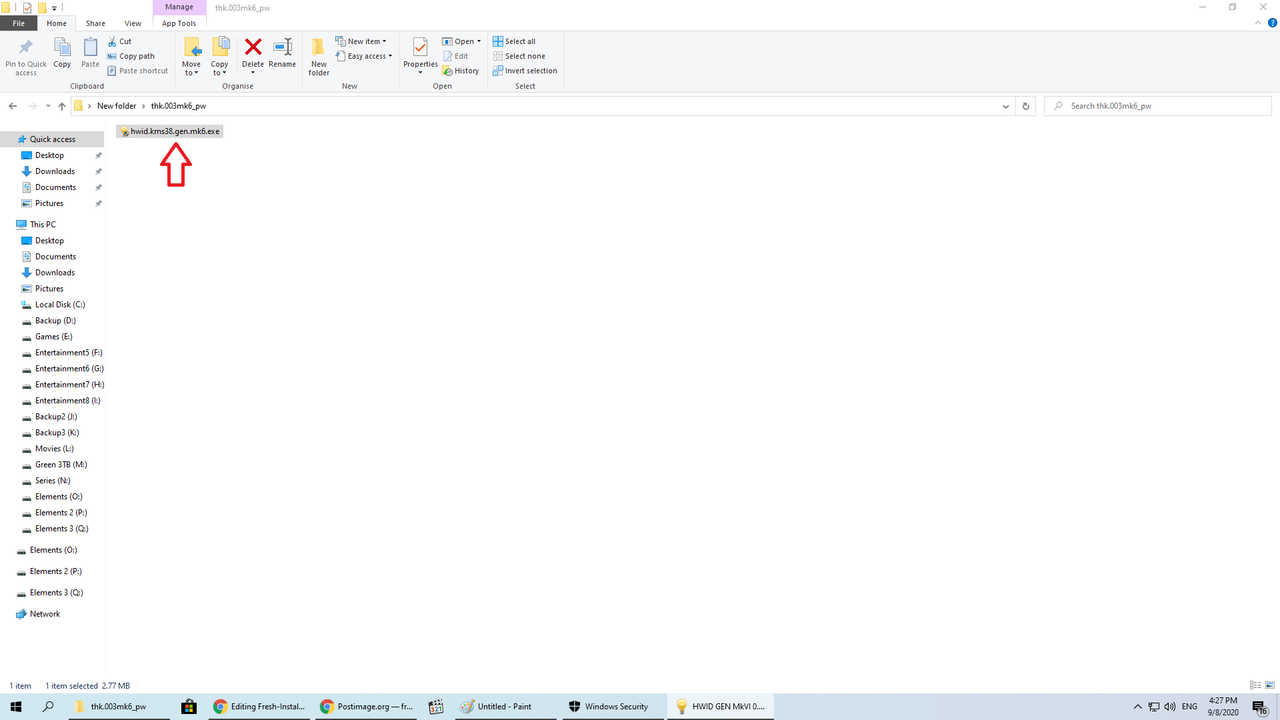
- Go into Folder and double-click on hwid.kms38.gen.mk6.exe.
- If asked, press Yes.
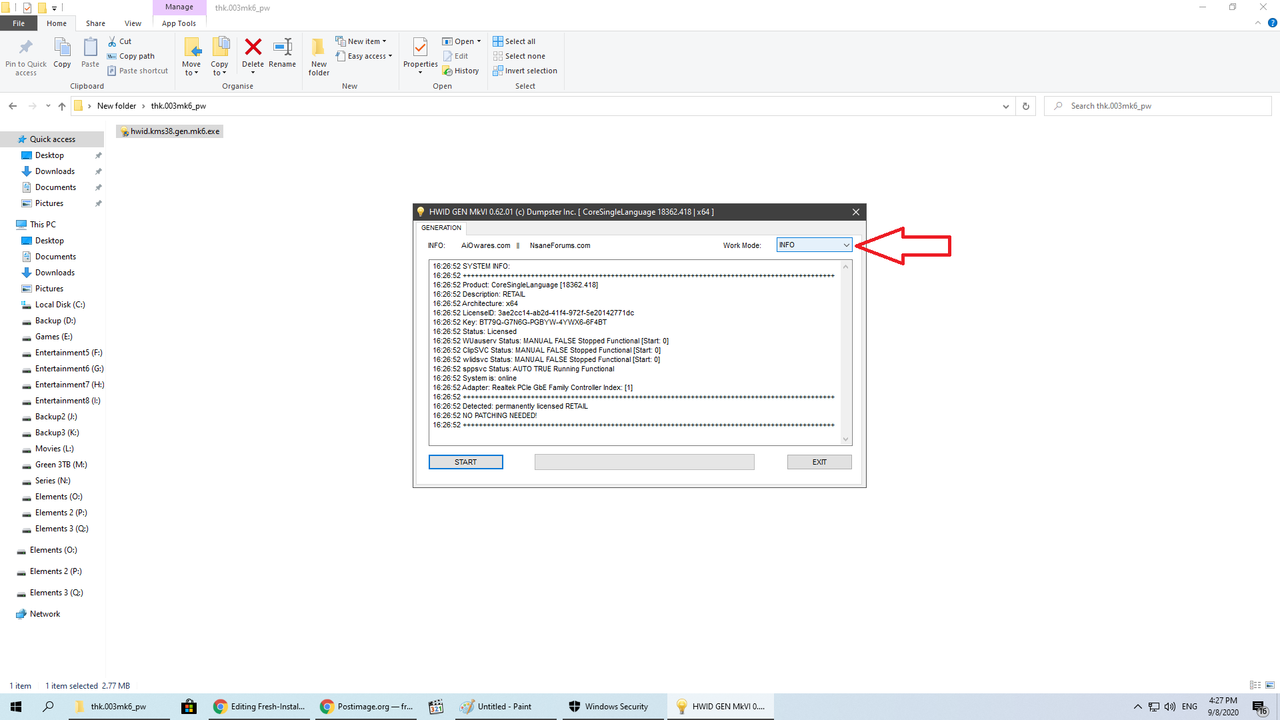
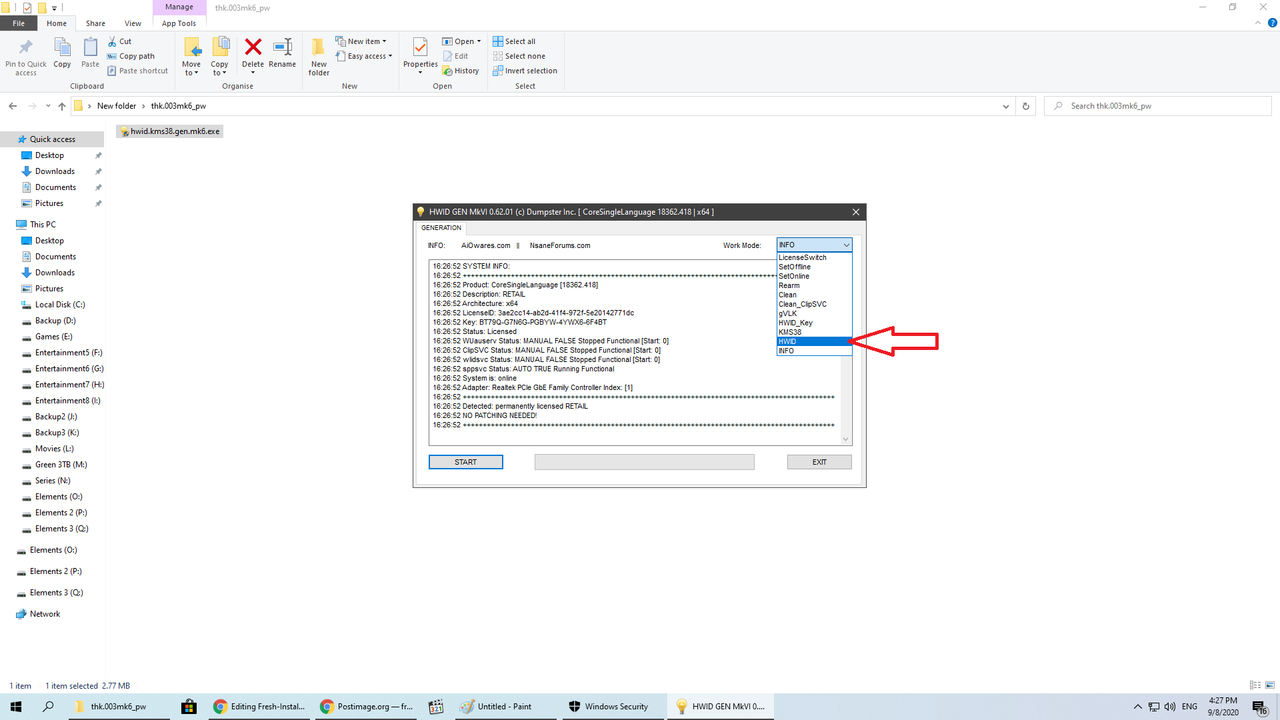
- It should pop up like this, click on dropdown arrow.
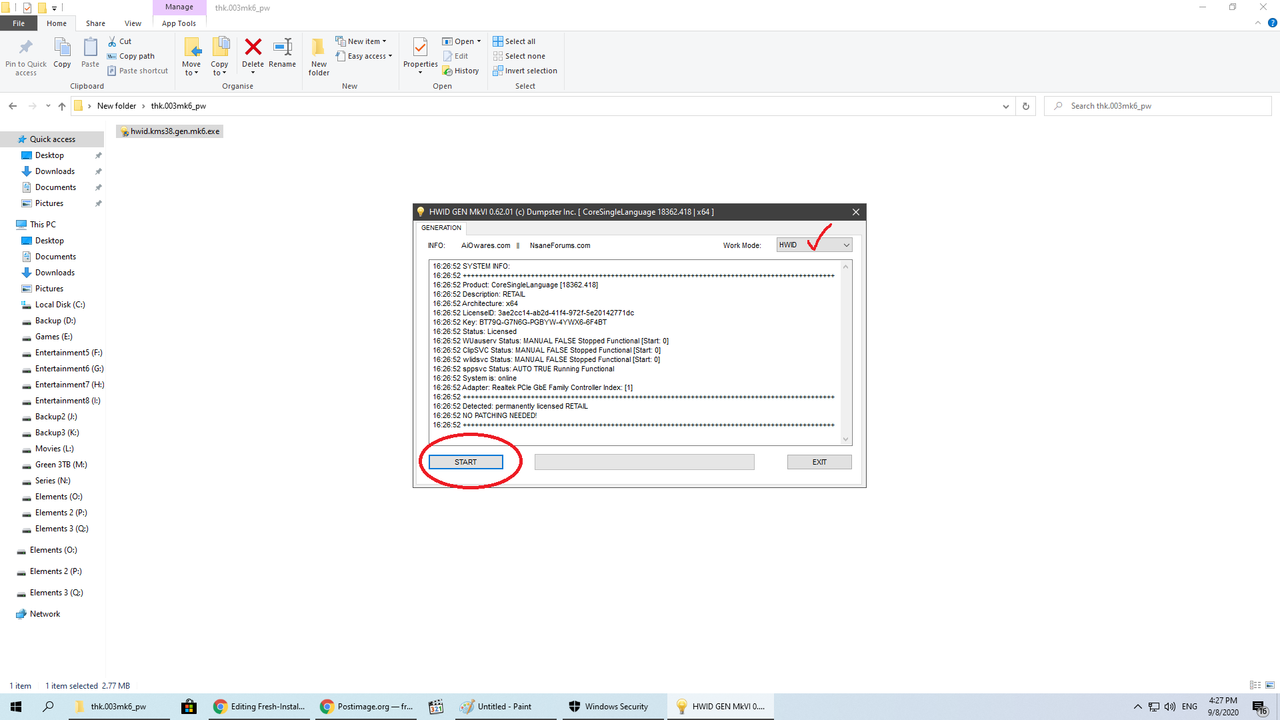
- Change it to HWID.
- Press Start.
- Wait for process to finish.
- Close Program
- Restart PC/Laptop.
Steps:
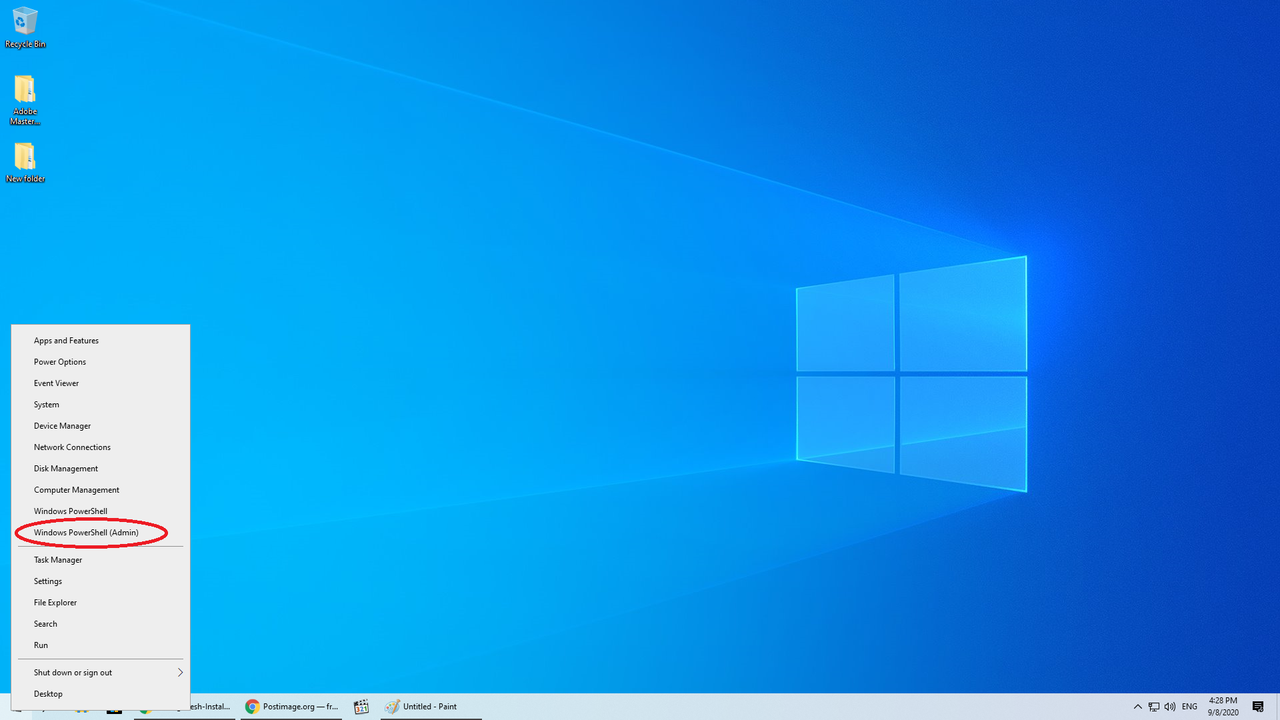
- Right click on the Start Button.
- Click on Windows Powershell (Admin).
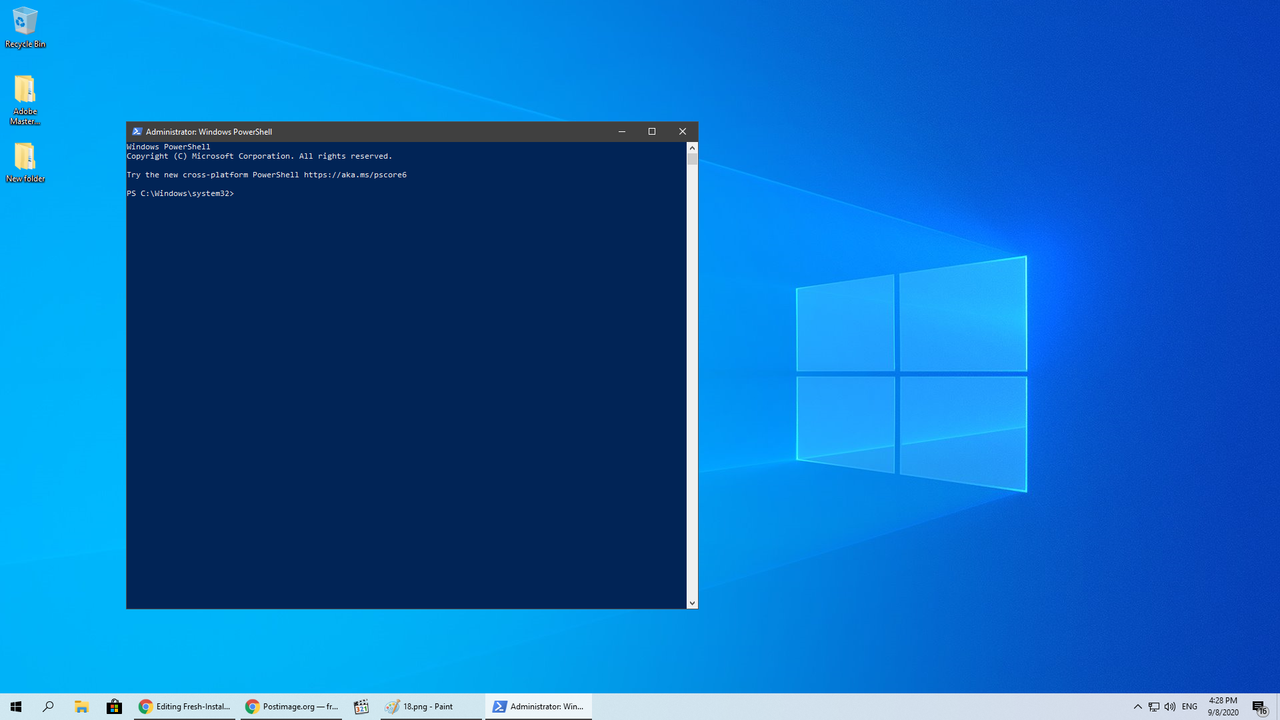
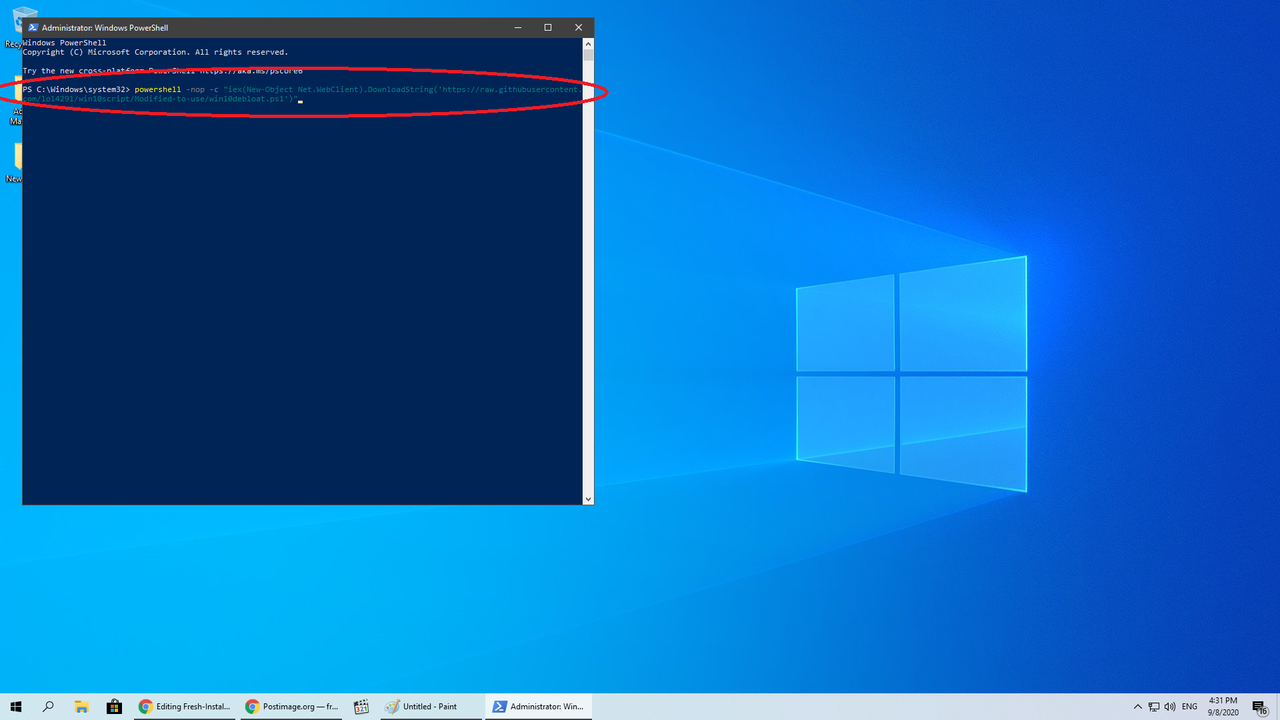
- This will pop up.
- Paste in the following line
powershell -nop -c "iex(New-Object Net.WebClient).DownloadString('https://raw.githubusercontent.com/lol4291/win10script/Modified-to-use/win10debloat.ps1')"
- Will look like this and a bunch of lines will come out later.
- Wait for it to complete, it'll take some time.
- Once completed, it'll ask to press any key and it'll restart.
Guide from https://saidit.net/s/sjain_guides/comments/9p0/microsoft_office_201319_simple_method_to_download/
Steps:
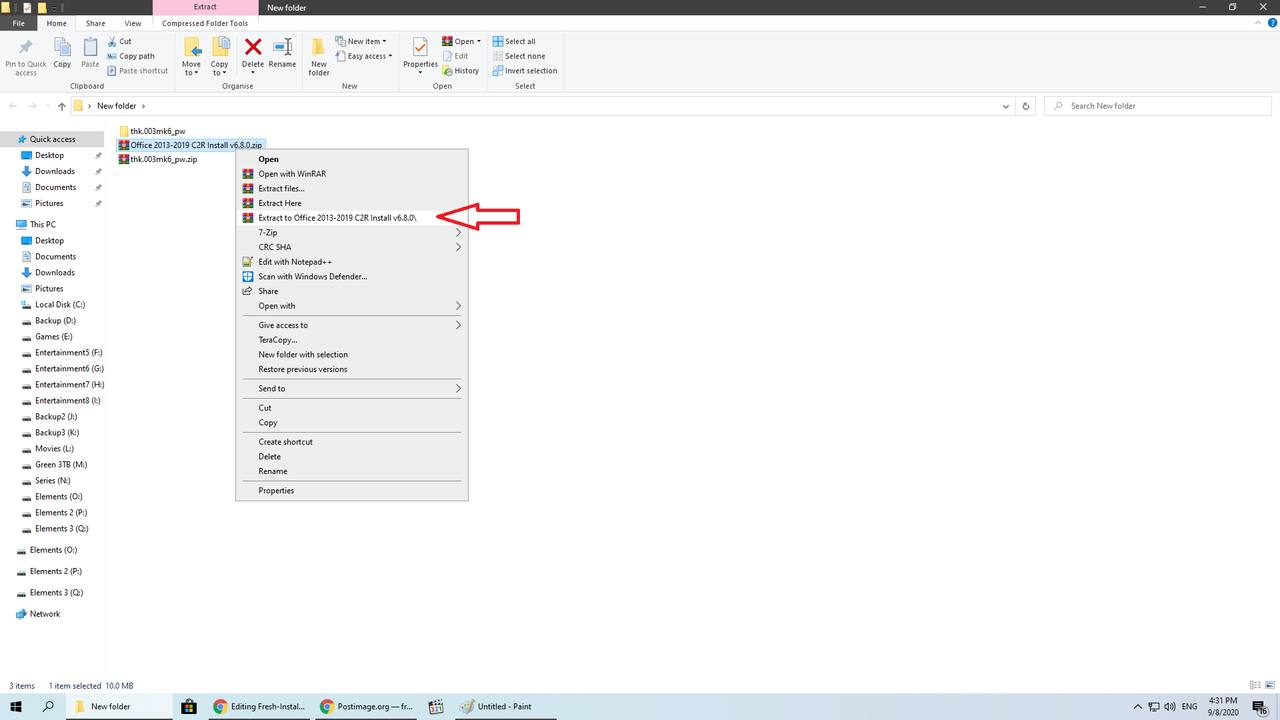
- Download the included rar file (click it) = Office 2013-2019 C2R Install v6.8.0.zip
- Extract the folder. Use password = 123.
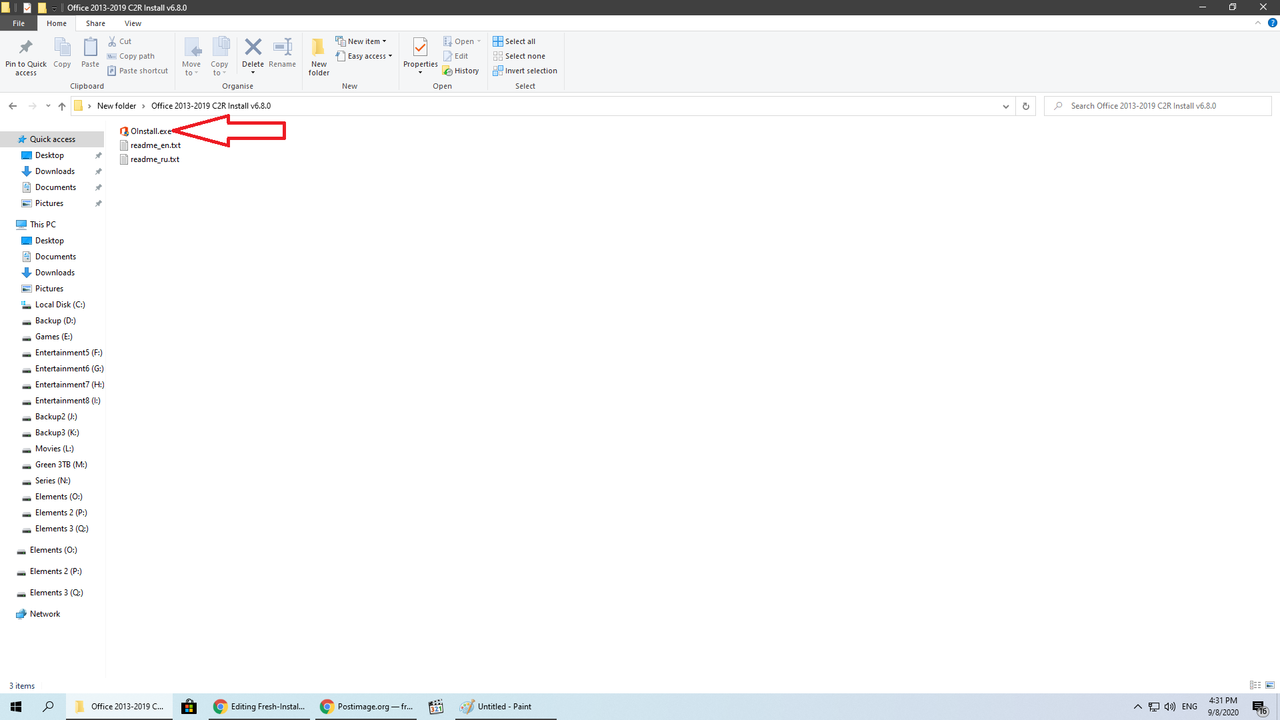
- Go into folder and double click on O-install.exe
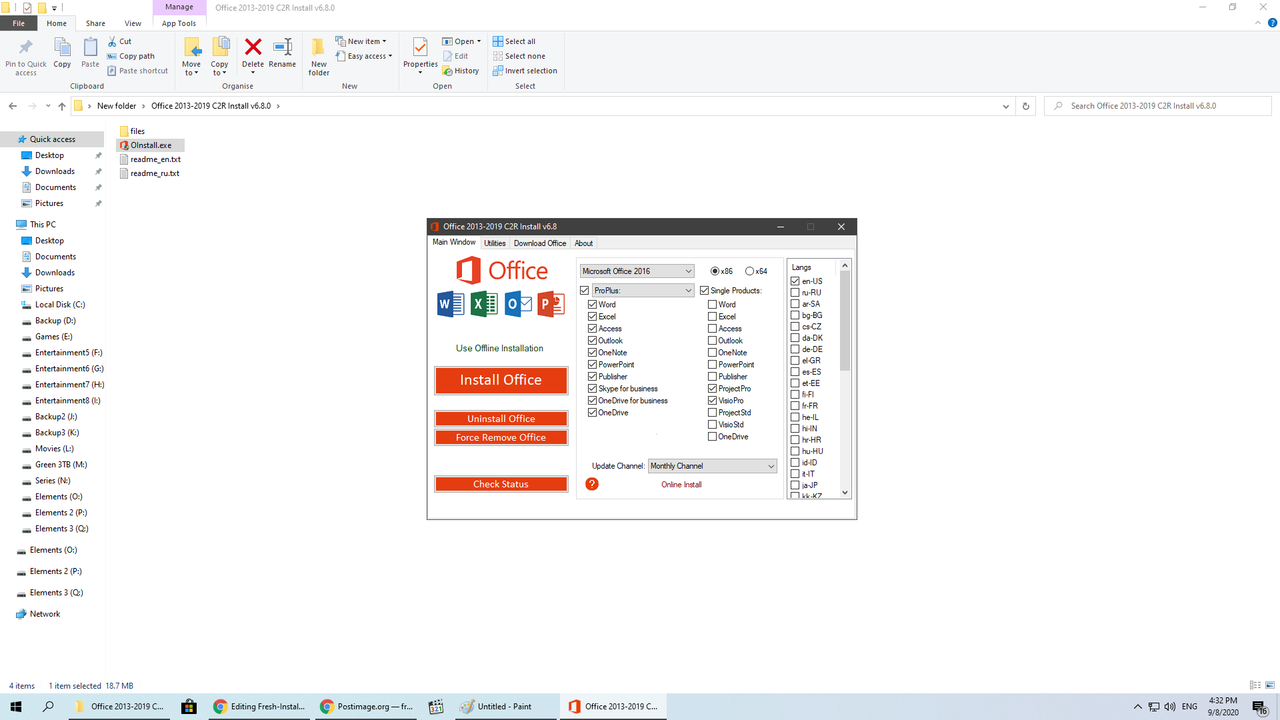
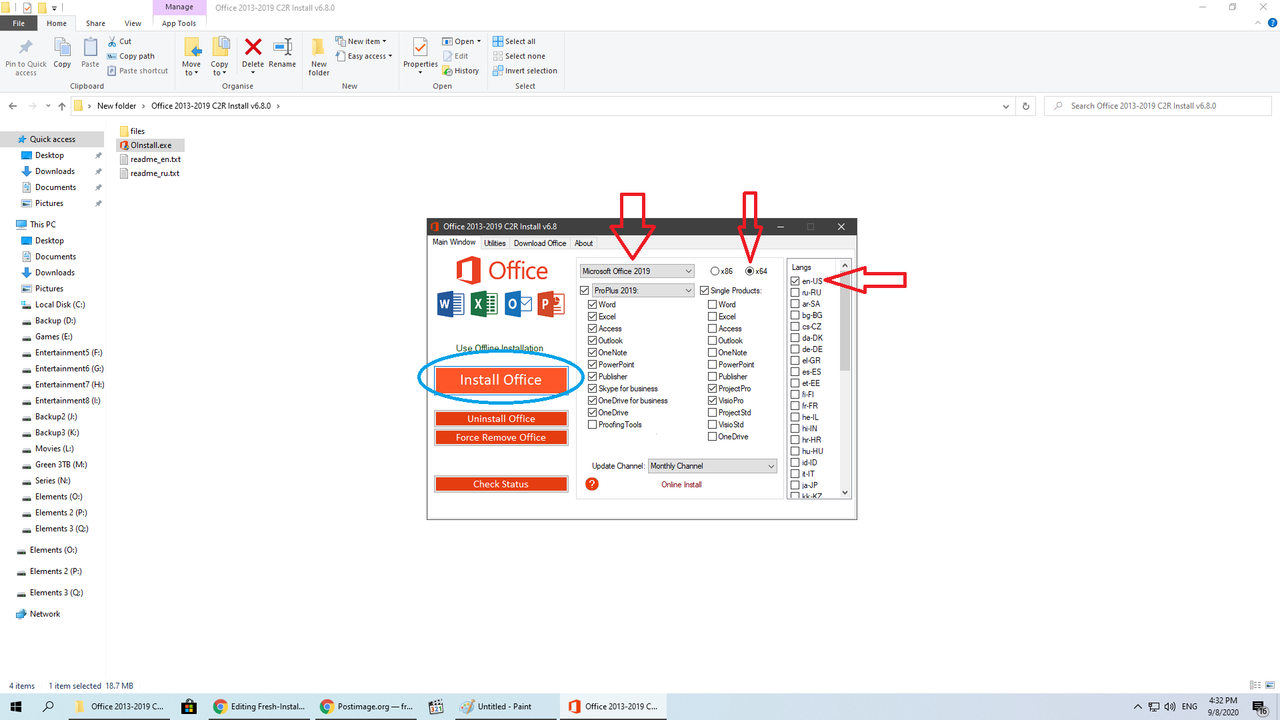
- This will pop up.
- Change the following options:
- Choose Microsoft Office 2019
- Choose ProPlus [Standalone if you only want certain softwares]
- Choose x64. (can be x86 depending on your system.)
- Choose language (en-US)
- Leave update channel as it is.
- Click Install office and wait to complete.
After Installation:
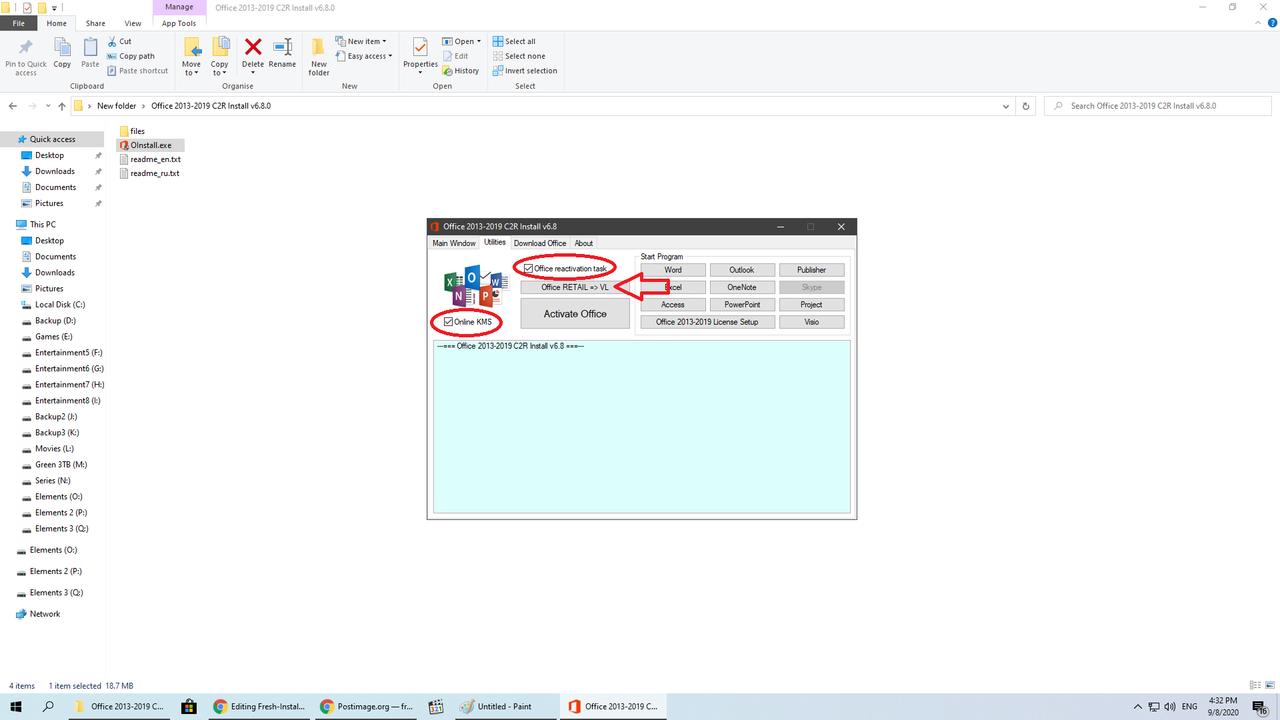
- Go to Utilities Tab
- Tick both Online KMS and Office Reactivation Tasks.
- Click on Office Retail => VL.
- Wait for process to complete.
- Click on Activate Windows.
- Wait for Process to complete.
- Close program.

After Win Activation and/or Office Installation, turn back on all the settings (Follow earlier steps before PART A).
- Go to Start, search Windows Security
- Click on Virus and Threat Protection.
- Under Virus & threat protection setting, click Manage settings.
- Turn on the following:
- Real-time protection
- Cloud-delivered protection
- Automatic Sample Submission
- Tamper Protection
- On left hand side, click Firewall & Network Protection
- Turn on the following:
- Domain Network
- Public Network
- Private Network