A input overlay for OBS and other broadcast software.
Note
hello, this project is pretty much just something i made for myself and a few friends,.. im going to try to fix bug etc as best as i can but keep in mind that im not that skilled of a dev so expect updates to roll out slowly or eventually to stop due to lack of time
-
WebSocket connection with authentication with support to stream your inputs to a secondary PC (for example a dedicated streaming PC)
-
Hall effect keyboard support via the AnalogSense SDK ported to py
Keyboards/Devices
- Everything by Wooting
- Everything by NuPhy
- Everything by DrunkDeer
- Razer Huntsman V2 AnalogR
- Razer Huntsman Mini AnalogR
- Razer Huntsman V3 ProR
- Razer Huntsman V3 Pro MiniR
- Razer Huntsman V3 Pro TenkeylessR
- Keychron Q1 HEP, F
- Keychron Q3 HEP, F
- Keychron Q5 HEP, F
- Keychron K2 HEP, F
- Lemokey P1 HEP, F
- Madlions MAD60HEP
- Madlions MAD68HEP
- Madlions MAD68RP
- Redragon K709HEP
R Razer Synapse needs to be installed and running for analogue inputs to be received from this keyboard.
P The official firmware only supports polling, which can lead to lag and missed inputs.
F Custom firmware with full analog report functionality is available.Tested devices:
- Wooting 60HE
- Redragon K709HE
All other devices are theoretical and have not been tested. If you have a one of these devices and it works please open a pr to update the readme (or if its brokey open an issue or pr with the fix)
-
Customizable layouts and lables (lables support html img src tags although not officialy)
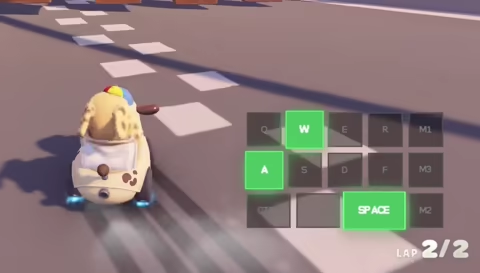 |
 |
-
Get the input-overlay-ws server
-
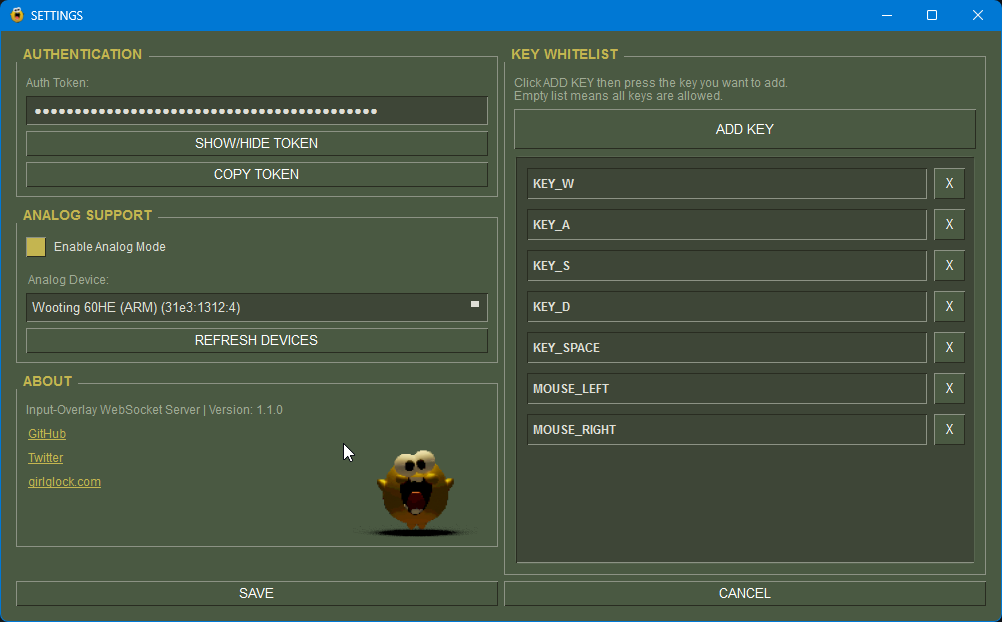
Run it and right click the tray icon to open the settings
-
Copy your auth token
Tip: You can change the token to whatever you like
-
Paste the token in the auth token field above
-
Configure your overlay to your liking, then click the
⎘ Copy URLbutton and paste the copied URL as an OBS browser source
Tip: You can configure the key whitelist in the server settings to ensure you are only sending keys over your network that are configured in the overlay
e.g. from a gaming PC to a streaming PC
-
Edit
config.jsonto set the address/port of your gaming PCRun
ipconfigin cmd and copy the local IPv4 address (usually192.168.0.1or192.168.X.Xwith X being 0–255) -
Enter the gaming PC's address in both the input-overlay-ws and configurator
-
Download the overlay as a local HTML file and add it as a browser source in OBS on your streaming PC instead of copying the URL