Riven | Debrid Wiki #80

Description

Riven | Debrid Wiki
Search
⌘K
Tools
Apps
Scrapers
Guides
On this pageInstallation
Riven
Table of Contents





Overview
Riven is under active development, expect breaking changes and bugs.
Riven is an advanced media management and streaming solution designed to integrate with various media servers and third-party services. It automates the process of finding, downloading, and organizing media content, making it instantly available for streaming through your preferred media server.
Riven streamlines your media consumption experience by:
- Automatically discovering new content based on your preferences and watchlists.
- Efficiently searching for and downloading high-quality media files.
- Organizing your media library using a smart symlink system.
- Seamlessly integrating with your chosen media server for immediate streaming access.
- Providing a user-friendly web interface for easy management and configuration.
Whether you're a casual viewer or a media enthusiast, Riven offers a powerful, automated solution to keep your media library up-to-date and easily accessible.
Prerequisites
Before installing Riven, ensure you have the following prerequisites:
[
Linux
Riven only supports Linux-based operating systems and Windows Subsystem for Linux (WSL) in Windows
](/404)[
Rclone
Required to mount debrid service. Additionally Zurg is preferred for Real-Debrid users
](/docs/rclone)[
Media Server
Currently only Plex Media Server is supported
](/404)[
Docker
Required to run Riven in a containerized environment
](/docs/docker)
Currently only Real-Debrid, All-Debrid and Torbox are supported. More services will be added in the future.
Setup
Before we begin, we need to set up the required folders and files for Riven.
Clone repository and create folders
git clone https://github.com/rivenmedia/riven
cd riven
mkdir data
riven folder consists of data folder and docker-compose.yml file which will be used later.
data
docker-compose.yml
...other files and folders
Setup Library folder
What is Library folder?
Library folder is the folder where Riven will store movie/show files and symlinks. These point to the actual files on the rclone mount
For this example, we are assuming /mnt/zurg is the rclone mount path.
sudo mkdir -p /mnt/library
/mnt
/library
/zurg
Installation
docker-compose.yml file is used to run Riven in a containerized environment. It consists of three services:
riven: The main Riven application.riven-frontend: The web interface for Riven.riven-db: The database for Riven.
docker-compose.yml
services:
 riven-frontend:
 image: spoked/riven-frontend:latest
 container_name: riven-frontend
 restart: unless-stopped
 ports:
 - "3000:3000"
 tty: true
 environment:
 - PUID=1000
 - PGID=1000
 - TZ=America/New_York
 - ORIGIN=http://localhost:3000
 - BACKEND_URL=http://riven:8080
 - DIALECT=postgres
 - DATABASE_URL=postgres://postgres:postgres@riven-db/riven
 depends_on:
 riven:
 condition: service_healthy

 riven:
 image: spoked/riven:latest
 container_name: riven
 restart: unless-stopped
 ports:
 - "8080:8080"
 tty: true
 environment:
 - PUID=1000
 - PGID=1000
 - TZ=America/New_York
 - RIVEN_FORCE_ENV=true
 - RIVEN_DATABASE_HOST=postgresql+psycopg2://postgres:postgres@riven-db/riven
 healthcheck:
 test: curl -s http://localhost:8080 >/dev/null || exit 1
 interval: 30s
 timeout: 10s
 retries: 10
 volumes:
 - ./data:/riven/data
 - /mnt:/mnt
 depends_on:
 riven_postgres:
 condition: service_healthy

 riven_postgres:
 image: postgres:16.3-alpine3.20
 container_name: riven-db
 environment:
 PGDATA: /var/lib/postgresql/data/pgdata
 POSTGRES_USER: postgres
 POSTGRES_PASSWORD: postgres
 POSTGRES_DB: riven
 volumes:
 - ./riven-db:/var/lib/postgresql/data/pgdata
 healthcheck:
 test: ["CMD-SHELL", "pg_isready -U postgres"]
 interval: 10s
 timeout: 5s
 retries: 5
Now this won't work as is, you need to modify the docker-compose.yml file to match your setup.
- Change
TZto your timezone. - Change
ORIGINto the URL you will be accessing the web interface from. For example, if you are planning to run Riven onhttps://riven.example.com, change it tohttps://riven.example.com. This is not required if you are running riven behind a reverse proxy likenginx,caddy,cosmosetc. - Change
BACKEND_URLto the URL where the frontend can access the backend. This is not required here as we are running both frontend and backend in the same network (stack). - Change
RIVEN_DATABASE_HOSTto the URL where the backend can access the database. This is not required here as we are running both backend and database in the same network (stack). - Change
DIALECTandDATABASE_URLto use the same database as the backend. This is not required here as we are running both backend and database in the same network (stack). - Change
volumesto match your setup. Riven requires access to the library folder and rclone mount path.
Running Riven
To run Riven, execute the following command:
docker-compose up -d
This command will start the Riven services in the background. You can access the Riven web interface by navigating to the specified ORIGIN URL or reverse proxy URL.
Configuration
Once Riven is running, you can configure it by accessing the web interface. You will be prompted with onboarding steps to set up your debrid service, media server, content services and scraper services.
There are 4 steps in the onboarding process:
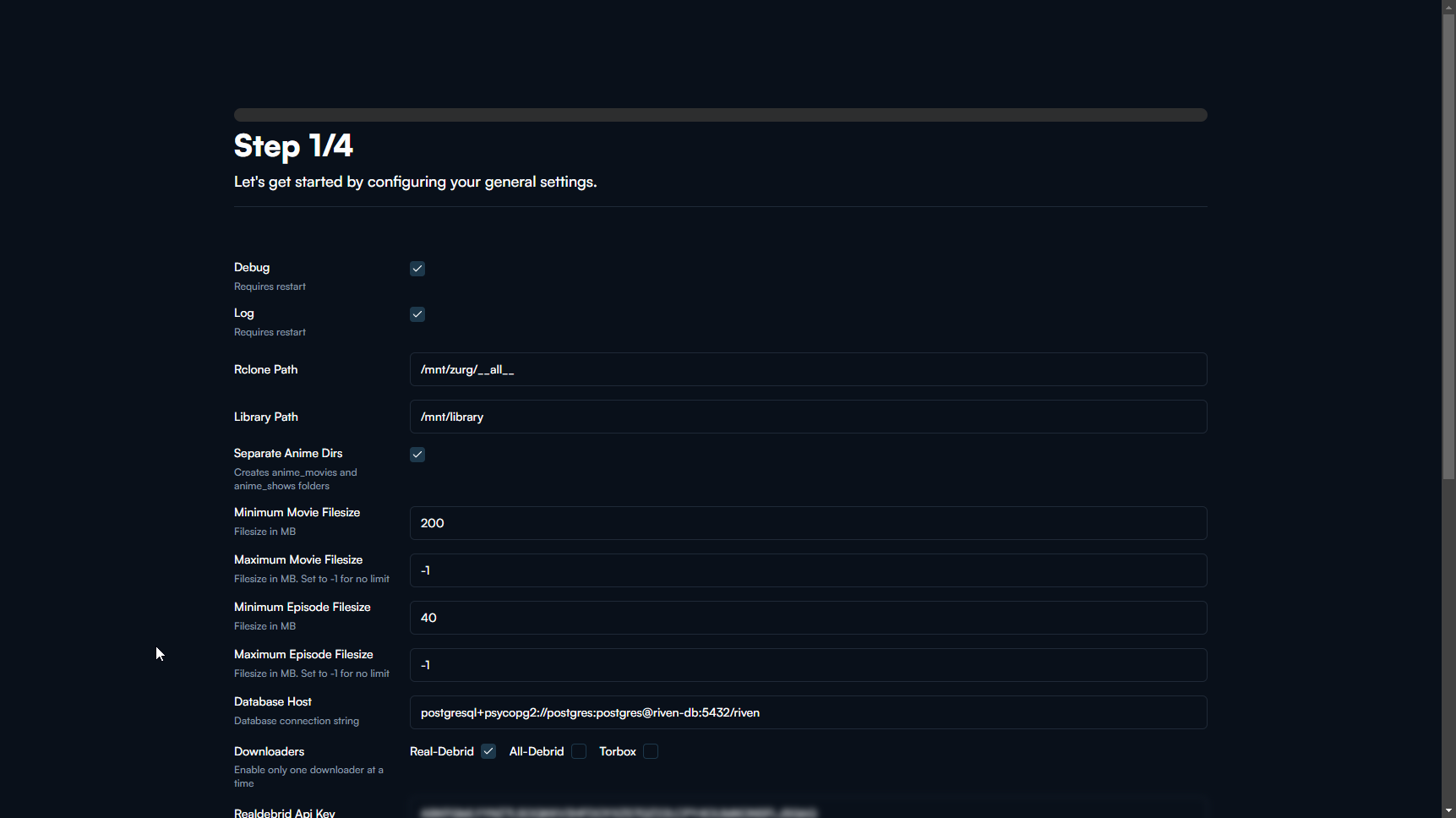
General Settings
In this step you configure the downloaders (debrid services), rclone mount path, library path, subtitles, etc. See the image below for an example.
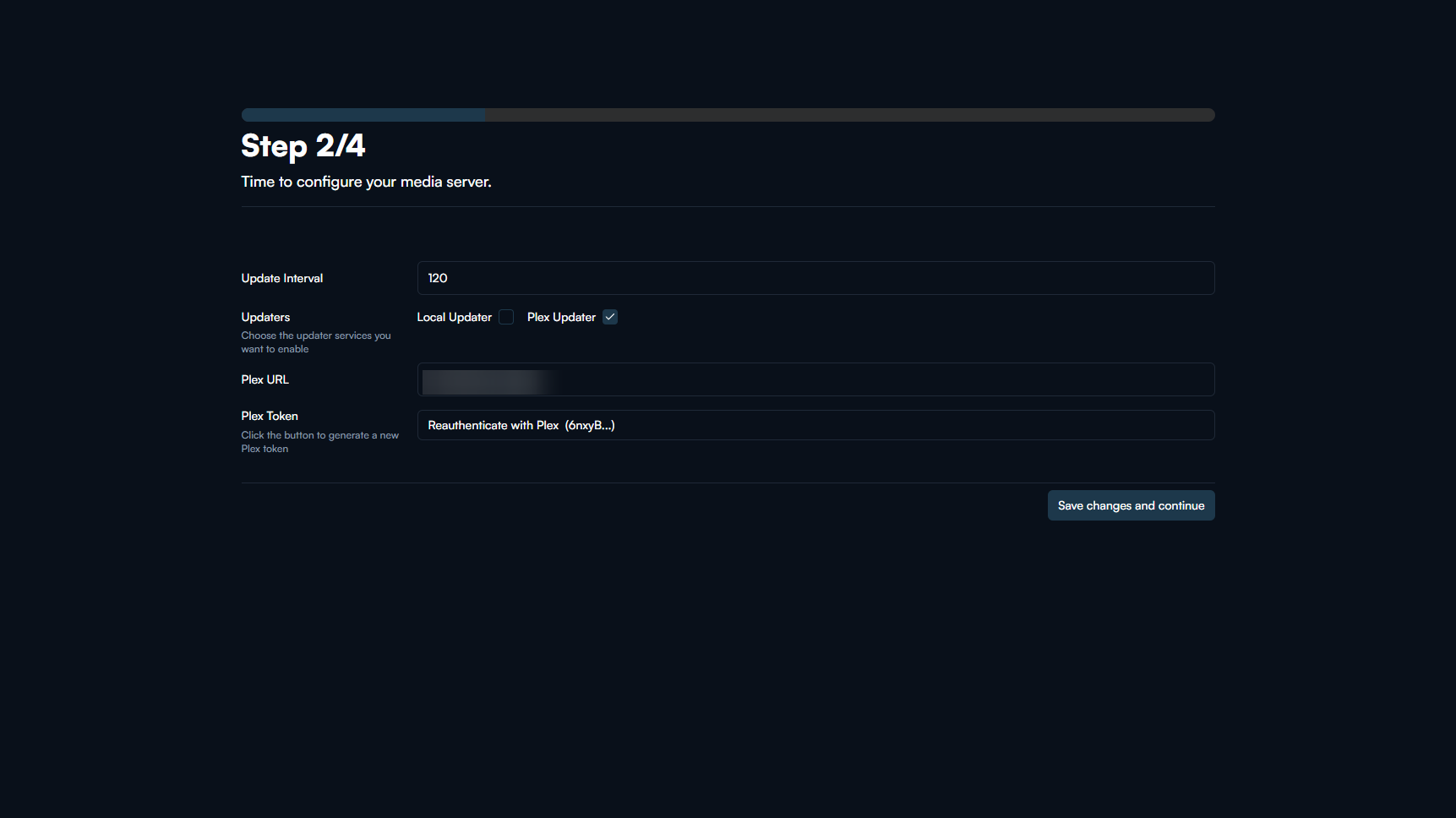
Media Server
In this step you configure the media server and updater settings. See the image below for an example.
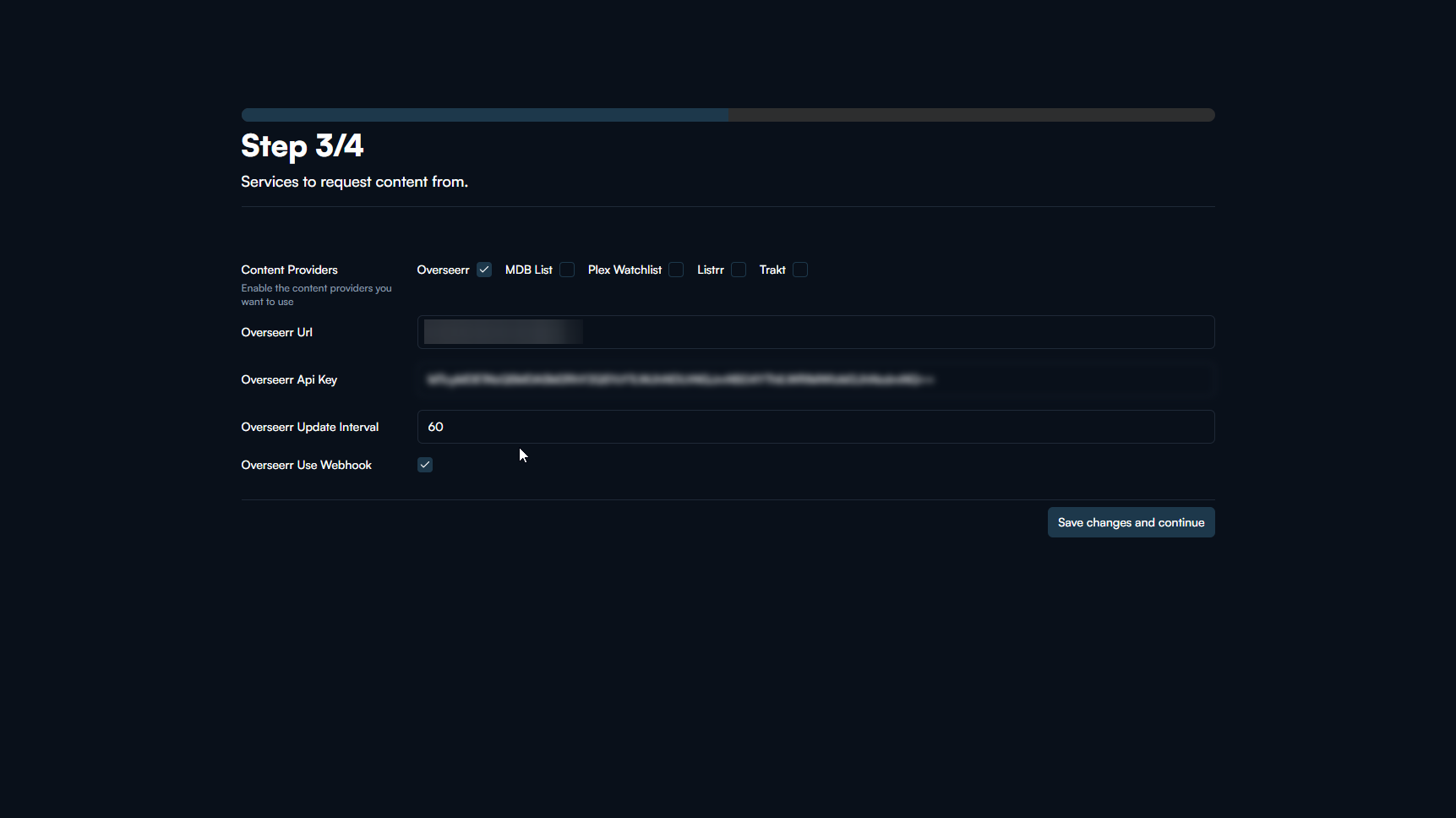
Content Services
In this step you configure the content services like trakt, overseerr, etc. See the image below for an example.
Scraper Services
In this step you configure the scraper services like torrentio, zilean, prowlarr, jackett, etc. See the image below for an example.

Once you have completed the onboarding process, you will be greeted with a beautiful dashboard where you can manage your media library, request items, settings and many more in the future.

Frequently Asked Questions
Cross-site POST form submissions are forbidden
I am seeing error when trying to save changes
If you are seeing an error when trying to save changes, it is most likely due to incorrect configuration or backend failure. Please check the logs of the riven service to see the error message. If you are unable to resolve the issue, feel free to ask for help in the Riven Discord server.
I am stuck in onboarding loop
[
Previous
Docker
](/docs/docker)[
Next
Comet
](/docs/comet)
On this page
OverviewPrerequisitesSetupClone repository and create foldersSetup Library folderWhat is Library folder?InstallationRunning RivenConfigurationGeneral SettingsMedia ServerContent ServicesScraper ServicesFrequently Asked Questions


▲
x▼