
OpenPelo is a cross-platform tool for installing additional apps on your Peloton device. This installer automatically handles ADB setup and provides an easy-to-use interface for installing apps, combined with a step-by-step guide to enter developer mode. Combine this with SmartSpin2k which adds automatic resistance, and virtual shifting for the ultimate Zwift setup.

- Python 3.6 or higher
- USB cable to connect your Peloton (for initial setup), or WiFi network (for wireless connection)
- USB debugging enabled on your Peloton
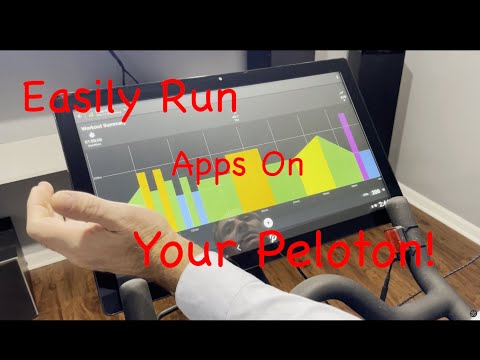
Watch on YouTube:
- Go to the Releases page
- Download the appropriate file for your system:
- Windows:
OpenPelo.exe - Mac:
OpenPelo
- Windows:
- Run the downloaded file
- Install Python 3.6 or higher:
- Windows: Download from python.org
- Mac: Use Homebrew:
brew install python3
- Download this repository
- Run
python openpelo.py(Windows) orpython3 openpelo.py(Mac). Depending on your python installation, it could also be 'py openpelo.py'.
- Connect your Peloton to your computer via USB
- Enable USB debugging on your Peloton:
- Make sure your bike sensor cable is connected to the Peloton Tablet.
- Go to Settings, system menu and perform a Firmware Reset.
- Finish the initial setup and select "Skip Home Installation"
- Go to Settings
- Tap on Device Preferences
- Tap 7 times on Build Number to enable Developer Options
- Go back to Settings
- Tap on Developer Options
- Enable USB debugging
- Disable Verify apps over USB
- Enable Gabeldorsche
- Go into your system, Apps, select system in the top right corner.
- Force quit the App with the Peloton logo named "Device Management"
- Plug your computer into the Peloton using a micro USB-B cable.
- Select "always allow this computer" and allow USB debugging.
- Run OpenPelo:
- Double-click the downloaded executable
- The installer will automatically check for your device
- Wait for the "✅ Device connected" status
- Select the apps you want to install by checking the boxes
- Click "Install Selected Apps" and wait for the installation to complete
Once you have enabled Developer Options (see Option 1), you can connect wirelessly:
-
Enable Wireless Debugging on your Peloton:
- Make sure your Peloton and computer are on the same WiFi network
- Go to Settings → Developer Options
- Enable "Wireless debugging"
- Tap on "Wireless debugging" text to open settings
-
Connect via OpenPelo:
- Run OpenPelo
- Click the "📶 Connect via WiFi" button
- Follow the step-by-step guide
- When prompted, tap "Pair device with pairing code" on your Peloton
- Enter the displayed IP address, port, and pairing code into OpenPelo
- Click "Connect"
- Wait for "Successfully connected!" message
-
Use OpenPelo wirelessly:
- Once connected, you can use all features wirelessly
- Select apps and install them as you would with USB
- Take screenshots and record screen wirelessly
- Modern graphical user interface
- USB and Wireless ADB connection support
- Real-time device connection status
- Visual progress indicators
- Easy app selection with checkboxes
- Automatic ADB installation and setup
- Cross-platform compatibility (Windows, Mac, Linux)
- Automatic app downloading and installation
- Configuration-based app management
- Screen recording and screenshot utilities
To add new apps to the installer, simply edit the apps_config.json file. The configuration format is:
This project uses GitHub Actions with Nuitka to build standalone executables for Windows, macOS (Intel and Apple Silicon), and Linux:
- Builds are triggered on pushes to main, pull requests, and when a release is created
- Nuitka compiles
openpelo.pyto optimized binaries while bundling required assets (ADB tools, configuration files, and certifi certificates) - Produced artifacts are attached to releases:
OpenPelo.exe,OpenPelo-macOS-*.zip, andOpenPelo-linux.tar.gz
The build process:
- Sets up a Python environment on each runner
- Installs Nuitka + supporting packages (zstandard, certifi, etc.)
- Compiles OpenPelo with
--standalone --onefileand includes runtime data directories - Packages platform-specific outputs (zip/tar.gz) and uploads them as release assets
To create a new release:
- Go to the Releases page
- Click "Create a new release"
- Tag the version and publish
- GitHub Actions will automatically build, package, and attach the Nuitka executables
If you need to create a build outside of GitHub Actions:
- Install dependencies:
python -m pip install --upgrade pip
pip install nuitka zstandard certifi pillow
- Run Nuitka for your platform (examples):
- Windows PowerShell
python -m nuitka `
   --standalone `
   --onefile `
   --enable-plugin=tk-inter `
   --include-package=certifi `
   --include-data-file=apps_config.json=apps_config.json `
   --include-data-file=usb_debug_steps.json=usb_debug_steps.json `
   --include-data-file=wireless_adb_steps.json=wireless_adb_steps.json `
   --include-data-dir=ADB=ADB `
   --include-data-dir=platform-tools=platform-tools `
   --windows-disable-console `
   --windows-icon-from-ico=Icon.ico `
   --output-filename=OpenPelo.exe `
   openpelo.py
- Linux
python -m nuitka \
   --standalone \
   --onefile \
   --enable-plugin=tk-inter \
   --include-package=certifi \
   --include-data-file=apps_config.json=apps_config.json \
   --include-data-file=usb_debug_steps.json=usb_debug_steps.json \
   --include-data-file=wireless_adb_steps.json=wireless_adb_steps.json \
   --include-data-dir=ADB=ADB \
   --include-data-dir=platform-tools=platform-tools \
   --output-filename=OpenPelo \
   openpelo.py
- macOS
python -m nuitka \
   --standalone \
   --onefile \
   --enable-plugin=tk-inter \
   --include-package=certifi \
   --include-data-file=apps_config.json=apps_config.json \
   --include-data-file=usb_debug_steps.json=usb_debug_steps.json \
   --include-data-file=wireless_adb_steps.json=wireless_adb_steps.json \
   --include-data-dir=ADB=ADB \
   --include-data-dir=platform-tools=platform-tools \
   --macos-disable-console \
   --output-filename=OpenPelo \
   openpelo.py
- Windows PowerShell
- Package the resulting binary if needed (zip/tar.gz) before distribution.
{
    "apps": {
        "App Name": {
            "url": "https://download.url/app.apk",
            "package_name": "com.example.app",
            "description": "Brief description of the app"
        }
    }
}App Name: Display name in the installer menuurl: Direct download URL for the APK filepackage_name: Android package name (used for installation)description: Brief description of the app
-
"❌ No device detected"
- Ensure USB cable is properly connected
- Check that USB debugging is enabled
- Try a different USB cable or port
- Click the "🔄 Refresh" button after fixing the connection
-
"Failed to setup ADB"
- Check your internet connection
- Try running the installer with administrator/sudo privileges
- If using antivirus, temporarily disable it during ADB installation
- Restart the installer and try again
-
Installation Errors
- If an app fails to install, check your device's storage space
- Ensure your internet connection is stable
- Try installing apps one at a time
- Check the error message shown in the popup for specific issues
-
Wireless Connection Issues
- "Pairing Failed"
- Verify your Peloton and computer are on the same WiFi network
- Double-check the IP address, port, and pairing code
- Make sure wireless debugging is still enabled on your Peloton
- Try generating a new pairing code on your Peloton
- "Connection Timeout"
- Check your WiFi connection strength
- Ensure no firewall is blocking the connection
- Try moving your computer closer to the WiFi router
- "Connection Failed after pairing"
- The device may have disconnected. Try clicking "🔄 Refresh"
- Try connecting again using the "📶 Connect via WiFi" button
- Restart wireless debugging on your Peloton and try again
- "Pairing Failed"
This installer only downloads apps from trusted sources specified in the configuration file. However, users should always be cautious when installing third-party applications on their devices.
This project is licensed under the MIT License - see the LICENSE file for details.
