


An Emacs frontend for the pi coding agent.
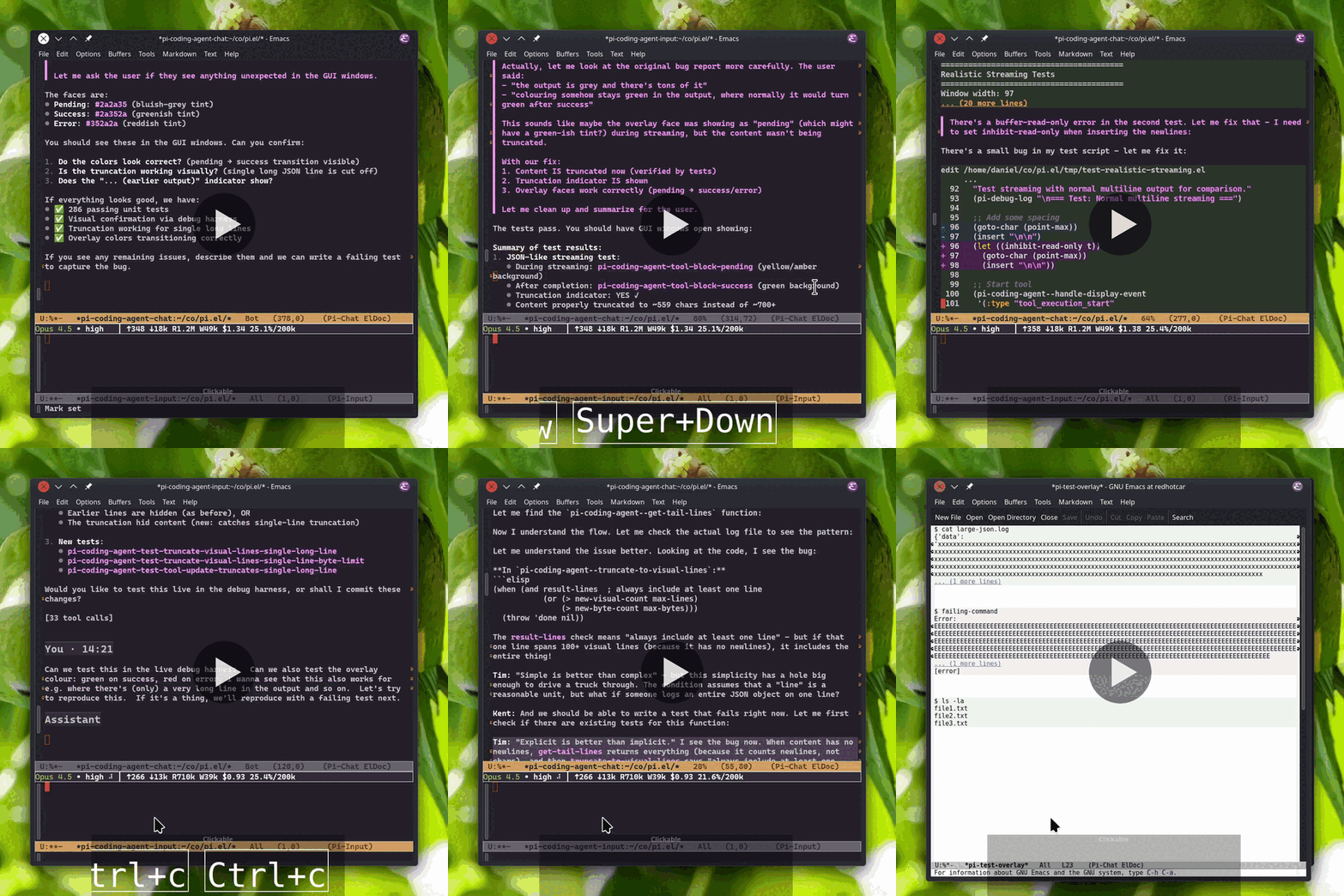
- Compose prompts in a full Emacs buffer: multi-line, copy/paste, macros, support for Vi bindings
- Chat history as a markdown buffer: copy, save, search, navigate
- Live streaming output as bash commands and tool operations run
- Syntax-highlighted code blocks and diffs
- Collapsible tool output with smart preview (expand with TAB)
- Click the model name or thinking level to change them
- Input history with search (M-p/M-n, C-r)
- Magit-style transient menu for all commands
- Emacs 28.1 or later
- pi coding agent installed and in PATH
# Install with npm
npm install -g @mariozechner/pi-coding-agent

# Or with mise
mise use -g npm:@mariozechner/pi-coding-agentOnce available on MELPA, you can install directly:
M-x package-install RET pi-coding-agent RET
Or with use-package:
(use-package pi-coding-agent
  :ensure t
  :init (defalias 'pi 'pi-coding-agent))
If you don’t have MELPA configured, add this to your init file:
(require 'package)
(add-to-list 'package-archives '("melpa" . "https://melpa.org/packages/") t)
(package-initialize)Clone the repository and add to your load path:
git clone https://github.com/dnouri/pi-coding-agent ~/.emacs.d/site-lisp/pi-coding-agent(add-to-list 'load-path "~/.emacs.d/site-lisp/pi-coding-agent")
(require 'pi-coding-agent)Or with use-package:
(use-package pi-coding-agent
  :load-path "~/.emacs.d/site-lisp/pi-coding-agent"
:init (defalias 'pi 'pi-coding-agent))Start a session with M-x pi. This opens two windows:
- Chat buffer (top): Shows conversation history with rendered markdown
- Input buffer (bottom): Where you compose prompts
Type your prompt and press C-c C-c to send. Press C-c C-p for the full command menu.
For multiple sessions in the same directory, use C-u M-x pi to create a named session.
| Key | Context | Description |
|---|---|---|
C-c C-c | input | Send prompt |
C-c C-k | input | Abort streaming |
C-c C-p | both | Open menu |
C-c C-r | input | Resume session |
M-p / M-n | input | History navigation |
C-r | input | Search history |
TAB | input | Complete slash commands |
n / p | chat | Navigate messages |
TAB | chat | Toggle section |
S-TAB | chat | Cycle all folds |
q | chat | Quit session |
Press C-c C-p to access the full menu with model selection, thinking level,
session management (new, resume, branch, export), statistics, and custom commands.
The input buffer is a full Emacs buffer, one of the main advantages over terminal interfaces. Take your time composing, write multi-line prompts, paste from other buffers, use registers or kill-ring history. Your prompt stays put while the AI responds above.
Slash commands (/command) work with completion: type / then TAB to
see available commands, including your custom ones from ~/.pi/commands/.
Tool output is collapsed by default to keep the chat readable, with a
preview of the first few lines visible. Press TAB on a tool block to
expand and see everything. File operations (read, write, edit) show full
syntax highlighting, and edit diffs highlight what changed. Long-running
commands stream output live so you can watch progress.
Press TAB on a turn header (You/Assistant) to fold it, TAB again to
unfold. Use S-TAB to cycle visibility of all turns at once.
Each project directory gets its own session automatically. To run multiple
sessions in the same directory, use C-u M-x pi to create a named session.
Resume (C-c C-r) and branch (C-c C-p b) present a selection menu:
pick from previous sessions or conversation messages to start from.
When a conversation gets long, the AI’s context window fills up. The menu
(C-c C-p) offers tools to manage this:
- Compact (
c): Summarizes earlier conversation to free up context while preserving key information. Use when context is filling up. If you don’t compact manually, pi does it automatically when needed. - Branch (
b): Creates a new session starting from a previous message. Go back to any point and take the conversation in a new direction. - Export (
e): Saves the conversation as an HTML file for sharing or archiving.
The context indicator in the status area shows current usage, warning when getting full.
Example configuration with use-package:
(use-package pi-coding-agent
  :ensure t
  :init (defalias 'pi 'pi-coding-agent)
  :custom
  (pi-coding-agent-input-window-height 10)        ; Height of input window
  (pi-coding-agent-tool-preview-lines 10)         ; Lines shown before collapsing tool output
  (pi-coding-agent-bash-preview-lines 5)          ; Lines shown for bash output
  (pi-coding-agent-context-warning-threshold 70)  ; Warn when context exceeds this %
(pi-coding-agent-context-error-threshold 90)) ; Critical when context exceeds this %Requires Docker for integration and GUI tests (Ollama runs in a container).
# Unit tests only (fast, no Docker)
make check

# Integration tests (requires Docker)
make test-integration

# GUI tests (requires Docker)
make test-gui

# All tests
make test-allBy default, GUI tests auto-detect whether to show a window or run headless.
# With a display available, runs with visible window
./test/run-gui-tests.sh

# Force headless even with display available
./test/run-gui-tests.sh --headlessGitHub Actions runs on every push:
test-unit.yml- Unit tests across Emacs 28.2 and 29.4test-integration.yml- Integration tests with Docker Ollamatest-gui.yml- GUI tests with xvfb virtual framebuffer
Nightly builds test against multiple pi versions (0.30.2, latest, and main branch).
- Blog post: Background and motivation
- shittycodingagent.ai: pi coding agent home page
GPL-3.0-or-later. See LICENSE.

