Application developers can use the track upload API to upload track files directly from a device or (back-end) application to the GPS websites. We use Oauth/Oidc authentication on the API. We provide 2 flavours:
-
App/user to API pattern (flow 1): this is the so called implicit flow, typically used when you have an app and wants to upload the track on behalf of the user. So the service to service communication will use the Gp3s users access token to authenticate on behalf of the GP3S user when uploading the track. The user is once or every time challenged with a user login (popup) to provide it's GP3S user credentials.

-
Server to API pattern (flow 2): this is the so called Client Credential Granth Flow, typically used when you have a backend server that will upload the tracks to the website on behalf of the user. So the server to API communication will not the Gp3s users access token to authenticate on behalf of the GP3S user, but uses a provided client credential and secret.


Gp3s open platform is based on OAuth 2.0 protocol. The Authorization process consists of 4 parts.
- Guide the user to the authorization page to agree to the authorization and obtain the token
- The access token is valid for 1 day by default. If necessary, the developer can refresh the authorized access token to avoid expiration.
- Use access token for upload API to upload track.
Please sent us a request with detailed info to begin the API request reviewing process.
- Company Name
- Company URL
- Application Name
- Application Logo (200 px by 200 px)
- Application Description (Limit 100 characters)
- Authorized Callback Domain (redirect_uri), provide one or more
After reviewing we get back to you with the ClientID and the scope that you should use in your application to call the API. This information will be limited to the explicit use of the upload api for tracks.
- ClientId: The Client Id of your Client application registered in Gp3s App Registrations. This is typically a GUID value.
- Scope: The scope configured by us for your Client application.
- RedirectURI: redirect uri registered at GP3S for your app
- SingupPolicy name: in some cases you need to provide the signup policy name
Follow the steps below to retrieve an access token and Refresh Token to validate if the provided information is correct. After validation you can use Oauth 2.0 specifications to implement it in your own application.
Endpoints:
- Authorize Url - This is the endpoint to initiate an authorization for the Upload API: https://gpsspeedsurfingb2c.b2clogin.com/gpsspeedsurfingb2c.onmicrosoft.com/oauth2/v2.0/authorize?p=B2C_1_signin
- Access Token Url - This is the endpoint for requesting a token from for the Upload API: https://gpsspeedsurfingb2c.b2clogin.com/gpsspeedsurfingb2c.onmicrosoft.com/B2C_1_signin/oauth2/v2.0/token
If you do not have your application up and running please use the code provided in this repository for building a test app. If you would like to get more information how it works for an IOS app see article
Get an access token:
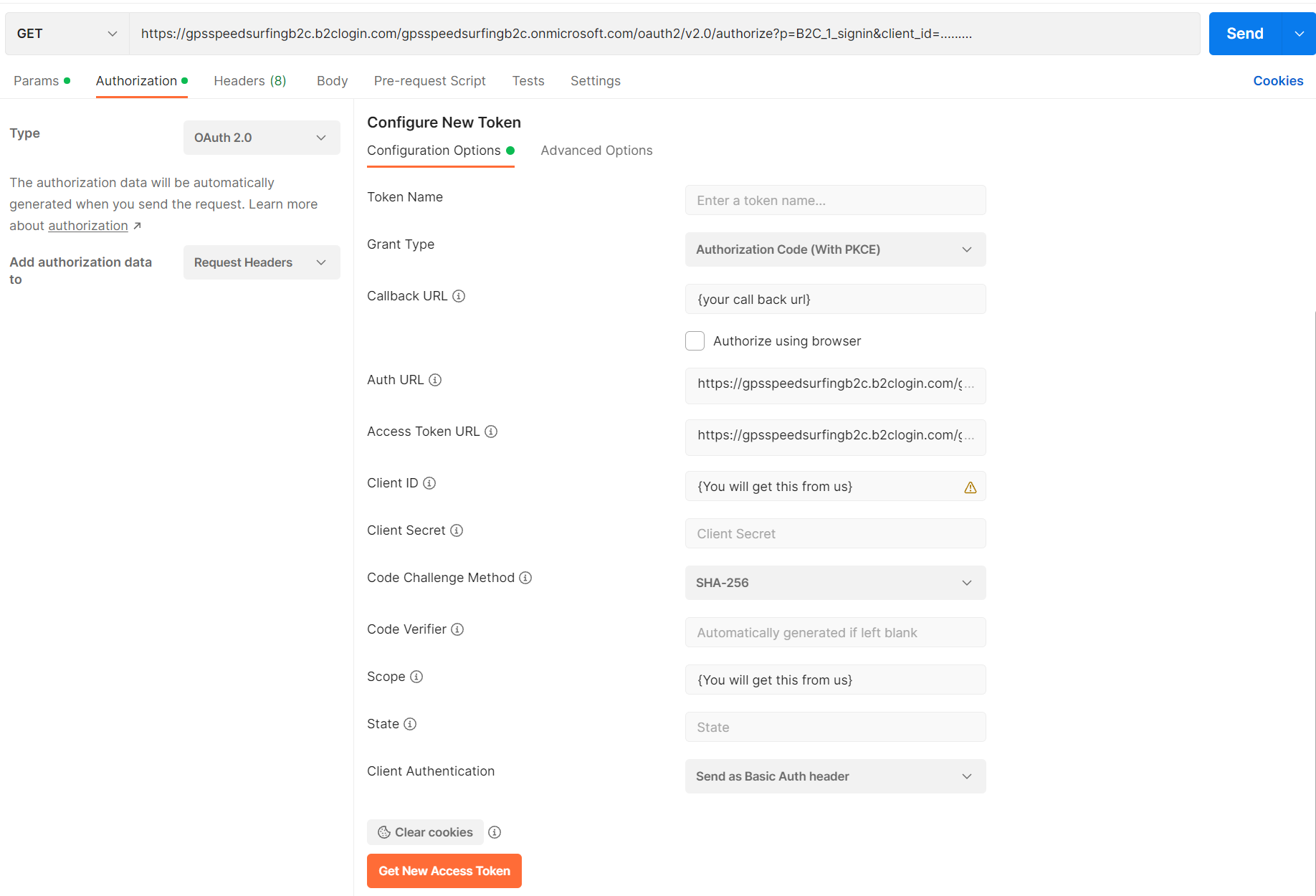
- make sure you are registered as developer, go to https://apimgp3s.portal.azure-api.net/ to register with your gps-speedsurfing account
- register for the GP3S professional products
- Go to the Track-upload api to explore, you cannot test the api from this portal (file upload is blocked)
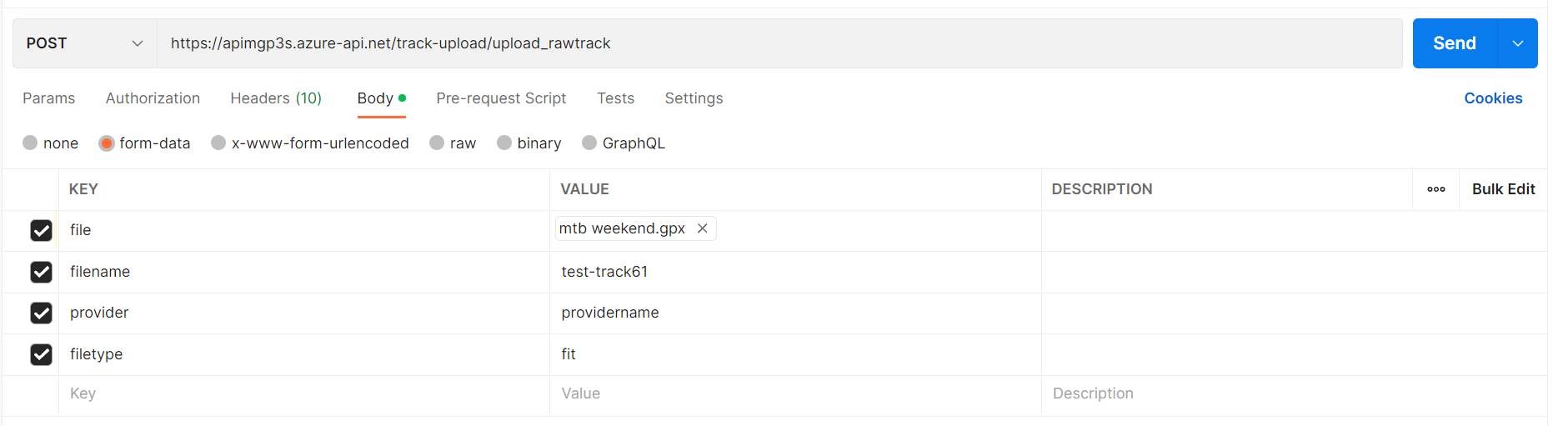
- The API url: https://apimgp3s.azure-api.net/track-upload/Gp3s_upload_rawtrack
- Provide the file in the body as form-data
- Provide additional headers:
- Ocp-Apim-Subscription-Key {you can get this from the Api portal when you have signed up for GP3S professional product}
- Authorization {token}
- Provide additional information in the body as form-data
- filename {name of the file uploaded}
- provider {application name}
- filetype {fit,gpx,sbn,oao}
- sportstype {1 to 10}
curl --location --request POST '<https://apimgp3s.azure-api.net/track-upload/upload_rawtrack>' \
--header 'Content-Type: application/x-www-form-urlencoded' \
--header 'Ocp-Apim-Subscription-Key: <key from api portal>' \
--header 'Authorization: <access token from the previous step>' \
--form 'filename="file1"' \
--form 'file="<the actual file>"' \
--form 'filetype="<gpx>"' \
--form 'provider="<provider>"' \
--form 'userobjectid="<1234>"' \
--form 'useremail="<test@test.com>"' \
--form 'sportstype=<1 to 9>' \
--form 'devicename="<AppleWatchSeries8>"' \
Call the API with the access token:
Gp3s API platform is based on OAuth 2.0 protocol. The process consists of 4 parts.
- Enable track upload on behalf of the user (once)
- to be able to upload tracks on behalf of the user, we need to get the users concent to do this. In flow 2 we do this only once and therefore you collect and store the attributes which are needed when you upload tracks.
- you have to call the registration api from your user facing app or website
- the user of your app needs to login with the GP3S credentials
- the flow will return an access token with the user-emails and user oid claims
- store this information in your app in a secure way
- to be able to upload tracks on behalf of the user, we need to get the users concent to do this. In flow 2 we do this only once and therefore you collect and store the attributes which are needed when you upload tracks.
- Get an access token
- call the IDP to request an access token on behalf of your app
- Upload track
- use the acces token from previous step (24 hours valid)
- enrich the call with the user attributes stored
- call the upload track API
- Stop sync on behalf of the user (once)
- to be able to stop uploading tracks on behalf of the user, we need to get notified to withdraw the user consent to upload tracks from your platform
- call the de-registration api
- the user needs to login with the GP3S credentials
- delete the GP3S information for this user
- to be able to stop uploading tracks on behalf of the user, we need to get notified to withdraw the user consent to upload tracks from your platform
Yoe need 2 app registrations for flow 2:
- app registration for Front-end app that supports step 1 and 4
- app registration for back-end worker that support step 2 and 3 When developing this integration start with step 2 and 3 and when succesfull complete step 1 and 4.
Please sent us a request with detailed info to begin the API request reviewing process.
- Company Name
- Company URL
- Application Name for the backend worker + app name for front end
- Application Logo (200 px by 200 px)
- Application Description (Limit 100 characters)
- Authorized Callback Domain (redirect_uri), for front-end app, provide one or more
After reviewing we get back to you with the ClientID and the scope that you should use in your application to call the API. This information will be limited to the explicit use of the upload api for tracks.
Front-end app:
- ClientId: The Client Id's of your Client applications registered in Gp3s App Registrations. This is typically a GUID value.
- Access Token url: a url to call to get a new access token
- Authorized Callback Domain (redirect_uri)
Back-end app:
- ClientId: The Client Id's of your Client application registered in Gp3s App Registrations. This is typically a GUID value.
- Secret: The secret for your back-end client application (store this in a safe place), the secret is rolledover between fixed time windows
- Scope: The scope configured by us for your Client applications (do not add /.default for step 1, add /.default to the scope in step 2)
- ScopeURI: The scope uri like https://gpsspeedsurfingb2c.onmicrosoft.com//.default
- Access Token url: a url to call to get a new access token
To be able to upload tracks on behalf of the user, we need to get the users concent to do this. In flow 2 we do this only once and therefore you have to collect and store the attributes in your backend or app which are needed when you upload tracks. Use the information provided for the Front-end app.
see: documentation
GET https://gpsspeedsurfingb2c.b2clogin.com/gpsspeedsurfingb2c.onmicrosoft.com/oauth2/v2.0/authorize?p=B2C_1_signin
client_id=<1>
&nonce=defaultNonce
&redirect_uri=<6>
&response_type=code
&prompt=login
&code_challenge_method=S256
&code_challenge=Tb6gaLCt-n-qDf9I9G7ANQpy9i2F5RIBCgVqeN4l3ew
&scope=<3>
&response_type=code
The second step is to post the authorization code received in return you get an access token
POST https://gpsspeedsurfingb2c.b2clogin.com/gpsspeedsurfingb2c.onmicrosoft.com/B2C_1_signin_kmsi/oauth2/v2.0/token
grant_type:"authorization_code"
Code:<code from previous call>
&redirect_uri=<6>
or use Postman to get an access token:
extract the claims from the access token and store these: "oid" and "emails", you can use jwt.ms for extracting the information from the bearer Token for try-out. You wil need this information in step 3.
Use the information provided for the Back-end app.
The access tokens are valid for 24 hours and after 24 hours you have to request a new one
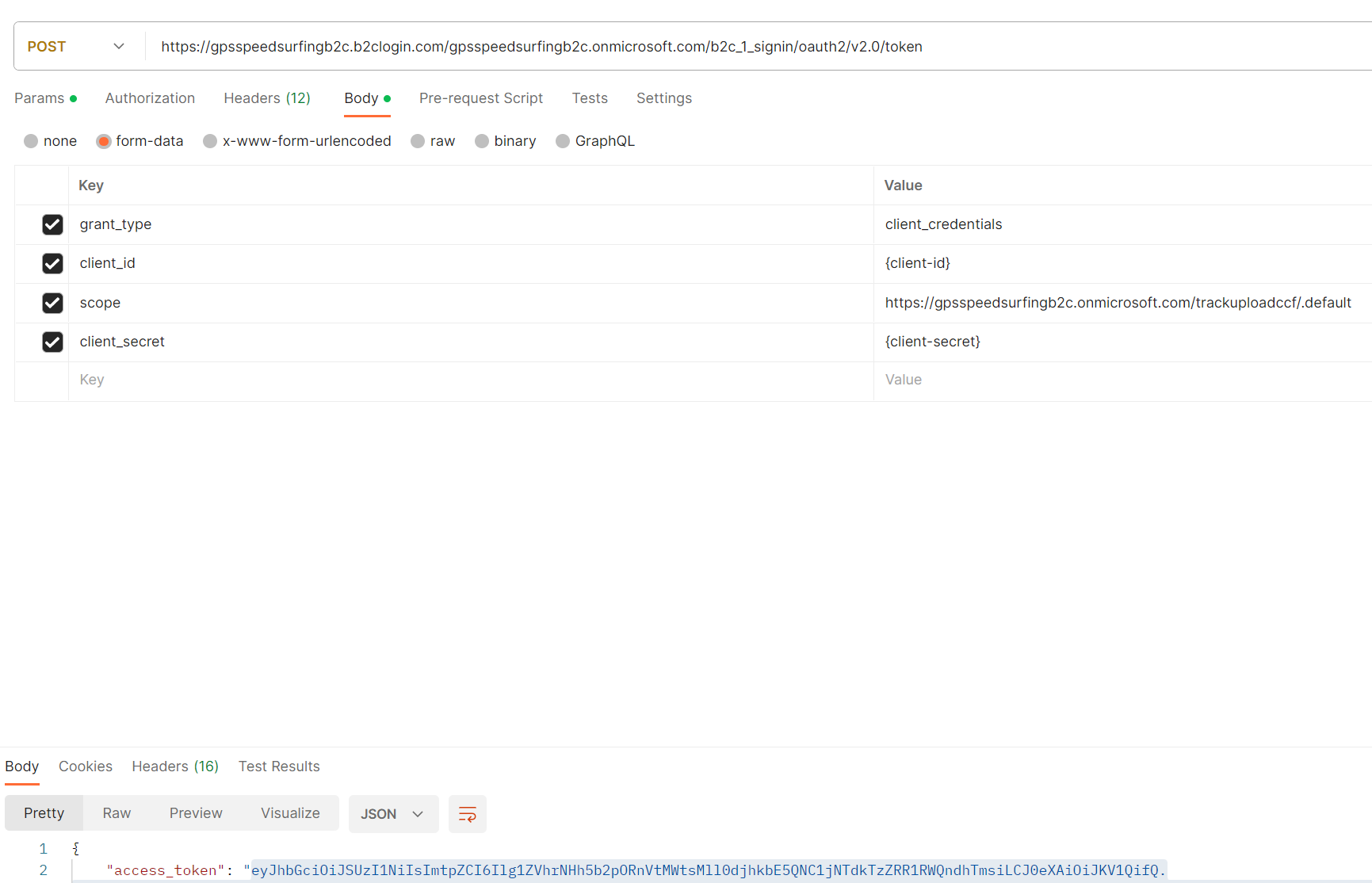
Then, use your favorite API development application to generate an authorization request. Construct a call like this example with the following information as the body of the POST request: https://.b2clogin.com/.onmicrosoft.com//oauth2/v2.0/token
Replace this url with the one you get back from us (4), provide the following parameters:
| Key | Value |
|---|---|
| grant_type | client_credentials |
| client_id | The Client ID from (1) |
| client_secret | The Client Secret from (2) |
| scope | The scope url (4) |
The actual POST request looks like the following example:
POST /<5>
Content-Type: application/x-www-form-urlencoded

grant_type=client_credentials&client_id=33333333-0000-0000-0000-000000000000&client_secret=FyX7Q~DuPJ...&scope=https%3A%2F%2Fcontoso.onmicrosoft.com%2Fapi%2F.default
or:
curl --location --request POST '<5>' \
--header 'Content-Type: application/x-www-form-urlencoded' \
--form 'grant_type="client_credentials"' \
--form 'client_id="<1>"' \
--form 'client_secret="<2>"' \
--form 'scope="<4>"'
or via postman:
- make sure you are registered as developer, go to https://apimgp3s.portal.azure-api.net/ to register with your gps-speedsurfing account
- register for the GP3S professional products
- Go to the Track-upload api to explore, you cannot test the api from this portal (file upload is blocked)
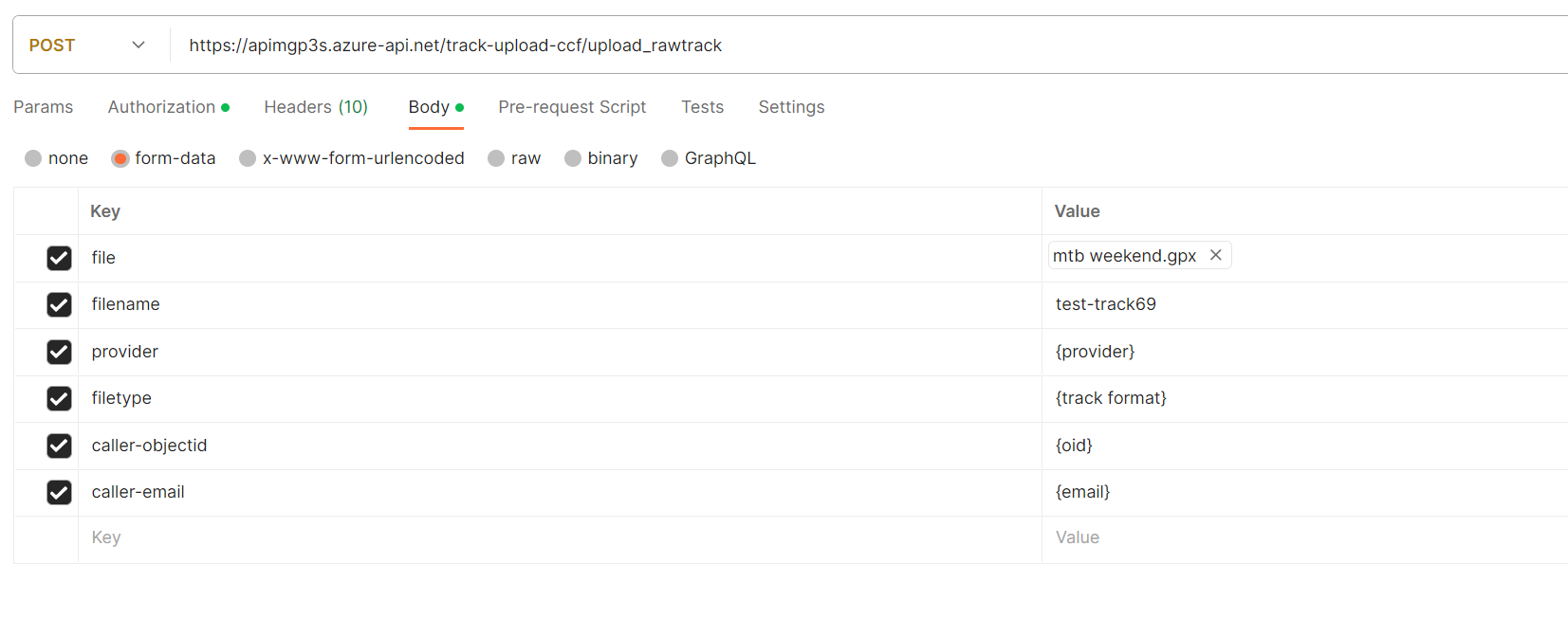
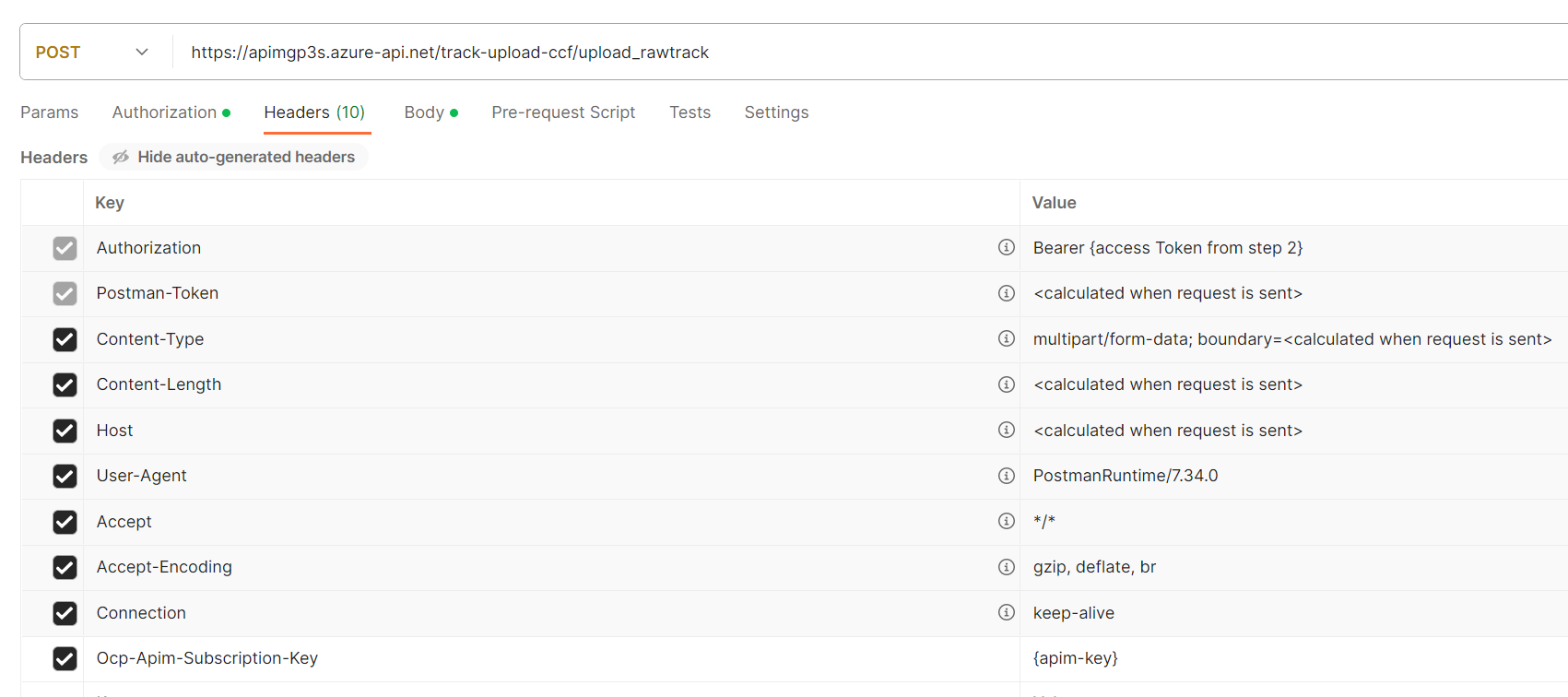
- The API url: https://apimgp3s.azure-api.net/track-upload-ccf/Gp3s_upload_rawtrack
- Provide the file in the body as form-data
- Provide additional headers:
- Ocp-Apim-Subscription-Key {you can get this from the Api portal when you have signed up for GP3S professional product}
- Authorization {access token from the previous step}
- Provide additional information in the body as form-data
- filename {name of the file uploaded}
- provider {application name}
- filetype {fit,gpx,sbn,oao}
- userobjectid {id of gp3s user}
- useremail {email of gp3s user}
- sportstype {1 to 10}
curl --location --request POST '<https://apimgp3s.azure-api.net/track-upload-ccf/upload_rawtrack>' \
--header 'Content-Type: application/x-www-form-urlencoded' \
--header 'Ocp-Apim-Subscription-Key: <key from api portal>' \
--header 'Authorization: <access token from the previous step>' \
--form 'filename="file1"' \
--form 'file="<the actual file>"' \
--form 'filetype="<gpx>"' \
--form 'provider="<provider>"' \
--form 'userobjectid="<1234>"' \
--form 'useremail="<test@test.com>"' \
--form 'sportstype=<1 to 9>' \
--form 'devicename="<AppleWatchSeries8>"' \
you can do all actions via postman or other tool of your choice
or via postman:
1 ice 2 foil 3 windsurf 4 kitesurf 5 sail 6 wing