Ce document est également disponible en Français
Since Volumio 3 is out, it is not as easy as it used to be to install this operating system on a RaspTouch. Here is a walkthrough to find back all the device's functions under a recent version of Volumio (last update 27/02/2023)
What this tutorial expects :
- Your RaspTouch is connected to your (wired) local network with a RJ45 cable.
- You have a PC (or any other device) on the same network and with a SSH client installed.
- The clean procedure recommended by Volumio now requires a MyVolumio account.
A complete install needs 4 steps.
- Set the audio output on Audiophonics I-Sabre ES9028Q2M
- Install the plugin Audiophonics ON/OFF
- Install the plugin Touch Display
- Install a virtual keyboard
v3.webm
- Open Volumio Web Interface
- Open the section Playback Options
- Set the I2S DAC selector on ON
- Under the drop-down menu DAC Model select the option Audiophonics I-Sabre ES9028Q2M
- Save and agree to reboot
- Wait a couple minutes for the device to restart.
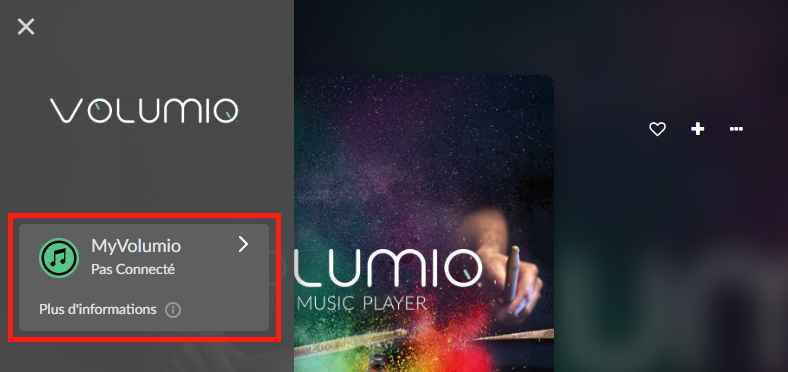
Since Volumio 3, you need a MyVolumio account to use plugins. A free account is enough for our needs.
Before continuing, open the link shown above and follow the instructions to create your account.
install_plug_touch.webm
This video is edited because the installation lasts around 15 minutes.
- Open the Volumio web interface.
- Open the section Plugins.
- Open the tab System Hardware.
- Install the plugin Touch Display.
- Wait for about 15 minutes without touching anything on the RaspTouch.
- Once the installation is over, enable the plugin. The display should turn on after a couple seconds to show the web interface.
install_plug_onoff.webm
- Open the Volumio web interface.
- Open the section Plugins.
- Open the tab System Hardware.
- Install the plugin Audiophonics ON/OFF.
- Wait for around 20 seconds without touching anything on the RaspTouch.
- Once the installation is over, enable the plugin.
- Verify at next power-up cycle that the physical power button stops flashing one the system has booted.
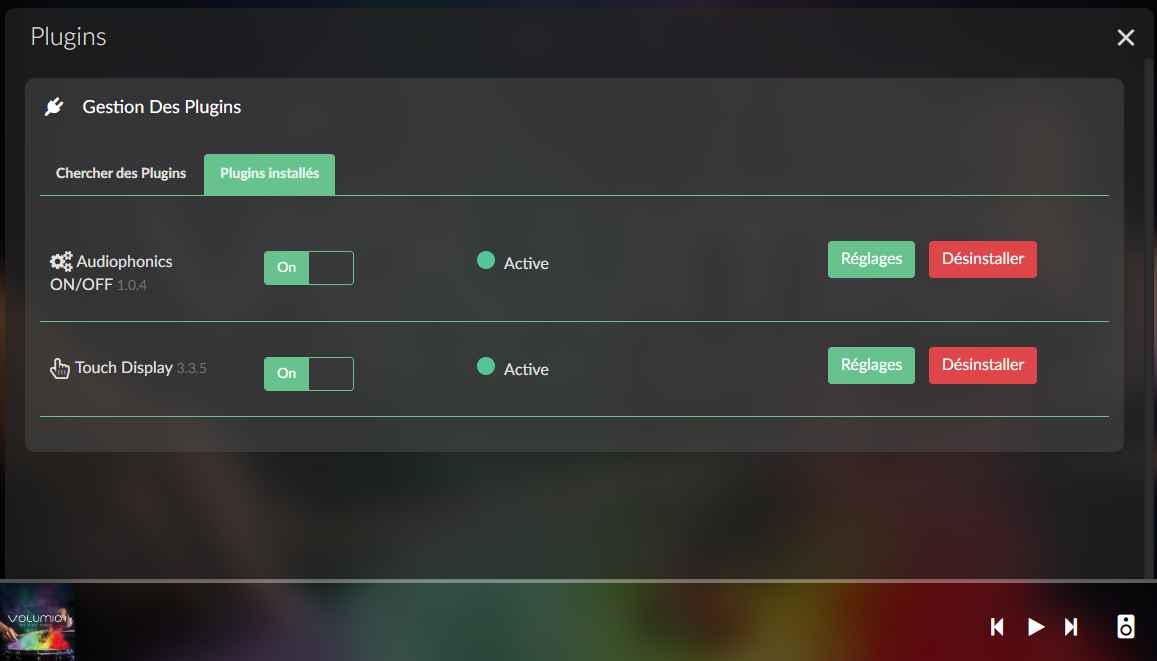
Starting from version 3.5.0 the Touch Plugin already has an option to handle the virtual keyboard
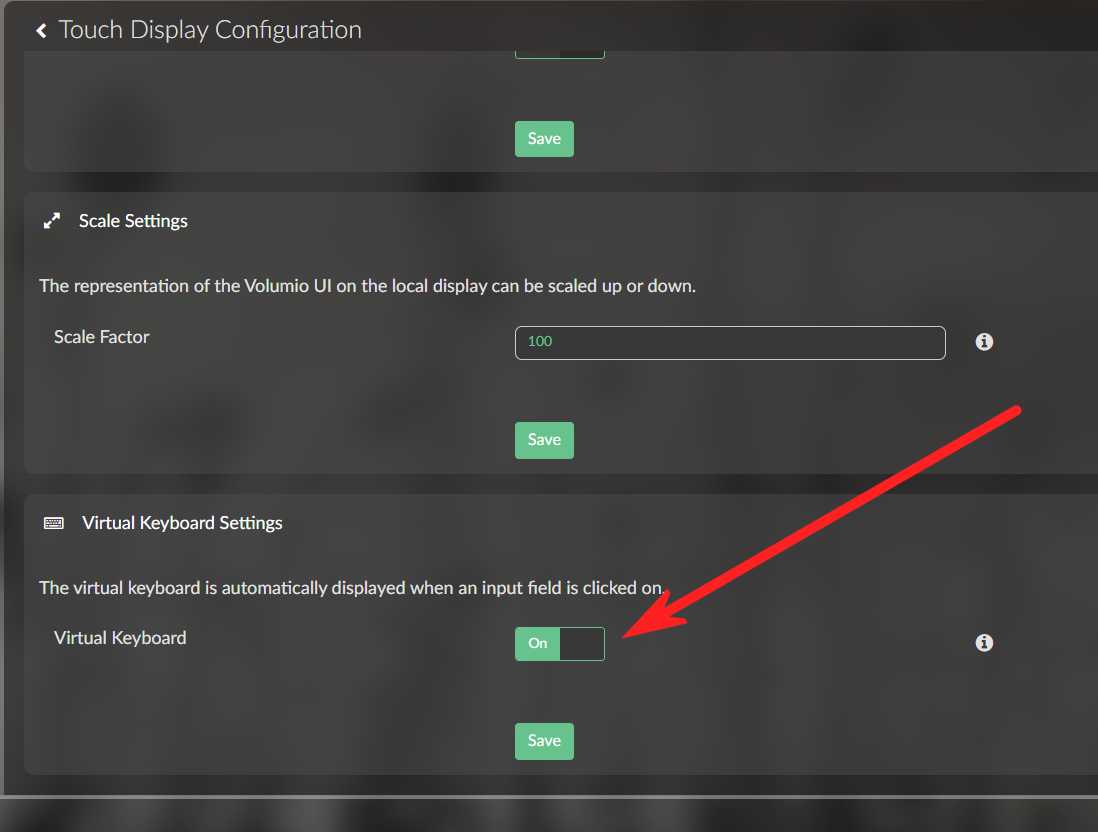
My version of the plugin is inferior to 3.5.0 and I don't have this option
Until your system is elligible to the 3.5.0 Touch plugin, here is a workaround with a few SSH commands:
Here's what we're going to do explained in the vernacular :
- The Touch Display plugin is a simple chromium-based web-browser which is installed an set by the plugin to run automatically when Volumio starts.
- We basically download a virtual keyboard chromium extension. I picked the one made by xontab because it is free and easy-to-use.
- Then we only have to to edit the script in charge of starting the chromium-browser so it will also load the virtual keyboard extension.
Here how it translates in code :
cd /home/volumio/
wget https://github.com/xontab/chrome-virtual-keyboard/archive/master.tar.gz
tar -xvzf master.tar.gz
rm -f master.tar.gz
sudo sed -i 's/http:\/\/localhost:3000.*\?$/http:\/\/localhost:3000 --load-extension=\/home\/volumio\/chrome-virtual-keyboard-master/'  /opt/volumiokiosk.sh
systemctl restart volumio-kiosk
The fifth command uses sudo because the regular Volumio user does not have the permissions to edit the file /opt/volumiokiosk.sh. This command will ask for the Volumio system password (by default : "volumio").
The last command restarts the chromium process. Usually the virtual keyboard is already working at this stage. However different system versions may need a reboot.
To make sure the virtual keyboard is working properly, use the touch screen on your RaspTouch and try to do a search.
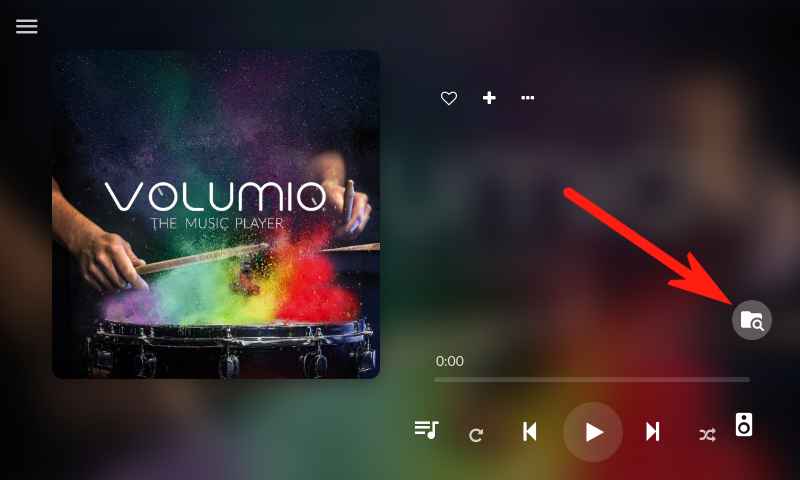
Click on the navigation button.
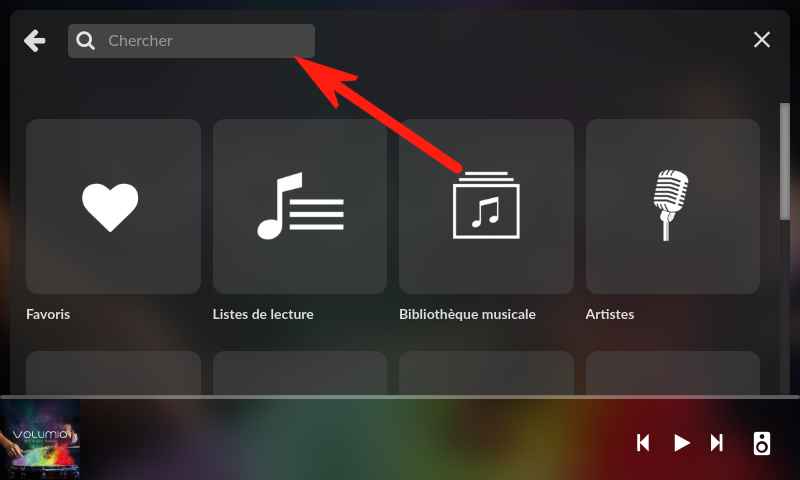
Click on the text field.
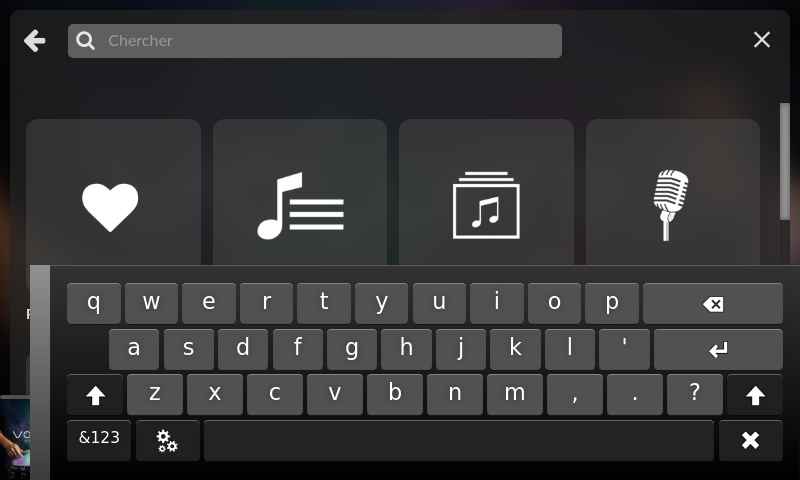
Check that the virtual keyboard is displaying.
As a last resort you may try this experimental installation procedure