

This repository contains a collection of ROS packages and a Unity package, which shows the basic example of communication between Unity and a UR10e robot throughout the ROS connection. Please check the two demonstrations videos following:
Demo1: Unity control UR robot by publishing the joint position control signal
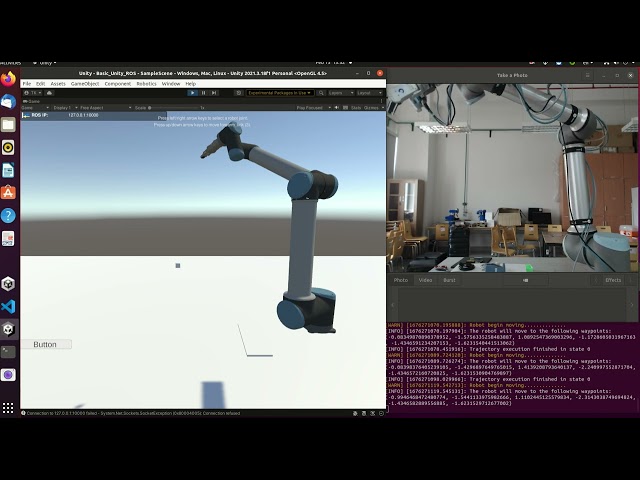
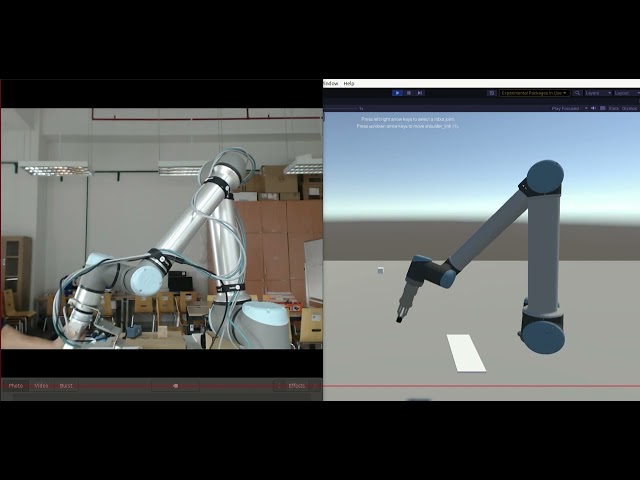
Show more
Softwares and packages are using in this project| Name | Version |
|---|---|
| Unity Hub | 3.4.2 |
| Unity | 2021.3.18f1 |
| Ubuntu | 20.04 |
| ROS | Noetic |
1.1 Install Universal Robot ROS driver
https://github.com/UniversalRobots/Universal_Robots_ROS_Driver
1.2 Following steps to setup the ROS_Unity_Integration
https://github.com/Unity-Technologies/Unity-Robotics-Hub/tree/main/tutorials/ros_unity_integration
1.3 Following Moveit Tutorial
https://moveit.ros.org/documentation/concepts/
1.4 Gitclone and building unity_universal_robot ROS package
git clone https://github.com/TriKnight/unity_universal_robots
cd catkin_ws
catkin build
Show more
There are launch files available to bringup a simulated robot - either UR5e or UR10e. In the following the commands for the UR10e are given. For the UR5, simply replace the prefix accordingly.2.1 To bring up the simulated robot in Gazebo, run:
roslaunch ur_gazebo ur10e_bringup.launch
2.2 MoveIt! with a simulated robot
Again, you can use MoveIt! to control the simulated robot.
For setting up the MoveIt! nodes to allow motion planning run:
roslaunch ur10e_moveit_config ur10e_moveit_planning_execution.launch sim:=true
2.3 For starting up RViz with a configuration including the MoveIt! Motion Planning plugin run:
roslaunch ur10e_moveit_config moveit_rviz.launch
Show more
3.1 Start RViz and MoveGroup node
Open two shells. Start RViz and wait for everything to finish loading in the first shell:
roslaunch ur10e_moveit_config demo.launch
3.2 Run the move_group_joint_state example
This code will help the robot move by following joint state positions and desired points throughout ROS service
rosrun unity_universal_robots move_group_joint_state.py
Show more
4.1. Running the ROS Driver, Robot_IP: <your_robot_IP>
roslaunch ur_robot_driver ur10e_bringup.launch robot_ip:=192.168.1.201
4.2. Running MoveIt planning on UR10e robot
roslaunch ur10e_moveit_config ur10e_moveit_planning_execution.launch limited:=true
4.3. Nextstep running the Moveit! config with RViz view
roslaunch ur10e_moveit_config moveit_rviz.launch
4.4. Start Unity and Open the UR_ROS_Unity package in folder
https://github.com/TriKnight/UR_ROS_Unity/

4.5. Running the TCP/IP end point server
Note, By default, the server_endpoint will listen on ip 0.0.0.0 (i.e. allowing all incoming addresses) and port 10000, but these settings are configurable. To override them, you can change the command to
roslaunch ros_tcp_endpoint endpoint.launch tcp_ip:=127.0.0.1 tcp_port:=10000(obviously replacing 127.0.0.1 with your desired IP and 10000 with your desired port number.)
roslaunch unity_universal_robots start_tcp_ip.launch
4.6. Running the Joint State Position control
rosrun unity_universal_robots pos_joints_control.py