This is an extension that adds chatGPT functionality directly within Visual Studio.
You will be able to consult the chatGPT directly through the text editor or through a new specific tool window.
Select a method and right click on text editor and you see these new chatGPT commands:
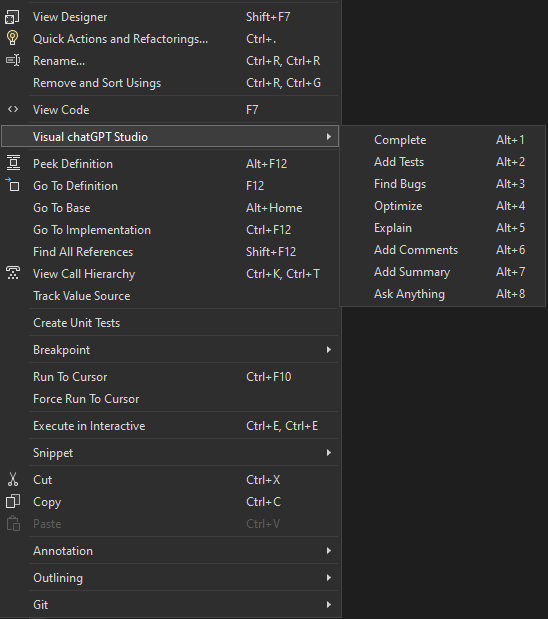

- Complete: Start write a method, select it and ask for complete.
- Add Tests: Create unit tests for the selected method.
- Find Bugs: Find bugs for the selected method.
- Optimize: Optimize the selected method.
- Explain: Write an explanation of the selected method.
- Add Comments: Add comments for the selected method.
- Add Summary: Add Summary for C# methods.
- Ask Anything: Write a question on the code editor and wait for an answer.
And if you desire that the responses be written on tool window instead on the code editor, press and hold the SHIFT key and select the command (not work with the shortcuts).
If you want chatGPT to respond in another language and/or want to customize the commands for some reason, you can edit the default commands through the options:

For example, by changing the "Explain" prompt of the Explain command to "Explicar en español" (or just "Explicar"), the OpenAI API will write the comments in Spanish instead of using the default English command.
In this new window editor you can interact directly with chatGPT as if you were in the chatGPT portal itself:

You will find this window in menu View -> Other Windows -> Visual chatGPT Studio.
To use this tool you need create and set an OpenAI API Key.
You can do this here: https://beta.openai.com/account/api-keys
Unfortunately, the API that OpenAI makes available for interacting with chatGPT has a limitation on the size of the question plus the given answer.
If the question sent is too long (for example, a method with many lines) and/or the generated response is too long, the API may cut the response or even not respond at all.
For these cases, I advise you to make requests via the tool window to customize the question in a way that chatGPT does not refuse to answer.
In the future if I find a way around this limitation, I will post an update.
-
As this extension depends on the API provided by OpenAI, there may be some change by them that affects the operation of this extension without prior notice.
-
As this extension depends on the API provided by OpenAI, there may be generated responses that not be what the expected.
-
The speed and availability of responses directly depend on the API provided by OpenAI.
- Fixed a bug introduced on previous release for the "Explain, "Add Comments" and "Add Summary" commands.
- Removed mention to Visual Studio 2019 due incompatibility.
- Added comment prefix for "Explain" and "Find Bugs" commands.
- Added line break after 160 characters on the same line for "Explain" and "Find Bugs" commands.
- Do nothing when API send only break lines on response begin (avoid new brank lines).
- Commands moved to a submenu.
- Added shortcuts to the commands.
- Fixed error when executing commands with SHIFT key in some scenarios.
- Redirect the commands responses to the tool window. To do, press and hold the SHIFT key and select the command. The response will be written on tool window instead on the code editor.
- Added syntax highlight to text editor on tool window
- Now text editor show the lines number.
- Added the possibility to customize the commands through the options.
- Added the possibility to resize the text editor on tool window.
- Added a shortcut to "Request" button on tool window. Now you can send the request just pressing CTRL+Enter.
- Now the extension will show the OpenAI API error detail when it occurs. In this way you can know what is really happening:

- Added support for Visual Studio ARM architecture.
-
Improved the "Add Comments" command.
-
Now it's possible to customize the OpenAI API requests parameters:

But only change the default values if you know what you're doing, otherwise you might experience some unexpected behavior.
For more details about each property, see the OpenAI documentation: https://platform.openai.com/docs/api-reference/completions/create.
You can play with these parameters here before changing them in the plugin.
- Fixed commands when select code from bottom to top or end to start (Thanks to Tim Yen to alert me about this issue).
- More improvements on "Summary" command.
- Minor bugs fixes.
- Improved the "Summary" command.
- Improved the "Summary" command. Now most of times the chatGPT will not write again the method/property head.
- Added a valiation to avoid the chatGPT response be write on wrong line.
- Other minor fixes.
- Added the new command "Complete". Start write a method, select it and ask for complete.
- Now the extension is compatible with Visual Studio 2019.
- Minor bugs fixes.
- I figure out a way to improve the size of the requests. This will resolve the most of "Some error occur. Please try again or change the selection." error. Now in most cases instead of failing, if the data limit is exceeded chatGPT will not write the entire response.
- Fixed a bug that prevented the window tool from working after closing and reopening Visual Studio .
- Added a feedback when the extension is waiting for chatGPT response:
