Pinout Orientation RaspberyPi Zero W

Connect devices with wires and boards
Grove is a modular, standardized connector prototyping system.
Grove connectors look like these:
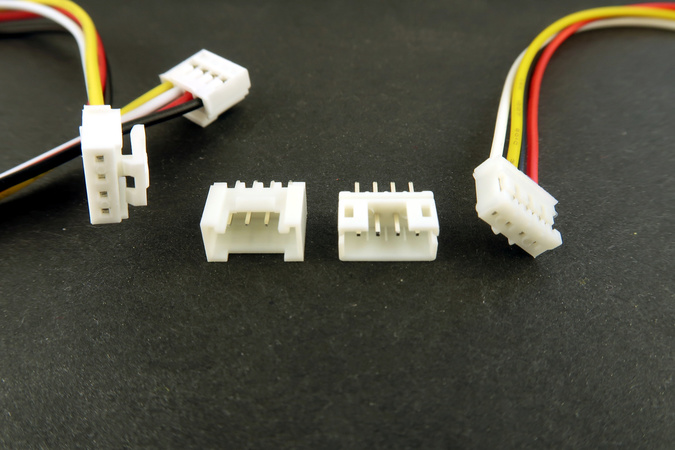

Many different Grove-modules are available:
HAT stands for “Hardware attached on top”. It is a new hardware specification for add-one modules for the Raspberry Pi.
Auto-configuration is a most interesting feature of HATs. With a controller on the board, the add-on board identifies itself. It tells the Raspberry Pi, which IO pins it is using, how they need to be configured and what drivers have to be loaded.
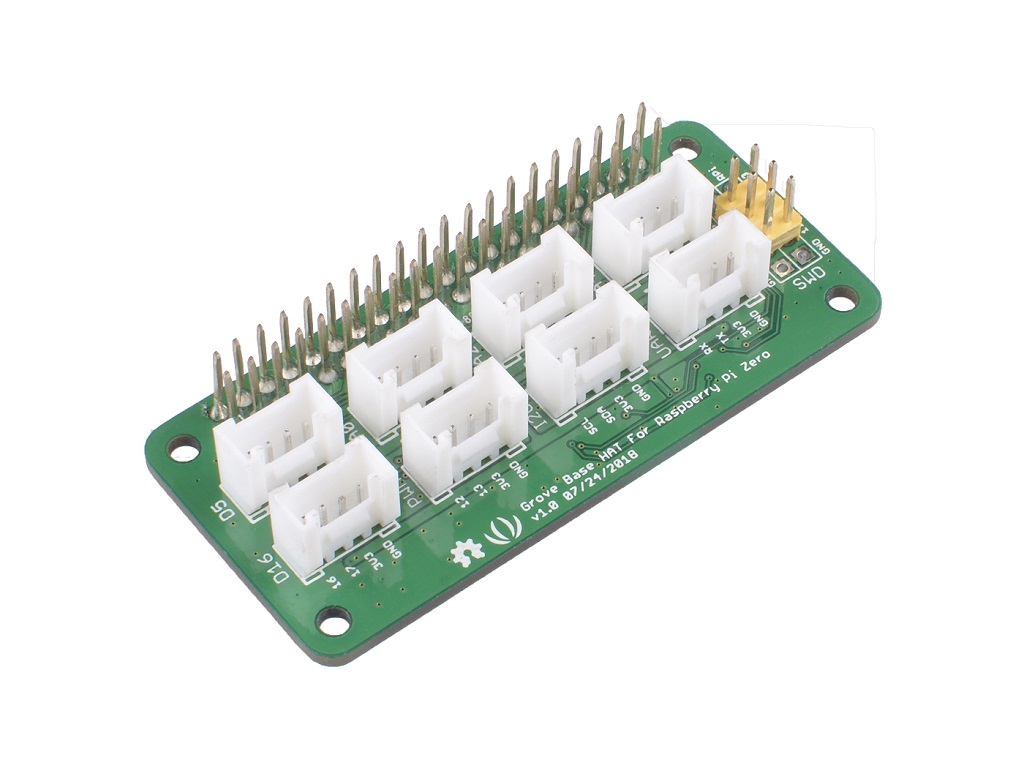
In our examples we will use a Hat for Raspberry Pi Zero:
Grove.py is python library for Seeedstudio Grove devices.
- The grove.py project on GitHub: https://github.com/seeed-studio/grove.py
- Command Line Interface with a list of grove-devices
- API Documentation: https://seeed-studio.github.io/grove.py/
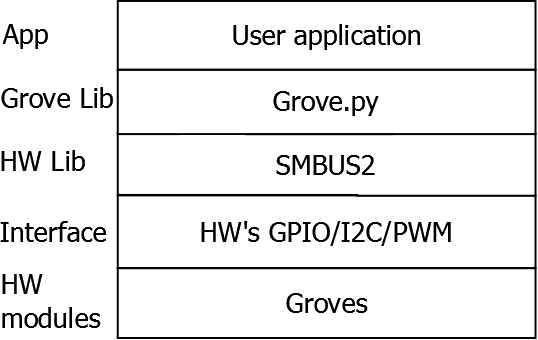
Grove.py depends on different hardware interface/libraries:
-
MRAA is a low-level library, developed by Intel, for accessing the I/O functions (GPIO, I2C, SPI, PWM, UART) on a variety of boards such as Intel's Galileo and Edison boards, MinnowBoard Max, Raspberry Pi, and more. It is written in C/C++ and provides Python and Javascript bindings. libmraa supports the UP board since (v0.9.5) and is included with ubilinux.
-
UPM (Useful Packages & Modules) is a high-level library that makes use of mraa, and provides packages/modules to manage a variety of sensors and actuators. v0.5.1 is also included with ubilinux.
-
SMBUS (System Management Bus) is a subset from the I2C protocol. smbus2 is a Python implementation of the python-smbus package.
- GPIO General purpose input/output
- I2C is a bus, serial protocol and interface;
- PWM is Pulse Width Modulation Interface
-
Download the Raspbian-Image "With Desktop and recommended software based on Debian Buster".
(Other images can be found here) -
Get the image on the SD Card using a formating tool like Etcher
-
Copy two config files to SD Card, to the root folder:
- ssh (empty file)
- wpa_supplicant.conf
-
Edit wpa_supplicant.conf to specify wifi-network and password
-
Put the SD Card into Raspberry Pi
-
Power on Raspberry Pi
Here is the video instruction How to Setup Raspberry Pi Zero
First try to ping Raspberry to make sure that it is up and running:
ping raspberrypi.localThan try ssh:
ssh pi@raspberrypi.localThe default password is raspberry
sudo apt-get install tightvncserver
sudo apt-get install xrdpUpdated installed packages:
sudo apt-get update
Install gpiozero library (if not installed yet)
sudo apt install python3-gpiozeroInstall/update all dependencies and latest grove.py:
curl -sL https://github.com/Seeed-Studio/grove.py/raw/master/install.sh | sudo bash -s -It make take some time (~15-20 min) to install/update all packages. At the end, when everything is successfully installed the follwing message should be printed:
Successfully installed grove.py-0.6
#######################################################
  Lastest Grove.py from github install complete   !!!!!
#######################################################
You may have error(s) during the installation process when you use not a full rasbian image. It happens because some packages are not preinstalled on the light version. Than you need to install missed packages manually. For example, to install pip run the following command:
sudo apt-get install python3-pipThan install grove.py
sudo pip3 install grove.pyCopy manually MRAA & UPM
cd /usr/local/lib/python3.7/dist-packages
pi@raspberrypi:/usr/local/lib/python3.7/dist-packages

sudo cp -r /usr/lib/python3.5/dist-packages/upm .
sudo cp /usr/lib/python3.5/dist-packages/mraa.py .
sudo cp /usr/lib/python3.5/dist-packages/_mraa.so .As an example let's create a simple project with Led.
- Create a python script
led.py:
import time
from grove.grove_led import GroveLed

# connect to pin 5(slot D5)
PIN = 5
led = GroveLed(PIN)
while True:
    led.on()
    time.sleep(1)
    led.off()
    time.sleep(1)
- Connect Led to the slot D5;
- Run the following command:
python3.7 led.pyPushbullet is a group of applications and an API for sharing files and notifications between devices.
Pushbullet automatically shows you all of your phone's notifications right on your computer, this means you can see who's calling or read and reply to text messages even if your phone is on silent or in another room.
Pushbullet also makes it easy to send pictures, files, links, and more to your devices and even to friends.
-
Setup Pushbullet account
-
Installing Pushbullet Libraries on Raspberry Pi (
upgrademay take some time: ~15..20 min)
sudo apt-get update
sudo apt-get upgrade
sudo pip install pushbullet.py
You can also use pip3 to install pushbullet.py, in this case you can skip the step 3:
sudo pip3 install pushbullet.py- Copy manually
websocketanspushbulletpackages (skip if you used pip3):
cd /usr/local/lib/python3.7/dist-packages

sudo cp -r /usr/local/lib/python2.7/dist-packages/websocket .
sudo cp -r /usr/local/lib/python2.7/dist-packages/websocket_client-0.56.0.dist-info .
sudo cp -r /usr/local/lib/python2.7/dist-packages/pushbullet .
sudo cp -r /usr/local/lib/python2.7/dist-packages/pushbullet.py-0.11.0.dist-info .- Check out the example. Add your own access token and a phone number where you want to send SMS-message. Than run the command:
python3.7 push_examples.pyYou should receive notifications on your mobile
- Install Raspbian OS;
- Hello World app - one led on / off / disco
- Motion or light sensor -> led on / off;
- Motion sensor and display -> show motion detected / lights off
- Motion sensor and LED are connected to Raspberry, when any motion is detected than:
- LED is on;
- A notification is pushed to mobile;
- SMS-message is sent to another mobile (or the same);
- A photo is pushed to mobile (let's assume that a photo has been taken by a camera connected to Raspbery when a motion has been detected)

- Raspberry Pi Foundation: https://www.raspberrypi.org
- Seeed IoT hardware: http://wiki.seeedstudio.com/
- Grove.py CLI with a list of supported divices: https://github.com/Seeed-Studio/grove.py/tree/master/doc
- Dexter Industries (GrovePi): https://www.dexterindustries.com/grovepi/
- Pushbullet.py 0.9.1: https://pypi.org/project/pushbullet.py/0.9.1/
- Pushbullet: https://www.pushbullet.com/