
If you are a beginner in Python, you should start with a Hello World program as the starting point. Visual Studio Code (VS Code) is a powerful, open-source code editor that Python developers widely use. In this tutorial, I will explain how to write a Hello World program in Python using the Visual Studio Code editor.
Visual Studio Code (VS Code) is a free, open-source code editor developed by Microsoft. It is available for Windows, macOS, and Linux. VS Code supports a wide range of programming languages and comes with built-in support for JavaScript, TypeScript, and Node.js. It also has a rich ecosystem of extensions that support Python, C++, Java, and many other languages.
Before writing the Python program, you need to set up Visual Studio Code for Python development.
Set Up Visual Studio Code for Python Development
Follow the steps below to set up Visual Studio Code for Python development.
Install Visual Studio Code
First, you need to download and install Visual Studio Code. You can download the installer from the official Visual Studio Code website.
- Go to the Visual Studio Code website.
- Click on the download button for your operating system.
- Follow the installation instructions.
The steps are very simple; you can just follow the UI to install VS Code.
Install Python
If you haven’t already, you need to install Python. You can download the latest version of Python from the official Python website.
- Go to the Python website.
- Click on the download button for your operating system.
- Follow the installation instructions.
Like the above, these steps are also simple.
Install the Python Extension for Visual Studio Code
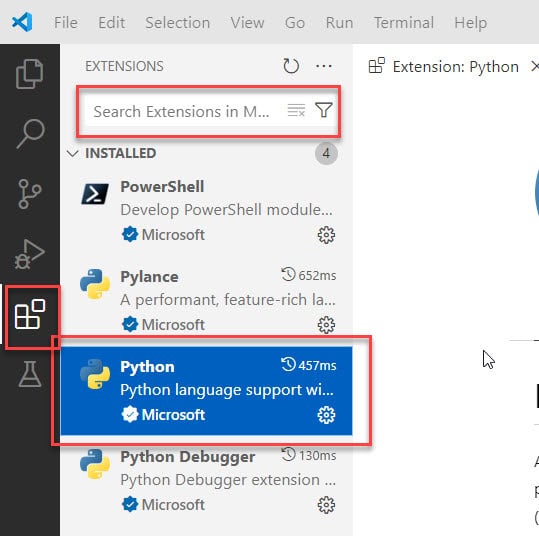
To write and run Python code in Visual Studio Code, you need to install the Python extension.
- Open Visual Studio Code.
- Go to the Extensions view by clicking on the Extensions icon in the Activity Bar on the side of the window or by pressing
Ctrl+Shift+X. - In the search box, type “Python”.
- Click on the
Pythonextension by Microsoft. - Click the
Installbutton.
Here is a screenshot for your reference; I installed the Python extension in VS Code.
Set Up a Python Environment
Using a virtual environment for your Python projects is a good practice. A virtual environment is an isolated environment that allows you to manage dependencies for your project without interfering with other projects.
- Open a terminal in Visual Studio Code by selecting
Terminal>New Terminalfrom the top menu. - Navigate to your project directory.
- Create a virtual environment by running the following command:
python -m venv venv - Activate the virtual environment:
- On Windows:
.\venv\Scripts\activate - On macOS and Linux:
source venv/bin/activate
- On Windows:
This is how to set up a virtual environment for Python development.
Write Your First Python Program
Next, let me show you how to write your first Python program using VS Code.
Create a New Python File
- Open Visual Studio Code.
- Go to
File>New Fileor pressCtrl+N. - Save the file with a
.pyextension, for example,hello_world.py.
Write the “Hello World” Program
In your new Python file, type the following code:
print("Hello, World!")This simple program uses the print function to output the text “Hello, World!” to the console.
Understand the Syntax
print: This is a built-in function in Python that outputs text to the console."Hello, World!": This is a string, a sequence of characters enclosed in quotation marks. In this case, the string is “Hello, World!”.
Run the Python Program
Now, since our Python code is ready, let me show you how to run the Program using VS Code.
Run the Program in Visual Studio Code
To run your Python program in Visual Studio Code, follow these steps:
- Open the terminal in Visual Studio Code by selecting
Terminal>New Terminal. - Make sure your virtual environment is activated (refer to the previous section).
- Navigate to the directory where your Python file is located.
- Run the program by typing the following command in the terminal:
python hello_world.py
You should see the output “Hello, World!” in the terminal.
Run the Program Using the Run Button
Visual Studio Code also provides a convenient way to run your code using the Run button.
- Open your Python file in Visual Studio Code.
- Click on the green
Runbutton in the top-right corner of the editor.
The output will appear in the terminal.
I executed the above code in my local VS Code, and you can see the exact output in the screenshot below:

Debug Python Code in Visual Studio Code
As a Python developer, you should know how to debug your Python program. Let me show you this.
Set Up the Debugger
Visual Studio Code has a built-in debugger that you can use to debug your Python code.
- Open your Python file in Visual Studio Code.
- Go to the Run view by clicking on the Run icon in the Activity Bar on the side of the window or by pressing
Ctrl+Shift+D. - Click on the
create a launch.json filelink to create alaunch.jsonconfiguration file. - Select
Pythonfrom the list of environments.
Add Breakpoints
A breakpoint is a marker that you can set on a line of code where you want the debugger to pause execution.
- Open your Python file in Visual Studio Code.
- Click in the gutter to the left of the line number where you want to set a breakpoint. A red dot will appear, indicating that a breakpoint has been set.
Start the Debugger
- Open the Run view.
- Click on the green
Start Debuggingbutton or pressF5.
The debugger will start, and execution will pause at the breakpoint you set. You can then inspect variables, step through code, and evaluate expressions.
This is the complete process of debugging a Python program.
Additional Tips and Tricks
Here are some additional tips and tricks for working with your Python program using VS Code.
Using IntelliSense
IntelliSense is a powerful code-completion tool that helps you write code faster and with fewer errors. It provides suggestions for variables, functions, and modules as you type.
- Start typing a variable, function, or module name in your Python file.
- Press
Ctrl+Spaceto see a list of suggestions.
Formatting Your Code
Visual Studio Code supports code formatting to help you keep your code clean and readable.
- Open your Python file in Visual Studio Code.
- Press
Shift+Alt+Fto format your code.
Using Linting
Linting is a process that analyzes your code for potential errors and style issues. The Python extension for Visual Studio Code includes several linters, such as Pylint and Flake8.
- Open the Command Palette by pressing
Ctrl+Shift+P. - Type
Python: Select Linterand pressEnter. - Select a linter from the list.
Conclusion
I hope now you can set up Visual Studio Code for Python development, write and run a “Hello World” program, and use some of the powerful features of Visual Studio Code to enhance your development experience.
You can also check:
- Python development training course
- end in Python
- Python Variables
- Interfaces in Python
- Exponents in Python

I am Bijay Kumar, a Microsoft MVP in SharePoint. Apart from SharePoint, I started working on Python, Machine learning, and artificial intelligence for the last 5 years. During this time I got expertise in various Python libraries also like Tkinter, Pandas, NumPy, Turtle, Django, Matplotlib, Tensorflow, Scipy, Scikit-Learn, etc… for various clients in the United States, Canada, the United Kingdom, Australia, New Zealand, etc. Check out my profile.

