
As a Python developer, I’ve worked extensively with data visualization libraries. Among them, Matplotlib remains one of the most useful and versatile tools for creating a variety of charts, including bar charts.
In this article, I’ll walk you through how to create bar charts using Matplotlib. I’ll share practical examples relevant to real-world data, such as U.S. state populations and sales figures, to make it easier for you to follow along and apply these techniques in your projects.
Let’s get in!
What is a Bar Chart?
A bar chart is a graphical representation of data where individual categories are represented by rectangular bars. The length or height of each bar corresponds to the value of the category it represents. Bar charts are ideal for comparing discrete categories or groups.
In Python, Matplotlib is the go-to library for plotting bar charts because of its simplicity and customization options.
Read Matplotlib Unknown Projection ‘3d’
Set Up Matplotlib
Before we get started, make sure you have Matplotlib installed. You can install it via pip if you haven’t already:
pip install matplotlibOnce installed, you can import it into your Python script:
import matplotlib.pyplot as pltRead Matplotlib 2d Surface Plot
Method 1: Create a Basic Vertical Bar Chart
The easiest way to create a bar chart is by using the plt.bar() function in Python. Here’s a simple example that shows the population of five U.S. states (in millions):
import matplotlib.pyplot as plt

states = ['California', 'Texas', 'Florida', 'New York', 'Pennsylvania']
population = [39.5, 28.7, 21.5, 19.3, 12.8]

plt.bar(states, population)
plt.title('Population of Top 5 U.S. States (in millions)')
plt.xlabel('States')
plt.ylabel('Population (millions)')
plt.show()
You can see the output in the screenshot below.
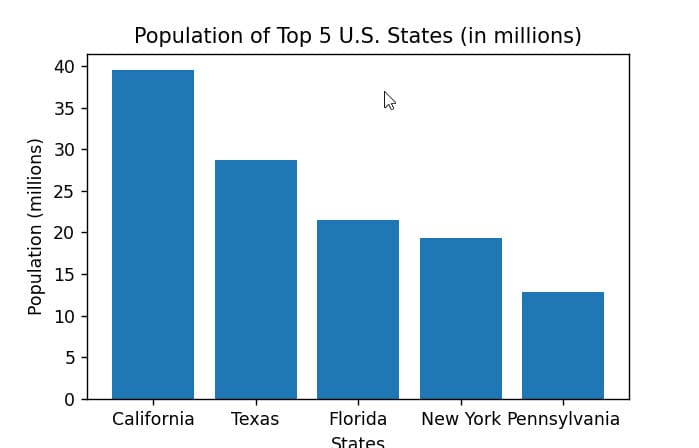
I use this method often when I need a quick visualization. Python’s plt.bar() function takes the categories on the x-axis and their corresponding values on the y-axis. The labels and title help make the chart informative.
Check out Matplotlib is currently using agg, a non-GUI backend
Method 2: Horizontal Bar Chart Using plt.barh()
Sometimes, horizontal bar charts are more readable, especially when category names are long. Matplotlib makes it easy with Python’s plt.barh().
Here’s how you can create a horizontal bar chart showing average monthly sales for a small business:
months = ['Jan', 'Feb', 'Mar', 'Apr', 'May', 'Jun']
sales = [15000, 18000, 12000, 22000, 24000, 21000]

plt.barh(months, sales, color='skyblue')
plt.title('Average Monthly Sales (USD)')
plt.xlabel('Sales in USD')
plt.ylabel('Month')
plt.show()
You can see the output in the screenshot below.

I find horizontal bars especially useful when dealing with long category names or when you want to emphasize the categories more than the values.
Read Matplotlib Time Series Plot
Method 3: Customize Bar Colors and Width
Matplotlib allows you to customize the appearance of your bars easily. For example, you can change colors, adjust the width, or add patterns.
Here’s an example where I customize bar colors to represent different sales regions:
regions = ['West', 'South', 'Midwest', 'Northeast']
sales = [50000, 42000, 37000, 45000]
colors = ['green', 'orange', 'blue', 'red']

plt.bar(regions, sales, color=colors, width=0.6)
plt.title('Quarterly Sales by Region')
plt.xlabel('Region')
plt.ylabel('Sales (USD)')
plt.show()
You can see the output in the screenshot below.
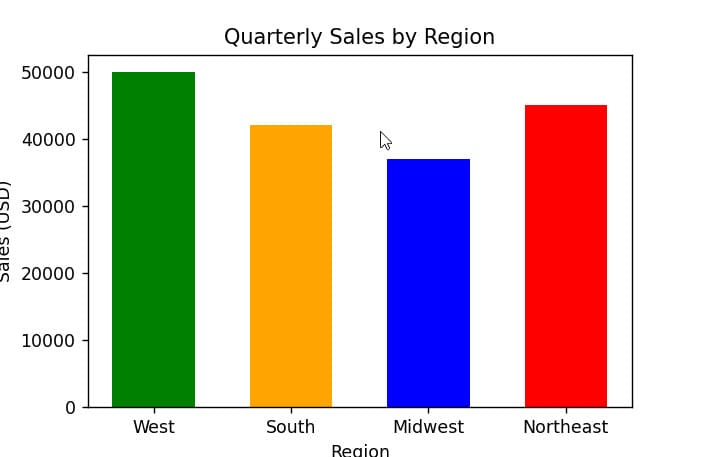
Changing the bar width can help when you want bars to be thinner or wider, depending on your chart’s layout.
Read Module ‘matplotlib’ has no attribute ‘artist’
Method 4: Add Value Labels on Bars
One feature I always add to my reports is value labels on top of each bar. This makes the chart easier to interpret at a glance.
Here’s how you can add labels to your bars:
states = ['California', 'Texas', 'Florida', 'New York', 'Pennsylvania']
population = [39.5, 28.7, 21.5, 19.3, 12.8]

bars = plt.bar(states, population, color='purple')

plt.title('Population of Top 5 U.S. States (in millions)')
plt.xlabel('States')
plt.ylabel('Population (millions)')

for bar in bars:
    yval = bar.get_height()
    plt.text(bar.get_x() + bar.get_width()/2, yval + 0.5, round(yval, 1), ha='center', va='bottom')

plt.show()
I use this technique often because it adds clarity without cluttering the chart.
Method 5: Grouped Bar Chart for Comparing Multiple Categories
If you want to compare multiple related categories side by side, grouped bar charts are the way to go.
For example, let’s compare the quarterly sales of two products:
import numpy as np

quarters = ['Q1', 'Q2', 'Q3', 'Q4']
product_a = [15000, 18000, 22000, 21000]
product_b = [14000, 16000, 20000, 19000]

x = np.arange(len(quarters))  # the label locations
width = 0.35  # the width of the bars

fig, ax = plt.subplots()
rects1 = ax.bar(x - width/2, product_a, width, label='Product A', color='blue')
rects2 = ax.bar(x + width/2, product_b, width, label='Product B', color='orange')

ax.set_xlabel('Quarter')
ax.set_ylabel('Sales (USD)')
ax.set_title('Quarterly Sales Comparison')
ax.set_xticks(x)
ax.set_xticklabels(quarters)
ax.legend()

plt.show()
Grouped bar charts can get a bit tricky with positioning, but once you get the hang of it, they’re invaluable for comparative analysis.
Method 6: Stacked Bar Chart
Stacked bar charts are great when you want to show the total and the breakdown of categories within the total.
Here’s an example showing sales by product and region stacked together:
regions = ['West', 'South', 'Midwest', 'Northeast']
product_a = [12000, 15000, 10000, 13000]
product_b = [8000, 7000, 9000, 11000]

x = np.arange(len(regions))

plt.bar(x, product_a, label='Product A', color='teal')
plt.bar(x, product_b, bottom=product_a, label='Product B', color='coral')

plt.xticks(x, regions)
plt.xlabel('Region')
plt.ylabel('Sales (USD)')
plt.title('Sales by Product and Region')
plt.legend()
plt.show()
Stacked bars give a good sense of contribution per category and overall totals.
Check out Matplotlib Set y Axis Range
Tips for Creating Effective Bar Charts
- Keep it simple: Avoid overloading your chart with too many bars or colors.
- Label clearly: Use titles, axis labels, and legends to make your chart self-explanatory.
- Use appropriate scales: Start your y-axis at zero to avoid misleading visuals.
- Choose colors wisely: Use contrasting colors for clarity and accessibility.
- Consider your audience: Tailor the chart style to who will be reading your report.
Creating bar charts with Matplotlib is simple once you understand the basics. The flexibility it offers means you can customize your charts to fit any data visualization need.
If you want to explore more, Matplotlib’s official documentation and community examples are excellent resources.
Other Python articles you may like:

I am Bijay Kumar, a Microsoft MVP in SharePoint. Apart from SharePoint, I started working on Python, Machine learning, and artificial intelligence for the last 5 years. During this time I got expertise in various Python libraries also like Tkinter, Pandas, NumPy, Turtle, Django, Matplotlib, Tensorflow, Scipy, Scikit-Learn, etc… for various clients in the United States, Canada, the United Kingdom, Australia, New Zealand, etc. Check out my profile.

