


Getting a WeChat Official Account
To connect WeChat, a WeChat Official Account is required. Read our guide to start.
Connecting WeChat
Step 1: Navigate to the Channels Settings Page
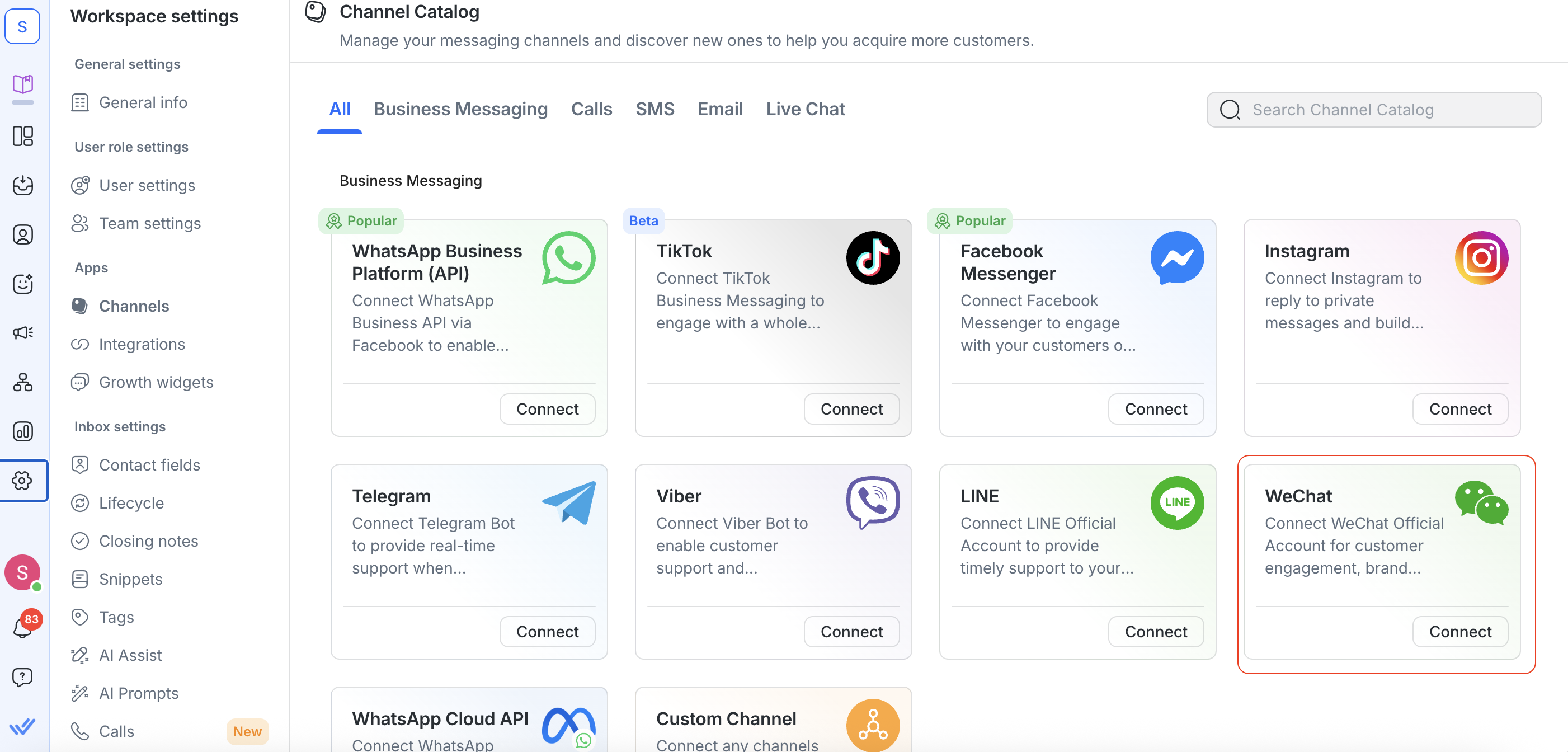
In your respond.io workspace:
Click Settings in the left sidebar
Select Channels
This page displays all messaging channels currently connected to your workspace.
Step 2: Start a New WeChat Channel Connection
Click Add Channel
Select WeChat
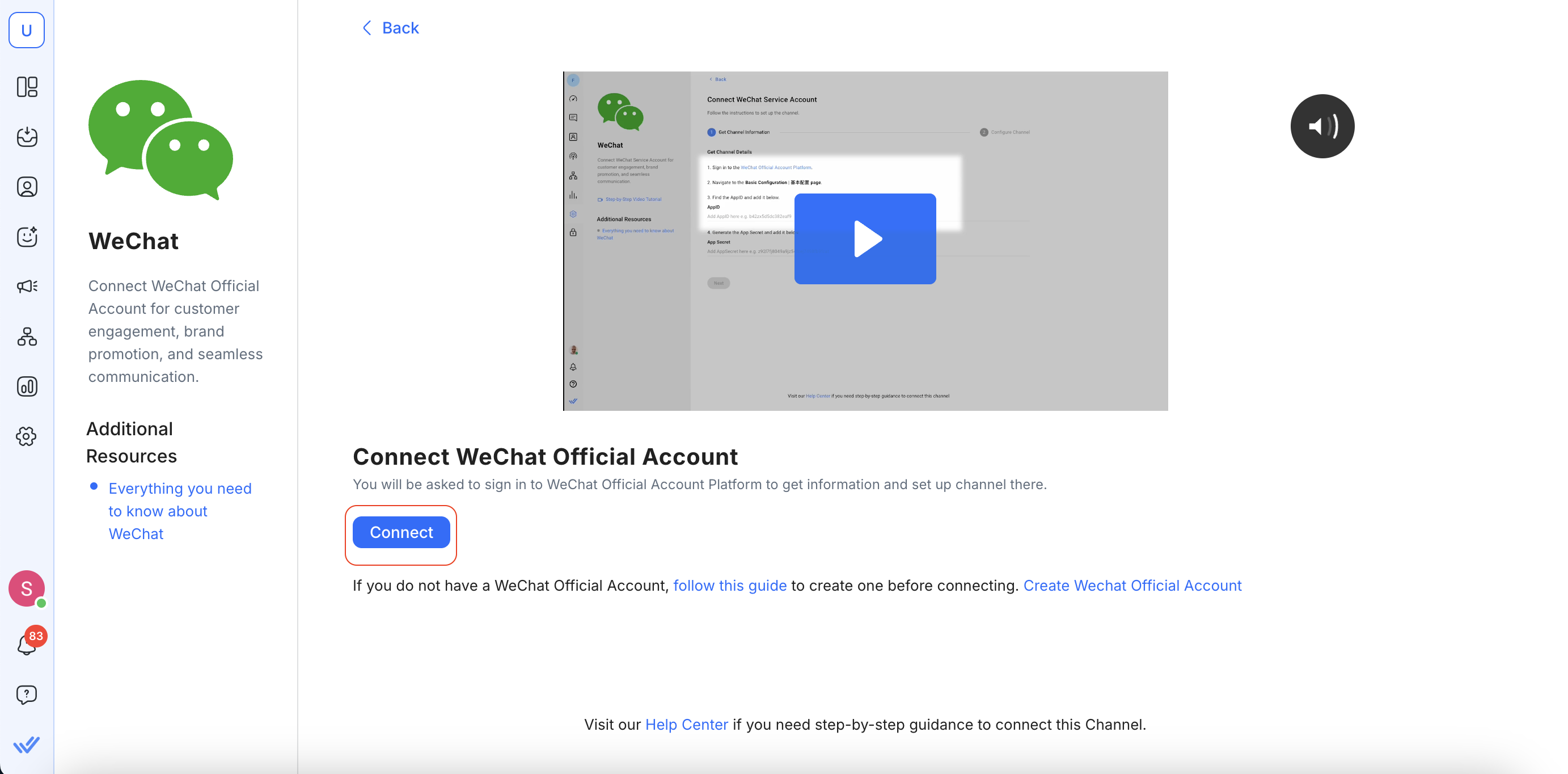
Click Connect
This will open the WeChat channel connection page, where you can begin authorizing your WeChat Official Account.
Step 3: Authorize Your WeChat Official Account
On the WeChat connection page:
Select Connect

A QR code pop up from WeChat will appear in the respond.io platform

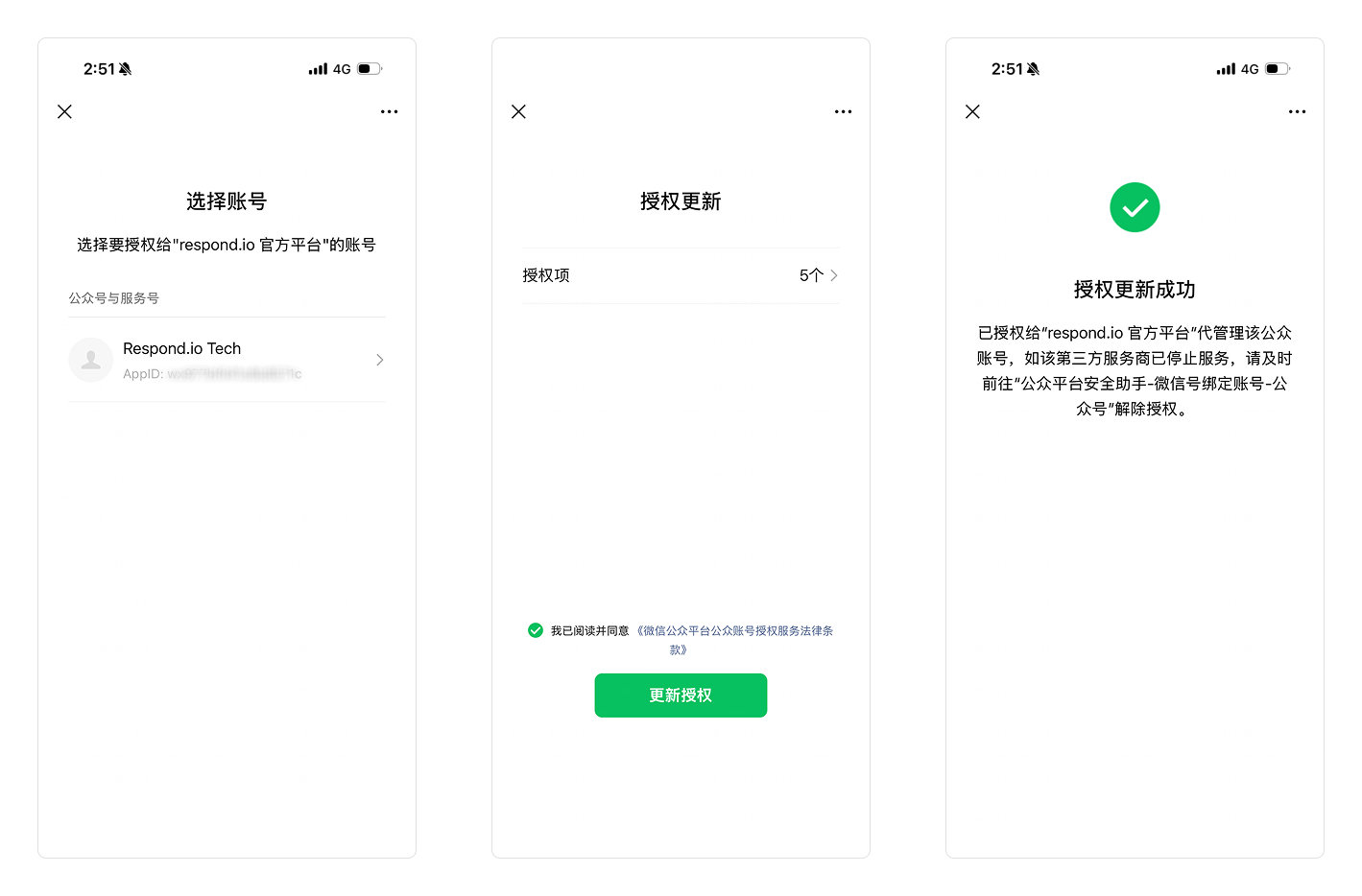
Open the WeChat mobile app and scan the QR code using the administrator account of your WeChat Official Account.

In the WeChat app, follow the on-screen instructions to authorize respond.io as a third-party platform and confirm the connection.
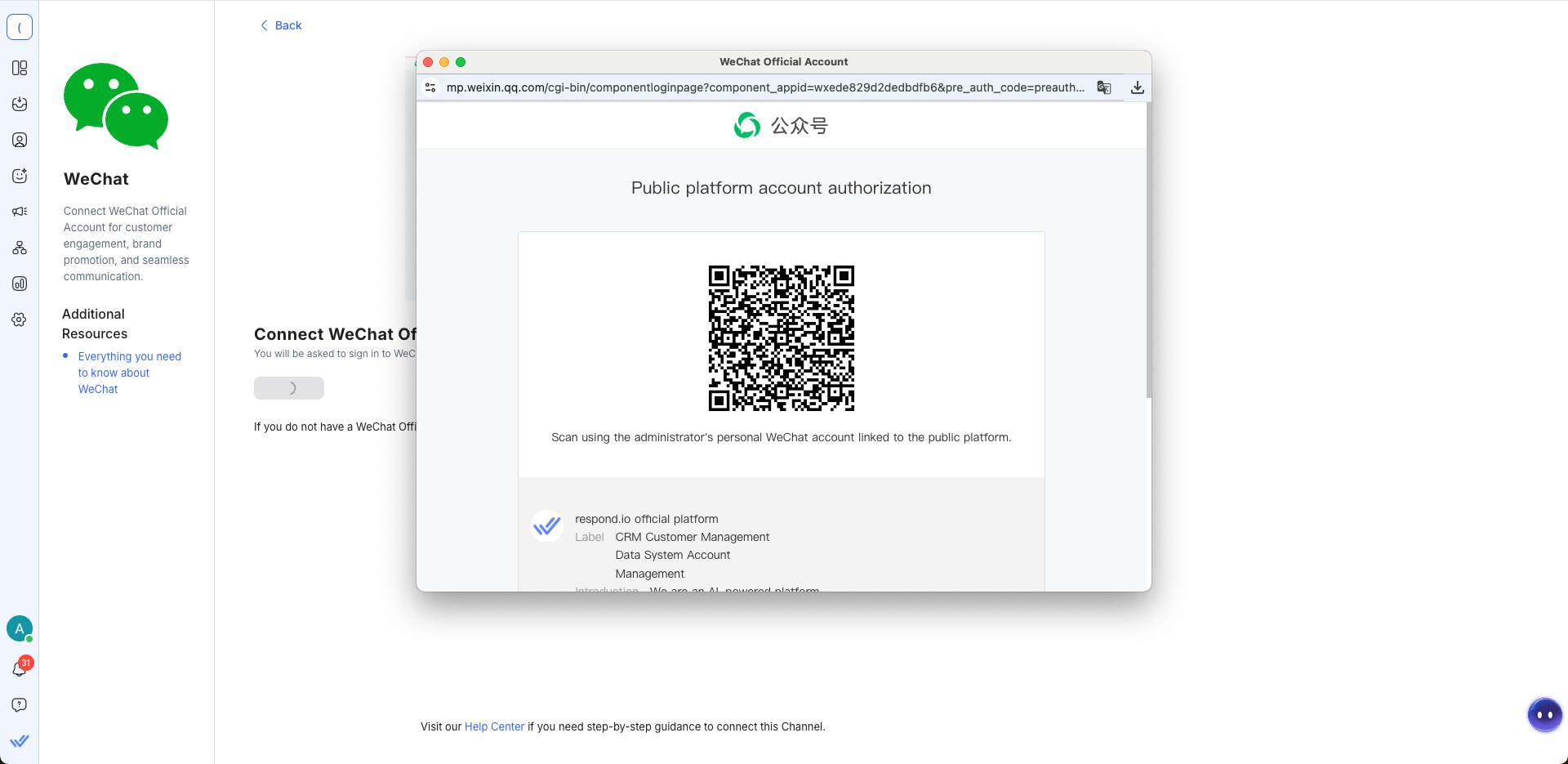
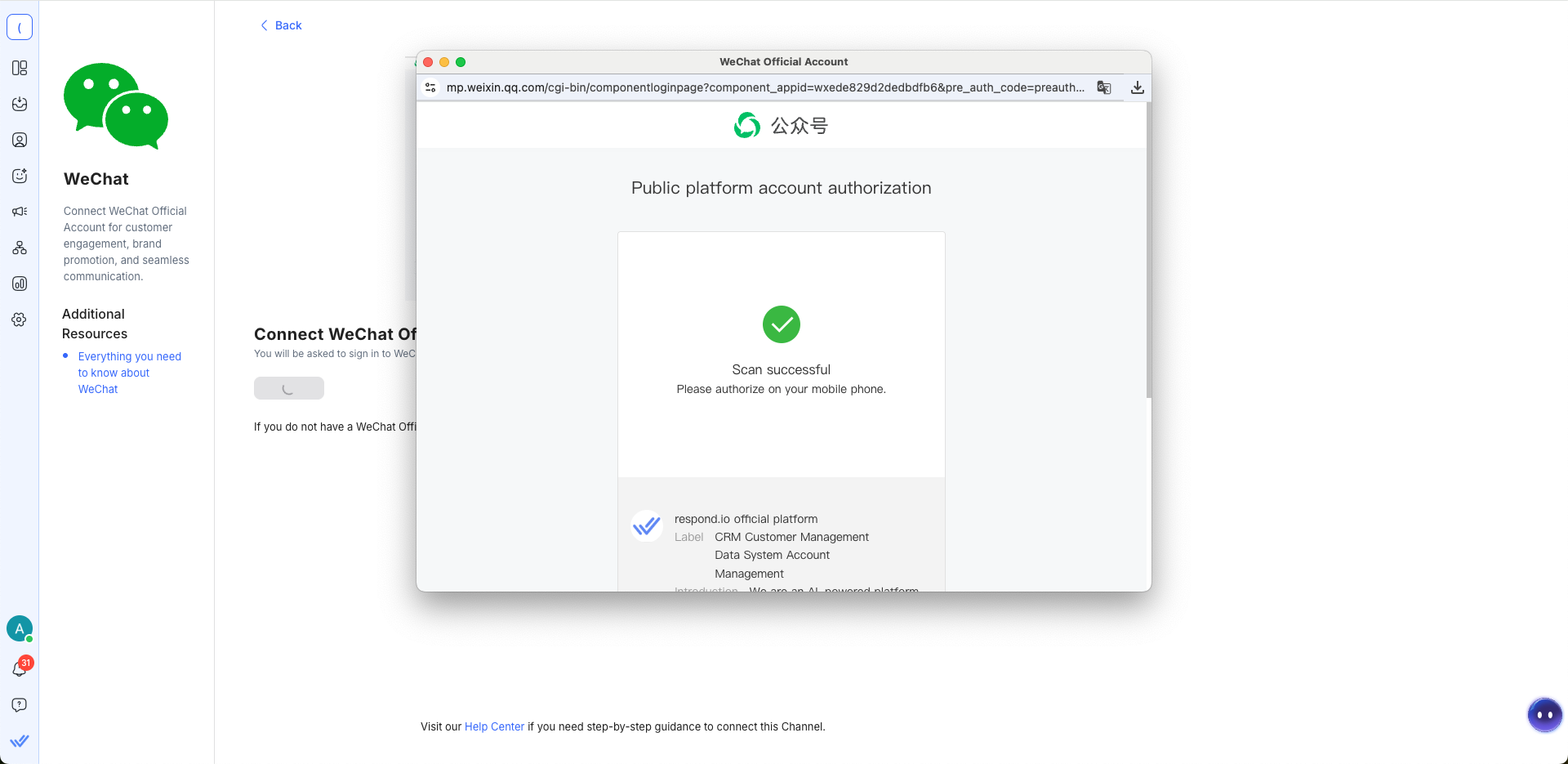
During this process, you are granting respond.io permission to:
Receive messages sent to your WeChat Official Account
Send replies from respond.io
Synchronize account information
The authorization must be completed directly on the WeChat Official Account Platform before returning to respond.io.
If you do not yet have a WeChat Official Account, create one before attempting to connect.
Step 4: Confirm Successful Connection
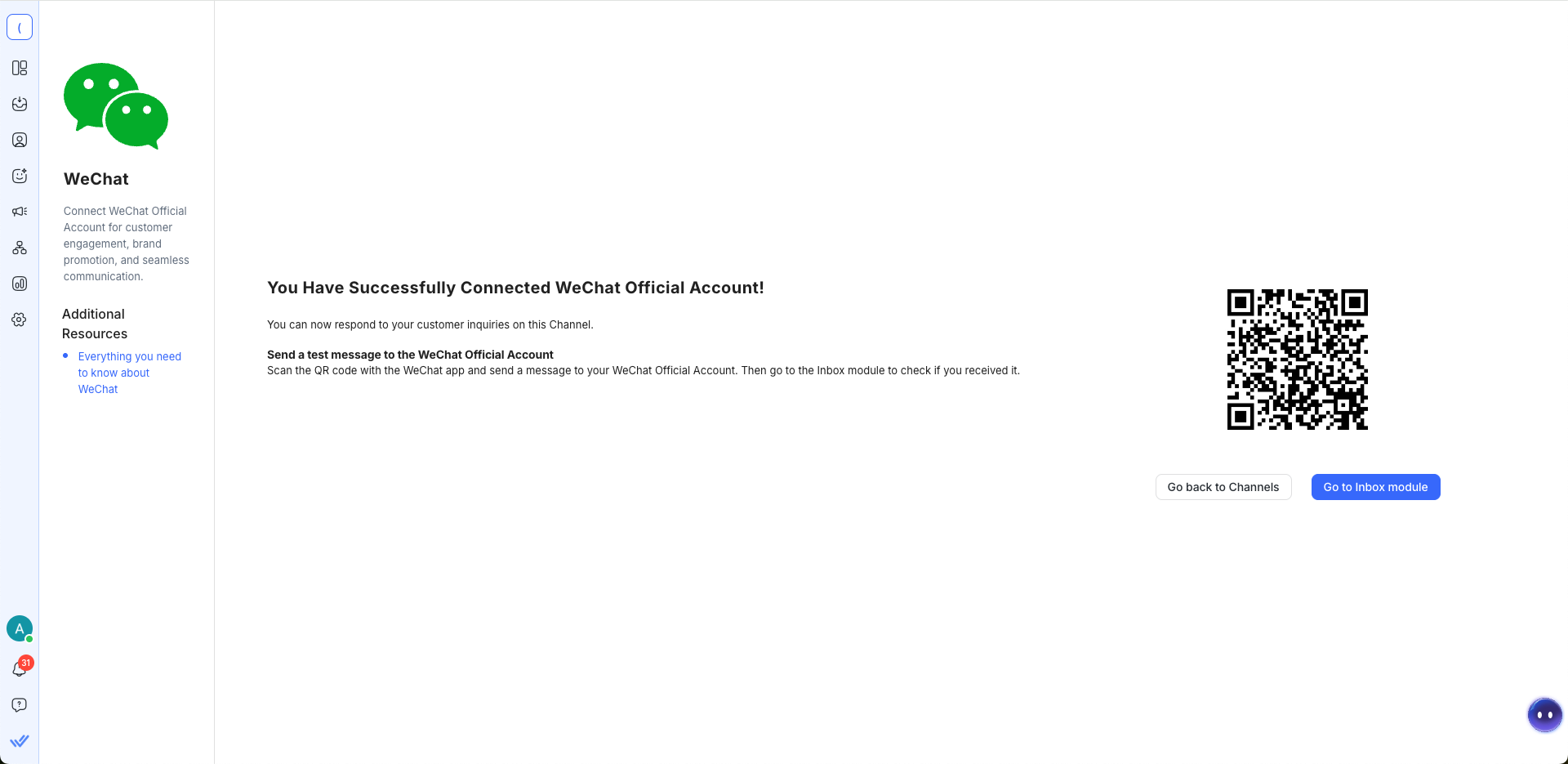
After completing authorization, you will return to respond.io and see a confirmation screen with the message:
You have successfully connected WeChat Official Account!
This means:
Your WeChat Official Account is now linked to your respond.io workspace
respond.io can receive and send messages on behalf of your WeChat Official Account
Step 5: Test the WeChat Channel Connection
To ensure that the connection is functioning correctly, perform a test:
Use the WeChat mobile app on your phone
Scan the QR code displayed on the confirmation screen
Send a message to your WeChat Official Account
Return to your Inbox module in respond.io
Confirm that the message appears in your workspace inbox
If the message appears in your Inbox, the WeChat channel has been successfully configured.
Use the WeChat mobile app to scan the QR code for testing.
WeChat audio messages may not play in Google Chrome because the .wav format is not supported by the browser.
Step 6: Complete the Setup
Click Complete to finalize the channel setup process in respond.io.
Once completed:
All incoming messages sent to your WeChat Official Account will be received in your respond.io Inbox
You can reply to customers directly from respond.io
Channel Configuration
The WeChat Channel can be configured with a unique Channel name. This name will be used internally to identify the account.
Step 1: Open the Channels Settings Page
In your respond.io workspace:
Click Settings
Select Channels
This page displays all messaging channels connected to your workspace.
Step 2: Access Your WeChat Channel Settings
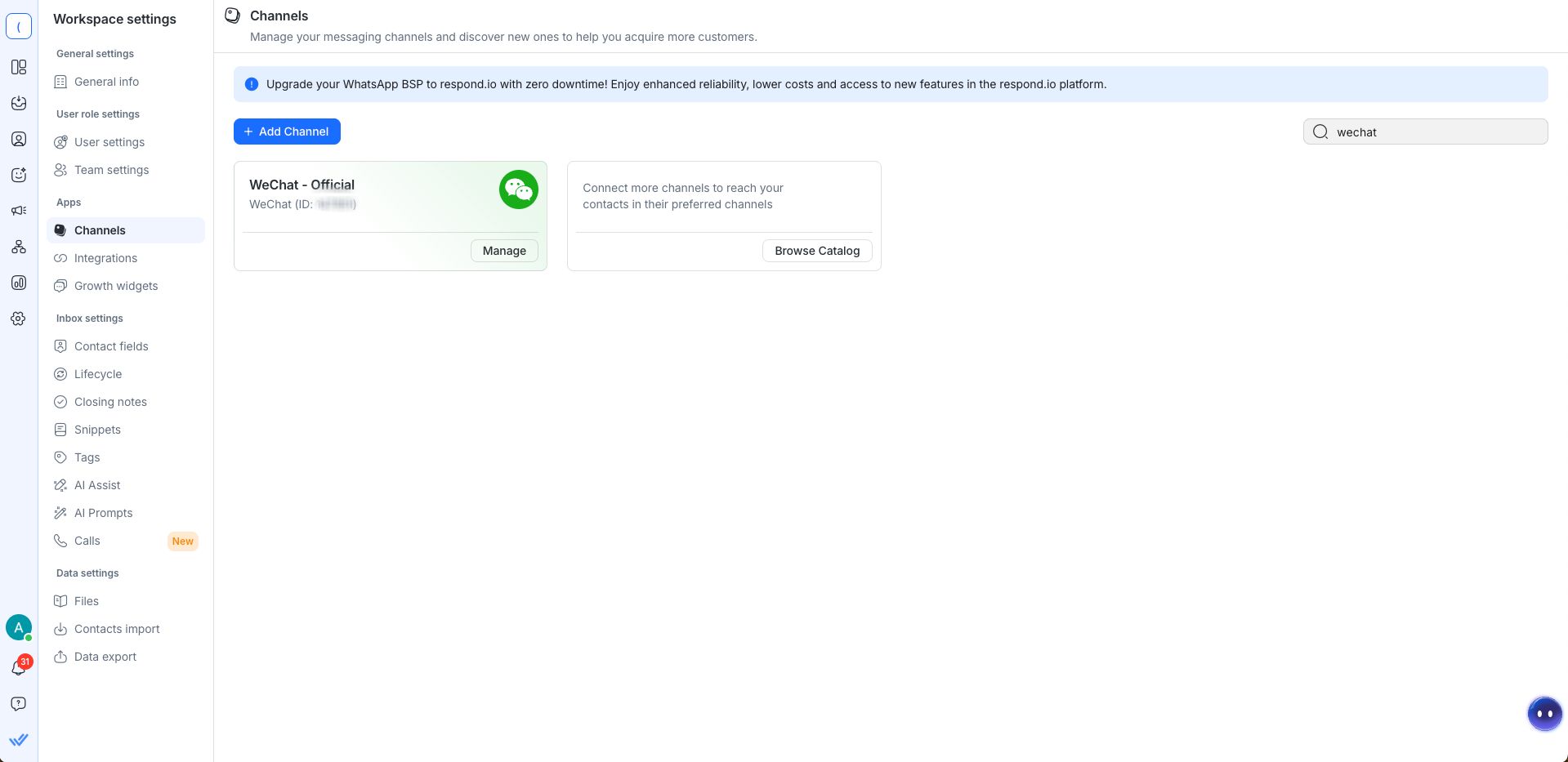
Locate your connected WeChat Channel
Click Manage
This opens the WeChat Configuration page.
Step 3: Review Available Configuration Fields
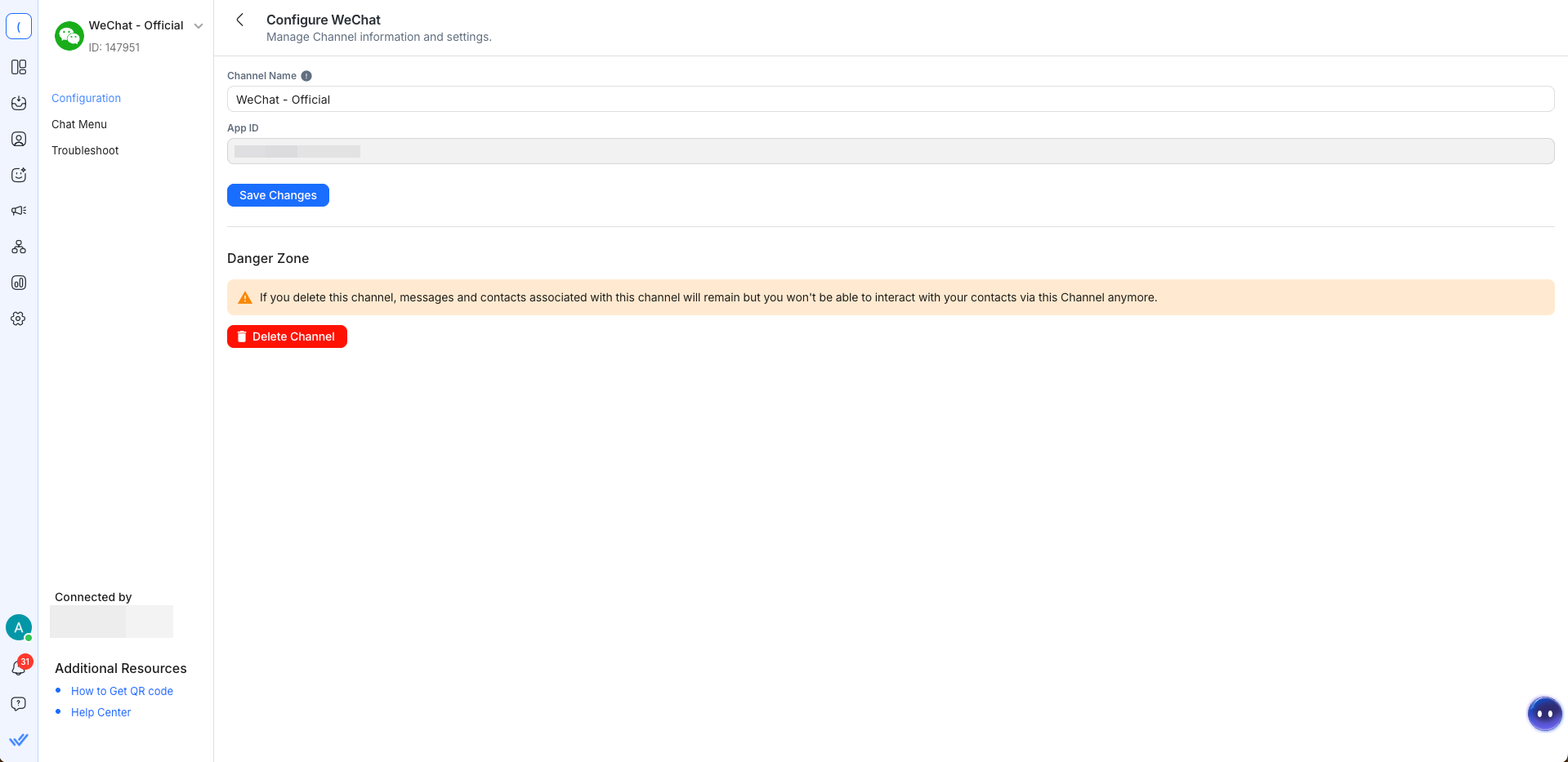
On the WeChat Configuration page, you will see the following fields:
Channel Name
The internal name used to identify this WeChat channel in your respond.io workspace.
This name is not visible to your customers.
You may edit this field at any time.
App ID
The unique identifier assigned to your WeChat Official Account.
This value is automatically retrieved during the authorization process.
This field cannot be edited.
FAQ and Troubleshooting
Why can’t I receive inbound messages?
To receive inbound messages via WeChat, ensure that:
Your WeChat Official Account is verified
You have completed the connection flow successfully
You tested the connection by sending a message via QR code
If your account is not verified, messages cannot be sent or received via API.
To learn more, read our guide on WeChat Official Account Verification.
Why did my WeChat connection fail?
If you see an error message about connection failure, this is returned directly from the WeChat Official Account Platform, not from respond.io.
Common reasons for connection failure include:
Incomplete authorization during login
Insufficient administrator permissions on the WeChat Official Account
Expired or timed-out login session
Attempting to connect an unsupported account type
What to Do
Restart the connection process from Settings > Channels
Log in again to the WeChat Official Account Platform
Ensure you are using an administrator account
Complete all authorization steps
Why aren’t my messages arriving?
If a WeChat user changes their password, the permissions will become outdated and will need to be refreshed.
Step 1: Go to Settings > Channels
Step 2: Find the WeChat Channel > Manage > Troubleshoot
Step 3: Click on Refresh Permission
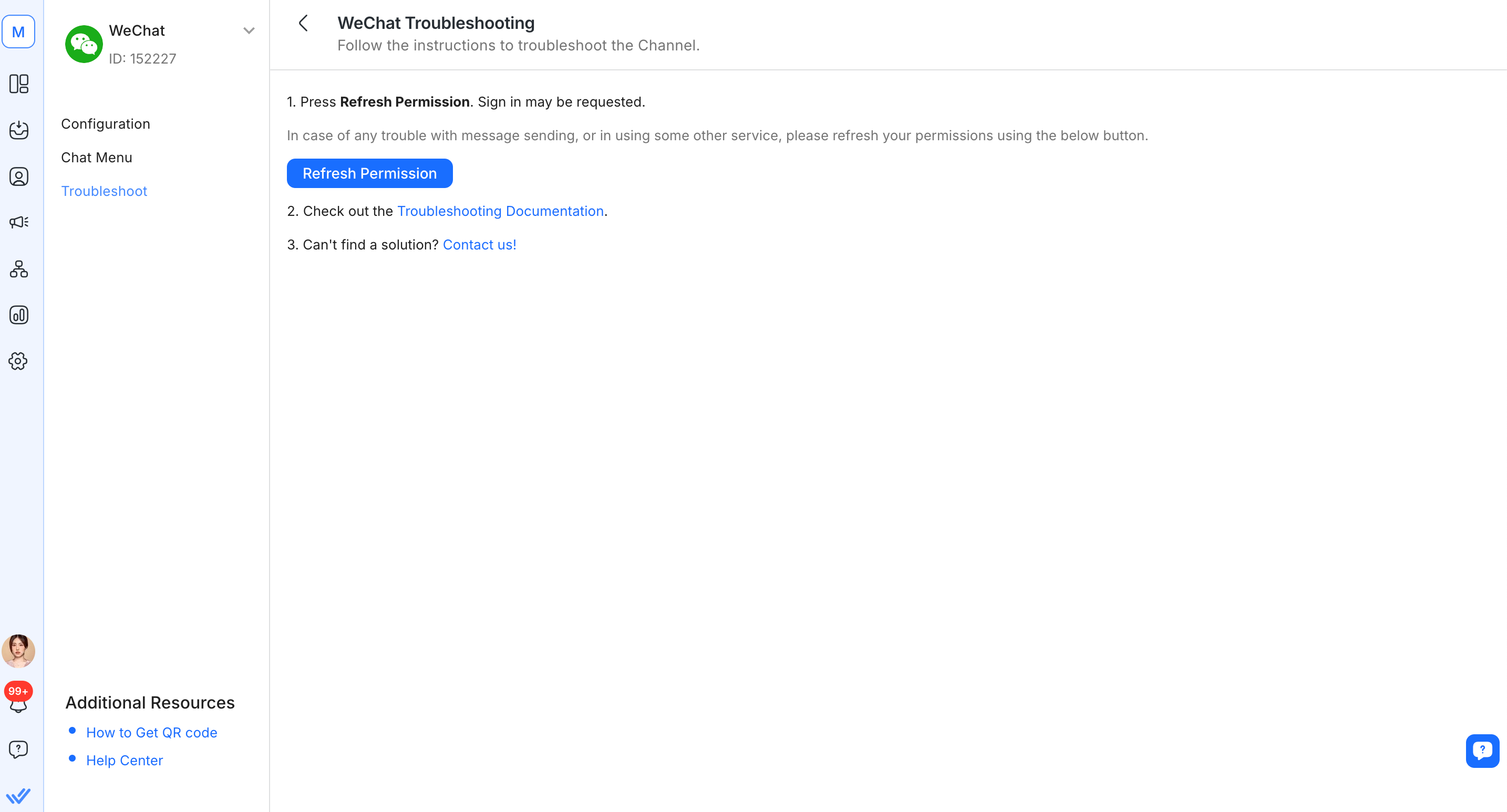
Step 4: Send a test message to the WeChat Channel and check if it has arrived


