***

description: Learn about how the Dropbox Sign API implements authentication to protect user data.
og:description: Learn about how the Dropbox Sign API implements authentication to protect user data.
---------------------

For clean Markdown of any page, append .md to the page URL. For a complete documentation index, see https://developers.hellosign.com/api/llms.txt. For full documentation content, see https://developers.hellosign.com/api/llms-full.txt.

# Authentication

You can authenticate with the Dropbox Sign API in two ways: using an API key or an access token issued through an OAuth flow.

<Note title="Try it console auth" icon="fa-light fa-triangle-exclamation">
  The "Try it console", used for sending live API calls from these docs, **only supports authenticating with your API key**.
</Note>

## API Key

The most common method of authenticating against the Dropbox Sign API is by using API keys, which can be retrieved from the API tab of your [API Settings page](https://app.hellosign.com/home/myAccount#api).This approach uses a "Basic" HTTP Authentication Scheme where the API key is passed as the username and the password is left blank.
Example (note the trailing ":" after the API key):

```shell
API_KEY=YOUR_SECRET_API_KEY_HERE
curl "https://api.hellosign.com/v3/template/list" \
    -u "${API_KEY}:"
```

Alternatively, you can pass the API key as part of the URL:

```shell
API_KEY=YOUR_SECRET_API_KEY_HERE
curl "https://${API_KEY}:@api.hellosign.com/v3/template/list"
```

**Security Scheme Type**: HTTP
**HTTP Authorization Scheme**: Basic

## Access Token

You can use an access token (issued during an OAuth flow) to send API requests *on behalf of* the user that granted authorization.
Passed as in the header of a request as an `Authorization` parameter using the following format:  `Bearer <access_token>`.

```shell
ACCESS_TOKEN=ACCESS_TOKEN_GRANTED_BY_OAUTH
curl 'https://api.hellosign.com/v3/signature_request/list' \
   -H "Authorization: Bearer ${ACCESS_TOKEN}"
```

**Security Scheme Type**: HTTP
**HTTP Authorization Scheme**: Basic
**Bearer format**: base64 encoded string

***Notes about OAuth***
The permissions applied to access tokens are controlled by the [access scopes](/docs/oauth/overview/#access-scopes) set in your API app. Those scopes are shown to the end-user completing an OAuth flow. Please refer to our [OAuth Walkthrough](/docs/oauth/walkthrough) for additional information.

## Multiple API Keys

In order to allow [rotating API keys](#rotating-api-keys), the Dropbox Sign API supports the creation of multiple API keys. Periodically rotating the API key used in your integration is a good security practice that helps protect your users.

Each Dropbox Sign account (regardless of subscription tier) may have up to four API keys at a time. All keys are "active" and can be used to call the Dropbox Sign API, but only one key at a time can be set as the Primary Key. The Primary Key is used to generate the `event_hash`, which serves to [verify event payloads](/docs/events/walkthrough/#event-hash-verification).

### Best Practices

We recommend the following best practices when using Dropbox Sign API keys:

| 🟢 Do These 🟢                                                                                                                                                                                                                                                                                                                                                                                                                                                                                                                                  | 🔴 Don't Do These 🔴                                                                                                                                                                                                                                              |
| ----------------------------------------------------------------------------------------------------------------------------------------------------------------------------------------------------------------------------------------------------------------------------------------------------------------------------------------------------------------------------------------------------------------------------------------------------------------------------------------------------------------------------------------------- | ----------------------------------------------------------------------------------------------------------------------------------------------------------------------------------------------------------------------------------------------------------------- |
| <ul><li>Give your API key a descriptive name.</li><li>Treat all API keys like a very important password you need to keep safe.</li><li>Use an environment file or credential manager to store your API key outside of your code.</li><li>Immediately rotate API keys if you suspect a breach or exposure.</li><li>Periodically rotate your API key on an annual basis as a proactive security measure.</li><li>Keep minimum number of API keys as possible.</li><li>Always remove keys that are inactive or serving a temporary need.</li></ul> | <ul><li><b>Never share your API key with others.</b> It's not safe. Instead, use [OAuth](/docs/oauth/overview) for providing delegated access.</li><li>Don't put your API key in your source code.</li><li>Don't store your API key on the client side.</li></ul> |

### Limitations

At the time of writing (Sept. 2022), the following limitations apply to Dropbox Sign API keys:

* API keys cannot be transferred between Dropbox Sign accounts.
* The maximum number of API keys per account is limited to 4.
* An API key cannot be set to expire.
* API key permissions cannot be restricted. Use [OAuth](/docs/oauth/overview/) if you need scoped access.

## API Key Management

This section contains information to help users manage their API keys.

### Generate New API Key

| Step                                                                                                                                                     | Screenshot                                                                                                                                           |
| -------------------------------------------------------------------------------------------------------------------------------------------------------- | ---------------------------------------------------------------------------------------------------------------------------------------------------- |
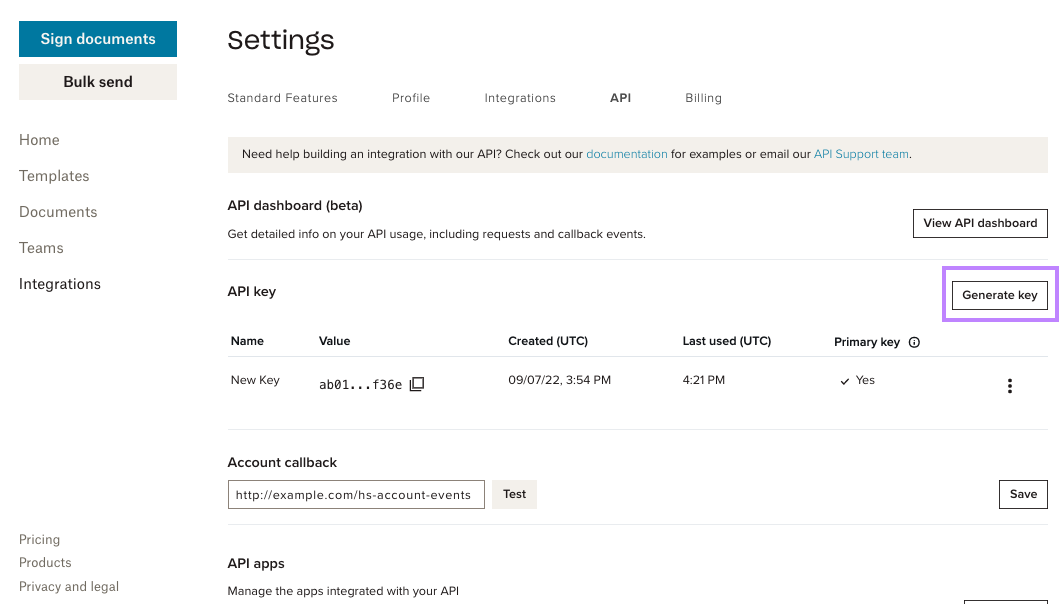
| <ul><li>Go to your [API Settings](https://app.hellosign.com/home/myAccount?current_tab=integrations#api) page.</li><li>Click **Generate key**.</li></ul> | ![Screenshot showing the api dashboard and location of the Generate key button.](https://files.buildwithfern.com/https://dropbox123432.docs.buildwithfern.com/bdd9ea6e7f52d73b4c703bec3d6dd4e2385a45b975f2c93425cf3b29ef961765/docs/api-reference/api-images/generate-key.png "#width=650px;")          |
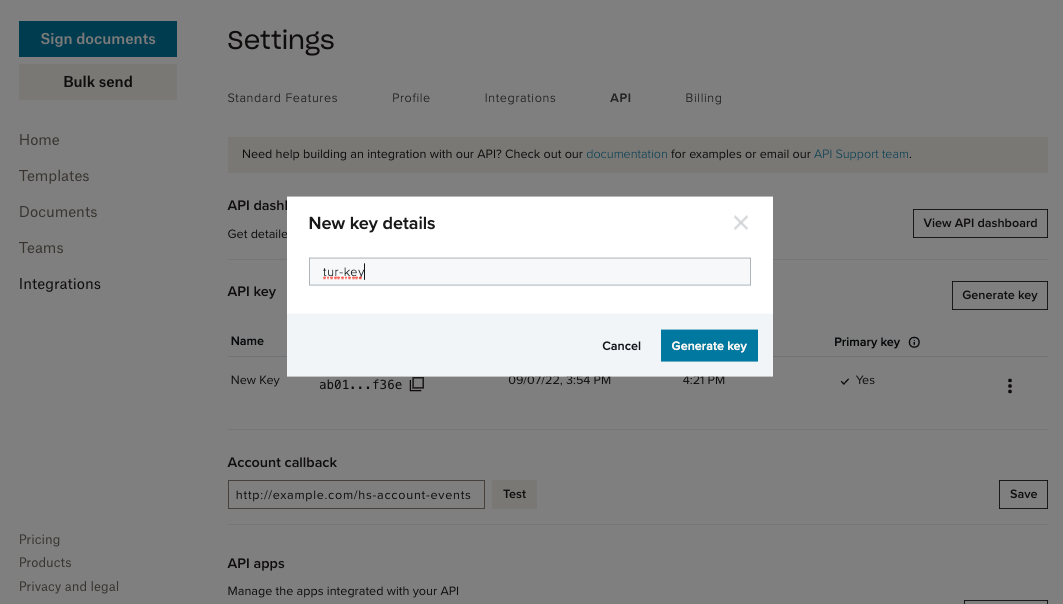
| <ul><li>Enter name for new API key.</li><li>Click **Generate key**.</li></ul>                                                                            | ![Screenshot showing a modal where users name new Dropbox Sign api keys.](https://files.buildwithfern.com/https://dropbox123432.docs.buildwithfern.com/fc037092e89458991a4b344fca120bc585e256071b08a658b9f25779cb61de3a/docs/api-reference/api-images/generate-key-name.png "#width=650px;")                 |
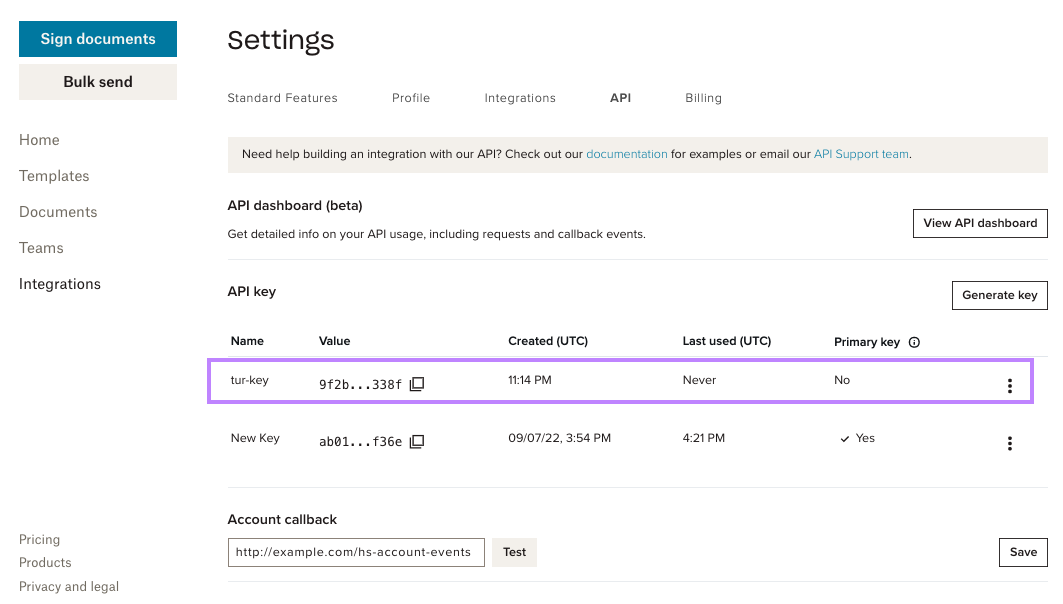
| 🔚 🏁<br />**Result:**<br /><ul><li>New key added to API key table.</li><li>Click **Generate key**.</li></ul>                                            | ![Screenshot showing the api dashboard with the new API key listed on the API key table.](https://files.buildwithfern.com/https://dropbox123432.docs.buildwithfern.com/6bd61c0f2cb806513f2c8bdc28c59bc9d07a8f136f74cad3e243ddfe85790f85/docs/api-reference/api-images/generate-key-result.png "#width=650px;") |

### Delete API Key

| Step                                                                                                                                                                                              | Screenshot                                                                                                                                          |
| ------------------------------------------------------------------------------------------------------------------------------------------------------------------------------------------------- | --------------------------------------------------------------------------------------------------------------------------------------------------- |
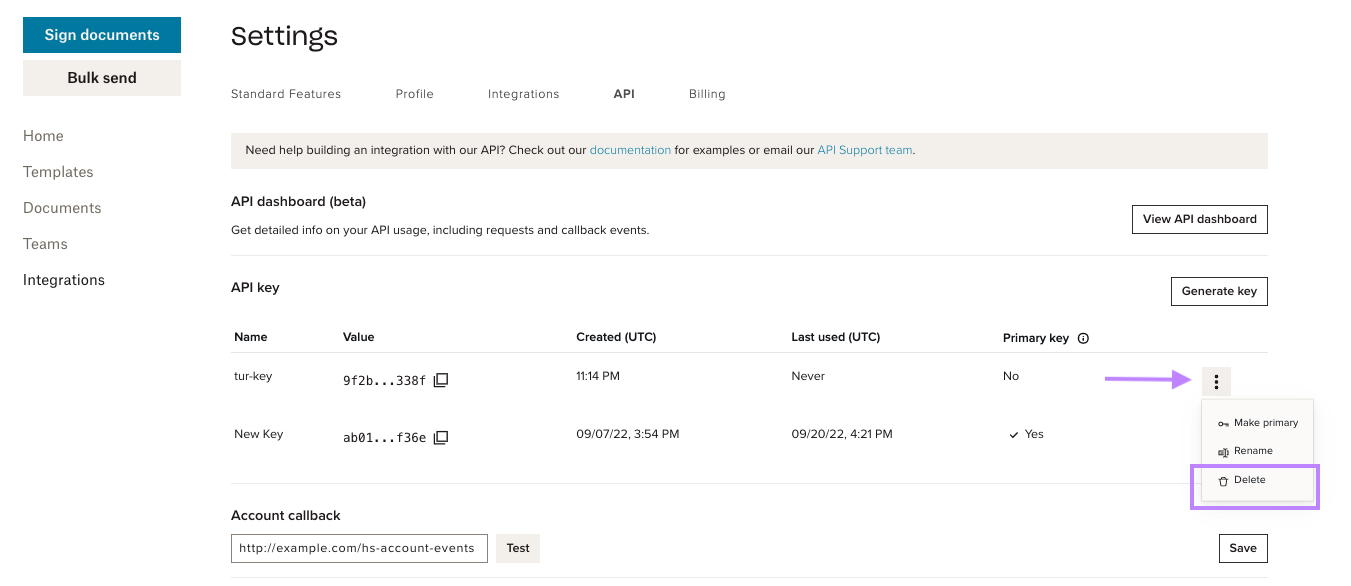
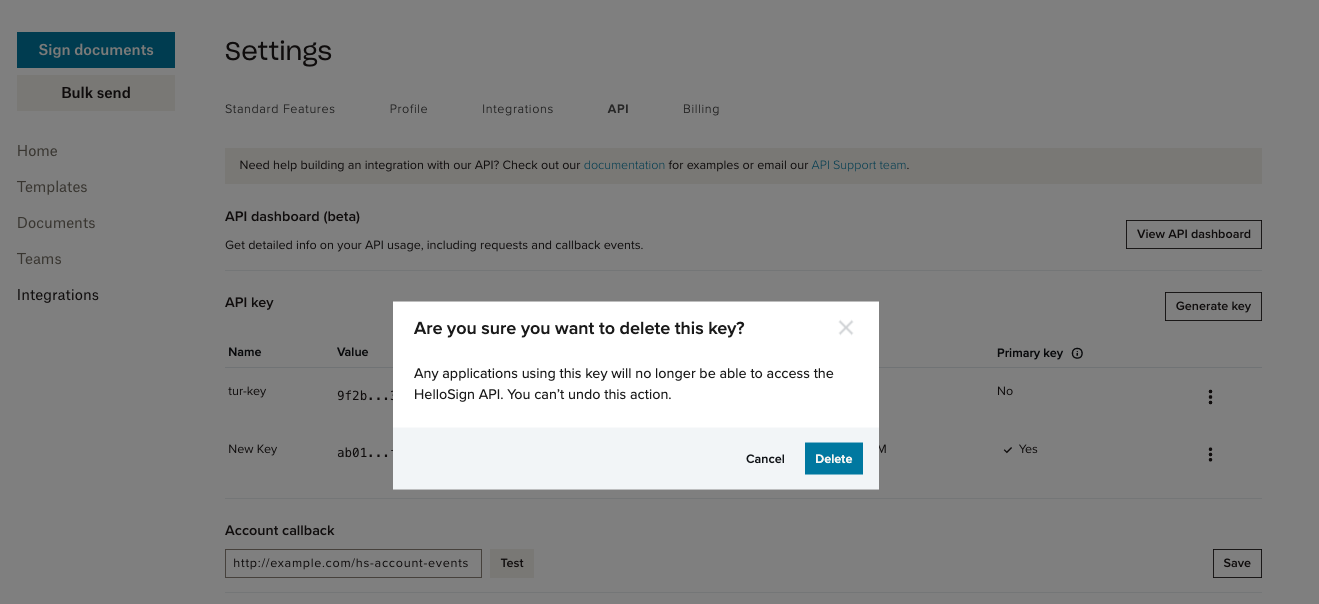
| <ul><li>Go to your [API Settings](https://app.hellosign.com/home/myAccount?current_tab=integrations#api) page.</li><li>Click the row's **menu button** ("⋮").</li><li>Click **Delete**.</li></ul> | ![Screenshot showing the api dashboard and location of the Delete key button.](https://files.buildwithfern.com/https://dropbox123432.docs.buildwithfern.com/2a46bb359f5e54c2163d5e1ad95317a27d59f95ec89ae9c28d99c915fce00100/docs/api-reference/api-images/delete-key-menu.png "#width=650px;")           |
| <ul><li>Confirm you want to delete the key.</li><li>Click **Delete**.</li></ul>                                                                                                                   | ![Screenshot showing a modal where users confirm deletion of api keys.](https://files.buildwithfern.com/https://dropbox123432.docs.buildwithfern.com/67900240f50f34aa31cefd3b3e4945b6c4cdc6eabe1b486601e9a9cb587d4160/docs/api-reference/api-images/delete-key-confirm.png "#width=650px;")                  |
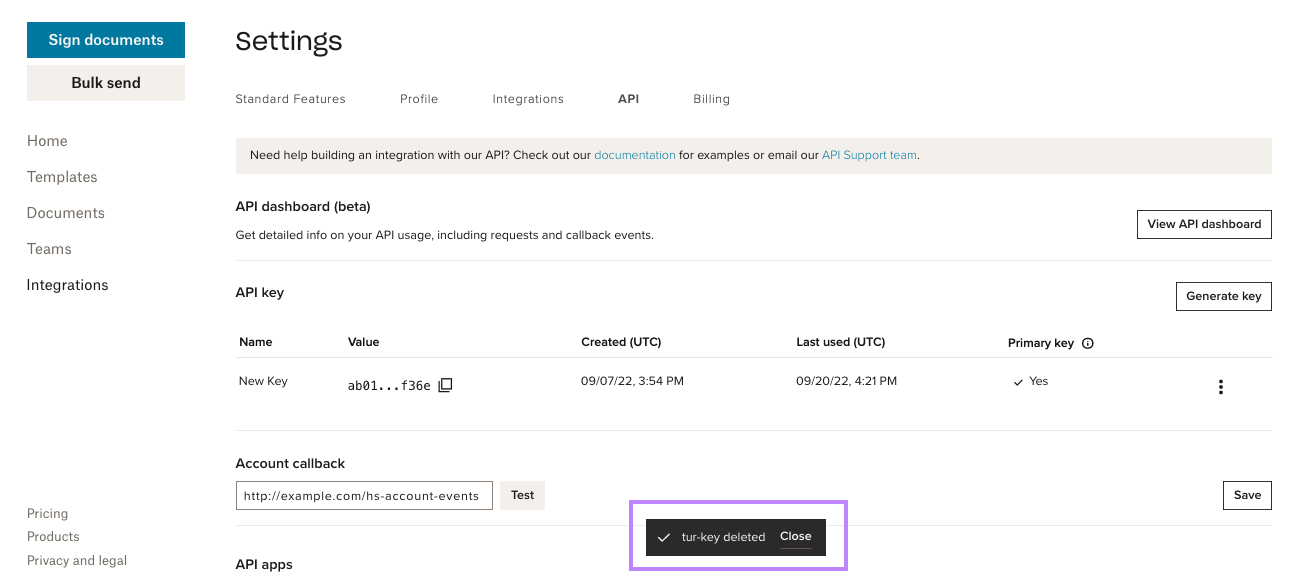
| 🔚 🏁<br />**Result:**<br /><ul><li>API key removed from table.</li><li>Displays temporary confirmation.</li></ul>                                                                                | ![Screenshot showing the api dashboard with a confirmation banner of key being deleted.](https://files.buildwithfern.com/https://dropbox123432.docs.buildwithfern.com/cd27e1727b5845378bf146aec887dc45a6c025959d4ca1d80e4686d4a532cb7c/docs/api-reference/api-images/delete-key-result.png "#width=650px;") |

### Rename API Key

| Step                                                                                                                                                                                              | Screenshot                                                                                                                                          |
| ------------------------------------------------------------------------------------------------------------------------------------------------------------------------------------------------- | --------------------------------------------------------------------------------------------------------------------------------------------------- |
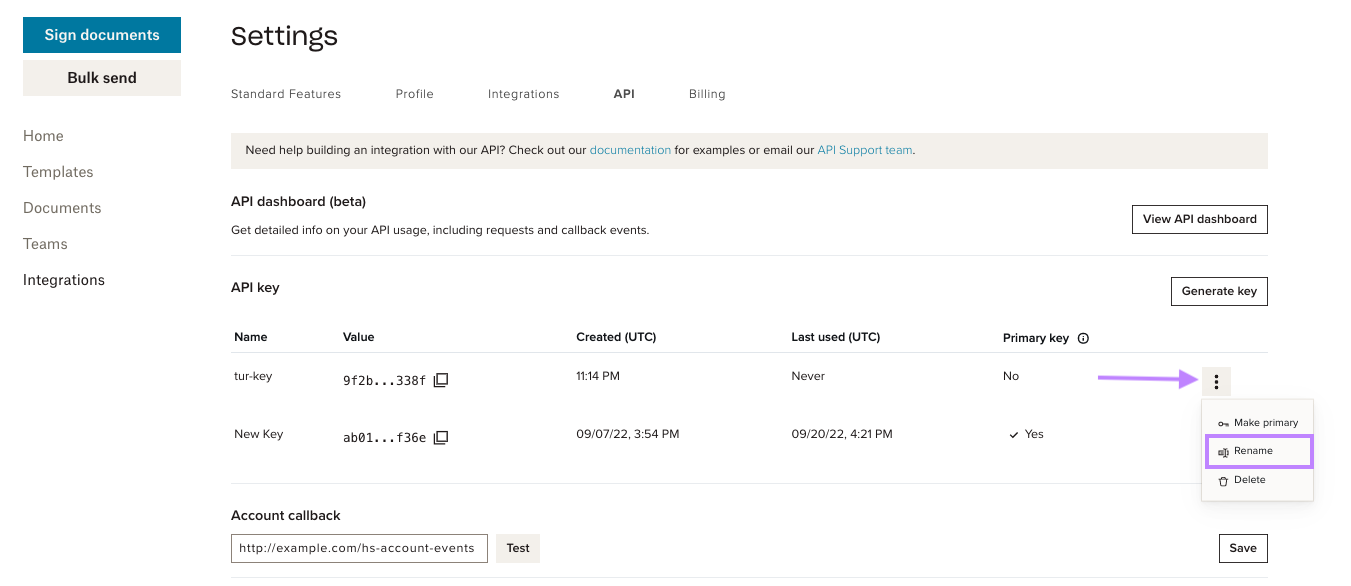
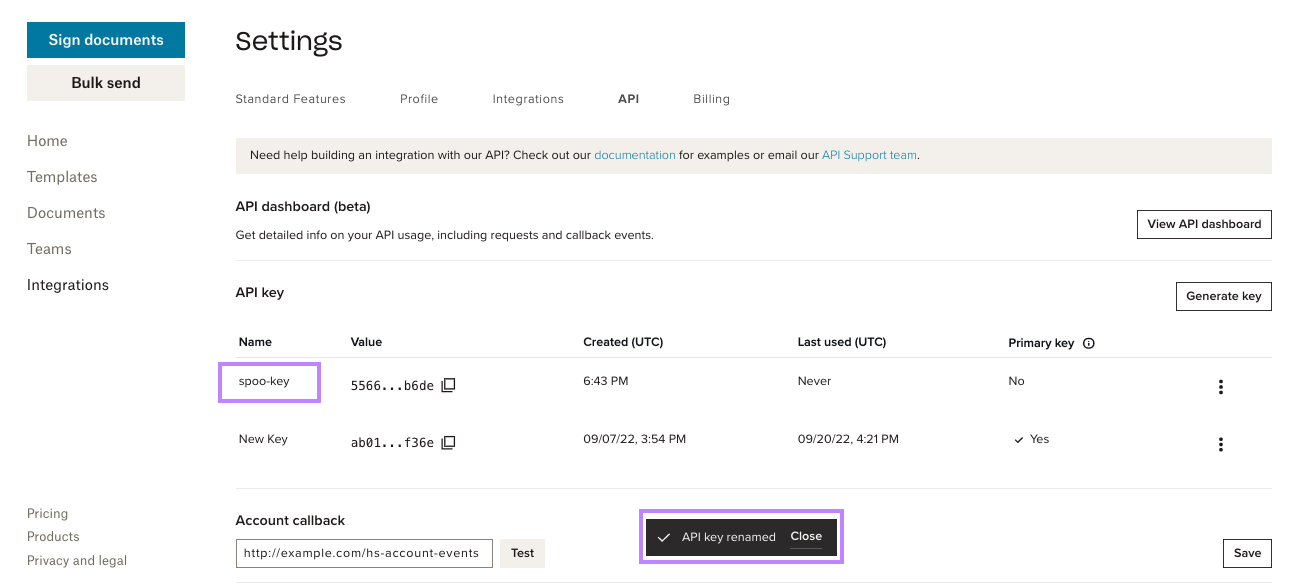
| <ul><li>Go to your [API Settings](https://app.hellosign.com/home/myAccount?current_tab=integrations#api) page.</li><li>Click the row's **menu button** ("⋮").</li><li>Click **Rename**.</li></ul> | ![Screenshot showing the api dashboard and location of the Rename key button.](https://files.buildwithfern.com/https://dropbox123432.docs.buildwithfern.com/6547a6832a225a0d35b8e1f743bd3630228d1b4f17b67ea2426d2bc64e2b2175/docs/api-reference/api-images/rename-key-menu.png "#width=650px;")           |
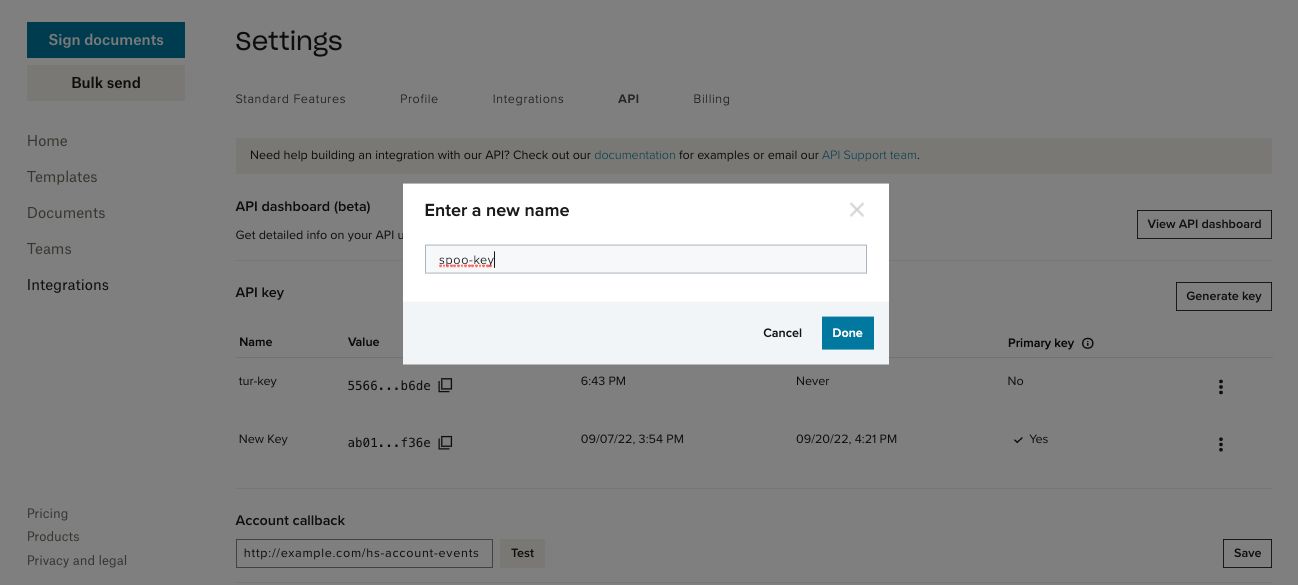
| <ul><li>Enter new key name.</li><li>Click **done**.</li></ul>                                                                                                                                     | ![Screenshot showing a modal with the key being renamed.](https://files.buildwithfern.com/https://dropbox123432.docs.buildwithfern.com/df8c3761e351117b1164944e02279e59101dee783ad754ef884716300879cd94/docs/api-reference/api-images/rename-key-confirm.png "#width=650px;")                                |
| 🔚 🏁<br />**Result:**<br /><ul><li>API key shows new name.</li><li>Displays temporary confirmation.</li></ul>                                                                                    | ![Screenshot showing the api dashboard with a confirmation banner of key being renamed.](https://files.buildwithfern.com/https://dropbox123432.docs.buildwithfern.com/8be1b48625de6939e7e2a9df899bbccd76723dab30c83656fdc45670b5f02f86/docs/api-reference/api-images/rename-key-result.png "#width=650px;") |

### Choose Primary Key

| Step                                                                                                                                                                                                    | Screenshot                                                                                                                                 |
| ------------------------------------------------------------------------------------------------------------------------------------------------------------------------------------------------------- | ------------------------------------------------------------------------------------------------------------------------------------------ |
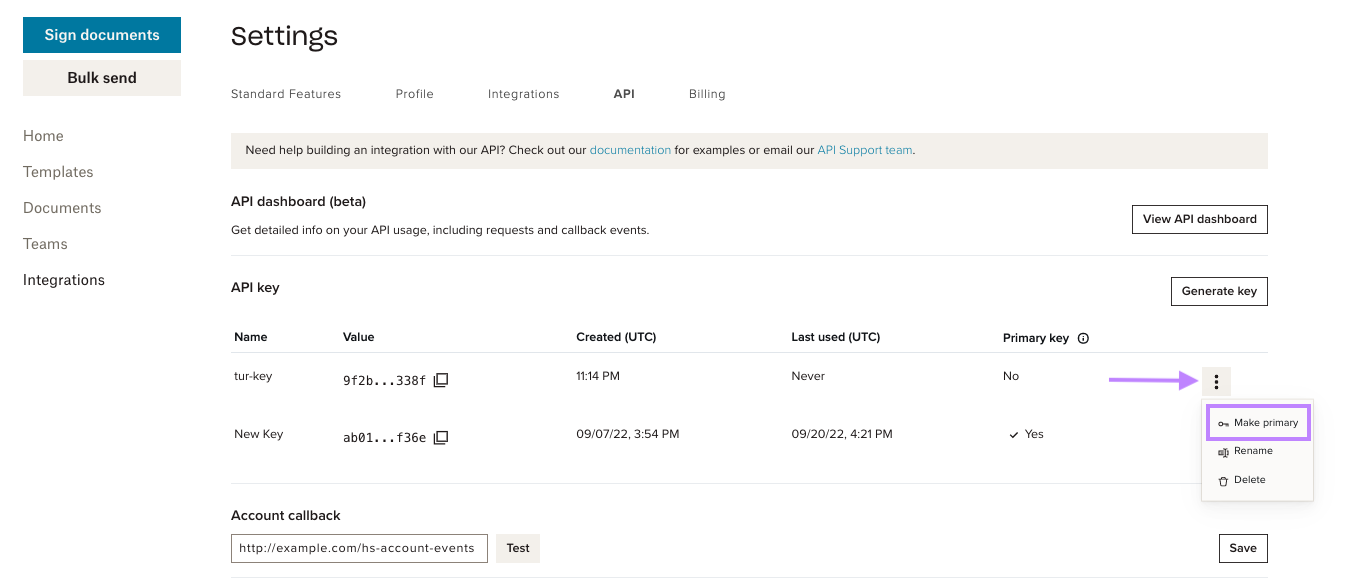
| <ul><li>Go to your [API Settings](https://app.hellosign.com/home/myAccount?current_tab=integrations#api) page.</li><li>Click the row's **menu button** ("⋮").</li><li>Click **Make primary**.</li></ul> | ![Screenshot showing the api dashboard and location of the Primary key button.](https://files.buildwithfern.com/https://dropbox123432.docs.buildwithfern.com/0242a94ae0b34857fda259e2cd705782f960fbb9c5d943043726e90619468973/docs/api-reference/api-images/primary-key-menu.png "#width=650px;") |
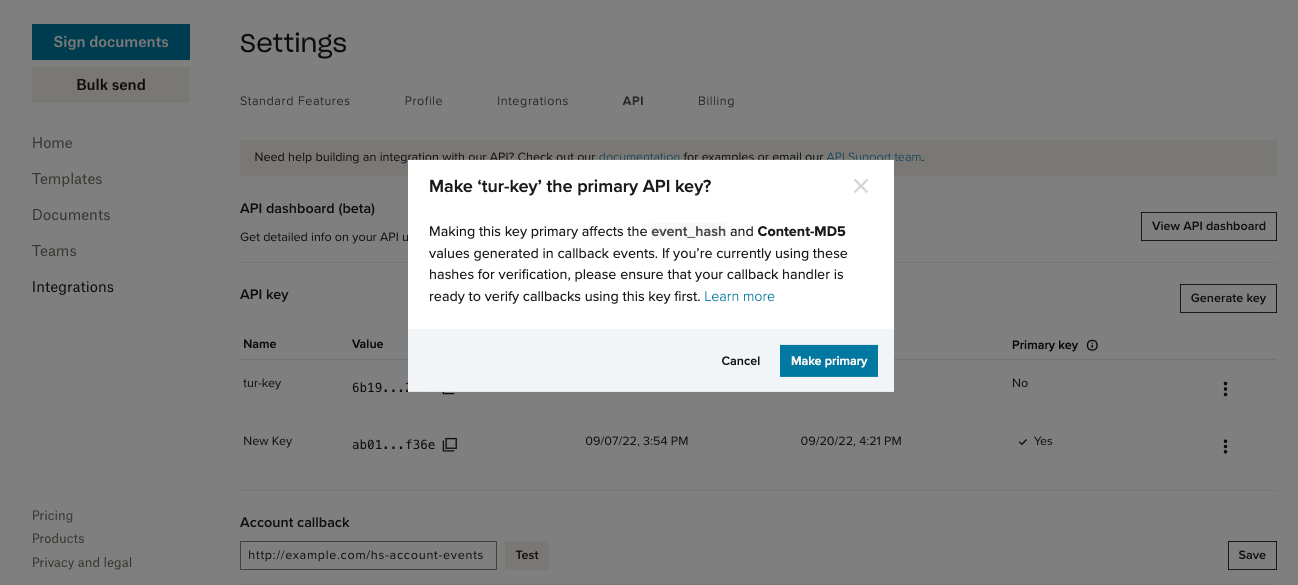
| <ul><li>Check that your app is ready<br />to verify the `event_hash`<br />using the new key.</li><li>Click **Make primary**.</li></ul>                                                                  | ![Screenshot showing a modal confirming you want to make the key primary.](https://files.buildwithfern.com/https://dropbox123432.docs.buildwithfern.com/17519dc638f3e01b76cf388f18d6ae98859b524094d8ae2defb3413909b4e559/docs/api-reference/api-images/primary-key-confirm.png "#width=650px;")      |
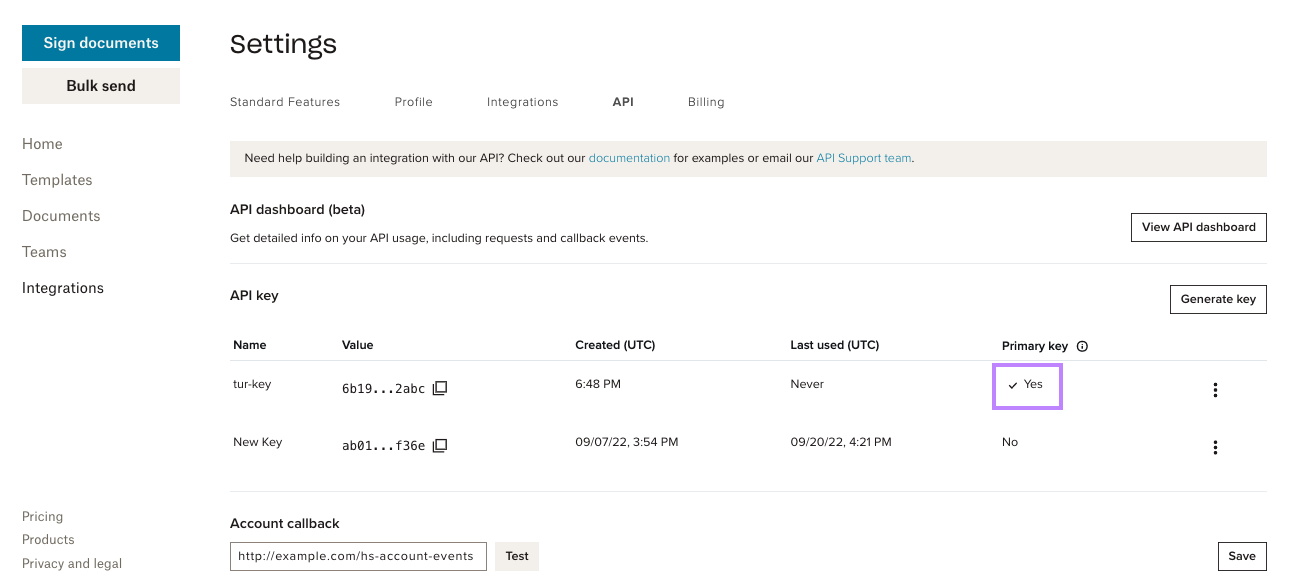
| 🔚 🏁<br />**Result:**<br /><ul><li>API key marked as primary.</li><li>The `event_hash` sent with<br />event data is based on new key.</li></ul>                                                        | ![Screenshot showing the api dashboard with new key marked as primary.](https://files.buildwithfern.com/https://dropbox123432.docs.buildwithfern.com/7c0317a8a06c8f5e5b2260cdf0b04845d9e8117952eed0cc6498897feac4c4b7/docs/api-reference/api-images/primary-key-result.png "#width=650px;")         |

### Rotating API Keys

| Step                                                                                                                                                                                                                                                                                                                                                            | Screenshot                                                                                                                                                                                                                                                                                                                             |
| --------------------------------------------------------------------------------------------------------------------------------------------------------------------------------------------------------------------------------------------------------------------------------------------------------------------------------------------------------------- | -------------------------------------------------------------------------------------------------------------------------------------------------------------------------------------------------------------------------------------------------------------------------------------------------------------------------------------- |
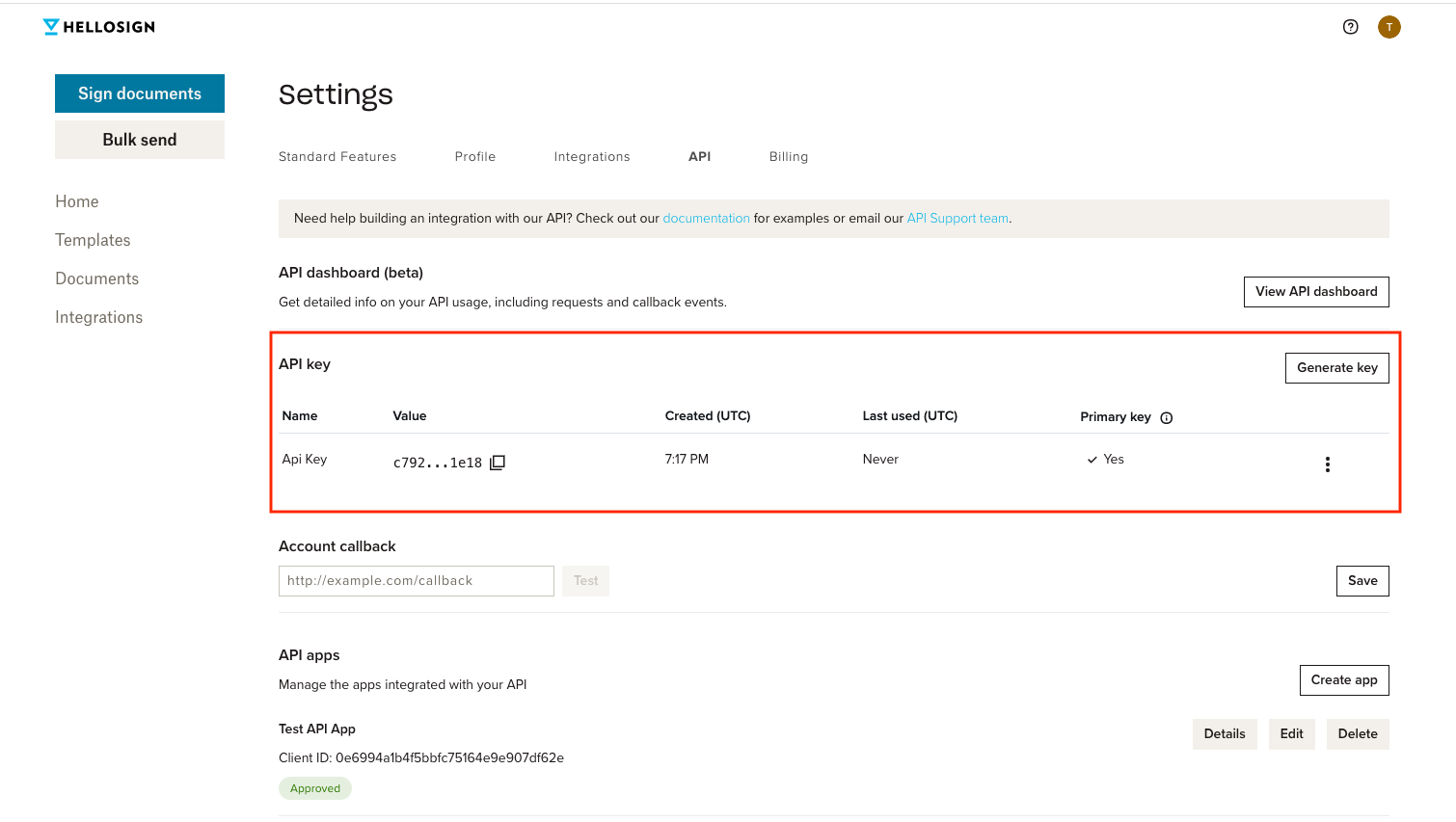
| 1. Under the API key section of your [API Settings](https://app.hellosign.com/home/myAccount?current_tab=integrations#api) page, you'll see a table with columns that display your API key's information.                                                                                                                                                       | ![Screenshot showing the api settings page and location of api key table.](https://files.buildwithfern.com/https://dropbox123432.docs.buildwithfern.com/3afa2cdda253d866e2eff8f464a1d2c629b4a085137f17bb7704c87ffec87641/docs/api-reference/api-images/rotate-key-step-one.png "#width=650px;")                                                                                                                                                                                                  |
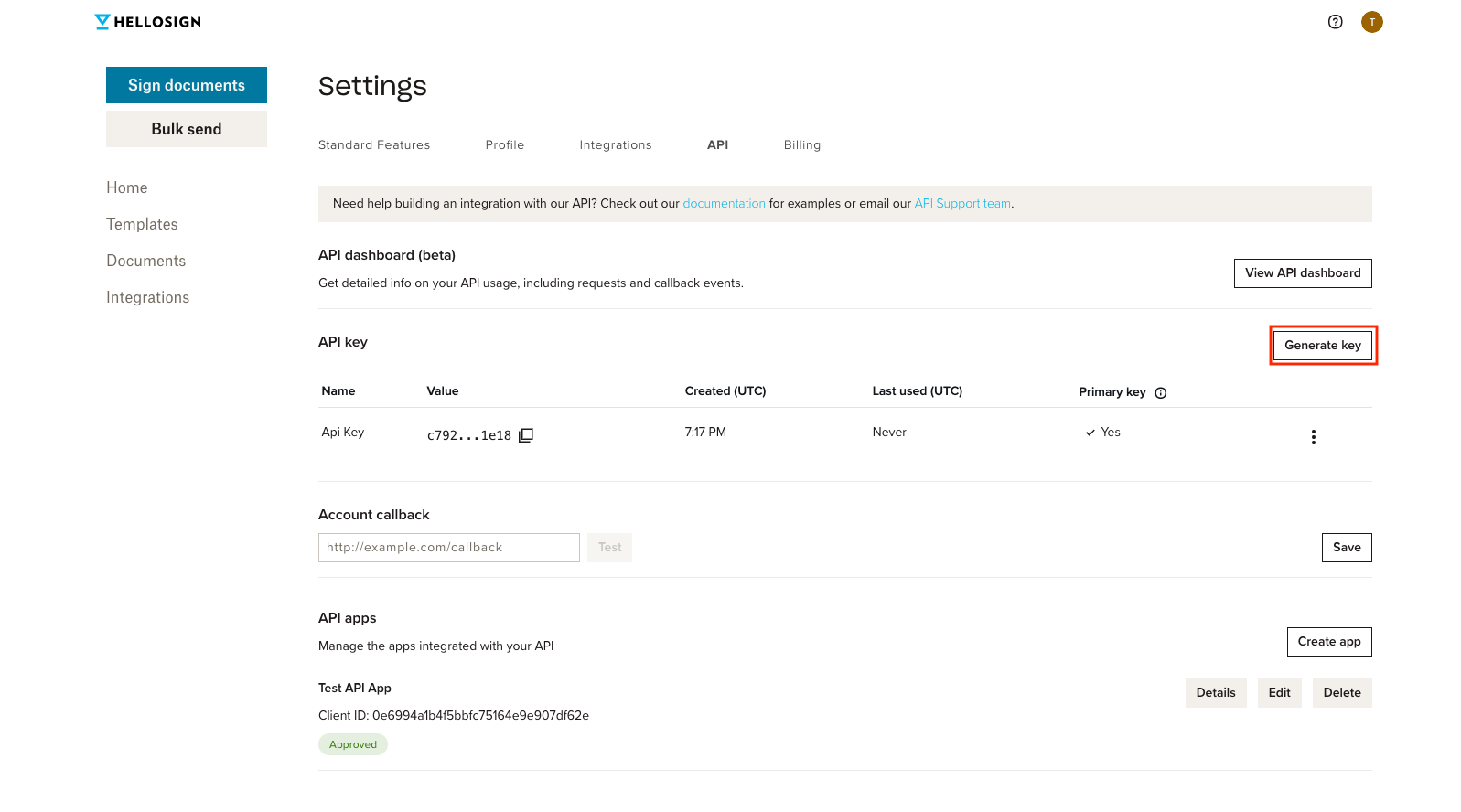
| 2. Press the **Generate key** button above the API key table.                                                                                                                                                                                                                                                                                                   | ![Screenshot of location of the Generate key button on api settings page.](https://files.buildwithfern.com/https://dropbox123432.docs.buildwithfern.com/e6c857821cd9f5375f90aee850bb016b567098ea279726ac7d5f54bff5f23762/docs/api-reference/api-images/rotate-key-step-two.png "#width=650px;")                                                                                                                                                                                                  |
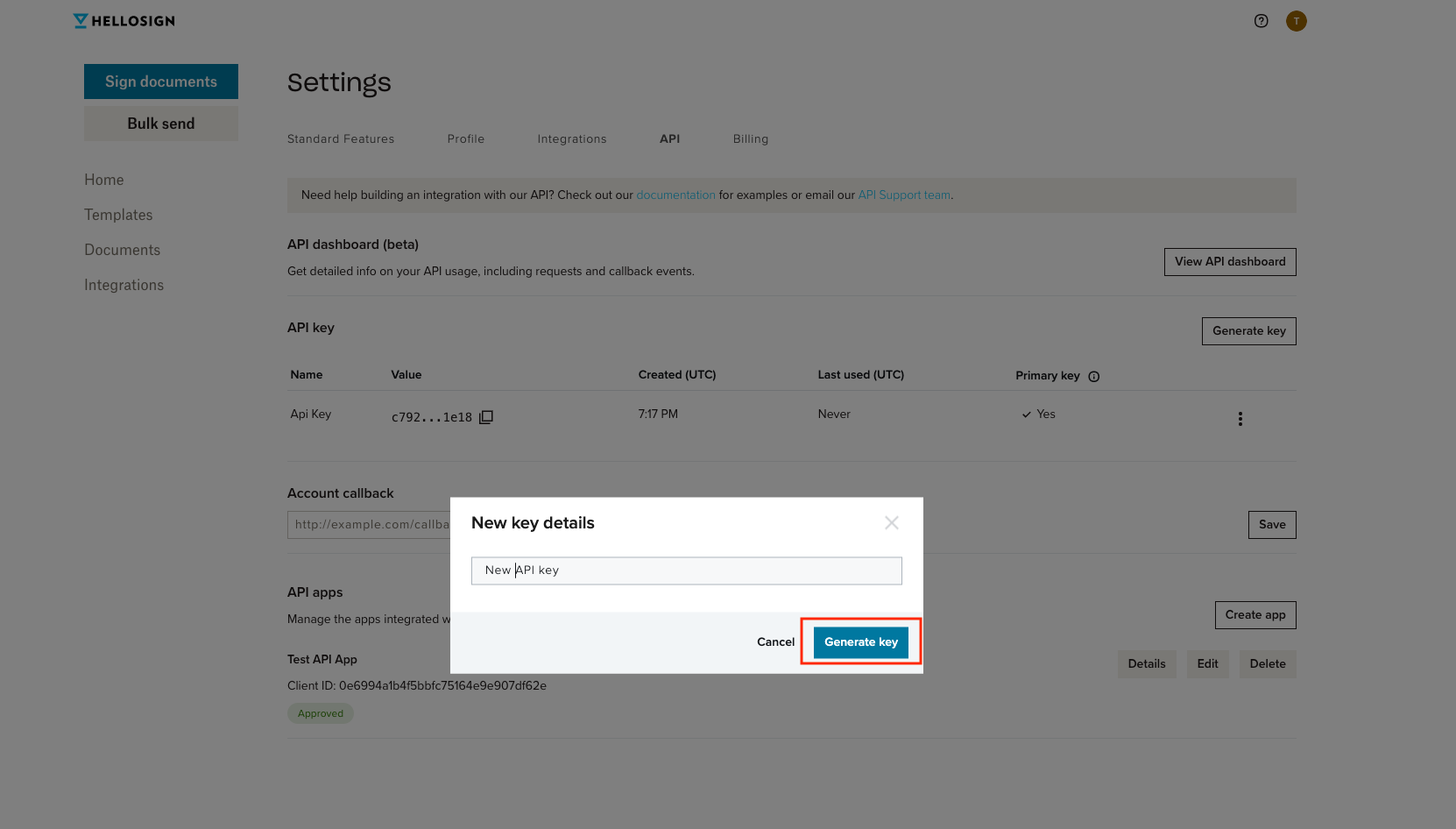
| 3. Name the new key and press **Generate key**.                                                                                                                                                                                                                                                                                                                 | ![Screenshot of modal to name new key.](https://files.buildwithfern.com/https://dropbox123432.docs.buildwithfern.com/b35274777df3b8917b2d0c6e0494cff5adfaf12c5b58a9a148fda44902547d81/docs/api-reference/api-images/rotate-key-step-three.png "#width=650px;")                                                                                                                                                                                                                                     |
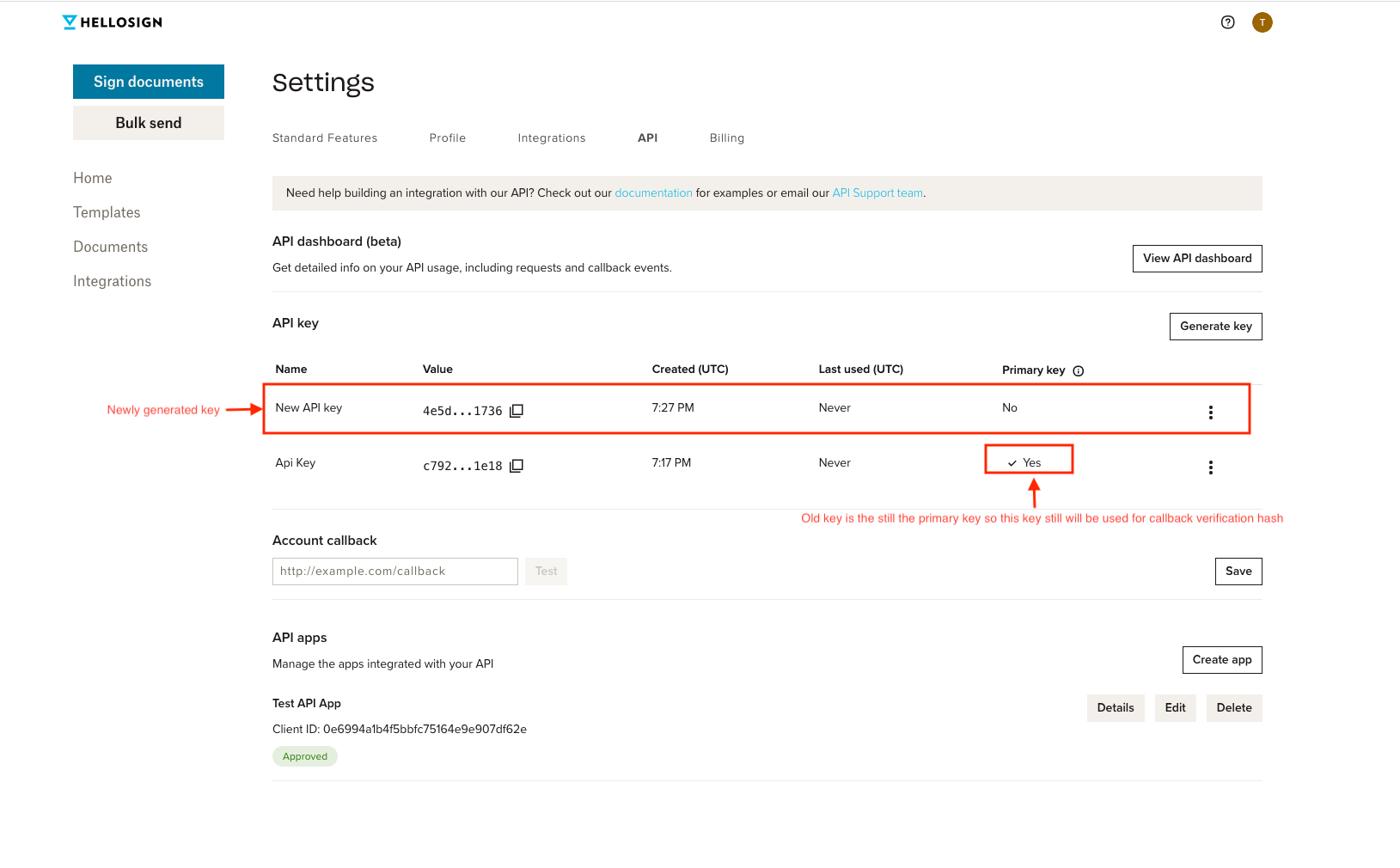
| 4. The new key appears on the API key table. Your previous key is still designated as the "Primary Key".<br /><br />**Don't change primary key yet.**                                                                                                                                                                                                           | ![Screenshot showing location of new key on api settings page.](https://files.buildwithfern.com/https://dropbox123432.docs.buildwithfern.com/936431511e95ab13de366900caa6bb78ac3506660994e091deb121d1d848a6fc/docs/api-reference/api-images/rotate-key-step-four.png "#width=650px;")                                                                                                                                                                                                             |
| 5. Update your code so API calls to Dropbox Sign use the new key.<br /><br />Does your app use Events and Callbacks?<br /> --> Yes — you have an extra step. See right column.<br /> --> No — move to next step.                                                                                                                                                | Any apps using [Dropbox Sign Events (webhooks)](/docs/events/overview/) must update their [event hash verification](/docs/events/walkthrough/#event-hash-verification) to use the new API key to avoid a disruption in service.<br />The `event_hash` included in event payloads is generated based on the API key set to Primary Key. |
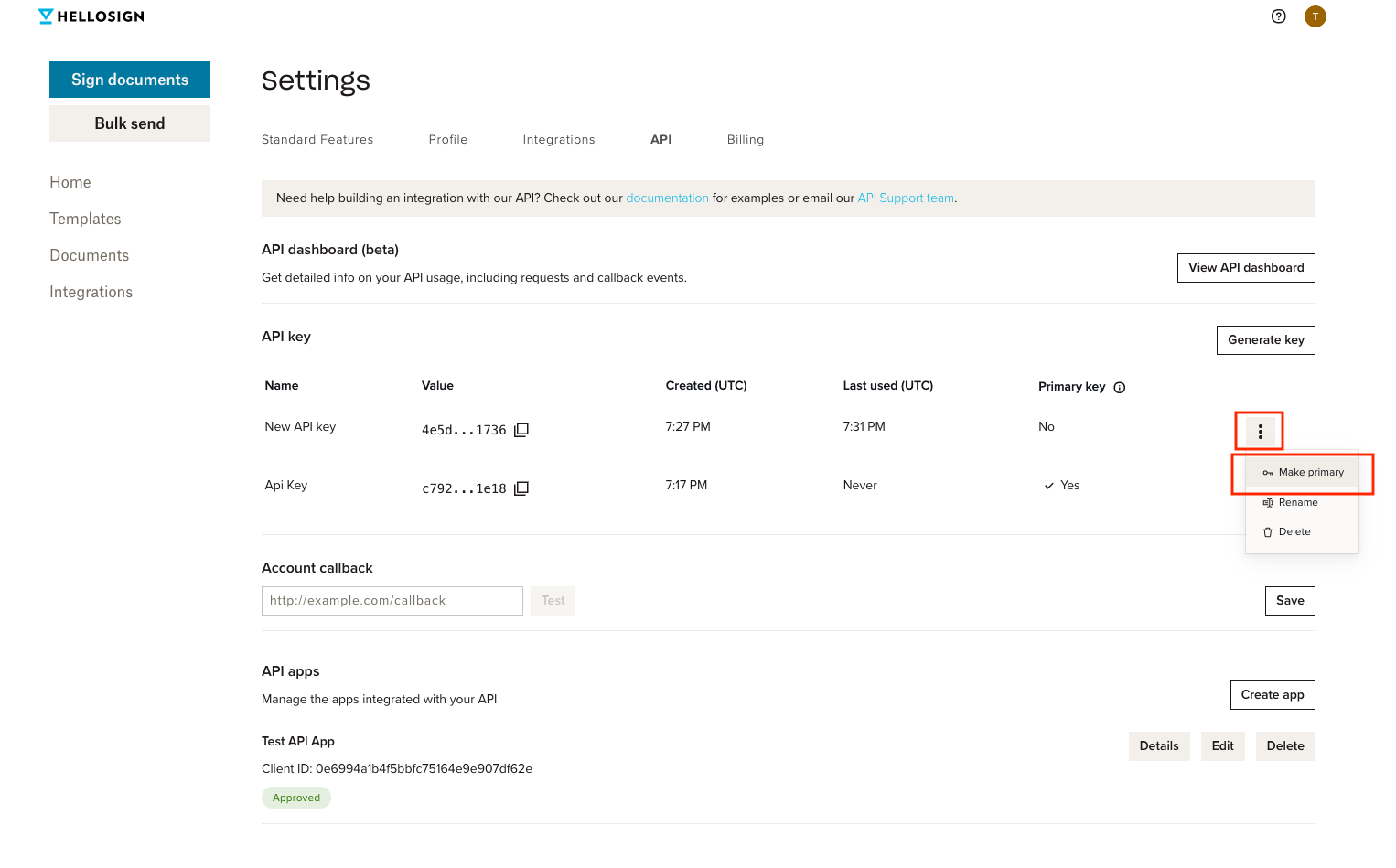
| 6. Return to your [API Settings](https://app.hellosign.com/home/myAccount?current_tab=integrations#api) page.<ul><li>Click the row's **menu button** ("⋮").</li><li>Click **Make primary**.</li></ul>                                                                                                                                                           | ![Screenshot showingl ocation of primary key button.](https://files.buildwithfern.com/https://dropbox123432.docs.buildwithfern.com/0b6102fbc59f06720706ecd0816ee17098b3ed2361e9ca27ddef6701022ee14c/docs/api-reference/api-images/rotate-key-step-six.png "#width=650px;")                                                                                                                                                                                                                       |
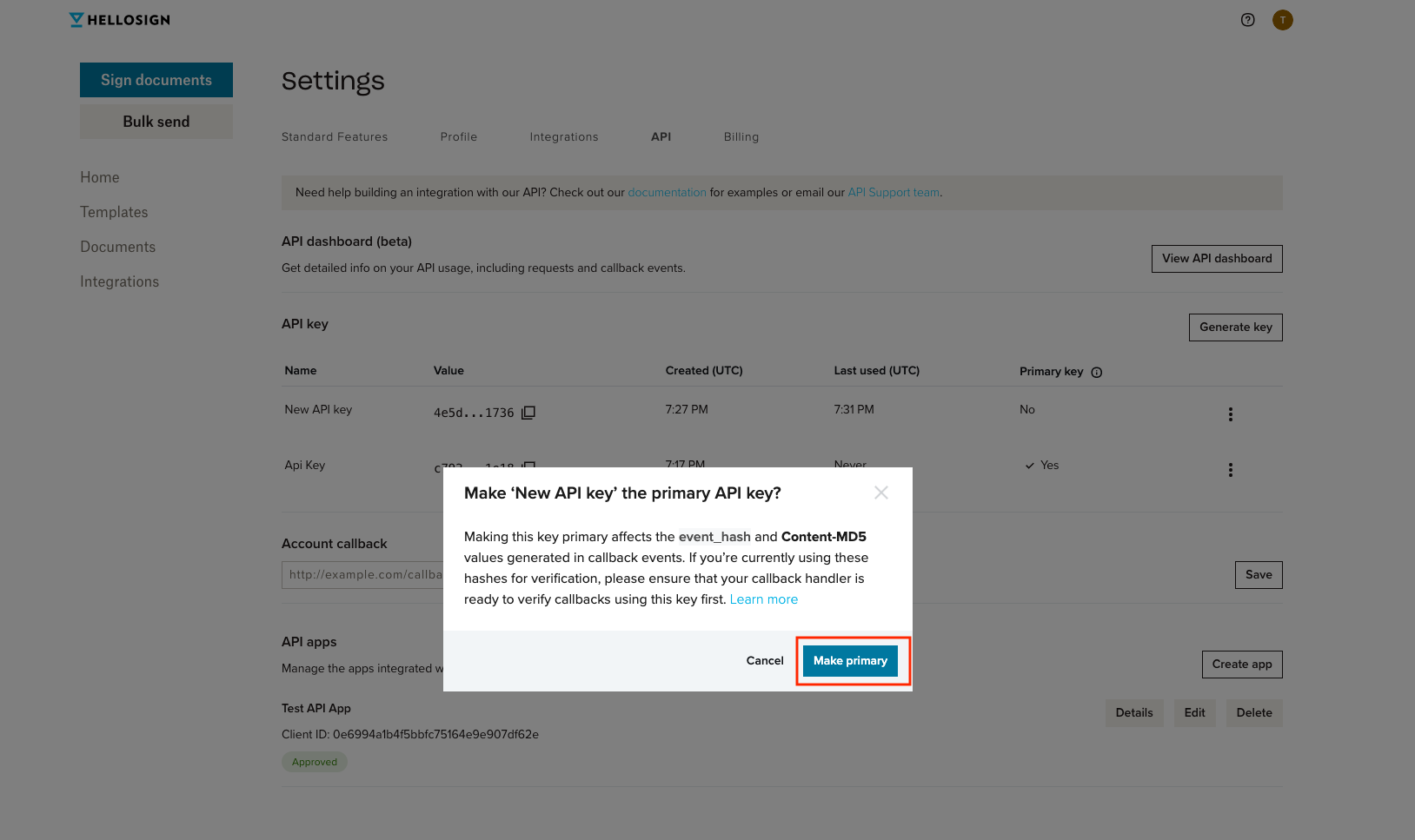
| 7. Verify you updated your [event verification](/docs/events/walkthrough/#event-hash-verification) and click **Make primary**.                                                                                                                                                                                                                                  | ![Screenshot of modal to confirm change of primary key.](https://files.buildwithfern.com/https://dropbox123432.docs.buildwithfern.com/4491a215da82be5d93c5ff9f53e63fe5d23173eb9e1d6ac10bde2c43dbb55e03/docs/api-reference/api-images/rotate-key-step-seven.png "#width=650px;")                                                                                                                                                                                                                    |
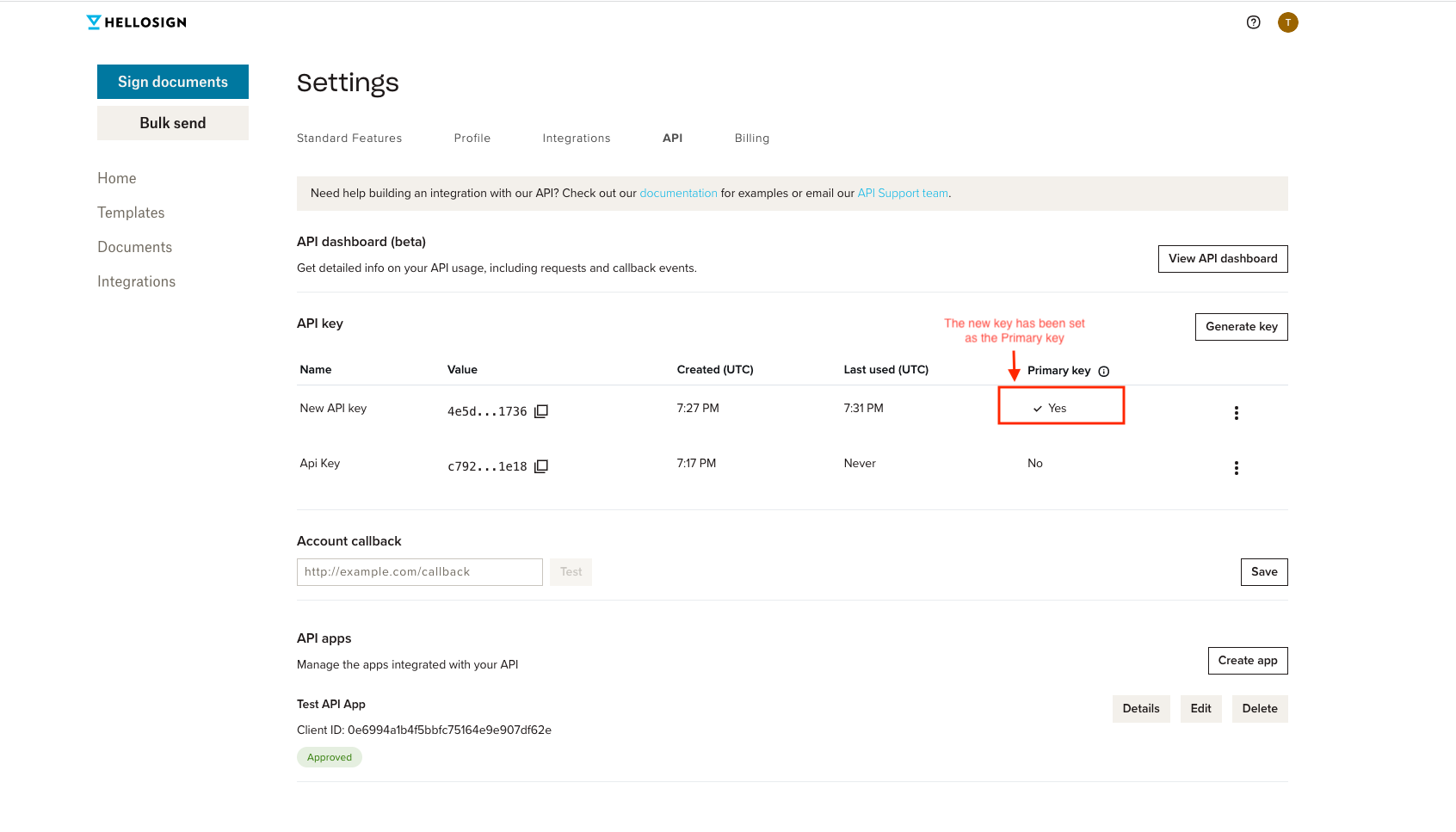
| 8. Interact with the Dropbox Sign features as a user would. Verify two behaviors:<ul><li>API calls are working.</li><li>Event payloads are being processed correctly.</li></ul> <br />Once confirmed, the end result is:<br /><ul><li>Your integration with Dropbox Sign API uses a new API key.</li><li>Service to your end users was not disrupted.</li></ul> | ![Screenshot showing timestamp of when new primary key as used last.](https://files.buildwithfern.com/https://dropbox123432.docs.buildwithfern.com/be855f9c763af71ab8b650655662b39d164944d1506cd36c7a722e7d30f108bf/docs/api-reference/api-images/rotate-key-step-eight.png "#width=650px;")                                                                                                                                                                                                       |

## Frequently Asked Questions (FAQs)

Answers to commonly asked questions. When in doubt, please reach out to [apisupport@hellosign.com](mailto:apisupport@hellosign.com)

<Accordions>
  <Accordion title="My API key was compromised, what should I do?">
    Do you suspect a breach?

    * Yes — Create new key and delete the compromised credentials immediately. You can fix your integration right after with minimal down time.
    * No — [Rotate your API key](#rotating-api-keys) as soon as possible.
  </Accordion>

  <Accordion title="When does my API key expire?">
    API keys are long-lived and do not expire. However, access tokens, which are used for [OAuth](/docs/oauth/overview/), expire after an hour and can be regenerated using a [refresh token](/api/reference/operation/oauthTokenRefresh/).
  </Accordion>

  <Accordion title="How do I get an API key for testing?">
    Any valid API key can be used for testing the Dropbox Sign API by including the `test_mode` parameter in your request. Dropbox Sign doesn't support different *types* of API keys, testing or otherwise.
  </Accordion>

  <Accordion title="How often should I rotate my API key?">
    We recommend rotating API keys at least once a year, but you can adjust the frequency to fit your security requirements.
  </Accordion>
</Accordions>